getting started
142 TopicsGetting Started on the Tech Community
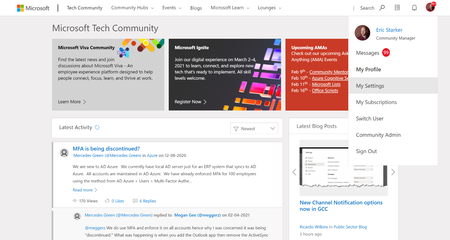
How to Sign In Click ‘Sign In’ at the top of the home page. Enter in your email address and password. You can choose one of the options below: Use your Microsoft Account (MSA) which could be an @outlook.com; @live.com, hotmail.com or other personal email address that you have set as a Microsoft account. Use the email address associated to your Office 365 or Azure account, which could be your work email address. If You See the Wrong Email When Registering When you go to register for the Microsoft Tech Community, the site automatically uses whatever Microsoft account you're currently signed into in your browser. This could be a personal account (like @outlook.com or @hotmail.com), your work email, or a school account. The site will often ask for your Microsoft login email and password—unless you already have an active session in your browser, or auto-login is enabled. In those cases, it may skip the prompt entirely and sign you in with whatever account is currently active. If you see that the site is registering you under an account you didn’t intend to use, it’s likely due to this automatic sign-in behavior. How to Register with the Correct Email To make sure you're signing in with the Microsoft account you want: Open an incognito or private browser window. This prevents the site from using an existing sign-in session. Navigate to https://techcommunity.microsoft.com. Click “Sign In” and log in with the Microsoft account you'd like to use. Complete the registration process as usual. Alternate Option: You can also: Sign out of all Microsoft accounts in your browser, Clear any cached login sessions if needed, Then return to the site and sign in with the correct account. Selecting Communities to Join Open the Communities page by clicking on the “Community Hubs” in the navigation menu on the top of the page. Pro Tip: You can also search for specific communities or spaces using the search bar as well. Completing Your Profile and Connecting Social Media Profiles Changing an Avatar 1.Click on the default avatar at the top right of the navigation bar and select “My Settings”. 2. Select the “edit pencil” icon on your profile picture under the Personal tab. Create a Bio 1. Click your avatar at the top right of the navigation bar and select “My Settings”. 2. You will find your bio under the Personal tab. Managing Preferences, Subscriptions and Notifications Subscriptions to blogs and spaces enables you receive an email notification when a new blog or post has been published. You will automatically be subscribed to topics you participate in. See the guidance below on managing subscriptions. Setting Preferences You may access your preferred display and time zone in the “Preferences” tab. Follow & Notifications You can also choose what content you would like to subscribe to or follow. As well as update your email notification settings. For more information on Contributing to the Community, please visit the supporting article. - Contributing to the Community - Microsoft Tech Community Contact us Have feedback or ideas for the community experience? Let us know in the Community Lounge! If you are unable to post, and your question is about the Microsoft Tech Community itself, please see this article for Guidance.145KViews98likes0Comments
The quick way for users to understand O365: The Periodic Table of Office 365
I consider myself a SharePoint geek, but I play more and more in the larger Office 365 (O365) sphere these days. In doing so, I’ve noticed that O365 as a concept is difficult to explain… both to IT folks and the everyday workers who are expected to use it. So I put together a new infographic that (hopefully) provides a quick intro to O365, its apps, and how they're all related. Good for both the IT crowd and lines of business. Check out my https://www.linkedin.com/pulse/everyday-intro-office-365-matt-wade below. [http://periodictableofoffice365.azureedge.net/#/office365/en]Solved18KViews21likes13CommentsMy name shows up as null null, why is this and how do I fix it?
Applies To: All users where their name shows as "null null" Roles Required: Any Occasionally when users register with the Microsoft Tech Community, their First and last names will show up as null null. This typically happens for one of a handful of reasons: The first and last name fields of the identity provider have not been filled in. A recently created account in AAD sometimes has not yet fully propagated to the Microsoft Graph API. An error occurred during registration. How to fix it? For issue 1, the fix is to either go to your Microsoft Account page and enter the missing details or contact your Office 365 / Microsoft 365 admin and request they complete these details for you. Which of these options is appropriate for you will depend on if you're using a personal account or an account provided by your employer. Once these details have been updated then use this login link, it will force the system to try to refresh your profile data from the Microsoft Graph. For issue 2, the only option is to wait a minimum of 8 hours and then use this link to login. Finally for issue 3, try using this login link to force a refresh and if it still doesn't work - see below. Further help Ok, so you have tried all of the above and it is still not working? then you can email the Microsoft Tech Community Team and we will usually get back to you with in 1 business day*. When you do contact us please provide the following information: Name: e-mail address you are trying to register with: Link to your profile: Any additional details or comments: *The Microsoft Tech Community Team are not available during US Holidays.17KViews1like0Comments
Microsoft copilot stops while giving a response.
Why is this happening? Is there a solution for this? It just stops while giving response. And it has happened several times. And you can't even give prompt to continue from there. You should restart it. Does anyone have a solution for this? and I have restarted and reinstalled it 1000 times.11KViews1like18Comments
MS Teams for Virtual classroom
Hi All, We are in phase 1 of Teams Only adoption/migration plan, and as we were looking at the different personas, we came across this specific need from the L&D team where they would like to leverage Teams as a Virtual Classroom tool. I have listed down the requirements of the classroom below. I am looking for ideas if someone has already used MS Teams in that capacity. Requirements Additional comments Availability in Teams Audio/visual capability (cameras and videos) Available Chat capability Available Raise Hand/Participant Status info It is essential to have this feature to avoid situations when people start to talk over each other. L&D team wants to create a comfortable environment where each attendee can speak without any interruption. Not Available Breakout Rooms Create small groups with 5 – 6 members and assign different topics to groups. Each group will join a separate breakout meeting to discuss the assigned topics. Not Available However, we can create different channels for each group/team and use the “Meet Now” capability as an alternative. Poll/Q&A capability Available only in Channel Meetings Whiteboard To brainstorm on ideas No Native app yet(https://microsoftteams.uservoice.com/forums/555103-public/suggestions/16938955-add-a-whiteboard) MS recommends using Freehand by Invision- 3rd party app Our main pain point is how to incorporate the "Hand Raise" capability in MS Teams Meeting.Solved11KViews3likes9CommentsRegulatory and Compliance Headaches?
Are regulatory and compliance requirements a source of frustration, stress, or uncertainty in your organization? Did you know that Microsoft has a product called Microsoft Compliance Manager (MSCM) that can help alleviate the stress, uncertainty and most importantly risk to your organization? The wait is over! Be a part of the movement that is MSCM and help guide its evolution. Your direct input and feedback is valuable to our teams here at Microsoft. A simple 10-minute survey, click here, can get you started down the road to better regulatory and compliance preparedness! It’s free for 90 days to all E3 and E5 customers, so what are you waiting for! Should you have any questions please reach out to mipcompcxe@microsoft.com. Also don’t forget to tell your teams about the recently published Microsoft Compliance Manager Ninja Training and the free 90 day trial for all customers!9.6KViews3likes3CommentsHow to change my community identity? (username & full name)
Changing Your Username You can update your username at any time by selecting your avatar in the top-right corner of the Microsoft Tech Community and navigating to My Settings. Alternatively, you may use the direct link below: https://techcommunity.microsoft.com/mysettings/personal Usernames must meet the following requirements: Between 4 and 40 characters in length May include letters ( a–z , A–Z ), numbers ( 0–9 ), underscores ( _ ), or hyphens ( - ) Must be unique across the community Note: Usernames containing spaces or periods (.) are no longer supported. Changing Your Full Name Your full name is automatically synced from your Microsoft account and cannot be edited directly through the Microsoft Tech Community website. If you use a personal Microsoft account Update your name using the following link: https://account.microsoft.com/profile/edit-name After updating your name, sign back into the community using this link: https://techcommunity.microsoft.com/plugins/common/feature/oauth2sso/sso_login_redirect If you use a work or school (Azure AD) account Your name is managed by your organization. Please contact your IT administrator and ask them to update your name in the Microsoft 365 User Admin center. Once your organization updates your details, sign back into the community using the link below to refresh your profile: https://techcommunity.microsoft.com/plugins/common/feature/oauth2sso/sso_login_redirect8.4KViews3likes0Comments[infographic] Where to start a conversation for teamwork in Office 365
Teams, SharePoint, Outlook, Yammer - all places for teamwork in Office 365. GREAT apps for sure but HOW to start with your teamwork in Office 365 ? It's not about what the products can do (they can do a lot :-) ) but what you as team can do with the products. Microsoft is explaining this with the 'Inner Loop' and 'Outer Loop'. I created an infographic for this - take a look!7.9KViews4likes0CommentsCompleting your profile & connecting social media profiles
Changing an avatar Click on the default avatar at the top right of the navigation bar and select 'My Settings'. Click the edit button over the current avatar. Upload your own image, or choose a default avatar, then click save. Create a bio Click your avatar at the top right of the navigation bar and select “My Settings”. Click on the Personal tab, and provide your name, preferred pronouns, bio, and other details about yourself. When finished, click 'Save'.7.6KViews21likes0Comments