files
68 Topics
How to Upload Files Using Office 365 Agents SDK Across Multiple Tenants
I'm currently working with the Office 365 Agents SDK and looking to implement a file upload feature that can work across multiple Microsoft 365 tenants. Specifically, I'm trying to understand: What is the recommended approach to upload files using the Agents SDK? How can this be done in a multi-tenant scenario, where files need to be uploaded for users across different organizations? Are there any authentication or permission considerations I need to keep in mind? If anyone has experience or sample code to share, it would be greatly appreciated!231Views0likes5CommentsCustom Teams AI Bot does not have attachment button
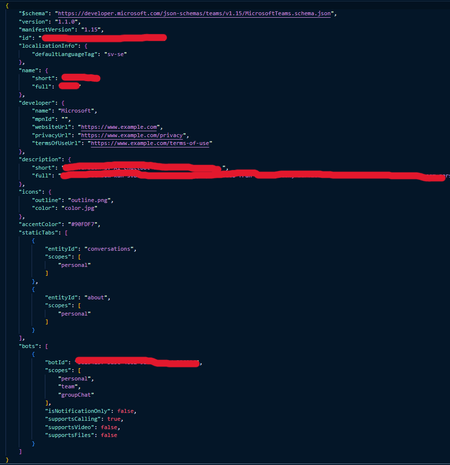
My team is developing a custom teams AI bot that allows for file uploads. When testing this feature using the edge and chrome debugging, the attachment button does not appear, or it will appear for a moment and then disappear. This seems to be an ongoing issue, and we would like to know if it has a simple remedy or if this problem needs to be escalated to Microsoft Engineers. Please see the following Microsoft developer forum topic discussing the same issue: https://techcommunity.microsoft.com/discussions/teamsdeveloper/file-upload-option-disappearing-in-teams-bot/4397456 My Manifest.json: Sensitive data has been removed "$schema": "https://developer.microsoft.com/en-us/json-schemas/teams/v1.19/MicrosoftTeams.schema.json", "manifestVersion": "1.19", "version": "2.0.0", "id": "${{TEAMS_APP_ID}}", "developer": { "name": "", "websiteUrl": "", "privacyUrl": "", "termsOfUseUrl": "" }, "icons": { "color": "", "outline": "" }, "name": { "short": "", "full": " " }, "description": { "short": "s", "full": "$[file('description.txt')]" }, "accentColor": "#005DAB", "bots": [ { "botId": "${{BOT_ID}}", "scopes": [ "personal", "team", "groupChat" ], "supportsFiles": true, "isNotificationOnly": false, ... }422Views0likes3Comments
Unable to load images in Link Unfurling Card
Hello, I am currently implementing the link unfurling feature, and am trying to include images. However, the images that are hosted by my service (currently deployed via ngrok for development purposes) are not loading correctly. I have noticed that the image URLs I place in my card get replaced with the URL pattern "https://us-prod.asyncgw.teams.microsoft.com/urlp/v1/url/content?url={image_url}". I have found that this service returns the error "Image file is corrupted" with a 415 status code. I have tried substituting these images for images at some public domain (e.g "https://raw.githubusercontent.com/..." and these images load successfully. I have verified that my ngrok URL is in the list of validDomains in my app manifest (even though githubusercontent.com is not). I have also gone so far as serving the same image file (verified via md5 hash) and included the same headers as the github image, but I still get the same 415 error. Can you confirm if there is an outright ban on ngrok or other reverse proxy tools? This tool is recommended in the Teams developer documentation. If this is not the issue, can you provide some further insight into the cause of the issue? I have included an example response to the link unfurling invoke request below. { "composeExtension": { "attachments": [ { "content": { "type": "AdaptiveCard", "body": [ { "columns": [ { "width": "auto", "items": [ { "altText": "Smartsheet logo", "horizontalAlignment": null, "style": null, "url": "https://us-prod.asyncgw.teams.microsoft.com/urlp/v1/url/content?url=https%3a%2f%2fwww.smartsheet.com%2fsites%2fdefault%2ffiles%2ffavicons%2ffavicon-32x32.png", "width": "20px", "height": "20px", "separator": false, "type": "Image" } ], "verticalContentAlignment": "center", "separator": false, "type": "Column" }, { "width": "stretch", "items": [ { "color": null, "horizontalAlignment": null, "isSubtle": false, "maxLines": 0, "size": "small", "text": "Smartsheet", "weight": null, "wrap": false, "separator": false, "type": "TextBlock" } ], "separator": false, "type": "Column" } ], "separator": false, "type": "ColumnSet" }, { "columns": [ { "width": "auto", "items": [ { "horizontalAlignment": null, "style": null, "url": "https://us-prod.asyncgw.teams.microsoft.com/urlp/v1/url/content?url=https%3a%2f%2fREDACTED-SUBDOMAIN.ngrok-free.app%2fstatic%2fimages%2fsheet_icon.png", "height": "auto", "separator": false, "type": "Image" } ], "separator": false, "type": "Column" }, { "width": "stretch", "items": [ { "color": null, "horizontalAlignment": null, "isSubtle": false, "maxLines": 0, "size": "large", "text": "REDACTED-SHEET-ID", "weight": "bolder", "wrap": true, "spacing": "None", "separator": false, "type": "TextBlock" }, { "color": null, "horizontalAlignment": null, "isSubtle": false, "maxLines": 0, "size": "small", "text": "Sheet", "weight": "lighter", "wrap": true, "spacing": "None", "separator": false, "type": "TextBlock" } ], "separator": false, "type": "Column" } ], "separator": false, "type": "ColumnSet" }, { "items": [ { "horizontalAlignment": null, "size": "stretch", "style": null, "url": "https://us-prod.asyncgw.teams.microsoft.com/urlp/v1/url/content?url=https%3a%2f%2fREDACTED-SUBDOMAIN.ngrok-free.app%2fstatic%2fimages%2fsheet_thumbnail.png", "height": "auto", "spacing": "Small", "separator": false, "type": "Image" } ], "roundedCorners": true, "id": "thumbnail", "separator": false, "type": "Container" }, { "actions": [ { "url": "https://REDACTED-DOMAIN/sheets/REDACTED-SHEET-ID?view=gantt", "title": "Open", "type": "Action.OpenUrl" } ], "spacing": "ExtraLarge", "separator": true, "type": "ActionSet" } ], "$schema": "https://adaptivecards.io/schemas/adaptive-card.json", "version": "1.5" }, "contentType": "application/vnd.microsoft.card.adaptive", "preview": { "content": { "type": "AdaptiveCard", "body": [ { "columns": [ { "width": "auto", "items": [ { "altText": "Smartsheet logo", "horizontalAlignment": null, "style": null, "url": "https://us-prod.asyncgw.teams.microsoft.com/urlp/v1/url/content?url=https%3a%2f%2fwww.smartsheet.com%2fsites%2fdefault%2ffiles%2ffavicons%2ffavicon-32x32.png", "width": "20px", "height": "20px", "separator": false, "type": "Image" } ], "verticalContentAlignment": "center", "separator": false, "type": "Column" }, { "width": "stretch", "items": [ { "color": null, "horizontalAlignment": null, "isSubtle": false, "maxLines": 0, "size": "small", "text": "Smartsheet", "weight": null, "wrap": false, "separator": false, "type": "TextBlock" } ], "separator": false, "type": "Column" } ], "separator": false, "type": "ColumnSet" }, { "columns": [ { "width": "auto", "items": [ { "horizontalAlignment": null, "style": null, "url": "https://us-prod.asyncgw.teams.microsoft.com/urlp/v1/url/content?url=https%3a%2f%2fREDACTED-SUBDOMAIN.ngrok-free.app%2fstatic%2fimages%2fsheet_icon.png", "height": "auto", "separator": false, "type": "Image" } ], "separator": false, "type": "Column" }, { "width": "stretch", "items": [ { "color": null, "horizontalAlignment": null, "isSubtle": false, "maxLines": 0, "size": "large", "text": "REDACTED-SHEET-ID", "weight": "bolder", "wrap": true, "spacing": "None", "separator": false, "type": "TextBlock" }, { "color": null, "horizontalAlignment": null, "isSubtle": false, "maxLines": 0, "size": "small", "text": "Sheet", "weight": "lighter", "wrap": true, "spacing": "None", "separator": false, "type": "TextBlock" } ], "separator": false, "type": "Column" } ], "separator": false, "type": "ColumnSet" }, { "items": [ { "horizontalAlignment": null, "size": "stretch", "style": null, "url": "https://us-prod.asyncgw.teams.microsoft.com/urlp/v1/url/content?url=https%3a%2f%2fREDACTED-SUBDOMAIN.ngrok-free.app%2fstatic%2fimages%2fsheet_thumbnail.png", "height": "auto", "spacing": "Small", "separator": false, "type": "Image" } ], "roundedCorners": true, "id": "thumbnail", "separator": false, "type": "Container" }, { "actions": [ { "url": "https://REDACTED-DOMAIN/sheets/REDACTED-SHEET-ID?view=gantt", "title": "Open", "type": "Action.OpenUrl" } ], "spacing": "ExtraLarge", "separator": true, "type": "ActionSet" } ], "$schema": "https://adaptivecards.io/schemas/adaptive-card.json", "version": "1.5" }, "contentType": "application/vnd.microsoft.card.adaptive" } } ], "suggestedActions": { "actions": [ { "type": "setCachePolicy", "value": "{\"type\":\"no-cache\"}" } ] }, "type": "result", "attachmentLayout": "list" }, "responseType": "composeExtension" }Solved269Views0likes2Comments
file upload option disappearing in teams bot
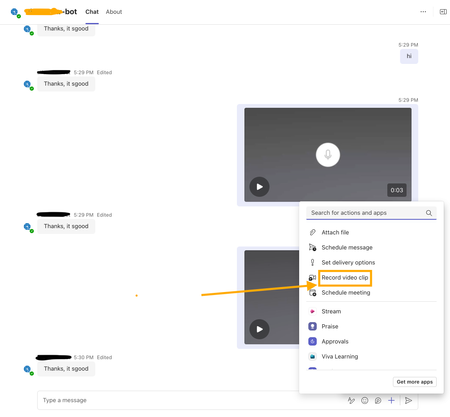
We have Teams bot (we're the developer). When users first start teams, they have the file upload option available under the + button next to the type a message box. However, shortly afterwards, this option disappears. Not all users, just some. Seems to occur for both Mac and Windows users. Our manifest looks like this: { "$schema": "https://developer.microsoft.com/en-us/json-schemas/teams/v1.19/MicrosoftTeams.schema.json", "manifestVersion": "1.19", "version": "1.0.7", "id": "xxxxxxxx-xxxx-xxxx-xxxx-xxxxxxxxxxxx", "developer": { "name": "example", "websiteUrl": "https://www.example.com", "privacyUrl": "https://www.example.com/privacy", "termsOfUseUrl": "https://www.example.com/privacy" }, "icons": { "outline": "example_mono.png", "color": "example_portrait.png" }, "name": { "short": "example", "full": "example, your digital assistant" }, "description": { "short": "example is a digital AI assistant designed to streamline your workflow.", "full": "example is an advanced AI-powered professional assistant developed by example, crafted to enhance productivity and efficiency in the workplace. With a focus on accuracy and a professional demeanor, example assists with information retrieval, scheduling, communication, and various tasks, ensuring that you have more time to focus on what matters most in your business." }, "accentColor": "#fb9745", "bots": [ { "botId": "yyyyyyyy-yyyy-yyyy-yyyy-yyyyyyyyyyyy", "scopes": [ "personal" ], "isNotificationOnly": false, "supportsFiles": true, "commandLists": [ { "scopes": [ "personal", "team" ], "commands": [ { "title": "New", "description": "Starts a new conversation" } ] } ] } ], "permissions": [ "identity", "messageTeamMembers" ], "webApplicationInfo": { "id": "yyyyyyyy-yyyy-yyyy-yyyy-yyyyyyyyyyyy", "resource": "https://RscBasedStoreApp" }, "validDomains": [ "*.ngrok-free.app", "*.ngrok.app", "exampledev.ngrok.app" ] } ``` As far as I can see from the current manifest schema, the bot needs no other scopes. Is this a known bug or are we screwing something up with the config? Any help appreciated!595Views0likes14CommentsHow to Download Video Clip from Microsoft Teams Programmatically
I’m developing a bot app for Microsoft Teams, and part of its functionality involves handling videos recorded using the Teams widget(see screenshot attached). I am receiving a video clip link in the bot app's backend message. Where is this video file uploaded and how can I download the video clip using that link? I have attempted the SSO auth via Entra ID to fetch the auth token and attached it against the GET request to the video clip link as the bearer token. But still getting 401 errors? Need help and guidance in this matter. Thanks.418Views0likes6Comments
File handler configuration does not update
Hi team, We recently had an integration with Microsoft file handler. During the deployment of the application, we encountered some issues, so we updated the file handler configuration via the manifest file. Some users who installed our application still see the old file handler configuration and are experiencing problems because of it. They want to either update it to the latest configuration or remove it completely so they can continue their work normally. We did try to guide them to reset the file handler cache as in: https://learn.microsoft.com/en-us/onedrive/developer/file-handlers/reset-cache?view=odsp-graph-online But seems like only some of them got the updated config, while the rest keep getting the old one, even after 1-2 weeks. Do you have any advice on how to completely resolve this issue?305Views0likes4Comments
Teams bot not working when deployed
I have developed a RAG chat bot with Azure OpenAI and Teams Toolkit for VSCode. When I run the app in debug it works perfectly as expected, the problem is when I upload it to Teams it only sends the welcome message, then error messages. I published it to Teams with "Zip Teams App Package", and uploaded the zip file there. I suspect there might be a problem with the manifest, but would be grateful for any other pointers that might cause this issue. This is what my manifest file looks like:595Views0likes1CommentTeams sorting files with special characters at the beginning
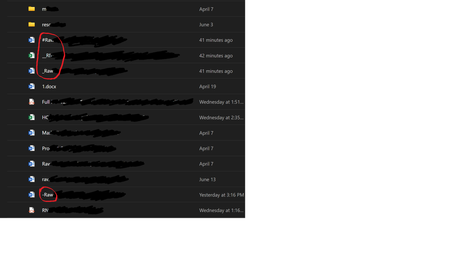
Hello everyone, I need to reproduce the sorting algorithm used in teams. On the attached screenshot you can see, that all files whose name starts from "_" or "#" go before "1" and all other files, but "-" is just ignored. I need to be sure, that my sorting reproducing will work the same as teams. Is there a clear explanation of how it works? Should I consider it as a bug in MS Teams?Solved577Views0likes7Comments
Is possible to configure in a teams group conversation the repository of files of that conversation?
Hello: I need to be able to configure a specific repository files where people of teams conversation group can save files. Only for that conversation.I describe the scenario: I need to create, dynamically, different group conversations depending on what theme is discussed, i will add different members to every conversation. I will create a new specific folder (each time) in a teams channel group where only all conversation members and channel members will have all permissions. Is it possible to configure the repository of files for each conversation so that it points to the folder created and shared in teams channel? (see image attached) If it's possible, I need to know which are the commands or functions that permits that. I would like to use them in powerapps program. Thank you very much.431Views0likes3CommentsPotential Vulnerability: Access to Devices on Network via Teams
Hi. Not sure if this is the right place for this. Does anyone know / have come across, a vulnerability that follows this user journey: 1. Meeting Request Sent to victim via third party 2. Meeting commences 3. Third party accesses victim device (that meeting is taking place on) + devices connected to the network + has ability to modify, delete, add files on network connected devices + schedule events to take place on devices connected to the network. When experienced the victim witnesses and major increase in CPU and Memory Useage + activity in applications managed at the enterprise level (Adobe Creative Cloud, N-Able, Citrix). Connected to the attack, the victim also notices otherwise non-malicious scripts launching from PDF and Image documetns that the Third Party had sent in the lead up.223Views0likes0Comments