error
13 TopicsError: The provided client secret keys are expired
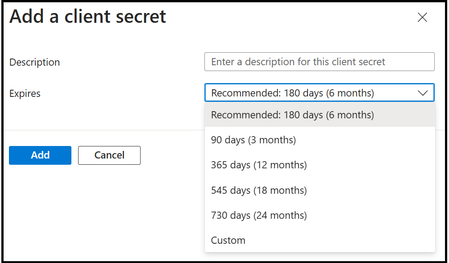
If you have been using Microsoft Graph Data Connect for a while, you might have configured a recurring pipeline that has been running for several months. In that case, you might run into this error: Operation on target task_name failed: ErrorCode=UserErrorOffice365SinkValidationError, 'Type=Microsoft.DataTransfer.Common.Shared.HybridDeliveryException, Message=Office365 data loading job failed to validate the sink data store. Possible causes are the name of the data store or its folder path is invalid, or the provided credentials do not have enough permission to access the folder. Detailed error: ADLS Gen2 operation failed for: Failed to get access token by using service principal. Error: invalid_client, Error Message: A configuration issue is preventing authentication – check the error message from the server for details. You can modify the configuration in the application registration portal. See https://aka.ms/msal-net-invalid-client for details. Original exception: AADSTS7000222: The provided client secret keys for app 'xxxxxxxx-xxxx-xxxx-xxxx-xxxxxxxxxxxx' are expired. Visit the Azure portal to create new keys for your app: https://aka.ms/NewClientSecret, or consider using certificate credentials for added security: https://aka.ms/certCreds. Trace ID: xxxxxxxx-xxxx-xxxx-xxxx-xxxxxxxxxxxx Correlation ID: xxxxxxxx-xxxx-xxxx-xxxx-xxxxxxxxxxxx Timestamp: 2024-11-26 18:35:23Z. Account: 'account_name'. FileSystem: 'container_name'. Path: 'folder_name'., Source=Microsoft.DataTransfer.ClientLibrary,' The main error is really "The provided client secret keys for app 'x' are expired." The solution is simple. Go back to Azure Entra ID to configure a new secret for the App Registration. You can follow the instructions at step 1b in our Synapse step-by-step instructions to add a new secret. Finally, be sure to add the new secret to the link services of the pipeline (you need to update both the source (Source/MGDC) and the destination (Sink/Storage). You avoid this issue completely by keeping track of the secret expiration date and creating a new one (and updating the pipeline) ahead of time. You can have multiple secrets in place, allowing for this secret rotation to be done proactively.Error: Consent not found
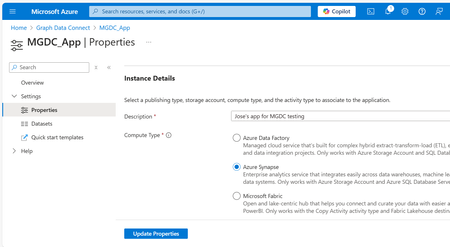
If you have been using Microsoft Graph Data Connect for a while, you might have configured a recurring pipeline that has been running for several months. In that case, you might run into this error: Operation on target <name> failed: ErrorCode=UserErrorOffice365DataLoaderError, 'Type=Microsoft.DataTransfer.Common.Shared.HybridDeliveryException, Message=Office365 data loading failed to execute. office365LoadErrorType: PermanentError. Consent not found. The consent for application [xx] was either never granted or expired. Learn more at https://aka.ms/mgdcdocs/appconsent., Source=Microsoft.DataTransfer.ClientLibrary,' The main error is really " The consent for application [x] was either never granted or expired.” If this is the first time you are running this pipeline, you could be missing the consent in Azure (it was not yet approved by your Microsoft 365 Administrator). If this was working before, it has likely been more than 6 months since it was approved, and the consent has expired. The solution is simple, done in just 2 steps: In the Azure Portal, go to the Microsoft Graph Data Connect application and update it. In the Microsoft 365 Admin Center, approve the application update. To update the application, search for the “Microsoft Graph Data Connect” service in the Azure Portal at https://portal.azure.com or navigate directly to https://aka.ms/MGDCinAzure to get started. Once there, click on the MGDC Application your created previously (that is the request for consent), click on Properties on the left navigation bar and then click on the “Update Properties” button. You do not need to change any of the properties. After you update the consent request, you need to approve the update in the Microsoft 365 Admin Center. This process is described in item “1h. Approve the Microsoft Graph Data Connect Application” in the step-by-step guide. Before you update the application properties in the Azure Portal, it will show in the list in the Microsoft 365 Admin Center as “Expired”. After you update the properties, it will show in the list as “Update Available”. Once you approve and everything is ready, it will show as “Approved.” Just click on the app and follow the steps to approve it. That is it! Now you can just run the pipeline again and everything will work as before. Until it is time to update the consent again in 6 months… You can avoid this issue completely by keeping track of the MGDC Application consent date and updating it ahead of time. You can update the application and continue to use the earlier consent until the Microsoft 365 Administrator approves the new one, allowing for this consent rotation to be done proactively. For more about MGDC for SharePoint, visit the main article at https://aka.ms/SharePointData.Error: Value cannot be null - Empty Columns
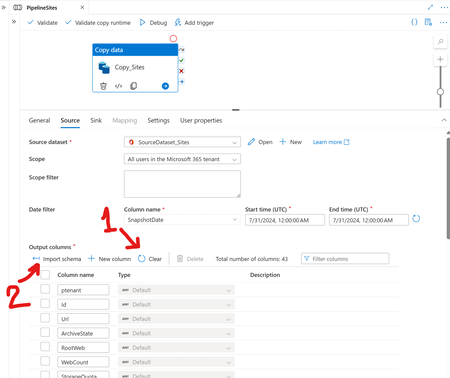
A few customers are seeing an issue with Synapse pipelines for Microsoft Graph Data Connect for SharePoint. The symptom is straightforward: you get an error message saying that the "Columns" parameter in the request is null. It shows something like this: Operation on target TTT failed: Activity failed because an inner activity failed; Inner activity name: XXX, Error: ErrorCode=UserErrorOffice365DataLoaderError, 'Type=Microsoft.DataTransfer.Common.Shared.HybridDeliveryException, Message=Office365 data loading failed to execute. office365LoadErrorType: PermanentError. Value cannot be null. Parameter name: Columns, Source=Microsoft.DataTransfer.ClientLibrary,' This error is basically telling you that the Columns parameter is required and cannot be null. The columns, defined in the source definition of the copy data task, should have been automatically populated for you, so this is not expected. To fix it, you can try these steps: Opening the pipeline that failed Select the copy data task in the pipeline Select the source tab Under "output columns" click on "Clear" Under "output columns" click on "Import Schema" Publish the pipeline changes Trigger the pipeline again The picture below shows the two options you need to click on I hope this article can help you fix your pipeline. For more articles on Microsoft Graph Data Connect for SharePoint, see https://aka.ms/SharePointData
Sharepoint fails to show all videos in a folder in thumbnail mode - plz help!
Hi. I have problem with Sharepoint. I've uploaded videos and SP is only showing some of the files, not all. If I hide thumbnail column all videos are available but if I turn thumbnails on, only some are available. File type is MP4 and this happening to some of the videos, not all (folders). And we really want to keep thumbnails > this helps and speeds up finding the right files a lot. Any help in this is highly appreciated.2.3KViews0likes1CommentSpelling Pop-Up Stuck on SharePoint List
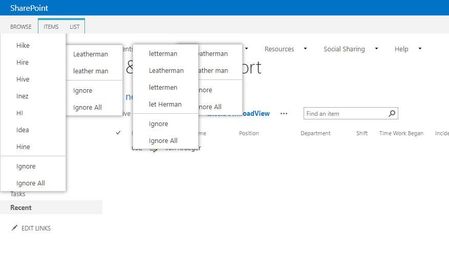
Hello Everyone, My team is having an issue with a SharePoint list view. Spellcheck pop-ups are stuck in the top left-hand side of the screen. The list has three different views. The first and second view are completely fine, and there are no pop-ups. The third view, however, has 4 different spelling pop-up errors. This is also not a browser-based issue, as it's happening in every different browser. Could this be an issue with a corrupt item(s) within the list? Has anyone seen this before, and if so, how is this error resolved? Thank you very much!1.7KViews0likes1Comment
Error: This File is locked for exclusive use by (users name)
I am the owner/admin of our site and I have 5 users who have access to edit/create documents in a Document Library. We are using Sharepoint online (Modern) and have not had this issue until last week. The error is only affecting 1 user out of the 5. All 5 users are creating documents the exact same way. The user has tried creating a new document online and has also tried creating a document in Word then uploading the document and she is getting the same error message. Does anyone have a solution besides waiting until it unlocks?23KViews0likes1CommentSharePoint loading blank page; Modern SharePoint sites not loading with error
Our users have been having quite a few issues off-late on SharePoint online. We are on Office 365 and use SharePoint online. We are on first release too. 1) SharePoint loads a blank page <tenant-name>.sharepoint.com/_layouts/15/sharepoint.aspx <- this site It loads absolutely blank page. no error. no nothing. this happens with a few users. not sure how many yet. 2) SharePoint modern sites dont load. Some do. Some don't. I haven't been able to identify any pattern. Again quite a lot of users affected. Not sure how many. Every time we navigate to any of the modern sites we get the follow error. Sorry, something went wrong Can't load the application on this page. Use the browser Back button to retry. If the problem persists, contact the administrator of the site and give them the information in Technical Details. TECHNICAL DETAILS Error details: Error: SPFx loader is not present in the page. This issue has been very random. It works one day then it doesn't another. It works in morning then it doesn't in evening. Weird. Currently, I am facing this issue for a few days now. :( I have also raised this as a ticket with Microsoft, but the agent wanted me to download a log keeper app then run the app and make logs etc. Honestly, I was not comfortable to do so and also, don't think I have the time and knowledge of understanding that. It seemed like a big process I had to run. On TechCommunity, I have only seen one or two threads about which are hardly concluding anything. Googling got me a few links on StackOverflow and Reddit etc., but no real solution in any of them. Is there anyone who can help with this? Also, if you know someone from Microsoft who is active here, who can help, then please tag them. Thanks!60KViews1like13Comments
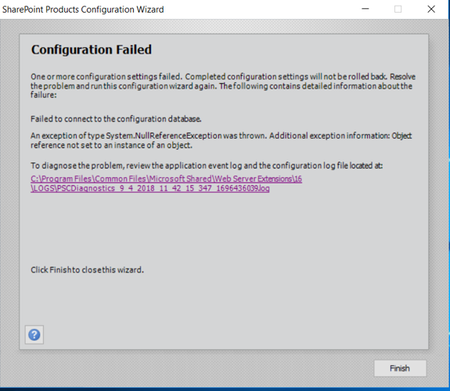
(Please help!!) SharePoint 2016 Products Configuration Wizard Installation Error
Hi, I have 2 virtual machine servers(windows 2016) created by Hyper-V, we are trying to use those two server to set up sharepoint 2016 and Sql 2016 separately. Everything is fine when I install sharepoint 2016 on application server, but there is an error message pop-up during I set up SharePoint 2016 Products Configuration Wizard(attached below).I looked up a lot of relevant information on Google, but It hasn't been solved yet. For now, I've checked these things out: 1) User Permissions 2) Firewall doesn't block access and communication with your Microsoft SQL Server. 3) SQL database is running and services. 4) The ports on both server are open Please HELP!!!! Thanks!4.6KViews0likes9Comments