document processing
150 TopicsMicrosoft 365 Copilot and AI Agent readiness and resiliency with SharePoint Content Governance
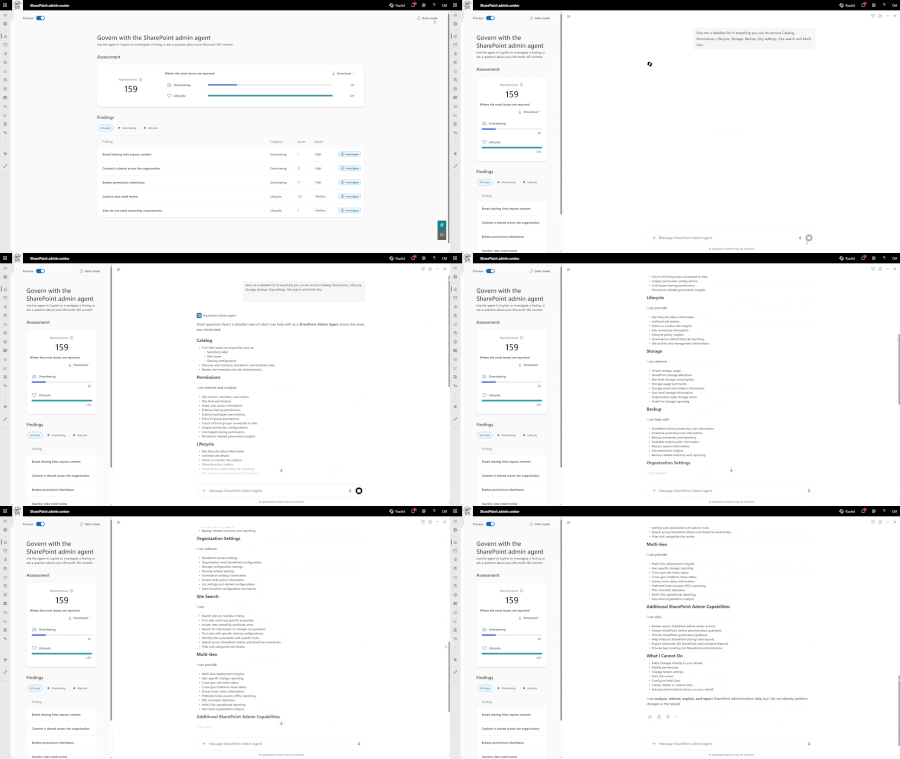
In the AI era, governance isn't a barrier to innovation. It's what makes innovation possible at scale. Winning with Copilot and AI agents takes more than speed and scale. It requires readiness to embrace AI and resilience to recover when things go wrong. That's the power of AI-first governance: accelerating innovation, strengthening trust, and maximizing AI ROI. Today at Microsoft Ignite ’26, we're announcing exciting new content governance innovations to help organizations accelerate their Frontier Transformation with AI Agents, Autopilots, Agent 365, and Work IQ. Governance innovations for resilient AI at scale As you unveil AI Agents in your organization, either just getting started or deploying at scale, content governance becomes even more important to get it right. SharePoint is the #1 content citation source in Microsoft 365 Copilot and AI Agents. Let us look into SharePoint content governance innovations across two main themes - readiness and resiliency, along with foundational security and enterprise lifecycle scenarios. Readiness for AI at scale covers the elements of content permissions/oversharing, lifecycle, and sprawl. In addition, new security and storage management capabilities, all powered through new agentic skills. These elements take center stage in the boardrooms as they could become an inhibitor for organization’s AI transformations. Resilient AI is all about business continuity, especially in the era where agents are integral part of the workforce. Organizations must be prepared for unforeseen situations such as an agent going rogue and accidentally deleting content. With this backdrop, let us dive into innovations across the following pillars: Readiness for Copilot and AI Agents at Scale SharePoint Admin Agent - Enhancements Govern agents' traffic to M365 resources Enhancements in SharePoint oversharing controls Resilient AI: Business continuity even when agents go off script Rewind when agents go off script Microsoft 365 Backup: Teams support Entra Backup Security and Compliance capabilities in SharePoint, OneDrive, and Teams Microsoft 365 Storage Management and Enterprise Lifecycle Readiness for Copilot and AI Agents at Scale Readiness is about ensuring your content is permissioned rightfully, organized in manageable clusters, has lifecycle guardrails, and in parallel knowing agent traffic across your Microsoft 365 estate before AI Agents use it. We are bringing many innovations to Copilot native governance capabilities powered by SAM (SharePoint Advanced Management) and to agent governance in the lens of Microsoft 365 resources. Let’s dive in. 1. SharePoint Admin Agent – Generally Available At Microsoft 365 Confernece’26, we introduced the SharePoint Admin Agent, Microsoft’s first-party AI assistant for managing your rapidly growing digital estate across Microsoft 365. As the content backbone of Microsoft 365, SharePoint powers Teams, OneDrive, Loop, Copilot, and more. It sits at the center of content governance, spanning permissions, lifecycle, resilience, and relevance across users, apps, and now - AI agents. The SharePoint Admin Agent brings these capabilities together in one simple conversational experience, with powerful skills across Permissions and Oversharing Management, Storage, Lifecycle, Multi-Geo, and Catalog. Today we are thrilled to announce many enhancements in the admin agent. SharePoint Admin Agent’s Starter Prompts: You can try various starter prompts categorized under various skills – Catalog, Permissions, Lifecycle, Storage, Organizational Settings and Multi-Geo. Permissions and Oversharing Management skill – Generally Available Empowers admins to use natural language to detect and proactively address oversharing risks, uncover who has access to what, and take targeted action to better protect sensitive content. For example, you can simply ask “Find overshared sites in my tenancy” and the agent, regardless of if you have millions of sites, will curate the list for you to review and help act on. Figure. SharePoint admin sees permissions and oversharing management skill of SharePoint admin agent in action Lifecycle skill – Generally Available Ensuring content is current is critical to ensuring that Copilot serves the right content and with optimal utilization of storage. Helps admins stay in control of content from creation to end of life by identifying inactive, outdated, and ownerless sites and enabling actions like reviews and archival. For example, you could simply ask the agent: “List my inactive and ownerless sites”. Figure. SharePoint admin sees lifecycle skill of SharePoint admin agent in action Storage skill – Generally Available Gives admins a clear view of tenant storage trends and active-versus-archive growth, helping them identify content sprawl, optimize capacity, and reduce unnecessary costs with confidence. Here are some of the prompts that you can use in this v2 release, more enhancements are upcoming. "Compare active and archive SharePoint storage growth" "Help me set up a file archive policy" "How much version storage is used across the tenant?" Figure. SharePoint admin views storage skill of SharePoint admin agent in action in Copilot Multi-Geo skill – Generally Available Microsoft 365 Multi-Geo enables customers to comply with their organization's data residency requirements by ensuring that users' data is hosted within a specific geo where the user is located. The new Multi-Geo skill in SharePoint Admin agent assists the admin in moving the OneDrives to the user’s Preferred Data Location (PDL) along with following key capabilities: Identify content to be moved Initiate moves: Move OneDrives to users' Preferred Data Locations. Monitor moves: Track the status and progress of ongoing moves across OneDrive, SharePoint sites, and Microsoft 365 Groups. Catalog skill – General Availability The Catalog skill connects the SharePoint Admin Agent to Catalog Management, so the agent understands your tenant the way your business is organized. Using built-in categories like Department and Locale, along with any custom categories you've added, the agent can: Show how content is organized in your tenant: View site counts, site lists and groups of content in Catalog. Organize content using the skill: Leverage Catalog skill to create most relevant groups of SharePoint sites and OneDrive accounts with recommendations such as group sites in a certain department that are Highly Confidential. Recommend next steps: such as inactive content cleanup, archiving, version-history limits or a permissions review, scoped to the right group of sites instead of the whole tenant. Governance Hub for Admins – Generally Available Dec 26 As organizations accelerate their AI transformation, content governance can quickly become overwhelming. Admins don’t need more reports. They need to know what needs attention, what to do next, and have a simple way to act. Today, we’re thrilled to introduce Governance Hub for Admins, powered by the SharePoint Admin Agent. It is readily available in Home tab of the SharePoint Admin Center and brings assessments, findings, recommendations, and actionable tasks together into a single experience - helping admins move from insight to action and govern content at scale 2. Agent governance in the lens of Microsoft 365 resources SharePoint, OneDrive, and Teams SharePoint and Teams administrators often ask – for my top secret and confidential resources, which agents are accessing them and who instantiated them, can I control at site or team level which agents are allowed? We have an answer for you. Agent 365 offers a breadth view of all agents in your enterprise. To complement that breadth view, we are introducing depth view of agents in the lens of Microsoft 365 resources, specifically SharePoint sites, Teams, and OneDrive under the umbrella of Agent Lineage. The new Agent governance node in the SharePoint admin center puts every agent governance action against Microsoft 365 resources in one place. Admins can go from insight to action without switching between reports and settings. Start with the Overview. The Overview page gives you the big picture: how many agents are accessing your Microsoft 365 content, which agents and resources are most active, which content Microsoft 365 Copilot uses most, and how that access breaks down by sensitivity label and department. Suggested actions, such as restricted access control (RAC), restricted content discovery (RCD) and site access reviews, are one click away. Drill down with the Agent Access Heatmap. It provides a panoramic view of your Microsoft 365 resources be it millions of SharePoint or OneDrive sites or Teams along with the agentic traffic. Agent Access Heatmap for SharePoint and OneDrive – General Availability Dec’26 Agent Access Heatmap extends Microsoft Agent 365 capabilities with content context. The heatmap offers rich visual insights on agent access with additional dimensions like sensitivity, departments, and agent platforms – giving you visibility in a single view. Admins now have effective tools for observing and governing agent actions like pausing agentic access to a site or scoping more granular access. Find the busiest areas, then apply the appropriate content guardrails as needed. Control whom an agentic user can collaborate with – Public Preview Dec’26 As agentic users proliferate in your organization, they can accumulate content permissions and further share it with other users in your organization while performing their work, like human users. To ensure agentic users securely collaborate with other users and in essence of work, you need a simple way to control which users the agentic users can collaborate with. We are thrilled to introduce a control that does just that. When a new agent template is onboarded in Agent 365 portal, you can turn on the setting for “Restrict collaboration by agentic users” which will ensure agentic users associated with this agent template can only share sites and content with their manager. While AI admins can set the collaboration boundary when onboarding an agent template in Agent 365, SharePoint admins can now manage it, along with the rest of their agent content guardrails, from the new Settings page under Agent Governance in the SharePoint admin center. What you observe in the Agent Access Heatmap, you can now act on in Settings. Restricted access for apps and agents at site level – General Availability Every Entra registered agent has a blueprint identity, much like third-party applications. The agent blueprints and applications with broad reaching permission across all sites or teams in your organization can increase the risk of data disclosure. We are thrilled to introduce restricted app access control - a new setting that empowers SharePoint Administrators to achieve fine-grained permissions by restricting which 3rd party applications or agent blueprints can access specific business critical sites or high-profile users' OneDrive data. Simply run the below cmdlet using SharePoint Online Management PowerShell: Set-SPOSiteRestrictedAppAccessControlList –Identity <SiteURL> -ListType DenyList -AddRestrictedAppIds <ApporAgentBlueprintIDs> 3. Enhancements in content oversharing controls viz. SAM Permissions and oversharing report for Autopilots & Groups - Generally Available Site Permissions reports now extend to Microsoft 365 and Security Groups and Autopilots, enabling admins to instantly identify every site a user/group or autopilot can access and the scope of that access — closing a critical blind spot in oversharing governance. And clear remediation pathways are available through Restricted Access Control (RAC) and Restricted Content Discovery (RCD) policies. Learn more. Figure. SharePoint admin viewing permissions report for specific Autopilots users have instantiated Figure. SharePoint admin viewing permissions report for specific large security groups Catalog management with custom SharePoint Properties – Generally Available At Microsoft 365 Conference’26 we introduced Catalog Management V1. It brings order to sprawling SharePoint estates by grouping sites the way your business actually works: by department, region, project or function. The result is a central catalog of sites you can understand, govern and get ready for Copilot and agents. Today, we're taking it further. You can now tailor Catalog Management to your tenant using information you already have. There are three new ways to customize your catalog: Custom SharePoint site properties: use the site metadata you already maintain. Microsoft Entra ID extension attributes: group sites using the attributes already set in your directory. CSV site lists: upload your own list of sites to create a custom group. You don't have to rebuild your structure from scratch. Your catalog reflects how your organization is already set up, and it updates as your metadata changes. Figure. SharePoint admin configuring catalog groups with custom SharePoint site properties Governance Hub for Site Owners – Public Preview Site owners have a critical role to play in ensuring accuracy of site information, including the site's necessity, its owners, members, permissions, and sharing settings. We’re introducing the Governance Reviews Dashboard, a centralized, actionable view where site owners can see all pending site governance reviews (inactivity, ownership, attestation, access reviews) across the sites they own. The dashboard shows required actions, due timelines, and site enforcement status and allows site owners to act directly from one place. Combined with consolidated policy notifications, it replaces multiple emails with a single, actionable governance surface. Resilient AI: Business continuity even when agents go off script Resiliency is all about business continuity so that in unexpected situations like ransomware incidents or agents gone rogue, which will happen, and accidentally deleting content you can recover quickly. 1. Agent rewind – Private Preview Security 101 foundational primitive is – assume breach. In the same fashion in the AI agentic era, the first principle is – assume agents go rogue. But then, what will you do when an agent has gone rogue and deleted or made read-only massive number of resources in your Microsoft 365 tenancy? No worries, this is where Agent Rewind comes to action. Today, we are thrilled to announce the Private Preview of Agent rewind, one of the existential resiliency capabilities that you need for this AI agentic era wherein you can rewind unintended actions. Simply pick a time stamp to which you want to “rewind” your Microsoft 365 resources, Agent Rewind will take care of brining that known good state. In fact, it can suggest to you a good time stamp too. Connected with this preview, we are also launching in-line anomaly detection and prioritized recovery so that you can react to specific events like ransomware or mass deletions and recovery your most recently active content first to get back to business quickly. Sign up here for the preview here. 2. Microsoft 365 Backup In the AI era, the speed at which individuals get work done is greatly accelerated. So too is the speed at which bad actors can take advantage of weaknesses in cyber-attack scenarios, and the speed at which an inadvertent agentic action can take place. Given this, it's more important than ever to put proper resilience capabilities in place. Microsoft 365 Backup was built to do just that, in a uniquely secure, scalable, and performant manner. For those not familiar, Microsoft 365 Backup provides ultra-fast large scale and backup (near day-zero protection) and recovery capabilities. The solution is a critical component of any M365 customer’s cyber resiliency story. You can onboard the native M365 Backup application via the M365 admin center, or you can leverage a Microsoft 365 Backup Storage app built by the one of the recognized backup partner solutions. Just be sure to ask for the version of the partner app built on M365 Backup Storage MBS to get the performance and security benefits of the platform. For example, Veeam Data Cloud Premium and AvePoint Express Recovery for Microsoft 365. These vendors provide extended capabilities that deliver a fuller set of capabilities to you to ensure you never have to trade off speed for feature or service coverage. You can get everything you need and more with one of their better-together M365 Backup Storage hybrid solutions. We heard from our customers and partners about the need to expand and extend native platform capabilities. Teams Backup – Private Preview Today, we’re expanding Microsoft 365 Backup with Teams Channel Backup in private preview, helping organizations protect the collaboration that keeps work moving. Administrators can protect channels and associated data within a Team, recover channels including their associated SharePoint content, and restore deleted or edited channel text messages within a 30-day recovery window. New channels created in protected teams are automatically protected, reducing administrative effort and helping organizations recover from accidental deletion or unwanted changes with confidence. Note that hard deletion protection/recovery is not yet supported. Interested in the preview, sign up here. Entra Backup and Recovery Premium - Public preview Business resilience starts with resilient identities. Today, we’re announcing the public preview of Microsoft Entra Backup and Recovery Premium, integrated with Microsoft 365 Backup. Daily snapshots provide a 30-day recovery window for users, groups, applications, and Conditional Access policies, and agent identities and agent blueprints, enhancing agentic resiliency. Separately, hard deletion protection can now be enabled. Learn more about that here. 90-day to 10-year Backup Restore Point Retention Generally Available Customers have varying recovery window needs. 90-day to 2 year protection and recovery windows is now generally available for OneDrive accounts, SharePoint sites, and Exchange Online mailboxes. Additionally, upto 10 year recovery window is now available for SharePoint sites and OneDrive accounts, helping organizations recover business-critical content long after a snapshot is created. Administrators can configure each backup policy’s recovery window to 3 months, 6 months, or 1–10 years in one-year increments. Longer recovery windows are opt-in, with recovery history building over time. Learn more about configuring the backup recovery window. Security & Compliance capabilities in SharePoint, OneDrive, and Teams 1. App Intelligence for SharePoint and OneDrive – Generally Available Dec 2026 As AI-native apps multiply, admins need a clear answer to a simple question: which apps can reach our content, and should they? We have an answer for you. Today, App Intelligence is generally available worldwide in the SharePoint admin center. It brings together application permissions and available activity data in one place, so admins can see which apps need attention, why they matter, and what to do next. Working with the SharePoint admin agent, admins can: Review priority apps that need immediate attention, based on permission scope, sensitive-site reach and observed activity. Assess high privileged access to focus on apps with broad or tenant-wide permissions, with a clear distinction between what an app is allowed to do and what it was actually observed doing. Restrict access when an app's risk warrants action, with guided steps to apply Restricted Access Control. View the assessment report and download the evidence needed for follow-up with security and compliance teams. To get started, open App Intelligence in the SharePoint admin center and select Review priority apps in the Copilot pane. Learn more Review application access with App Intelligence. Figure. App intelligence in SharePoint Admin Center is in action 2. Microsoft Baseline Security Mode (BSM) 2026 – General Availability Security is no longer a point-in-time deployment — it’s a continuous journey. At Ignite ’25, we introduced Microsoft Baseline Security Mode 2025 to help organizations move from one-time hardening to secure-by-default protections that keep pace as their environments change. Today, we’re announcing the General Availability of Microsoft Baseline Security Mode (BSM) 2026, next major milestone in the BSM journey in helping organizations operationalize secure by default protections across their Microsoft environments. We are expanding with more Microsoft services configurations and adding application pillar. Check out Microsoft baseline security mode blog. 3. Microsoft 365 Information Barriers (IB) enhancements Microsoft 365 Information Barriers (IB) is a compliance control that prevents specific people or groups in an organization from communicating or collaborating with each other across Microsoft 365 services. It’s mainly used to avoid conflicts of interest and meet FINRA regulatory requirements. We are happy to announce the following enhancements to Microsoft 365 Information barriers: Teams Explicit Mode – Public Preview We heard your feedback for enhancements in Teams IB. Today we are thrilled to announce public preview of Teams Explicit Mode support. With this control, admin can update an existing ‘Implicit’ mode Team to ‘Explicit’ mode. The access and sharing of the associated Team’s SharePoint site and Microsoft 365 group will honor the Explicit mode setting. Agent Builder people picker experience honors Info Barriers – General availability We are thrilled to announce that agent builder people picker experience now honors information barriers (IB). With this control, users will only be able to share a declarative agent with other compatible users in the tenant. Learn about Information Barriers | Microsoft Learn Microsoft 365 Storage Management and Enterprise lifecycle 1. Microsoft 365 Archive Automated file level archive in SharePoint – General Availability You can now go to the SharePoint admin agent and ask it to: "Help create an inactive files archive policy by archiving all files that have not been accessed in 12 months." It is that simple to achieve archival of inactive content in SharePoint. File level Archive gives you a way to detect and move inactive files without needing to archive the whole site, saving you 75% off list in storage costs. That content remains searchable by end users or admins, is easily reactivated in place by any user with file read permissions and continues to work seamlessly with Purview functionality. Best of all, you are only charged for usage if your total storage consumption is greater than your pre-allocated quota, and there are no reactivation fees (just like site archiving)! Existing manual and API-based controls are still available, with controls spanning admin, site, file-level UI, and through Graph APIs or PowerShell. SAM (SharePoint Advanced Management) Inactive File Policy – Public Preview To make the process of identifying and acting on inactive files, we are excited to announce inactive files policy - adding to our portfolio lifecycle products in SAM. Simply configure the inactivity period, file types, and scope of sites, and SAM lifecycle engine will take care of the rest. Use the new New-SPOFileArchivePolicy PowerShell cmdlet to create policies that automatically archive inactive SharePoint files, or ask the SharePoint admin agent to create the policies for you. 2. Microsoft 365 Storage Management Enhancements SharePoint Admin Agent: Storage Skill – Generally Available As referenced above, we heard your feedback to make storage management seamless, and this Ignite we are thrilled to share an agentic way to manage your storage growth. Announcing general availability of Storage Agentic Skill, part of the SharePoint Admin Agent. You can ask basic to advanced storage related questions to the agent, and it will do the hard work of analyzing all your sites in your tenant and provide answers and actionable insights. Tenant-wide Version Trimming and What-if Analysis – Public Preview The “what if analysis” capability gives you a way to test which versions the trimming feature will delete and what the impact of that action will be. You can then run the actual tenant-level trimming job to free up storage space. This is very similar to the existing site and doclib level trimming capabilities but expanded for a tenant-wide job. The tenant-wide version trimming and what-if analysis is available to all Copilot customers. The initial release will be via PowerShell only and will be followed up by SharePoint admin agent support. Learn more about trimming versions at tenant level. SharePoint Extra Storage Pay-as-you-go Meter – General Availability in Jan 2027 We’re also making it easier than ever to manage and pay for your active data. Microsoft 365 SharePoint Storage is in public preview and goes to general availability in Jan 2027. This pay-as-you-go meter allows you to grow your active storage usage with very little operational overhead. It works seamlessly with Microsoft 365 Archive so that you are charged the lowest possible blended rate only for storage that you're using on a daily basis (charged monthly). Archive usage is charged if total active + archive storage usage exceeds your pre-allocated quota. Now there's no need to prepay up to a year in advance for storage packs that you'll grow into later, no need to try to precisely manage that prepaid level through predictive efforts, and no risk of breaching storage payment compliance. Pricing for the pay-as-as-you-go meter matches the storage pack at $0.20/GB/month. Learn more about enabling Microsoft 365 SharePoint Storage. 3. Microsoft 365 Enterprise Lifecycle Enhancements Multi-Geo: Default geo move – Public Preview Microsoft 365 Multi Geo provides enterprise customers with the ability to expand their Microsoft 365 presence to multiple geographic regions within a single existing Microsoft 365 Tenant. A Multi-Geo tenant has a default geography, and one or more satellite geographies where their tenant data is stored. As Microsoft opens new data centers in new countries, some customers wish to relocate their default geography to a new location. For example, a customer may choose to relocate their default geo from the Europe macro-region to the Germany local region, to ensure that data resides within Germany. We are now enabling customers to change their primary geo for SharePoint and OneDrive from a broader region like Europe or Asia Pacific to a more specific local region like Germany or Korea, respectively. This capability is currently in public preview. Get started now! If you are new to Microsoft 365, learn how to try or buy a Microsoft 365 subscription. For all the private previews mentioned in this blog, you can sign up Private Preview. Ignite’26 Conference – Related Sessions BRK218: SharePoint: Modernize your knowledge platform for the AI era , Tues 11/17, 2:00 PM – 2:45 PM, Moscone West | Level 2, Room 2002 THR852: Why AI Fails Without a Knowledge Strategy, Tues 11/17, 4:40-5:05 PM Moscone South | The Hub, Theater D BRK211 - Secure and Govern Microsoft Copilot and Cowork, Thurs 11/19, 11:30 AM - 12:15 PM, Marriott Marquis | Lower B2, Yerba Buena Salon 9 LTG1168: The foundation of Trusted AI: SharePoint security and resiliency, Thurs 11/19, 9:00-9:15 AM, Moscone South | The Hub, Lightning Talk 2 BRK219: AI in the Flow of Work: OneDrive for the AI Era, Thurs 11/19, 2:45 to 3:30 PM PT Marriott Marquis, Lower B2, Yerba Buena Salon 7 BRK217: Real-World AI Transformation with Copilot in SharePoint, Thurs 11/19, 4:00 PM – 4:45 PM, AMC Metreon | Level 3, Theater 12 LAB650: Build a Knowledge-Powered Workspace with Copilot in SharePoint, Tues 11/17 | 2:00 PM – 3:15 PM, Wed, 11/18 | 4:00 PM – 5:15 PM, Thurs, 11/19 | 4:30 PM – 5:45 PM, Fri, 11/20 | 10:45 AM – 12:00 PM PREL39 - Ready secure govern Copilot & Cowork, Mon. 11/16, 1:00 PM – 5:00 PM, Moscone West | Level 2 | Room 2016 Ignite on-demand session: Agent rewind – Brad Gussin Ignite on-demand session: Agent governance for M365 Admins – Agent Lineage – Vinod Kurpad443Views0likes0CommentsIgnite’26 Spotlight: Announcing Microsoft Baseline security mode 2026 General Availability
Security is Microsoft’s top priority At Microsoft, security is our top priority. Through the Secure Future Initiative (SFI), we're turning lessons learned into stronger security across everything we build and deliver. Customers consistently ask three questions: What is Microsoft’s secure-by-default benchmark for Microsoft 365, Windows, and Azure? How does SFI translate into better security for customers? Is my tenant’s security posture hardened per Microsoft’s recommendations? Microsoft Baseline security mode (BSM) is designed to help answer these questions. It brings Microsoft's recommended security controls, directly to customers out of the box available to the administrators directly in the Microsoft 365 admin center. First introduced at Ignite 2025, BSM takes another major step forward today. Today at Microsoft Ignite 2026, we're announcing that Microsoft Baseline security mode (BSM) 2026 is now generally available, with a phased rollout across all supported Microsoft 365 cloud environments worldwide. Microsoft Baseline Security Mode marks a significant step forward in making security the default, helping organizations move from fragmented security configurations to a more consistent, integrated approach. It is built on Microsoft’s experience operating secure cloud services, responding to incidents, and applying lessons from the Secure Future Initiative (SFI). BSM combines ease of use with advanced capabilities to help harden your Microsoft cloud services’ security posture, every day, week, and year, with minimal effort. BSM is a Continuous Journey Microsoft Baseline security mode is not a one-time feature; it is an evolving standard. We continue to regularly strengthen the baseline with additional configurations across Microsoft cloud services. BSM 2025 marked the first milestone, starting with Microsoft 365 and Entra. BSM 2026 expands coverage to Purview, Intune, and Dynamics 365, with Azure and Windows in private preview. Future releases are expected to expand the baseline across Microsoft cloud services. Here’s what’s new in BSM 2026 compared with BSM 2025: Expanded with more workloads: BSM 2026 extends protection beyond the original five BSM 2025 workloads (Office, SharePoint, Teams, Exchange, and Entra) to include: o Microsoft Intune o Microsoft Purview o Dynamics 365 o Azure (in Private Preview), and o Windows (in Private Preview). New Applications category: In addition to the three categories that BSM already has, BSM 2026 now covers what applications can do, how they access data, and which permissions they hold. With Applications added, Baseline security mode 2026 spans four categories: o Applications o Authentication o Devices & Endpoints o Files Expanded coverage within the existing categories: New recommendations include stronger macro security and blocking native COM add-ins in Office, requiring multifactor authentication (MFA) for guest users, requiring dual admin consent for critical Intune operations, disabling classic SharePoint page creation and more. Enable Baseline security mode in the Microsoft 365 admin center As Global Administrator, you can navigate to: Microsoft 365 admin center → Org Settings → Security & Privacy → Baseline security mode to get started with BSM. BSM 2026 introduces 24 new settings. Administrators can apply each setting or run them in simulation mode to evaluate potential impact within their tenant. BSM provides flexibility and control, enabling administrators to manage each setting independently. This phased approach is designed to help administrators transition to secure-by-default configurations. Let’s deep dive into some of the BSM 2026 settings. Microsoft Baseline security mode 2026 settings Applications The Applications category in BSM 2026 addresses what apps can do, how they access data, and the permissions they hold. In BSM 2026 we are making generally available 16 applications settings. Highlights are below. For the full list see the Microsoft baseline security mode – Learn article New apps require assignment of the tenants allowed to access them (Entra) Allowing applications to span multiple tenants is a security risk. With this Entra setting, admins are empowered to control the tenants that a given app is allowed to be instantiated. Block COM add-ins that aren't on the admin allow list (Office) In the same fashion as Apps, admins can control the list of COM add-ins that are allowed in their organization. Require external users to wait in the lobby before joining meetings (Teams) Security risk increases when external users are brought into the workforce as the policy drift might happen for them. Much like there are controls for secure collaboration, for secure Teams meetings admins can now require externals users to wait in the lobby before joining meetings. Disable guest users from having eDiscovery roles (Purview) Purview eDiscovery roles are highly privileged, allowing users to search a broad range of Microsoft 365 content and export the results. Assigning these roles to external guests poses a significant risk unless those guests have been vetted and explicitly authorized for this access. This BSM 2026 setting blocks external guests from holding eDiscovery roles by default. Block creation and editing of classic pages in SharePoint sites (SharePoint) This setting prevents users from creating new classic SharePoint pages or editing existing ones, including publishing, wiki, and web part pages. Existing published pages remain viewable the setting does not delete them. It helps reduce risks from harmful script injection and unsupported legacy customizations while encouraging adoption of modern SharePoint experiences. Report applications without Exchange App RBAC permissions (Exchange) This setting identifies applications accessing Exchange without Exchange App RBAC (role-based access control) permissions, giving administrators visibility into apps that may have overly broad access. These insights help administrators prioritize permission reviews and identify opportunities to limit app access to the mailboxes they need. Require scoped access to files and sites for High Privileged Applications (HPA) (SharePoint) This setting requires highly privileged applications to use a defined, limited scope when accessing OneDrive and SharePoint files and sites, rather than relying on unrestricted, organization-wide access. It helps reduce the risk of unauthorized access and data leakage from broadly permissioned apps. Authentication The Authentication category in BSM strengthens how users and apps sign in, helping reduce credential theft, account takeover, and access through outdated authentication methods. In BSM 2026 we are making generally available 4 authentication settings: Don't allow Microsoft 365 trial tenants to federate with your organization (Teams) Block external apps from using pre-authenticated tokens to access OneDrive and SharePoint content (SharePoint) Enable Continuous Access Evaluation (CAE) (Dynamics 365) Require MFA (multi-factor-authentication) for guests and external users (Entra) BSM 2025 we brought in MFA for admin accounts and upleveling that baseline for external users. This setting is designed to significantly reduce the risk from external access across Microsoft 365 services, including Exchange, SharePoint, OneDrive, Teams, and Microsoft 365 apps. To strengthen your security posture, we strongly recommend requiring MFA for external users. Devices & Endpoints Stronger device security starts with hardening through a device management soluion like Intune. The Devices & Endpoints category introduces four critical Intune security settings to strengthen device protection: Alert users when a new device is enrolled (Intune) Require a device compliance policy (Intune) Restrict the number of devices a user can enroll (Intune) Require a second admin to approve sensitive actions (Intune) The key safeguard: Two admins, one critical action. Sensitive Intune changes require a second administrator's approval, helping prevent unauthorized or accidental changes. Azure – now part of Microsoft Baseline security mode (Private Preview) Microsoft Baseline security mode expands to include seven settings across Azure Storage and Azure Key Vault, now available in Private Preview. The Azure Storage settings require secure transfer, prevent anonymous public access, enforce a minimum TLS version, and prevent Shared Key authorization; the Azure Key Vault settings restrict public network access and require purge protection and soft delete. Together, these settings provide an Azure Policy-based foundation that gives administrators visibility into security posture and workload impact before enrolling ready scopes for enforcement. Learn more about Azure settings -part of Microsoft Baseline security mode. Enroll in the preview https://aka.ms/M365BaselineSecurityModeEnroll Windows – now part of Microsoft Baseline security mode (Private Preview) Microsoft Baseline security mode expands to include three Windows settings, enable virtualization-based security (VBS), enable secure boot, and enable the security processor, now available in Private Preview. The VBS setting isolates security-sensitive operations from the main operating system; the secure boot setting helps prevent malicious software from loading at startup; and the security processor setting uses dedicated hardware to help protect sensitive data, including credentials and keys. Together, these settings provide a foundation that gives administrators visibility into Windows security posture and helps strengthen device protections. Learn more about Windows baseline protection – part of Microsoft Baseline security mode. Enroll in the preview https://aka.ms/M365BaselineSecurityModeEnroll BSM enhancements to support your security journey (Private Preview) In response to your feedback, BSM introduces four new features in private preview to help administrators review security posture, share progress, and put configurations in context. Preview features are available to a limited set of customers and may change before general availability. Action oriented dashboard. Review your BSM security posture through a dashboard focused on the settings that need attention. Downloadable security and compliance reports. Download reports to support security reviews and compliance discussions, and share a view of your BSM posture with stakeholders. Regulatory framework mapping. View BSM settings in the context of regulatory frameworks to support compliance and audit conversations. BSM does not guarantee compliance with any law or regulatory framework. Customers remain responsible for their own compliance obligations. Geo locations (for Multi-Geo tenants). Bring geographic context into your review of BSM posture across Multi-Geo environments. Enroll in the preview https://aka.ms/M365BaselineSecurityModeEnroll Figure 7. Baseline security mode dashboard showing posture summaries, category progress, and regulatory framework coverage. On the roadmap: BSM 2025 as the default for all new Microsoft 365 tenants As part of strengthening our customers’ secure-by-default posture, BSM 2025 will become the default configuration for all new Microsoft 365 tenants. Following its announcement at Ignite 2025, we strongly encourage existing Microsoft 365 and Entra customers to opt in to all BSM 2025 settings. On-Premises Baseline security mode As outlined in early November 2026 here, we are making new investments to reduce On-Premises security risks. Within the Secure pillar of the on-premises security initiative, we’re hardening the products themselves through On-Premises Baseline Security Mode, starting with supported Exchange Server, SharePoint Server, and Skype for Business Server workloads. On-Premises Baseline Security Mode is designed to make the default security posture stronger, reducing the number of recommended security settings administrators must configure and maintain manually. For supported on-premises server workloads, it starts with a validated and tested secure-by-default configuration from initial deployment, while preserving administrator control. To learn more, check out: New Investments to Reduce On-Premises Security Risk | Microsoft Community Hub Get started To get started with Microsoft Baseline security mode 2026, as it rolls out, sign in with your global admin account to Microsoft 365 admin portal and open Baseline security mode settings. If you are new to Microsoft 365, learn how to try or buy a Microsoft 365 subscription. With built-in dashboards and telemetry, BSM provides visibility into security configurations and a predictable, secure-by-default foundation to help organizations of all sizes reduce legacy risks, strengthen protection, and support compliance and audit readiness References: Microsoft baseline security mode – Learn article Microsoft Secure Future Initiative Azure Baseline security mode – Learn more Windows baseline protection – Ignite announcement Microsoft Corporate adopts BSM - https://aka.ms/msd-baselinesecuritymode Need help. Engage with FastTrack – https://aka.ms/BSMFastTrack Join us at Ignite in our sessions: LTG1168: The foundation of Trusted AI: SharePoint security and resiliency, Thurs 11/19, 9:00-9:15 AM, Moscone South | The Hub, Lightning Talk 2 BRK211 - Secure and Govern Microsoft Copilot and Cowork, Thurs 11/19, 11:30 AM - 12:15 PM, Marriott Marquis | Lower B2, Yerba Buena Salon 9 Thank you!346Views0likes0CommentsNew Word view-only experience shows outdated SharePoint Quick Part values
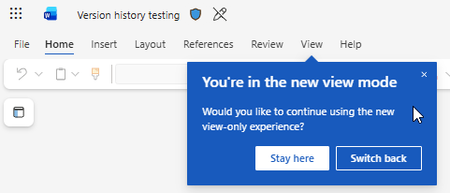
Hi everyone, We are seeing outdated Quick Part values with the new view-only experience in Word for the web when opening Word documents from SharePoint Online. One particularly critical example is the document version number. I would really appreciate help from other Microsoft 365 customers to determine how widespread this issue is. This is particularly important for us because we use SharePoint as part of a Document Management System, where SharePoint metadata is displayed inside Word documents using Quick Parts / Document Properties in the footer. One of these properties is the document version number, so displaying the correct value is critical. Our upcoming audit will certainly not be happy if we cannot reliably display the correct document version. In the current Document Management System solution the files are not converted from Word to PDF which would have been "solving" this issue. Instead the documents are presented in READ-ONLY when published. What we are seeing For example, we have a Word document where the current version in the SharePoint document library is: Version 3.0 To get the version number to go from version 2.0 to 3.0 an approver has approved the content to make sure that the information is correct and can be published. We then open the document from SharePoint using Open → Open in browser (or using the search and click on the file name). When the document opens using the new Word view-only experience, the Quick Part inside the document displays: Version 2.0 The Quick Part appears to show the value from the previous major version. The overall file content seem to be updated correct except for the Quick Part information. To open the same file in the older Reading View mode, we select View and then click on Reading View and the document displays: Version 3.0 If the file is opened directly in the Desktop version, the correct information is displayed in the Quick part. Microsoft Support has reproduced the issue I have been working with Microsoft Support on this issue for some time and have had several troubleshooting sessions with them. Microsoft Support has now finally been able to reproduce the same behavior. The challenge is that, at the moment, we appear to be one of very few organizations that have formally reported the issue. I would therefore like to find out whether this can be reproduced in other Microsoft 365 tenants as well. This is the main reason I'm reaching out to the community. Can you reproduce this? I would really appreciate it if other organizations using SharePoint Online + Word Quick Parts / Document Properties could test this in their own environment. If you can reproduce the issue, I would also encourage you to report it to Microsoft Support from your own Microsoft 365 tenant. Having independent reports from multiple organizations would help demonstrate that this is not isolated to a particular tenant or document configuration and would provide Microsoft with a clearer picture of the scope and impact. Thanks in advance to anyone who is able to test this. I'm very interested to hear whether other organizations can reproduce the same behavior. Does anyone know if it is possible to "Switch back" to the old view-only experience for all users in the tenant by updating the policy or something else?79Views1like0Comments
Unlocking Microsoft 365 Adoption in Engineering, Manufacturing, and Regulated Industries
Executive Feedback to Microsoft Leadership: Expanding the Value of Microsoft 365 Beyond Cloud-First Workflows Executive Summary Microsoft has successfully built the industry's leading cloud collaboration ecosystem around Microsoft 365, OneDrive, and SharePoint. The strategy has delivered substantial value for information workers, distributed teams, and organizations pursuing cloud-first operating models. However, there is a significant and often overlooked customer segment that remains underserved: engineering, manufacturing, healthcare, medical device, industrial, laboratory, defense, and other regulated organizations whose primary workflows are intentionally built around file-based repositories, network shares, PDM/PLM systems, and controlled document environments. The challenge is not opposition to cloud technology. The challenge is that many of these organizations prioritize data integrity, traceability, predictability, and workflow continuity above all else. As a result, they often perceive modern Microsoft productivity capabilities such as AutoSave, coauthoring, and version history as being unnecessarily coupled to OneDrive and SharePoint. This creates an important business opportunity. Microsoft could unlock substantial additional Microsoft 365 adoption and customer goodwill by extending modern document protection and collaboration capabilities to local, network-hosted, and hybrid file environments without requiring a complete migration to OneDrive or SharePoint. This is not a request to replace cloud services. It is a request to recognize that cloud-first and file-based workflows can coexist. The Opportunity Is Larger Than It Appears Many of Microsoft's largest enterprise customers operate in environments where files are not simply documents. They are: Design history files Manufacturing records Engineering drawings Validation reports Device master records Controlled procedures Laboratory data Regulatory submissions Quality records For these organizations, file location, revision control, ownership, auditability, and retention are operational requirements rather than convenience features. Microsoft itself acknowledges that Office AutoSave currently requires files to be stored in OneDrive or SharePoint. Files opened from traditional file-system locations do not receive the same experience. As a result, many organizations feel they must choose between: Maintaining proven operational workflows. Accessing Microsoft's most advanced productivity features. That is a business decision many organizations simply refuse to make. The Real Barrier Is Not Technology. It Is Trust. Discussions around cloud adoption are often framed as a resistance-to-change problem. Research consistently suggests otherwise. Studies examining enterprise cloud adoption repeatedly identify security concerns, data privacy concerns, and control over organizational information as major barriers to adoption. One study found security concerns dramatically increased the likelihood that organizations would reject cloud adoption. Similarly, KPMG's cloud transformation research notes that concerns about data loss, audit findings, compliance issues, and operational risk can slow or limit cloud initiatives. The lesson is important: Organizations rarely reject technology because it is new. They reject technology because they do not trust it with critical business information. Once users experience: unexpected file overwrites, synchronization ambiguity, permission confusion, data residency uncertainty, conflicting document versions, trust declines rapidly. Trust, not functionality, is often the limiting factor. Engineering Users Experience the World Differently Microsoft's cloud ecosystem was largely designed around information-worker collaboration. Engineering organizations frequently operate under different assumptions: Information Worker Priority Engineering Priority Seamless sharing Data integrity Anywhere access Traceability Real-time collaboration Configuration control Ease of use Auditability Cloud accessibility Revision certainty Neither approach is wrong. The challenge is that Microsoft increasingly optimizes for one while under-serving the other. An Example: AutoSave AutoSave is one of the most valuable additions Microsoft has made to Office. The value proposition is obvious: Reduced data loss Improved productivity Lower cognitive burden Better user confidence Microsoft's own documentation describes AutoSave as continuously saving changes while users work, but only when documents reside in OneDrive or SharePoint. From Microsoft's perspective, this design is understandable. From the customer perspective, the message often becomes: "Modern document protection is available, but only if you adopt Microsoft's preferred storage architecture." Many customers view this not as a technical limitation, but as product segmentation. Microsoft Could Learn from Version Control Systems Modern software development solved multi-user document conflicts decades ago. Git was specifically designed around realities such as: multiple devices, multiple contributors, offline work, concurrent editing, conflicting changes. Critically, Git assumes conflicts are inevitable. Rather than hiding them, Git exposes conflicts and provides mechanisms to resolve them. Many engineers trust Git precisely because its behavior is transparent. By comparison, file synchronization systems often attempt to abstract away complexity. When synchronization fails, users can no longer determine: which version is authoritative, which edits are newer, what happened, who changed what. The engineering mindset is frequently: Show me the conflict. rather than Hide the conflict and make a decision on my behalf. The Untapped Hybrid Customer Much discussion around Microsoft 365 assumes organizations are either: Cloud-first, or Legacy. In reality, many enterprises are neither. Many operate as hybrid organizations and intentionally will continue to do so. Research from industry and security organizations continues to show persistent adoption of hybrid and multi-cloud architectures driven by governance, security, compliance, and operational requirements. These customers are not rejecting Microsoft. They are already paying customers. They often purchase: Microsoft 365 Windows Azure Teams Active Directory SQL Server Yet many would immediately purchase additional capabilities if Microsoft offered: Local AutoSave Office AutoSave functionality for: NTFS local storage SMB file shares NAS systems PDM-managed documents Local Version History Built-in document time travel without cloud dependence. Hybrid Collaboration Coauthoring capabilities that operate through enterprise file infrastructure. Enterprise Conflict Resolution Visualization and reconciliation of competing document changes. Network-Aware Document Protection The same confidence users experience in OneDrive without requiring migration to OneDrive. The Revenue Opportunity This is not merely a product-improvement request. It is a business opportunity. A significant portion of engineering and regulated industries remain hesitant to migrate entirely into cloud-centric document ecosystems because the perceived operational risks exceed the perceived benefits. Rather than forcing an all-or-nothing decision, Microsoft could monetize a middle path: Microsoft 365 Hybrid Collaboration A premium offering delivering: AutoSave Version History Recovery Conflict Resolution Audit Visibility for enterprise-controlled file infrastructure. Organizations that decline OneDrive adoption today may still eagerly purchase these capabilities. In effect, Microsoft could create incremental revenue from customers who are already committed to the Microsoft ecosystem but currently feel underserved by a cloud-only feature strategy. Recommendation Microsoft should stop treating file-server and network-share users as transitional users waiting to migrate. Many are not transitioning. Many have intentionally chosen architectures optimized for regulatory compliance, engineering rigor, operational control, and data governance. The future should not require choosing between: modern productivity features, and trusted enterprise workflows. The organizations building medical devices, industrial equipment, aerospace systems, manufacturing infrastructure, energy systems, and critical technologies represent some of Microsoft's most technically sophisticated and commercially valuable customers. They deserve first-class support for the workflows they intentionally operate. The opportunity is not to move every customer to the cloud. The opportunity is to bring Microsoft's best innovations to every customer, regardless of where their files live.103Views0likes0Comments
Disable incessant nagware popups
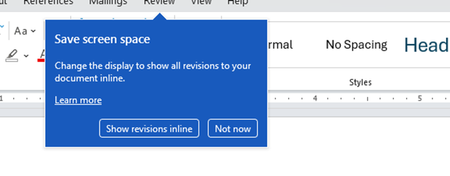
I don't know about everyone else, but I am sick and tired of the nagware pop ups in Word, Excel, PowerPoint, Outlook, etc. Every single product harasses me with pop ups trying to tell me "hey, did you know this feature was here?", "you can do this if you click that", "let me hold your hand through using products you've used for decades even though you don't want daddy Microslop to do that". This is a prime example. I keep getting the same ones again and again and again and everything I've read indicates they should only appear once. But they don't. They keep coming back like a psychotic stalker ex who wants alimony even though you were never married. How do I get this nagware to stop?!635Views1like2Comments
Excel Desktop App hangs when attempting to open documents from SharePoint to edit
User attempts to open Excel Documents saved in SharePoint by selecting Edit in Desktop App. As the Excel Desktop App begins to open a message displays stating: We have opened this document in Microsoft Excel in your computer. However, the Excel App just hangs without fully opening (see Screenshot). No problem detected when opening the Excel Desktop app directly, Desktop App opens freely. Excel MS365 is up-to-date version 2609 build 16.0.20430 64 Bit (Before reinstall). I have uninstalled the MS365 Office packet and reinstall it directly from the User's Office Portal, to no avail.473Views1like2Comments
Recycle Bin and Site Content Hidden for Site Members and Site Visitors
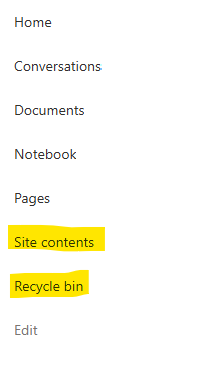
I posted this before but made a mistake with my write up, so I am reposting. I have a requirement that the Recycle bin and Site Contents should be be hidden from the Site Members and Site Visitors. Please how can I achieve this because the Server Infrastructure activation is not working for me. Any workarounds? Please help1.1KViews0likes1CommentBecome a Microsoft advanced content management advocate! [Opportunity]
The Microsoft Next Gen Content Services team is launching an advanced content management and experiences Advocates Initiative. We are looking for thought leaders who can amplify product awareness for the latest innovations from SharePoint Premium, SharePoint Embedded, Microsoft 365 Backup, and Microsoft 365 Archive. As advocates, you can help create content to share with your networks, leveraging Microsoft marketing material and updates. If you or anyone you know would be interested in posting about these solutions, please fill out our interest form. As a member of this initiative, you’ll have opportunities to cross-promote on Microsoft channels, receive marketing updates on the products, and enhance your personal brand.1KViews5likes3CommentsDynamic Mandatory Fields
In a SharePoint library, I have folders which are = a. Admin b. Events c. Furniture and Moves d. Janitorial and Maintenance e. Parking and Transportation f. Shipping and Receiving g. Supplies and Equipment h. Waste and Recycling I have Meta data across the library whose data type are all choices and are: a. Document Type = Contract, Financial, planning b. Building = Gym, Garage, Heating c. Asset Category = Office, Playground d. Fiscal Year = FY23, FY24, FY25, FY26, FY27 e. Vendor = Maple Leaf, Canadian Tire, Home Depot f. Status = Active, Pending, Not Active g. Retention Label = 3 years, 5 years h. Service Type = Admin, Events, Furniture and Moves, Janitorial and Maintenance, Parking and Transportation, Shipping and Receiving, Supplies and Equipment, Waste and Recycling Service Type and Retention Label are mandatory fields, with the Rule below for all the files in the various folders: IF Folder Name = Admin, then Service Type = Admin and Retention Label = 5 years; the mandatory fields should be Document Type, Status and Fiscal Year IF Folder Name = Events, then Service Type = Events and Retention Label = 3 years; the mandatory fields should be Document Type, Status and Fiscal Year, Building and Vendor IF Folder Name = Furniture and Moves, then Service Type = Furniture and Moves and Retention Label = 3 years; the mandatory fields should be Document Type, Status and Building IF Folder Name = Janitorial and Maintenance, then Service Type = Janitorial and Maintenance and Retention Label = 3 years; the mandatory fields should be Document Type, Status and Fiscal Year IF Folder Name = Parking and Transportation, then Service Type = Parking and Transportation and Retention Label = 3 years; the mandatory fields should be Document Type, Status and Fiscal Year IF Folder Name = Shipping and Receiving, then Service Type = Shipping and Receiving and Retention Label = 3 years; the mandatory fields should be Document Type, Status IF Folder Name = Supplies and Equipment, then Service Type = Supplies and Equipment and Retention Label = 3 years; the mandatory fields should be Document Type, Status and Fiscal Year IF Folder Name = Waste and Recycling, then Service Type = Waste and Recycling and Retention Label = 3 years; the mandatory fields should be Document Type, Status and Vendor I have used Column Default Value Settings for SharePoint to display Auto-Display the Service Type and Retention Label, but I cannot seem to perform the conditional mandatory fields using Validations setting for the other requirements. Please help730Views0likes1Comment