copilot in word
84 Topics
Copilot in Word can't read chat attachments; Word for web file picker shows “no token obtained”
Summary of the issue I am seeing a persistent failure with Copilot attachments specifically inside Microsoft Word. Copilot in Word desktop and Word for the web can recognize an uploaded chat attachment by filename or OneDrive URL, but it cannot read the file contents. It reports the uploaded file as empty, corrupted, or in a format it cannot process. The same files are successfully read by standalone Microsoft 365 Copilot Chat using the same Microsoft account, and file uploads also work in Excel Copilot and PowerPoint Copilot. Failure started 10 days ago, with no obvious changes in settings on my end. The most useful diagnostic clue so far is that Word for the web’s Copilot attachment/file-picker path has also failed before any file was selected, showing “Something went wrong, please try again or refresh the page, no token obtained.” In Chrome, Word for the web produced a SharePoint-style error page with a correlation ID. This makes the issue look less like a bad file or local Word installation problem and more like a Word Copilot attachment-picker, OneDrive/SharePoint authorization-token, or file-handoff problem. Environment and scope Windows 11, Pro. Microsoft Word desktop: issue reproduced after updating Office and Windows. Word for the web: issue reproduced in Edge, Edge InPrivate, and Chrome. Standalone Microsoft 365 Copilot Chat / copilot.microsoft.com / m365.cloud.microsoft/chat: uploaded files can be read successfully with the same Microsoft account. Excel Copilot and PowerPoint Copilot: uploaded files work. OneDrive in Chrome: upload/download and file access work normally with the same account. Same Microsoft account used throughout. File types tested include tiny TXT files, PDFs, and DOCX files, including a complex DOCX. Copilot in Word can read the active Word document normally; the failure is limited to files uploaded as Copilot chat attachments inside Word. Observed behavior In Word desktop, Copilot chat accepts or recognizes the attachment metadata, including filename and sometimes a OneDrive URL, but when asked to read or summarize the file it says the file appears to be empty, corrupted, or in a format it cannot process. This happens even with a very small TXT test file. In Word for the web, the same general failure occurs. In one clean test, I created a brand-new blank Word document in Word for the web, opened Copilot, attached a tiny TXT file, and asked what the uploaded TXT file said. Copilot responded: “The uploaded file ingestion_test_731_1915.txt appears to be empty, corrupted, or in a format I can’t process, so I can’t read any text from it.” In another Word for the web test, clicking Copilot’s “+” attachment button and choosing either “My Files” or “Recent” opened a mostly blank window saying: “Something went wrong, please try again or refresh the page, no token obtained.” This occurred before any file was selected. In Chrome, Word for the web produced this error when trying to use the Copilot attachment flow: “Sorry, something went wrong. An unexpected error has occurred. Technical Details: Troubleshoot issues with Microsoft SharePoint Foundation.” The error included Correlation ID 64062ea2-3083-8000-a0f7-fbf4f6bb617d and Date/Time 8/4/2026 12:21:38 PM. Evidence matrix Test Result Standalone Microsoft 365 Copilot Chat / copilot.microsoft.com DOCX, PDF, and TXT uploads can be read successfully with the same account. OneDrive in Chrome Upload, download, and file access work normally. Excel Copilot Uploaded files work. PowerPoint Copilot Uploaded files work. Word desktop Copilot Attachments are recognized but reported as empty, corrupted, or unprocessable. Word for the web in Edge/InPrivate Tiny TXT attachment reported as empty, corrupted, or unprocessable. Word for the web attachment picker “No token obtained” message before file selection. Word for the web in Chrome SharePoint Foundation-style error with correlation ID 64062ea2-3083-8000-a0f7-fbf4f6bb617d. Word Copilot reading the active document Works normally. Troubleshooting already tried Updated Microsoft Office / Microsoft 365 desktop apps. Updated Windows. Restarted Word multiple times. Restarted the computer multiple times. Signed out and signed back in. Confirmed that the same Microsoft account is being used; there is only one Microsoft account involved. Toggled connected experiences off and back on, including restarts between changes. Started Word in Safe Mode. In Safe Mode, Copilot chat opened but did not activate properly; the Copilot pane appeared to cycle in the background and sub-windows were blank/unusable. Tested with a brand-new blank Word document in Word for the web. Tested in Edge, Edge InPrivate, and Chrome. Tested with very small TXT files as well as PDF and DOCX files. Confirmed OneDrive itself works normally in Chrome by uploading and accessing files successfully. Confirmed standalone Copilot and Excel/PowerPoint Copilot can process uploaded files successfully. Why this does not look like a local file or browser problem The same uploaded files work in standalone Microsoft 365 Copilot Chat, and OneDrive upload/download works normally. The issue also reproduces across Word desktop and Word for the web, across multiple browsers, and with a brand-new blank Word document. Because Word Copilot can read the active document but cannot acquire or process uploaded chat attachments, the failure appears isolated to the Word-integrated Copilot attachment picker, authorization-token acquisition, or OneDrive/SharePoint file-handoff path. Most likely failure area My current working theory is that Word-integrated Copilot is failing to obtain or pass the required SharePoint/OneDrive authorization token for Copilot chat attachments. The “no token obtained” message and the SharePoint Foundation correlation ID point toward the file-picker or backend handoff path rather than file contents. It may be account-specific, feature-flight/routing-specific, or a Microsoft-side regression affecting Word Copilot attachment handling. Request for help Has anyone seen Word Copilot attachments fail in this way while standalone Copilot, OneDrive, Excel Copilot, and PowerPoint Copilot all still work? Are there known Word Copilot attachment-picker, OneDrive/SharePoint token, or feature-routing issues that can affect only Word-integrated Copilot? If Microsoft support or engineering can trace backend logs, the most relevant correlation ID I have is 64062ea2-3083-8000-a0f7-fbf4f6bb617d from 8/4/2026 at 12:21:38 PM in Word for the web in Chrome. I would especially appreciate suggestions for anything beyond the standard local troubleshooting already tried. At this point, the pattern suggests the next useful step is probably backend investigation of the Word Copilot attachment/file-picker authorization flow rather than more file-format testing or local repair.351Views0likes8Comments
Seeking Guidance on Microsoft 365 Copilot Adoption Support for an Enterprise Customer
Hi Everyone, We are a newly enrolled Microsoft partner currently working with a customer to accelerate Microsoft 365 Copilot adoption across their organization. We are exploring how we can best support the customer and would like to understand whether there are any Microsoft programs, resources, partner managers, or engagement channels available to help us collaborate with Microsoft on Copilot adoption opportunities. Could anyone advise on: The recommended Microsoft channel/team to engage for an enterprise Copilot adoption opportunity Any Microsoft programs or resources available to support customer adoption How partners can collaborate with Microsoft for customer-specific Copilot adoption support Any guidance on the appropriate Microsoft team, program, or point of contact would be greatly appreciated. Thank you!42Views0likes0CommentsHelp.I have 365 Premium subscription, it hasn't expired, but I lost access to Copilot on phone.
I'm an Office 365 premium subscriber. I used to be able to use Copilot normally on Office on both my computer and iPhone, but now I can only use Copilot on Office on my computer. When I try to use Copilot on Office on my phone, it says: 'It seems you don't have a valid license. To get access, please contact your admin.' Before this problem happened, I sent an invite link to someone else to use Office 365 with me, and then I clicked the invite link myself on my phone using my subscriber account, and it showed that I successfully joined the sharing. After that, I couldn't use Copilot on Office on my phone anymore. Even though my subscription account is still shown as the organizer in the Family group and my subscription hasn't expired, it seems like I lost access to Copilot on my phone.114Views0likes3Comments
Copilot Legal Agent in Microsoft Word
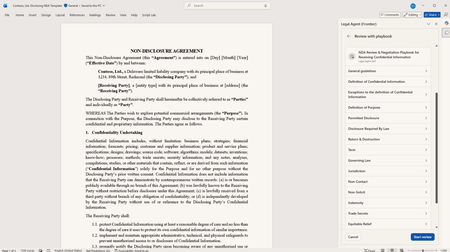
Can anyone tell me if the Copilot Legal Agent in Microsoft Word has been withdrawn from Frontier? Frontier is enabled and I can see other Frontier agents, MS word desktop App updated to latest build I have a Premium Copilot Licence but cannot see the agent. I previously thought I had seen it somewhere (I work across many tenants) but can no longer see anywhere.88Views0likes1CommentI want to turn off or hide the draft with copilot dingbat that follows my cursor around in MS Word.
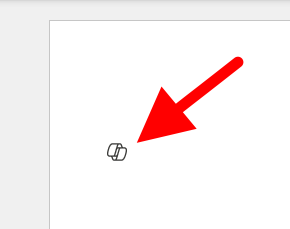
I have seen a few articles on this website, and I know it's not possible but I'm going to ask anyway. For reference this is what I'm referring to: It's more I find the little thing following me around on my screen to be annoying and distracting, I've managed to hide or disable anything related to copilot on my system except this little dingbat. When a new document is open you get a little message that says "Select the icon or press Alt + i to draft with copilot" It would be nice if I could hide that as well, yes copilot is a *feature*, and I don't care about it. I also want to hide the paste with copilot and just used the local paste options that were built into previous versions of word. I suspect that there is a copilot dingbat that is stored somewhere on my system, possibly in a font, and as I have already made a few detrimental modifications to my operating system registry, I'm not wary of messing up my computer any more than it could be. The only saving grace I have at the moment is there is an issue with my account, so any accidental triggering of the feature causes it to crap out. (So long as I don't accidentally press the 'fix account" button) I know that if it was easy to turn off there would be a button for it, I know Microsoft probably wants us to use this feature because it means more data for them to collect, an I'm disappointed in the loss of user agency that's resulted from this rollout, and there's a spike in animosity towards AI in general.Solved42KViews22likes39CommentsToken Limit Exceeded ?
Hi All, Please check out my latest blog on “Token Limit Exceeded” would love to hear your thoughts https://techcommunity.microsoft.com/blog/1c769f9e-c0b0-45a7-af52-fecceca10bb2/token-limit-exceeded-whats-actually-going-on-and-what-to-do-about-it-/4536271147Views2likes2Comments
Custom Agent Builder agent suddenly failing with "Oops, something happened" - no config changes
Hi All, We built a custom agent in Agent Builder (Microsoft 365 Copilot) that generates a Word risk assessment by grounding on a contract (either the document currently open via the Word Copilot add-in, or a file uploaded in the web browser chat), plus a fixed set of knowledge sources (guidance notes, playbooks). It worked reliably for about 5 days while I was testing it solo. We then rolled it out to appr. 20 users, and shortly after, it started failing consistently with a generic "Oops, something happened, try again" error, typically after a long delay, in both the Word add-in and the browser version. I can't confirm causation, but the timing lines up closely with when we expanded from single-user testing to ~20 concurrent users. I don't know whether this points to a tenant-level capacity/concurrency limit being hit, or its something else, just stating it in case others have seen a similar threshold effect. Is this a known concurrency/capacity limit for Agent Builder agents once usage scales up, or a separate backend regression affecting document grounding, and has anyone else seen this pattern after moving from single-user testing to broader rollout?445Views0likes4Comments