adoption
717 Topics
What is the best OKR Software for Microsoft 365?
So... It is finally happening. Viva Goals is less than two months from shutting down. With Viva Goals having been built by Microsoft for Microsof users, it had a certain advantage over other apps in the app store. So now, what do you all think is the best OKR Software for Microsoft 365? Because I'm pretty sure even though they were warned well in advance, there are probably some organizations still using Viva Goals that will need to switch fast!Solved718Views0likes4CommentsMicrosoft 365 Copilot on mobile: What staged rollout plans can miss
IT teams often design rollout plans in careful stages: the right pilot group, the right prerequisites, the right communications, and the right guardrails. Sequencing matters. But when Microsoft 365 Copilot on mobile shows up in your environment, the shape of adoption can change. Employee behavior doesn’t always follow the same tidy stages as licensing or deployment plans. Once people can use Copilot in the moments where work actually happens—between meetings, on the go, in a hallway conversation, before a customer call—usage can spread faster, more socially, and less linearly than many rollout models assume. You can stage the rollout, but you can’t always stage the real-world usage pattern that follows. And mobile is one of the fastest places that gap shows up. What we’re seeing: mobile changes the moments where Copilot shows up Mobile shifts adoption because it changes the context in which Copilot appears day to day: Copilot shows up more during “in-between” work moments Those moments where people look for quick help: summarizing, drafting, finding, checking, and preparing. Usage spreads through behavior, not just rollout sequence A teammate shares a faster way to prep for a meeting. A leader asks for a quick recap while traveling. A project team starts referencing Copilot outputs in a chat thread. That kind of spread can move ahead of your staged plan. Desktop assumptions don’t always carry over cleanly Governance, communication, and readiness decisions that feel straightforward in a desktop-first mindset can surface earlier when usage starts in mobile-first ways. Taken together, mobile introduces a second force into staged rollout planning: behavioral adoption momentum that doesn’t always wait for the next planned phase. Staged Copilot deployment ≠ staged usage Mobile frequently compresses the “pilot → expand → scale timeline,” creating earlier-than-expected issues: IT starts fielding questions about “what’s allowed,” “what’s recommended,” or “what’s safe” before the plan anticipated Governance and communication become tightly linked. If the org hasn’t expressed expectations and guardrails early and clearly, fast-moving usage can create confusion or conflicting local norms Rollout plans start competing with reality. Mobile can make Copilot feel “present” in daily work. While IT is still staging rollout, parts of the organization behave like they’re already in broader adoption. In many environments, this doesn’t stay theoretical for long. What to do: four areas that tend to matter most If you’re planning your Copilot rollout, you’ll want to think through these four connected areas: Rollout sequencing: how you stage availability and expansion User behavior expectations: how adoption may spread, and how you’ll message it Governance and readiness considerations: what needs to be clear before usage accelerates Communication planning: how you set expectations so momentum doesn’t create confusion If you’re hearing early signals that people are experimenting with Copilot in mobile contexts before the rollout has fully caught up or already seeing pockets of usage spreading faster than expected, use these four as levers for regaining clarity and alignment Next step Read the full blog for Microsoft 365 Copilot mobile rollout planning guidance, including how to align sequencing, governance, and communication, whether you’re still designing your rollout approach, or already responding to early signs of faster-than-expected adoption. Read the full Accelerator blog: Microsoft 365 Copilot on mobile: Planning guidance for IT admins326Views0likes1Comment
Regarding Teams Meeting Media Transport Behavior in VDI Optimization Scenario
Hello Microsoft Teams Engineering Team, I am currently working on a Browser Content Redirection / media offload implementation for a VDI environment, where WebRTC media transport is handled through a local native component while the Teams application continues running inside the virtual desktop session. While testing, I observed that: 1:1 calls successfully receive audio and video media But in meetings auido / video RTP is never forwarded despite successful ICE, DTLS, and SRTP establishment DTLS ApplicationData traffic is present during meetings, suggesting DataChannel/SCTP activity Based on transport-level observations, it appears that Teams meetings may rely on SCTP/DataChannel communication for SFU video subscription management, while 1:1 calls do not require the same subscription flow. I wanted to ask whether: Teams meeting video forwarding depends on active bidirectional SCTP/DataChannel connectivity Meeting video subscriptions are expected to be coordinated over the WebRTC data channel/control plane Split ownership of media transport and control-plane transport could affect expected Teams meeting behavior in VDI optimization scenarios Thank you for your time and guidance. Best regards,Rajdev11Views0likes0Comments
Non profit business standard users join PCs to Active directory
Hi I have waded through masses of online stuff and can't get a clear answer to this. It is driving me insane! We have about 10 users on nonprofit business standard - all running win 10 or win 11 pro. I need to allow different users to share a PC - but have user restricted access to microsoft 365 online data - sharepoint - web apps etc Most older machines are domain aware as in you login with the domain account - they work fine. Newer machines cannot and all have only local accounts but have stored credentials for the main user for sharepoint etc. That is a problem when a PC is shared as someone may have logged in locally but they have left credentials for sharepoint allowing access. to privileged info If I upgrade one of the licenses to business premium would that enable me (with admin privs) to join existing and yet to be bought PCs to the domain or would I need a premium license for each user? We don;t need the higher up functionality such as intune as far as I know - just the ability for fred_AT_ourcharity.com to share a PC sensibly with bill_AT_ourcharity.com90Views0likes3Comments
Transforming Microsoft Teams into a Project Management Hub
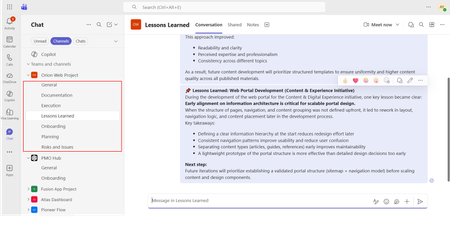
If you use Microsoft Teams only for chats and meetings, you’re missing much of what it can actually do. While Microsoft Teams is often seen as a communication tool, it can also function as a central workspace for managing projects - from planning and brainstorming to execution and documentation - all in one place. When combined with tools like Microsoft Planner, SharePoint, and Microsoft Loop, Teams can become a practical project management hub that keeps work organized and reduces the need to switch between systems. This article walks through a clear, practical approach to setting up and using Teams for real-world project delivery. Why Use Microsoft Teams for Project Management? Organizations often hesitate to introduce new tools due to cost, training effort, or resistance to change. Microsoft Teams offers a strong advantage: it is already widely adopted in many organizations as part of Microsoft 365. Using Teams for project management allows you to: Centralize communication and documentation Reduce tool fragmentation Improve team visibility and collaboration Leverage existing infrastructure without additional cost Instead of switching between multiple platforms, teams can manage conversations, files, tasks, and workflows in one place. Structuring Your Project in Teams A well-structured Team is the foundation of successful project management. Create a Dedicated Team Start by creating a Team specifically for your project. Avoid mixing multiple projects in one Team, as it leads to confusion and poor organization. Recommended channels structure: General (announcements and overview) Planning (timelines, scope, requirements) Execution (daily work discussions) Risks and Issues Documentation Onboarding Lessons Learned This structure ensures clarity and separates strategic discussions from operational ones. Managing Tasks with Planner Task management is a critical part of any project. Inside Microsoft Teams, you can add a Planner tab to manage tasks visually within the same workspace where communication and files are stored. How to use Planner effectively: Create buckets (e.g., To Do, In Progress, Completed, or structured by topic) Assign tasks to team members for clear ownership Set due dates and priorities Attach files and add comments directly to tasks Use labels to categorize work (e.g., Design, Frontend, Backend, Testing) for better filtering and tracking Planner also provides multiple views beyond the basic board: Board view (Kanban-style) for workflow tracking Charts view for progress and workload overview Schedule (Calendar) view to track deadlines visually across time This combination allows teams to switch between operational tracking and higher-level planning depending on the need. This visual approach improves accountability, transparency, and makes task tracking easier even for non-technical users. Document Management with SharePoint Every Team in Microsoft Teams is backed by a SharePoint site. This means all files shared in Teams are stored and managed through SharePoint. Using SharePoint effectively allows you to: Structured storage of project documentation through folders and metadata Maintain version control Role-based access management Centralized file organization Control access permissions Enable real-time collaboration Best practices: Create clear folder & metadata structures (e.g., Contracts, Designs, Reports) Avoid duplicate files Use naming conventions Instead of sending documents via email, teams can collaborate directly within Teams, ensuring everyone works on the latest version. SharePoint Lists in Microsoft Teams SharePoint Lists in Microsoft Teams provide a structured way to store, manage, and track information directly within the collaboration workspace. A SharePoint List is essentially a flexible data table, where each item represents a record with defined fields (such as status, owner, due date, priority, or category). They are especially useful for: Project roadmaps and milestone tracking Action item tracking with ownership and status Checklists for delivery and execution steps Simple status registers and progress tracking Unlike free-form messages or documents, SharePoint Lists keep information structured, filterable, and easy to update, which makes them suitable for ongoing tracking and reporting. When used inside Microsoft Teams, Lists help teams move from discussion to execution by turning decisions into trackable items with clear ownership, status, and visibility. Embedding SharePoint Pages in Teams Beyond file storage, Microsoft 365 allows SharePoint pages to be embedded as tabs within Teams, making key project information easily accessible in one place. SharePoint pages can be added as tabs inside Microsoft Teams channels, providing structured and persistent access to key project information without leaving the collaboration space. In practice, organizations often use SharePoint pages for: Project home page with key links and overview Governance page with rules and standards Onboarding page for new team members Documentation hub for core resources Centralized knowledge hubs This helps ensure that essential information is not scattered across chats or files, but is instead organized and always available within the project workspace. SharePoint is better suited for structured, stable, and long-term information. Microsoft Loop for Real-Time Collaboration Microsoft Loop introduces a more dynamic layer of collaboration inside Microsoft Teams, designed for fast, interactive work where content is continuously evolving. Loop components (such as notes, tables, task lists, and meeting agendas) can be embedded directly into Teams conversations and edited in real time by all participants. It is especially useful for: Live meeting notes Quick decision-making and feedback collection (including simple polls or inputs) 1:1 discussions and follow-ups Brainstorming sessions and idea capture Shared task tracking during discussions In practice, teams can collaborate on meeting notes or brainstorming pages during calls, with updates visible instantly to everyone. This removes the need to switch between documents or wait for post-meeting summaries. Unlike structured tools like SharePoint, Loop is designed for fluid, real-time collaboration, where information is shaped and refined as the discussion happens. Automating Workflows with Power Automate Manual processes can slow down project execution. With Power Automate, you can streamline repetitive tasks. Common automation examples: Notify the team when a task is completed Send reminders for upcoming deadlines Automatically save email attachments to SharePoint Trigger approval workflows Example scenario: When a task in Planner is marked as “Completed,” a notification is sent to the project manager and logged in a tracking list. This reduces manual follow-ups and improves efficiency. Power BI Dashboards Power BI can be integrated into Teams as a tab, allowing teams to access real-time reporting directly within their project workspace. It is commonly used for: Project status dashboards KPI and performance tracking Resource and workload visibility Financial or delivery reporting Instead of switching to a separate reporting tool, teams can monitor progress and insights directly inside Teams, ensuring better visibility and faster decision-making. Microsoft Whiteboard Microsoft Whiteboard provides a visual collaboration space for real-time ideation and planning. It is especially useful for: Brainstorming sessions Process mapping and flow design Workshop facilitation Visual planning during meetings Whiteboard supports freehand drawing, sticky notes, and structured diagrams, making it effective for capturing ideas during live discussions and workshops. Integration with Other Tools (Microsoft & Third-Party) Microsoft Teams can be extended with a wide range of Microsoft 365 services and external applications, allowing it to function as a central hub for project work, reporting, and collaboration. Teams also supports many external tools, allowing organizations to align existing systems without fully replacing them. Common examples include: Jira – agile project and issue tracking Trello – lightweight task and board management ServiceNow – IT service management workflows GitHub – development and repository tracking Salesforce – CRM data and customer-related workflows Communication and Collaboration Effective communication is essential for project success. Microsoft Teams provides multiple ways to facilitate this: Channel Conversations Keep discussions organized by topic instead of using scattered chats. Meetings and Calls Schedule regular check-ins, sprint reviews, or stakeholder updates directly within Teams. Mentions and Tags Use @mentions to notify specific team members and ensure accountability. Practical Use Case Consider a company implementing a new internal intranet. Using Microsoft Teams: A Team is created for the project Planner tracks tasks such as design, content migration, and testing SharePoint stores documents and site assets Power Automate sends reminders for deadlines Teams meetings are used for weekly progress reviews This setup enables the team to manage the entire project lifecycle without introducing additional tools. Best Practices for Success To maximize the effectiveness of Microsoft Teams for project management: Keep your structure simple and consistent Avoid creating too many channels Encourage team members to use channel conversations instead of private chats Regularly review and clean up tasks Use automation where it adds clear value Adoption is just as important as functionality. A well-designed system only works if the team actively uses it. Limitations to Consider While Microsoft Teams is powerful, it has limitations: Not suitable for highly complex project scheduling Limited dependency management compared to dedicated PM tools Reporting capabilities are basic without Power BI For large-scale or highly regulated projects, a dedicated project management tool may still be required. Professional Context and Applied Perspective The approach described in this article reflects practical experience in designing and implementing collaboration environments using Microsoft Teams within real organizational settings. It is based on applied use of integrated Microsoft 365 capabilities, including SharePoint, Microsoft Planner, and Microsoft Loop, to support structured project execution and improve cross-functional collaboration. Rather than relying on isolated tools, this approach focuses on designing a unified digital workspace that aligns communication, task management, documentation, and automation within a single environment. Microsoft Teams is more than just a communication platform. When used strategically, it becomes a practical and efficient tool for managing projects. By combining Teams with Planner, SharePoint, and Power Automate, organizations can create a unified workspace that supports collaboration, task management, and process automation. For teams looking to simplify their toolset while maintaining productivity, Microsoft Teams offers a compelling solution for modern project management.368Views1like0CommentsFrom access to adoption: Unlock the power of Microsoft 365
Change is the only constant, but adapting to change isn't always easy. If we consider the celestial speed at which technology is evolving, keeping up with every trending tool can be daunting. An ecosystem like Microsoft 365 designed to simplify work by bringing many tools into one connected workspace can also feel overwhelming. That is why you are invited to join us at the Microsoft 365 Community Conference, where you can connect with Microsoft leaders, product experts, and peers to drive adoption forward and deliver business results. Rolling out Microsoft 365 is only the beginning. Real success happens when people understand the value, adopt new ways of working, and feel confident using the tools every day. That’s why Adoption and Change Management sessions are a cornerstone of the Microsoft 365 Community Conference. These sessions focus on the human side of transformation—helping organizations move from deployment to sustained impact through practical strategies, real-world lessons, and community tested approaches. Whether you’re leading adoption for Microsoft 365 Copilot, driving collaboration change with Teams and SharePoint, or building Champions across your organization, these sessions are designed to meet you where you are. We know from our research that organizations who have a strong Champions program and invest in peer learning have accelerated business results. At the Microsoft 365 Community Conference, adoption sessions go beyond theory. They’re built around: What actually works in the real world Lessons learned from failed or stalled rollouts How to scale change across large, distributed organizations How community-led approaches drive long-term success You’ll hear directly from practitioners, Microsoft experts, and community leaders who have led adoption efforts inside enterprises, public sector organizations, and fast-moving teams. Check out these can't miss adoption and change management sessions Adoption power skills – Building a Champion Program with Karuana Gatimu, Director, Customer Advocacy - AI & Collaboration and Tiffany Lee, Customer Experience Product Manager, Microsoft Collaboration 2026 – The next generation of Teams experiences with Nicole Enders, Microsoft 365 MVP, Managing Consultant - Microsoft Solutions, CONET Solutions GmbH Community in the age of AI – Humans at the center of Copilot adoption with Allison Michels, Sr. Program Manager, Viva Engage, Microsoft, Sarah Lundy, Sr. Customer Experience Program Manager, Viva Engage, Microsoft, and Alex Snyder, Product Manager, Copilot Adoption, Footlocker Demystifying Copilot and AI experiences on Windows with Anupam Pattnaik, Microsoft How Microsoft does IT: Driving adoption of M365 Copilot and agents across Microsoft with Cadie Kneip, Senior Business Program Director and Copilot Champ Community Lead, Microsoft and Stephan Kerametlian, Senior Director, Microsoft Digital, Microsoft From pilot to copilot: Building a scalable AI adoption framework with Tiffany Songvilay, AI Workforce Lead, Avanade Leading workforce transformation: The art and science of skilling your people with Karuana Gatimu, Director, Customer Advocacy - AI & Collaboration and Jessie Hwang, Customer Experience PM, Microsoft 365 Customer Advocacy Group, AI & Collaboration, Microsoft OneDrive, SharePoint, Viva Engage, and Teams… Oh my! Understanding the many collaboration solutions with David Drever, Microsoft 365 MVP - Compliance, Data Protection, and M365 Specialist, Protiviti Start your adoption journey with adoption.microsoft.com with Jessie Hwang, Customer Experience PM, Microsoft 365 Customer Advocacy Group, AI & Collaboration, Microsoft Tools and best practices for accelerating Copilot & agent adoption with Jojo Wright, AI Business Solutions Architect, Microsoft and Karuana Gatimu, Director, Customer Advocacy - AI & Collaboration Be sure to check the Whova app for other meetups and experiences around Adoption and Microsoft 365 Champions. Master the art of adoption at the Microsoft 365 Community Conference Boost your adoption strategy by joining subject matter experts in Orlando, FL, for the Microsoft 365 Community Conference on April 21–23, 2026. Discover how Microsoft is shaping the future of work by empowering teams to achieve more than ever. When the world is moving quickly, with the right technology, we want you to lead the way!1KViews0likes1CommentAI is a Team Sport – Announcing our first wave of Guest Speakers at M365 Community Conference 2026
What do championship athletes, enterprise innovators, and community leaders all have in common? They know that transformation does not happen in isolation. It happens when teams come together with a shared goal, the right strategy, and the courage to try something new. That is why at the Microsoft 365 Community Conference in Orlando, Florida from April 21 to 23, 2026, we are bringing the spirit of collaboration to life in a whole new way by welcoming a dynamic lineup of guest voices from the worlds of professional sports, innovation strategy, and real-world AI adoption at scale. This year, we are proud to host legendary athletes Chasity Melvin and Kia Vaughn, alongside innovation thought leaders Dan Toma, Manjunatha Sivanna, Christopher Blakeley and Jon Wear as they join Microsoft leaders on stage to explore how teamwork, leadership, experimentation, and trust are shaping the future of AI powered organizations. Chasity Melvin is a former WNBA All-Star and coach, with over two decades of experience in professional basketball. As a first-round draft pick, she played 12 seasons in the WNBA and spent over a decade winning championships internationally. She is a multifaceted coach with experience at the collegiate and professional levels including a stint with Charlotte Hornets as the first female coach to coach men. Her accolades include being an author, motivational speaker, and co-host of the Washington Mystics pre- and postgame show, where she shares her informed perspective as both a player and a coach. She is passionate about the business of sports and technology and is intentional about lending her voice in conversations that drive impact and inspire change. At the conference, she will join Corporate Vice President and Chief Scientist Jaime Teevan in a fireside chat to share insights on AI and its collaborative future in changing roles, leadership, and transformation. This fireside chat will be hosted by the Director of Customer Advocacy for AI & Collaboration, Karuana Gatimu. Kia Vaughn is an international champion known across WNBA in the United States and worldwide. Immersed in basketball from an early age, she honed her craft at Rutgers, delivering standout performances on the championship stage. Throughout her 14-year career on several WNBA teams, including the New York Liberty, Washington Mystics, Phoenix Mercury, and Atlanta Dream, she developed a reputation as a consummate professional. Known for her preparation and reliability, she is geared up to bring an impact-driven global perspective to our Women in Technology Lunch in a conversation with Karuana Gatimu, Director of Customer Advocacy for AI & Collaboration. Don’t miss her insights as she navigates the challenges of an ever-changing league. Dan Toma is the CEO and Partner at Outcomes Consulting, where he helps global organizations in enhancing their approach to technology. He is an acclaimed author with a key focus on leadership, technology strategy, and delivering business outcomes. As co-author of the recent text, “Innovation Accounting”, he offers practical, detailed, and focused guidance on fostering a culture of experimentation and innovation, essential for organizations adopting generative AI. We’re excited to have him join the Director of Customer Advocacy for AI & Collaboration, Karuana Gatimu, in a fireside chat on real world adoption best practices at scale. And because AI is only as powerful as the impact it drives in the real world, we are also excited to spotlight customer voices leading enterprise transformation today. Real world customer stories Across our product keynotes, Microsoft customers will bring AI transformation to life by sharing how they are moving from experimentation to impact inside their own organizations. These global brands offer a real-world look at how teams are adopting AI, modernizing operations, and building for the future with greater confidence, creativity, and scale. Their stories ground our keynotes in practical insight and show what it really takes to turn innovation into meaningful business outcomes. Featured in our day one keynote Building for the Future: Microsoft 365, Agents and AI, What's New and What's Next with Jeff Teper, Executive Vice President, Collaborative Apps and Platforms: Jon Wear, Director of Transformation and Innovation at British Airways, is focused on the airline’s largest‑ever transformation program, an investment of over £7BN, the biggest in BA’s history. This program is modernizing the airline for long‑term growth and is already delivering measurable results, including improved on‑time and financial performance as well as higher customer satisfaction (NPS). As part of this agenda, Jon is co‑leading British Airways’ AI transformation. This has included successfully rolling out Microsoft Copilot to 40,000 employees, deploying AI agents to automate key processes, and building the organizational capabilities required to scale AI responsibly and deliver real‑world impact. Jon has nearly 20 years of professional experience across leadership, strategy, and large‑scale transformation, including service as a military officer as well as senior roles in industry and McKinsey & Company. Featured in our day one keynote Business Apps & Agents with Ryan Cunningham, Corporate Vice President: Christopher Blakeley, Principal Program Manager and AI & Agentic Automation Enablement at NASA. In this role, Chris leads the Agency’s Intelligent Automation strategy and drives the expansion of NASA’s Microsoft Power Platform ecosystem that supports more than 50,000 employees across all Centers. He oversees secure and scalable platform adoption, enabling mission and administrative teams to rapidly build automation solutions that streamline operations and advance NASA’s digital transformation goals. brings a unique perspective on applying advanced technologies in mission critical environments. Chris leads the Federal wide Power Platform Focus Group, collaborating with government agencies to coordinate best practices, governance approaches, and enterprise adoption strategies. With more than 20 years of service at NASA, including roles at Johnson Space Center, Kennedy Space Center, and Marshall Space Flight Center, Chris contributes to government‑wide modernization by championing responsible automation and empowering the federal workforce with ai-enabled digital tools. In our day two keynote Securing AI: Building Trust in the Era of AI with Vasu Jakkal, Corporate Vice President, Microsoft Security will be joined by: Manjunatha Sivanna, Principal Platform Manager at Cummins Inc., will provide a look into how enterprise organizations are integrating AI into core business functions to improve decision making, streamline workflows, and empower teams to innovate faster in a rapidly changing technology landscape. In his current role, he is responsible for enterprise-wide adoption of Microsoft 365 Copilot and Enterprise AI, establishing information governance and compliance foundations using Microsoft Purview, and enabling low-code innovation through the Power Platform. He works closely with legal, compliance, security, and business teams to ensure AI is deployed in a way that is secure, compliant, and pragmatically useful for employees. He has been a key driver behind large-scale Copilot rollouts, enterprise AI governance models, and ECM modernization initiatives, helping organizations move from experimentation to real-world, production-ready AI outcomes. He is passionate about bridging the gap between technology capability and business value, and about shaping practical patterns for Responsible and Agentic AI in the enterprise. Together, these voices reflect the very best of our community: diverse perspectives, shared challenges, and a willingness to learn from one another as we shape what comes next. Because in the era of AI, progress is not built alone. It is built together, with trust, curiosity, and teamwork at the center. Because when it comes to AI, success is a team sport.320Views0likes0CommentsCopilot agents are scaling faster than most organizations expected
Copilot agents are easy to pilot. Across organizations, teams are building agents to automate tasks, surface insights, and streamline everyday work. Early results are positive—and encouraging. One agent leads to another. Interest spreads. Adoption grows. Then a different question starts to surface: What happens when Copilot agents move beyond experiments and start to scale across the organization? That’s where things are getting more complicated. When success creates a new problem In early stages, conversations about Copilot agents focus on how to build, with questions centering on tools, prompts, and connectors. As usage expands, the challenge shifts away from delivery and toward coordination. Organizations see signals like: Multiple teams building agents independently Overlapping use cases with different risk profiles Unclear ownership as agents move into shared workflows Hesitation around approving the next agent These aren’t failures. They’re signs that agent usage is becoming meaningful enough to require intent, especially at an enterprise level. Why scale changes the conversation As Copilot agents move from isolated experiments to shared enterprise capability, the conversation shifts. The challenge is no longer just how to deliver agents, but how—and which—agents the organization should operate at scale. That shift introduces tradeoffs that rarely appear during pilot phases: How much autonomy should teams retain? Where does consistency start to matter? How should we support experimentation without creating fragmentation? How can leadership stay aligned as impact grows? Without a shared way to reason through these decisions, choices begin to outpace clarity. This is where many IT and business leaders pause. Not to stop innovation, but to ask a more fundamental question: What does “scaling well” actually look like for us? A CIO‑level framework for deliberate scale Organizations that recognize themselves at this inflection point will want to read Microsoft’s Accelerator article, A CIO framework for scaling Copilot agents—a CIO‑level perspective designed for when agent adoption begins to scale. The framework explores: What changes as agents move from pilots to enterprise capability How leadership decisions evolve with scale How to balance flexibility with coherence How to guide growth before friction sets in It’s framed for CIOs and senior IT leaders who are thinking beyond approving the next agent build, who are focusing now on aligning teams, expectations, and operating models at scale. 👉 Read the full framework on Microsoft 365 Accelerator Discussion What signals tell you it’s time to move from experimenting with agents to planning for scale? Where does agent growth create the most tension in your organization today? What’s the one decision you wish had been clearer earlier in your agent journey? Microsoft 365 Accelerator is where planning conversations go deeper. If your organization is moving from “can we build this?” to “how do we scale this responsibly?”, Accelerator is where you want to go next.316Views0likes0CommentsDebugging the future of work: Microsoft 365 Community Conference 2026
Building in the era of AI can get very challenging. That’s exactly why we’re here to help you debug, refactor, and level up at the Microsoft 365 Community Conference, happening April 21–23, 2026 in Orlando, FL. Whether you’re a developer ready to scale your skillset or a power user looking to upgrade your formatting skills, walk away with practical tools you can use immediately. We've lined up hands-on sessions and interactive workshops to help you build intelligent, adaptable agents and solutions across the Microsoft ecosystem, and supercharge your Copilot journey. Here’s what you’ll learn by attending the sessions: Create custom agents for your company in Microsoft 365 Copilot Custom agents are how you turn Copilot into your Copilot. The conference will cover how to design, secure, and deploy company-specific agents using Microsoft technologies like Copilot Studio, Microsoft Graph connectors, Entra ID, and Azure, and how to integrate them into Microsoft 365 experiences (Teams, SharePoint, and Outlook) with the Agent Toolkit and extensibility patterns. Expect practical guidance on grounding agents in enterprise data, enforcing permissions, and shipping them through your existing dev and governance processes. Build smarter with SPFx Want to build once and run everywhere across Microsoft 365? This is your blueprint. In the demo-driven sessions, you’ll build and ship a production-ready SPFx solution across SharePoint, Teams, Outlook, and Copilot, complete with theming, graph integration, and Entra-backed authentication. You’ll also pick up practical guidance on performance, accessibility, Application Lifecycle Management, and scaling from prototype to production. You’ll leave convinced and equipped that SPFx is the best path to building modern, scalable applications across the entire Microsoft 365 stack. Hook into Azure DevOps AI in Azure DevOps is a workflow upgrade. Learn how built-in capabilities ADO AI Chat and the Work Item Assistant help you automate repetitive tasks, improve backlog quality, and accelerate sprint velocity. reclaim engineering time, strengthen downstream effectiveness of code-centric tools like GitHub Enterprise and GitHub Copilot, and create a more efficient, AI-powered DevOps loop. Adopt open-source tooling where suitable Open-source and community tooling can help teams adopt established patterns and reduce custom implementation effort. The conference will cover how to evaluate and adopt community libraries, templates, and accelerators (for example, PnP tooling in the Microsoft 365 ecosystem) to reduce boilerplate, standardize common API and authentication approaches, and deliver solutions faster, while maintaining appropriate standards for security, maintenance, licensing, and long-term ownership. Ready to put it into practice? Branch out by attending hands-on workshops at the Microsoft 365 Community Conference to help you get out of your tech debt. Here’s a sneak peek at what you’ll build in the workshops: SPFx Supercharged: Hands-on Bootcamp for Building SharePoint Solutions – 2026 edition with Beau Cameron, Chris Kent, David Warner, and Hugo Bernier Develop Declarative Agents to Extend Microsoft 365 Copilot to Get the Most out of your Investment with Andrew Connell Mission UX: Decoding the Science of User Experience in Microsoft 365 and Power Platform with David Warner and Hugo Bernier Sessions: Advanced List Formatting with Chris Kent Bring Your Own Intelligence: Extending Microsoft 365 Copilot Agents with Azure AI and Microsoft Graph with Reshmee Auckloo Building AI-Powered SharePoint Experiences with SPFx, Azure, and Your Own MCP Server with David Opdendries Extending Microsoft 365 Copilot with Declarative Agents with Paolo Pialorsi and Vesa Juvonen From Data to Decisions: How Copilot in VS Code Empowers Research and Enterprise Teams with Olesya Sarajlic and Semir Sarajlic Getting Started with PnPjs with Julie Turner and Beau Cameron How to Fake being an AI Expert: An Evil Consultant’s Guide to AI with Hugo Bernier Inside Microsoft: Reclaiming Engineering Time with AI in Azure DevOps with Gopal Panigrahy and Apoorv Gupta Manage your Microsoft 365 Tenant and Assets with Azure Runbooks and PnP PowerShell with Rodrigo Pinto Navigating SharePoint Framework: Best Practices and Hidden Gems with Andrew Connell Powerful Things: Defeating the Demogorgon of Power Apps Inconsistency with David Warner The Future of SharePoint Extensibility: What's New, What's Next with Alex Terentiev and Vesa Juvonen SPFx Unleashed: One Codebase for Enterprise, Host-Aware apps Across Microsoft 365 with Fabio Franzini SharePoint knowledge Retrieval and Actions for your Apps with Copilot Studio + Microsoft Foundry with Patrick Rodgers and Yogesh Ratnaparkhi Supercharge Copilot with Every Enterprise Document with Steve Pucelik and Shreyas Saravanan The Power of App Builder’s Guide for Choosing the Right Path with April Dunnam Understanding Copilot Agents: What to Use When with Paolo Pialorsi and Vesa Juvonen Understanding Work IQ for Developers with Paolo Pialorsi Join us at the Microsoft 365 Community Conference, happening April 21–23, 2026 in Orlando, FL.264Views0likes0Comments