office 365
20553 Topics
Data Formatting
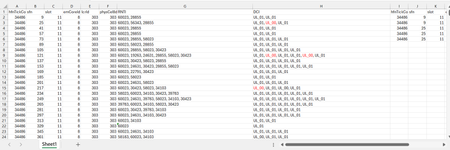
Dear Experts, I have a Data like below :- Each row can have 1 or more RNTIs( seperated by ",") and their DCI( UL_01 or UL_00), I want to put them in a format like in Col - I~P gave examples for the 1st two entries. Attached worksheet. Thanks & Regards Anupam ShrivastavaSolved98Views0likes4CommentsWhat's New in Microsoft EDU - March 2026
Join us on Wednesday, March 25th, 2026 for our latest "What's New in Microsoft EDU" webinar! We will be covering all of the latest product updates from Microsoft Education. These 30-minute webinars are put on by the Microsoft Education Product Management group and happen once per month, this month both 8:00am Pacific Time and 4:00pm Pacific time to cover as many global time zones as possible around the world. And don’t worry – we’ll be recording these and posting on our Microsoft Education YouTube channel in the new “What’s New in Microsoft EDU” playlist, so you’ll always to able to watch later or share with others! Here is our March 2026 webinar agenda: 1) M365 Copilot and AI updates for Educators and Students - Modify Existing Content - Minecraft EDU Lesson Plans - New Learning Activities: Fill in the Blanks, Matching and Self-Quizzing - Study & Learn agent for studnets 2) Learning Zone General Availability and the Copilot+ PC 3) Microsoft 365 LTI and Teach Module for Learning Management Systems 4) AMA - Ask Microsoft EDU Anything (Q&A) We look forward to having you attend the event! How to sign up 📅 OPTION 1: March 25th, Wednesday @ 8:00am Pacific Time Register here 📅 OPTION 2: March 25th, Wednesday @ 4:00pm Pacific Time Register here This is what the webinar portal will look like when you register: We look forward to seeing you there! Mike Tholfsen Group Product Manager Microsoft Education541Views1like1Comment
Allow removal of "Copilot Suggestions" from right-click menu
I have been using Excel for decades and CONSTANTLY use the right-click menu for quick access to basic functions (e.g., "Insert"). Ever since "Copilot Suggestions" was added to the drop-down list, it always throws me off due to its placement. I have Microsoft 365 on Windows 11 Pro. I have searched for ways to remove this from appearing there and the result said "go to File > Options > Copilot and uncheck the 'Enable Copilot' box". However, when I attempt to do that, there is NO "Copilot" option available! PLEASE allow removal of "Copilot Suggestions" from the right-click menu OR at least the option to move it to the bottom (so it isn't in the way of things used ALL the time). I realize that Copilot is a great resource for many users, but I am confident in my Excel skills and in my ability to research/learn new skills the "old school" way, so I have little use for this feature now and would prefer to hide it.491Views6likes6Comments
unpivot data and handle merged cells without using Power Query (Unpivot_Toolkit)
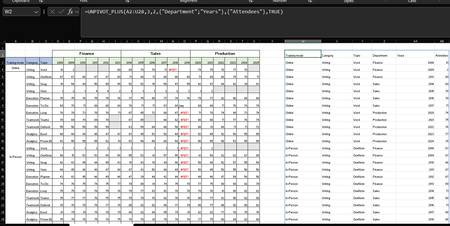
Hey, guys!! I’ve been working on a set of functional Excel Lambdas to solve a common headache: transforming "Wide" human-readable data into "Long" database formats without having to open Power Query every time. =UNPIVOT_PLUS(table, [no_of_cols], [no_of_headers], [attribute_names], [value_name], [remove_errors], [remove_blanks],[pad_blanks_with],[pad_errors_with]) Don’t worry about the full list, most use cases only require 5 arguments. I've included a table of default values at the end. Merged Cell Support: Automatically handles fill-down/fill-right logic for merged headers/columns. Bonus Helper: SPLIT_INJECT =SPLIT_INJECT(array, target_indices, delimiter, [ignore_empty], [match_mode], [pad_with]) It targets specific columns, splits them by a delimiter (like TEXTSPLIT), and expands the entire table horizontally while keeping all other columns perfectly stable. Optional arguments match TEXTSPLIT defaults. Feel free to tear this apart or adapt it for your own edge cases. I’d love to hear how you end up using it! You can grab both functions from my GitHub Gist https://gist.github.com/Medohh2120/f8553c149684e39bb499249e39f01017. Argument Description Default Behavior table The array or range of data to unpivot. Required argument (no default) [no_of_cols] Fixed left columns to keep as identifiers. 1 [no_of_headers] Top rows used as headers, handling merged cells. 1 [attribute_names] Header name for the unpivoted attributes . "Attribute" [value_name] Header name for the unpivoted values. "Value" [remove_errors] Excludes grid rows with formula errors. FALSE [remove_blanks] Removes grid empty cells and empty strings. TRUE [pad_blanks_with] Value to substitute for empty cells. Leaves cell blank [pad_errors_with] Value to substitute for errors. Leaves error as-is324Views2likes3Comments# OneDrive AutoSave Stopped Working After Update to Version 26.007.0112 on macOS
**Product:** Microsoft 365 and Office | OneDrive | For home | macOS ## Summary Since OneDrive automatically updated to version 26.007.0112 (26007.0112.0002) a few days ago, I am experiencing multiple issues with how Office files interact with OneDrive on my Mac. AutoSave no longer works, files that are stored locally now take noticeably longer to open, and attempting to work around the problem through Word/Excel directly results in upload failures and outdated file versions. Prior to this update, everything was working perfectly. ## Environment - **macOS version:** Tahoe 26.1 - **OneDrive version:** 26.007.0112 (26007.0112.0002) - **Office version:** Version 16.105.2 (26012530) - **Account type:** Business ## Symptoms ### 1. AutoSave no longer activates when opening files from Finder Opening any .docx or .xlsx file from the OneDrive folder in Finder results in AutoSave being off. The title bar shows "Saved on My Mac" instead of the OneDrive location. Attempting to toggle AutoSave on prompts me to "upload" the file — even though it is already in the OneDrive sync folder and marked as "Always Keep on This Device." ### 2. Files that are stored locally now open slowly Previously, opening an Office file from the OneDrive folder in Finder was instantaneous, as you would expect for a file stored on the local drive. Now, even though the files are marked as "Always Keep on This Device" and should be fully available locally, there is a noticeable delay when opening them. It appears that OneDrive or the Office app is downloading or re-fetching the file from the cloud rather than simply opening the local copy, which defeats the entire purpose of keeping files on the device. ### 3. Opening from within Word/Excel results in "Upload Failed" and serves an older version As a workaround, I tried opening files from within Word using File > Open and selecting the OneDrive location. However, this now produces an "Upload Failed" error message, and the file that opens is an older version — not the most recent version I had been working on. This is extremely concerning, as it suggests the sync between the local copy and the cloud copy may be broken, and there is a real risk of data loss or overwriting recent work with outdated content. ## Steps to Reproduce 1. Ensure files are in the OneDrive folder and marked as "Always Keep on This Device." 2. Open a .docx or .xlsx file by double-clicking it in Finder. Notice: the file takes several seconds to open (previously instant), AutoSave is off, and the title bar says "Saved on My Mac." 3. Close the file. Open Word or Excel, go to File > Open, and navigate to the OneDrive location. Open the same file. Notice: an "Upload Failed" message appears, and the file that opens is an older version, not the most recent one. ## Expected Behavior - Files stored locally via "Always Keep on This Device" should open instantly, just as any local file would. - AutoSave should be enabled automatically when opening files from the synced OneDrive folder. - Opening a file from within Word/Excel via the OneDrive location should open the current version of the file without upload errors. All of this worked exactly as expected before the update to version 26.007. ## What I've Tried - Verified that "Always Keep on This Device" is enabled for the affected folders. - Confirmed I am signed into the same Microsoft account in both OneDrive and the Office apps. - Verified files are in modern formats (.docx, .xlsx), not legacy formats. - Checked that OneDrive sync is not paused. ## Impact This is a severe workflow disruption. The combination of broken AutoSave, slow file access, and the "Upload Failed" error serving stale file versions means I cannot trust that I am working on the latest copy of my documents. There is a genuine risk of data loss — if the cloud version is out of sync with the local version, saving could overwrite recent work with an older copy. I am currently unable to rely on OneDrive for day-to-day work on my Mac. ## Additional Notes This appears to be a regression introduced by the recent OneDrive update to version 26.007. I have seen numerous other users reporting similar AutoSave and sync issues across Microsoft Q&A, Apple Community forums, and MacRumors, dating back to the original Files On-Demand changes on macOS. However, my setup was working correctly until this latest update. Relevant threads with related issues: - https://learn.microsoft.com/en-us/answers/questions/5419331/onedrive-says-saved-on-mac-autosave-not-working - https://learn.microsoft.com/en-us/answers/questions/5371608/one-drive-auto-save-no-longer-working-on-mac-os - https://learn.microsoft.com/en-us/answers/questions/5402091/onedrive-app-on-mac-not-working-for-autosave-and-t - https://forums.macrumors.com/threads/onedrive-autosave-disabled-when-opening-files-from-onedrive-folder.2442775/ I would appreciate any guidance from the community or the Microsoft team. Is this a known regression in version 26.007? Is a fix in progress? Is there a way to roll back to a previous OneDrive version that was working? Thank you.226Views3likes2CommentsWhy is my create file from OneDrive for Business node isn't working?
I have a power automate cloud flow that, in some point, gets a word .docx from my sharepoint site, then it creates the same document in onedrive so that I can convert it to PDF then returns it to sharepoint. This idea came from the necessity of converting a .docx to .pdf without the need of premium conectors. I have 2 scenarios: 1° Scenario: Flow: I get the data from the word that I need > I create the same file on OneDrive > I convert the file to .pdf > then I create the file on Sharepoint. Problem: When I run my flow, it gets a 404 error: "message": "File Not Found\r\nclientRequestId: y-f695-48b1-9556-xc\r\nserviceRequestId: x-e051-b000-efc3-y" Error image: 2° Scenario: Flow: The same as the above, the only thing I did after research, is that the node that I get content from file from my sharepoint site also returns the "$content-type", so I specified that for the create file from OneDrive I'll only want the "$content" attribute. In resume, it creates the file in onedrive but I can't open it, it appears to be corrupted, at first I thought my sharepoint file was also broken, but then I could open it with no errors as on OneDrive. Problem: When I run my flow, it gets the error that it can't convert that kind of file (as I wrote above, the file creates corrupted), the main problem is understanding why it gets corrupted, it even returs the content-type that I'm not passing anymore. Error image: Message: "message": "Error from microservice: {\"status\":406,\"message\":\"Não há suporte para a conversão desse arquivo para PDF. (cannotOpenFile / Error from Office Service. Url=https://wordcs.officeapps.live.com/document/export/pdf HttpCode=BadRequest)\",\"source\":\"api.connectorp.svc.ms\"}\r\nclientRequestId: y-13f3-4e1a-a77a-x\r\nserviceRequestId: y-a09f-b000-f272-x" NB: This flow actually worked for more than 1 year with no problems like that, the last time it ran without errors was last week (6-7 days from today).29Views0likes1Comment
Python in Excel - Missing from desktop Excel but exist in web Excel
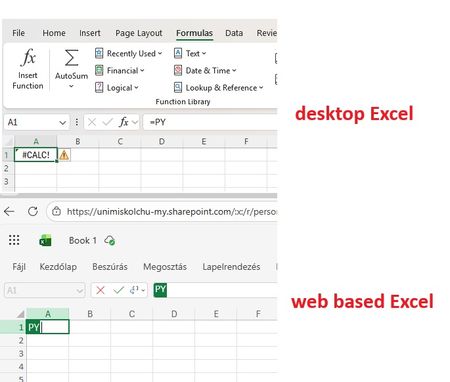
Good Morning! Yes, again this topic :-( When I join to a professional forum I also search for the topic I having a problem with. Found a lot of similar questions but I could not find a post with a solution. Maybe I was not enough attentive and patient but I did not. Well, we are a University in Hungary, and we have Microsoft 365 A1, A3 and A5 licenses. I attahced a screenshot which shows: in the desktop Excel I got #CALC! error msg when I type =PY and press TAB. But it works in Excel on the Web version. So the root of the problem cannot be the license, right? Of course I saw this article about "Python in Excel availability": https://support.microsoft.com/en-us/office/python-in-excel-availability-781383e6-86b9-4156-84fb-93e786f7cab0 Our licenses are based on user, not device so no, it cannot be that the computer is a device with shared license: My Excel version is on: So the version and the channel are also OK. (OK?) I am also a Global Adminisitrator in our tenant, so I could check if the Connected experiences and Optional connected experiences and all related possibilities are disabled or not: no, it is not disabled. On "Microsoft 365 Apps admin center" : https://config.office.com/ ... I did not find any policies which controls those options so in "Policies for all users" policy I modified all these settings from "Not configured" to "Configured" and "Enabled". In my Excel the Trust center related settings looks like this: Of course my Office package up to date, I ran the Update Office and Update License command from Excel. Did not help. I went also to https://admin.microsoft.com site if I can find any related setting, but did not. I also tried to Sign out and Sign back in Excel - did not help. Finally, as our computers are in Hybrid environment (so our users are logging in inti on-prem AD, and their properties are synchronised to Azure) I have cerated a Group Policy object (I am also a Domain Admin), which also allows connected and optional experiences for all domain users: I should not mention: did not help :-( I have checked if the GPO is applied or not by running GPRESULT /R, it applied, it is in the registry. But despite all the settings so far - nothing helped. The Python in Excel feature in desktop Excel do not want to work. But it does in web based Excel. I would be very happy to receive any ideas from anyone. Or if U say I should go to official Microsoft support, then I go. Have a nice day! Regards, Andras /sorry for the very detailed case description, but maybe easier and quicker if I "aswer" all usual questions in advance/28Views0likes0Comments
Files are gone, folderstructure is there
Dear community, I have a one drive account with a extensive folder structure. Today I noticed that the folderstructure is intact (on my laptop and online) but the files are mostly gone for 90%, here and there a folder with some files. My account is a personal 356, have 1 terrabyte. I tried to restore the drive through the instructions I found online by Microsoft, go to settings, one drive restore, check recycle bin, etcetera. Nothing helped. I did not deleted the files manually. I honestly do not know what to do? Tried to get in contact with Microsoft but that is totally impossible. Is there anyone that has expirienced this also? I use onedrive now for many years and never had this. Please help15Views0likes0Comments
Search on Outlook Mac doesn't work - Ventura 13.1
Dear Community, I was migrating from an old MacBook Pro M1 to a new Macbook Pro 14 m1 pro. My outlook search stopped working. I've tried everything from checking spotlight privacy settings to manually reindexing the profiles through the Mac terminal but still the search doesn't work. I've even tried to reinstall the application fully, and for a moment I noticed that the search started to work when outlook was downloading the data from the exchange server, but still no. My Mac has all the latest updates installed. I would really appreciate any help or advice! Best7.7KViews1like22Comments