User Profile

clh_1496
Brass Contributor
Joined Nov 19, 2020


User Widgets
Recent Discussions
Re: UserForm with a ComboBox that populates with the name of the open workbooks
HansVogelaar If I want to add a cancel process if commandbutton2 (Cancel button) or the x is pressed, do I also do it in the module? At the minute, if I don't select a workbook, it tries to continue running the next part of the sub which is to save the one that been selected and comes up with a debug error?787Views0likes1CommentUserForm with a ComboBox that populates with the name of the open workbooks
Hi, So I'm looking for some help on creating a UserForm with a ComboBox that populates with the name of the open workbooks and WorkSheets, displays the choices and allows you to select one. I found this code, which I believe will do what I want but where do I put it? Do I put it in a general module or do I put it in a Combobox userform? Sub ViewListOfOpenWorkBooksAndWorkSheets() Dim book As Workbook, sheet As Worksheet For Each book In Workbooks For Each sheet In book.Worksheets UserForm1.ComboBox1.AddItem book.Name + "!" + sheet.Name Next sheet Next book UserForm1.Show End Sub CharlotteSolved881Views0likes3Commentsfind value in row and pull through value/cell reference
Hi, I have a spreadsheet that get updated every week with new percentages for each activity. At the minute I manually check each row to see if any of the percentages have reached or are now over 50%, then once it reaches it, I simply put a formula to pull through the cell that contains this value e.g "=BU14" (the cell reference of the 50% value) and then drag this cell reference to the left to collect the weekly percentages after this point. I'm trying to find a formula that automatically looks across a row of data for each activity and then when the percentage hits 50% it automatically pulls this figure into another tab. The issue I have is that after the initial 50%, I then need a way of pulling through every cell in that row after that n a week by week basis. I had tried using a helper column that find the 50% value (=INDEX('% from CASPR'!C12:ZZ12,MATCH(MIN(ABS('% from CASPR'!C12:ZZ12-'% from CASPR'!$DO$1)),ABS('% from CASPR'!C12:ZZ12-'% from CASPR'!$DO$1),0))) which pull through the nearest value to 50%, however doesn't help with the cell reference issue. My intial thought was to use offset in some context but wasn't sure how to use it for this Charlotte520Views0likes1CommentVBA to copy row but only those cells in certain columns
Hi, I've got a line of VBA that looks for the word Check in column E and then copies the rows that match this criteria: For Each Cell In Workbooks(1).Worksheets("PBS").Range("E:E") rw = Cell.Row If Cell.Value = "CHECK" Then Cell.EntireRow.Copy Workbooks(1).Worksheets("CHECK").Range("A" & rw).End(xlUp).Offset(1). _ PasteSpecial Paste:=xlPasteValues, Operation:=xlNone, _ SkipBlanks:=False, Transpose:=False Application.CutCopyMode = False However, what I want to do is only copy the cells in columns A,C:D of each row that contains the word Check in column E? Kind regards Charlotte1.2KViews0likes1CommentRe: INDEX, MATCH for largest scores combined with specific criteria within the names
Hi OliverScheurich HansVogelaar Quadruple Pawn I've edited your workbook to show what I'm looking for. I've added a 3rd column with age, and so the criteria is the age (in this case 21) so I want a formula that looks up the 5 names that have the lowest score but only those that are 21 (aka the criteria). score age name 555 20 Adam 159 21 Bert 720 22 Chris 555 23 Doug 688 24 Eve 527 25 Frank 169 26 George 905 27 Hubert 712 28 Iris 485 21 Joe 612 30 Karl 658 31 Lambert 926 32 Morton 601 33 Norbert 133 34 Oscar 122 21 Paul 315 36 Quentin 149 21 Rock 59 38 Samantha 568 21 Tanja Is this possible?1.8KViews0likes2Commentsconditional formatting based on collapsed rows
Hi, I've got some collapsible rows (rows 7:11) that sit underneath rows 6 (which is a summary row). I'm trying to use the following formula in conditional formatting so that if B7 is visible then the conditional formatting doesn't apply and it doesn't colour the cells (the mid shade of blue below): =IF(SUBTOTAL(103,B7)<>1,AND($C6<=E$2,$D6>=E$2)) The formula works, but for some reason only the first cell (Q3 in 2023) goes blank with this formula rather than the whole row - does anyone know how to fix this? Thanks in advance!!Solved1KViews0likes1CommentINDEX, MATCH for largest scores combined with specific criteria within the names
Hi I have this formula that brings through 5 names based on the top 5 largest scores. =INDEX('Top CV'!$C$5:$C$24,MATCH(SMALL('Top CV'!$A$5:$A$24,1),'Top CV'!$A$5:$A$24,0)) The issue is that I need to somehow alter this formula so that it bring through the top 5 largest scores for names that only include a specific criteria (for example only those that contain number 9), as at the minute it brings through all names from 1 - 10. Is this possible?Solved2.1KViews0likes5CommentsRe: Conditional Formatting for Quarters & Years
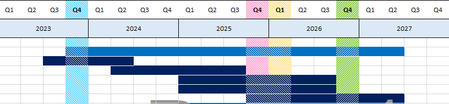
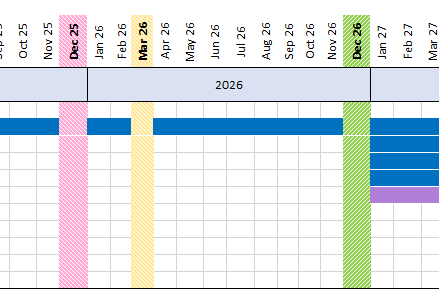
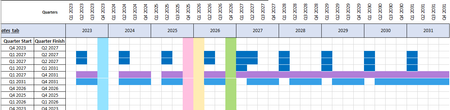
SergeiBaklan Hi Sergei, this works great - the only thing is that it doesn't work for the milestones, which have the same start and finish dates (table below shows this). I want it to look like the blue/pink/yellow vertical lines below? 2026 2026 4 4 2025 2025 4 4 2026 2026 1 1 2023 2023 4 44.5KViews0likes1CommentRe: Conditional Formatting for Quarters & Years
HansVogelaar For some reason, it's not reading the dates correctly. It reads the single date milestones (pink/green/yellow/blue vertical columns) but not the horizontal ones. Do you know if I need to change Q1 2023 to 2023Q1 like you've done or is there a different reason?4.5KViews0likes8CommentsConditional Formatting for Quarters & Years
Hi all, I had a spreadsheet that had months along the top and used conditional formatting to colour in the cells between the start and finish date using the formula: =AND($C5<=E$2,$D5>=E$2) and it worked perfectly. I've now been asked to replace the months with Quarters and so based on this, I've tried to add in 2 further columns with the Start & finish year, and then the Quarter Start and Finish Year in the hope that I could just change the AND formula to include all 4 conditions =AND($C$13<=G$3,$D$13>=G$3,$E$13<=G$2,$F$13>=G$2) however I can't seem to get this to work? Is there any way to get the conditional formatting to colour in all cells that are within both the start and finish years as well as the start Quarter start & Quarter finish? Thanks in advance!Solved5.5KViews0likes13Commentsconditional formatting schedule
Hi, So I've having issues with creating a gant chart in excel. I want the chart to show the original planned dates in red and then if the forecast date is later, it shows this in blue. However as you can see, for row 5, the red should start at 12 Dec and finish at the 8 Dec with no blue, but it seems to end at 17th Jan for some reason. Then row 6 should start at 25 Jan and end at 2nd Feb, and then blue from 10 Feb to the 18 Feb etc. This is my current conditional formatting settings, and from this I can't work out why its not working: Charlotte1.1KViews0likes1CommentIF OR NEST ERROR
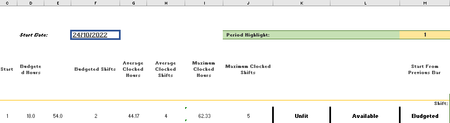
Hi, My nested IF OR statement isn't working and I can't work out why. Basically column K either has Unfit or Part SAT, and column L has Available or Constraint, and when changed to different combos it basically does a calculation to more time to the budgeted hours of 18. I have the following formula: =IF(OR(K9="Part SAT",L9="Constraint"),D9*2,IF(OR(K9="Unfit",L9="Constraint"),D9*3,IF(OR(K9="Unfit",L9="Available"),D9*2,IF(OR(K9="Part SAT",L9="Available"),D9,"")))) But if you look at K and L columns, I've selected Unfit and Available so based on the formula, it should show 36 (D9*2) in Column E but it consistently shows 54 (D9*3) instead? Does anyone know why formula isn't working - I had thought it was because Column K initially had UNSAT & SAT as options so I've changed this to SAT & Unfit and its still not working?Solved1.3KViews0likes2Commentsreturn all values which have an error in the same column without gaps
Hi all, Basically I have a spreadsheet with all employees hours listed, and another spreadsheet with a list of names, and a vlookup uses the pay number to look into the employee names spreadsheet and pull up who their manager is and if they staff etc. But if Joe Bloggs is not on the employee names spreadsheet because he is a new and has just joined, it comes up as #N/A, and his hours are excluded from any pivot tables, meaning hours are sometimes missed. Therefore, I'm looking for a formula that looks down column Q in a sheet, and if there is #N/A in that column, it then looks up column P (pay number) instead but groups them all together in a new colum without gaps? Does anyone know how I would change the below formula I found to work for me: =IFERROR(INDEX($A$1:$A$4,AGGREGATE(15,6,ROW($1:$4)/(ISERROR($B$1:$B$4)),ROW(1:1))),"") Pay No. Employee Role Team / Gaffer Staff or IndustrialSolved867Views0likes1CommentDynamic range can't be used in a graph
Hi, I have used the same dynamic maned range for 11 of these graphs, and only one is giving me problem. This is the formula =OFFSET('Progress'!$B$6,0,COUNTIF('Progress'!$C$9:$AS$9,">=0")-chtlen,1,'Progress'!$AI$1) The formula basically looks along to the blue highlighted row below and counts along until it hits a blank cell then stops and the charts updates automatically whenever a new % is added to this blue row. The same formula is used for the date along the top too however obviously references the orange cells not the blue. However, whenever I try and change the chart to use this progress named range (blue) instead of selecting the cells manually for the series, it doesn't seem to recognise the cells like the date one does. Date dynamic chart: you can see the dates along the top highlighted in a green box when I open name manager and select the date dynamic formula. Progress dynamic range: you can see the progress isn't highlighted in a green box when I open name manager and select the progress dynamic formula. I also get the following messages when I try to change the current manual progress data in the series to the dynamic progress one: Does anyone have any idea it's not recognising or identifying the data?2.6KViews0likes3CommentsDynamic named range with Pivot table
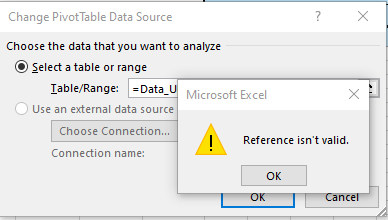
Hi, I'm trying to use a dynamic named range with a pivot table so when new data is added, the pivot table expands to capture this, however when I try to change the range to this dynamic named range, it comes up with an error: The formula used in my named range is: =OFFSET('Sheet1'!$B$2,0,0,COUNTA('Sheet1'!$B:$B),COUNTA('Sheet1'!$2:$2)) Does the data in the named range need to be a table, I've tried it and it didn't make a difference but just thought I'd ask anyway? Charlotte5.3KViews0likes2CommentsMacro that deletes rows based on date and time
Hi, I'm still looking to try and add to the last lines of my macro (the whole macro listed below) I've got: lr = Cells(Rows.Count, "C").End(xlUp).Row 'find last row For i = lr To 2 Step -1 'loop thru backwards, finish at 2 for headers If Cells(i, "C").Text = "#N/A" Then Rows(i).EntireRow.Delete Next i which works to find any NA's and deletes those entire rows and I was trying to do something similar with columns U and V, where by it deletes any entire rows where the date is after the date on the front of the report (Summary J3) and after a certain time (Reference Sheet c12), Or any dates that are earlier the date in Summary G3 Date and after a certain time (reference sheet C13) So far I've tried to recreate the code that works for deleting NA's with the below with no cigar: lrU = Cells(Rows.Count, "U").End(xlUp).Row 'find last row LrV = Cells(Rows.Count, "V").End(xlUp).Row 'find last row For i = lrU To 2 Step -1 'loop thru backwards, finish at 2 for headers 'column "U" is column21 If Cells(i, 21).Value < Worksheets("Summary").Cells(3, 7).Value And _ Cells(i, 22).Value < Worksheets("Reference Sheet").Cells(12, 4).Value Or _ Cells(i, 21).Value > Worksheets("Summary").Cells(3, 10).Value And _ Cells(i, 22).Value > Worksheets("Reference Sheet").Cells(13, 4).Value Then Rows(i).EntireRow.Delete4.7KViews0likes7CommentsRe: Macro that deletes rows based on date and time
mtarler I would imagine the logic order is off because I've combined 6 or 7 separate macros into one, and my coding skills are pretty basic. Where have you added the end if and next i statements? No error comes up, just nothing happens - as in it doesn't seem to recognise the dates that are before or after the dates in the macro need deleting so they remain4.1KViews0likes1CommentRe: Macro that deletes rows based on date and time
mtarler I've attached a file which basically has everything blanked out except for the date and time columns and then the reference sheet that is used - hope this is okay. Column U is a date, Column V is a time (they were a combined column but get split into date and time earlier in the macro) and so for Column U I want to delete dates that are before C15 on the reference page (used as Date 2) BUT only those that also have a time in Column V that is earlier than 6.20am (shown in C12 on the reference page and used as Time 1). And then I also want to delete any dates that are after C16 on the reference page or shown as Date 1, but only those that also have a time in Column V that is later than 6.20am (shown in C12 on the reference page and used as Time 1).4.1KViews0likes3CommentsRe: Macro that deletes rows based on date and time
mtarler I've tried your code (edited slightly as like you said should have been C12 for Time), I've also included the line before as the code is removing the "#N/A" rows but for some reason isn't able to distinguish the dates and time still? Do you have any other suggestions? lr = Cells(Rows.Count, "C").End(xlUp).Row 'find last row For i = lr To 2 Step -1 'loop thru backwards, finish at 2 for headers If Cells(i, "C").Text = "#N/A" Then Rows(i).EntireRow.Delete Next i lrU = Cells(Rows.Count, "U").End(xlUp).Row 'find last row Date1 = Worksheets("Reference Sheet").Cells(16, 3).Value2 Time1 = Worksheets("Reference Sheet").Cells(12, 3).Value2 Date2 = Worksheets("Reference Sheet").Cells(15, 3).Value2 For i = lrU To 2 Step -1 'loop thru backwards, finish at 2 for headers 'column "U" is column21 If (((Cells(i, 21).Value < Date2) And (Cells(i, 22).Value < Time1)) Or _ ((Cells(i, 21).Value > Date1) And (Cells(i, 22).Value > Time1))) Then Rows(i).EntireRow.Delete4.2KViews0likes5Comments



Recent Blog Articles
No content to show