User Profile

sally365
Brass Contributor
Joined Feb 19, 2019


User Widgets
Recent Discussions
Re: Page colour fill effects option missing
An option could be inserting the image as a background image: On the insert tab, select picture Pick a picture source then insert a picture Select the picture then resize it to fit the page (might not be necessary if the image size matches the page size) On the picture format tab, choose wrap text and select behind text If needed, the picture transparency can be adjusted on the picture format tab23Views0likes0CommentsOutlook Meeting Response Options & Tracking
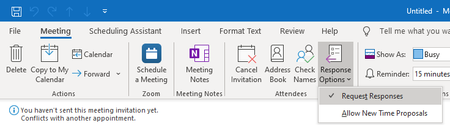
In Outlook, if I create a meeting and uncheck Response Options > Request Responses, am I still able to see who has RSVP'd to this meeting in the meeting tracking? Or does that completely remove the option for my attendees to RSVP and tracking? I unchecked that box for a meeting and the tracking shows that none have responded, but I'm wondering if it's because I turned that option off. Thanks!Solved18KViews0likes2CommentsRe: Please help: how to select multiple filter criteria in the filter drop-down list (not select all)?
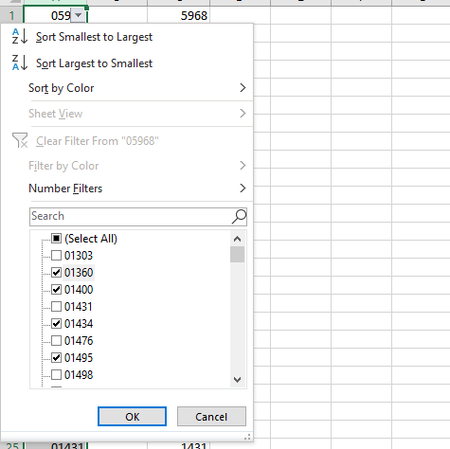
Hey Khanh_Mai, You can filter by any of the criteria by checking the box next to the items you want: You can also use the search box to make filtering easier. For example, if I wanted to filter numbers on my list starting with 013, I can enter that into the search box and check the box to add those items to my filter. I hope this answers your question!98KViews1like1CommentRe: Converting days into Years and Months not working for some data
Hey Tknerd, I'm not super familiar with the formulas you're using, but I found one that seems to work fine for me: =DATEDIF(0,A1,"y") & " Years " & DATEDIF(0,A1,"ym") & " Months " & DATEDIF(0,A1,"md") & " Days " Just replace A1 with the cell containing your count of days. Here's a short article explaining it: https://www.excelhow.net/how-to-convert-days-to-years-months-days-in-excel.html I hope this helps!2.4KViews0likes0CommentsRe: delete 3 rows after every 2 rows
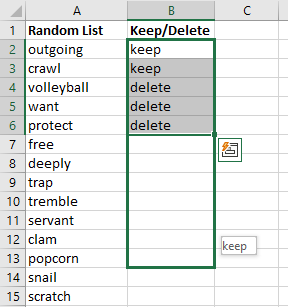
Hey Excel, I think I found a solution for you, as long as the pattern remains keep 2, delete 3. Add a column to designate which rows to keep or delete Enter "keep" or "delete" in the pattern you want down the column next to the rows you want to keep or delete (i.e. keep 2, delete 3 = keep, keep, delete, delete, delete) Highlight the pattern and drag it down the list to populate every 2 rows with keep followed by 3 rows with delete Sort or filter by keep/delete to remove unwanted rows. You can go to Data > filter to filter to just show the rows marked as keep OR you can sort by the keep/delete column and just delete every row marked as delete. Highlight the pattern and drag it down the list to populate every 2 rows with keep followed by 3 rows with delete: I also created a video for this if that makes it easier to understand: https://youtu.be/_sLbzkN4veg I hope this resolved your question!3.4KViews0likes0CommentsRe: Label Font Formatting Issues
Hey JessieTankersley , My response may be too late, but I'm posting anyway to help out anyone else wanting to do this. This is possible, but my solution needs to be done using mail merge in Word from an Excel file and it's easiest if you know the label type you're using, such as Avery 5160 address labels. I also created a video explaining this step by step, if that's helpful: https://youtu.be/BylFdTFK6t0 Format your addresses in Excel including column headers at the top of each column of data (i.e. first name, last name, company, address, etc) and ensure zip codes are formatted correctly so if they start with a 0, the 0 is not dropped off Open a blank Word document Click on the Mailings tab > Start Mail Merge > Labels Select your label vendor (i.e. Avery US Letter) then product number (i.e. 5160 address labels) Click on OK. You should now see an empty table in your document. From the Mailings tab, click on Select Recipients and select "Use an existing list" Select your Excel file of addresses and click on OK. Your document should now be blank in the top left cell and display «Next Record» in the rest. Click in the top left of blank cell if your cursor isn't already there. From the Mailings tab, click on the arrow under Insert Merge Field and add contents exactly how you want it to appear on your labels, adding spaces between first and last name and carriage returns to align the address and any other information correctly - you can always update this if it doesn't display correctly on your first try You can now format the contents, such as making the customer or company name bold by highlighting those fields and formatting the text with the options on the Home tab. Once you've formatted the fields in the first cell, go back to the Mailings tab and click on Update Labels. The contents may look a little strange at first, but you can see how they will appear by clicking on preview results. Click on preview results again to go back into edit mode. If you need to make adjustments, make them on that first label again, then click on update labels again. When you've perfected your labels, I like to view them one more time, so I click on Finish & Merge > Edit Individual Documents, select all and click OK. This will open the finished labels in a new document, enabling me to view every label to ensure text isn't wrapping to the point where an address won't get printed correctly. If more edits need to be made, just go back to the original Word doc, make your updates and repeat. Once perfect, you can now print your labels! I hope this was helpful!3.8KViews0likes0CommentsRe: expand / collapse doesn't work on heading if it's set later
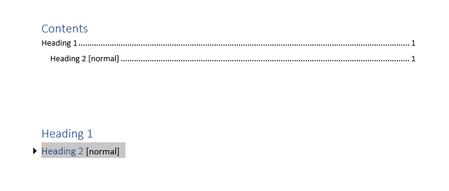
Hey kalazzz , I was able to replicate your experience and I think the cause is just that you have two different styles on the same line. This seems to confuse word so it doesn't show the expand/collapse arrow for H2 since you also have a normal style on the same line. The easiest solution would be to have H2 on its own line and your normal style text below, but it doesn't sound like that's what you want. I found a solution that sounds closer to what you want and that was to just choose H2 for that whole row of text, then manually change the text you want to have a normal appearance by highlighting it and changing it to a more normal appearance. In my example, H2 is Calibri light headings, size 13 & blue font so I changed the "normal" text to Calibri body, size 12 and black font. This allowed me to keep the dropdown arrow and collapse the section as expected. The only problem I can see with this solution is if you auto-generate a table of contents, the normal text will show along with the H2 text as shown in my example below, but this may not be a problem for you. You can manually edit the table of contents, but you will need to do that every time you update it. The solution for that would be to not edit it until your document is complete. Collapsed example with table of contents: Expanded: I hope this helps!14KViews0likes1CommentRe: Fonts in Word
Hey Ernie25 , I downloaded this font to ensure my solution would work and here's what I did: Highlight the text you want to change On the Home tab in the font section, click on the "text effects and typography" icon - it's the blue outlined A - then click on outline and choose the outline color you want Then click on the dropdown arrow next to the font color icon and change the font color to white Unless you have a printer that can print with white ink, it shouldn't matter what color paper you print this on - the printer should ignore the white font and only print the outline color. If the outline isn't dark enough, you can bold the text (ctrl + b) or go back to "text effects and typography", click on "weight" and increase the weight (size) of the outline. I made a short video explaining how to do this as well: https://youtu.be/ctPBzdRQbaA I hope this was helpful!3.1KViews1like5CommentsRe: sort
Hey brianfton, I replicated a couple scenarios of what you may have done to find a solution. If you used the default paste option when pasting your Excel list (keep source formatting), that could be part of your problem since you'd have the Excel portion in a table and the added words as paragraph text. What I'd recommend doing is select your entire list, cut or copy, then paste as text (under paste options, it's the icon with the clipboard and A or select paste special and select unformatted text). This will remove any formatting from Excel that may be interfering with your sorting. If your added text got included in the table and you're selecting all then using sort and your default sorting option is paragraphs, try instead highlighting the table, clicking on sort and select column 1 as the sort by option. I'd still recommend cutting and pasting the list as text to remove the Excel table formatting. A third option would be to copy your entire list, paste it into Excel (I recommend using the "Match destination formatting" option), and just sorting in Excel. I hope one of these solutions solves this for you!844Views0likes1CommentRe: Excel Save Dialog Box not launching and unable to set default location and document type
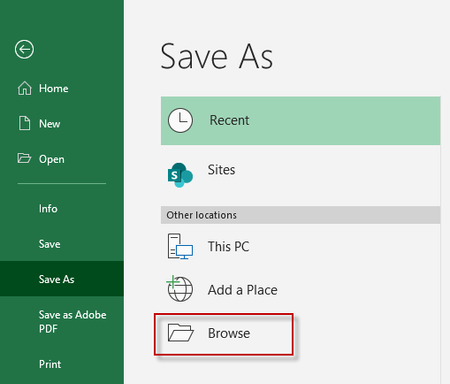
pmscott I think the dialog box you're looking for can now be accessed by clicking on "Browse" on the Save As menu. To manage your default save settings, click on File > Options > Save. I hope this is what you were looking for!1.7KViews0likes1CommentRe: Cut and paste from an external source, not copying!
geeknerddork I've had this problem before, and if I recall correctly, it had something to do with my clipboard and available memory. I'd recommend clearing your clipboard, which is explained in detail here: https://pureinfotech.com/clear-clipboard-history-windows-10/ Some other sites that explain how to clear your clipboard recommend downloading a software program, but that's not necessary. The functionality is built right into Windows and is simple: Open Settings (Start > Settings icon) Click on System Click on Clipboard Under “Clear clipboard data,” click the Clear button I'd also recommend restarting your computer and ensure you don't have excess programs open on your computer while you are trying to do this. I hope this fixes your problem!5.6KViews0likes1CommentRe: Disable Security Warning
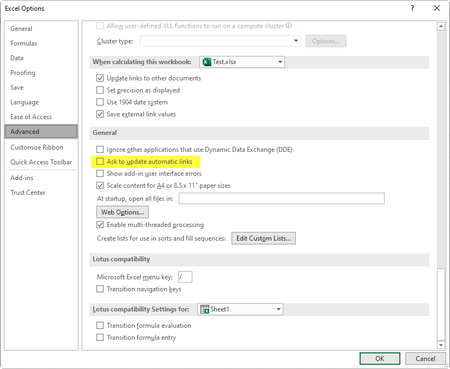
PGQuark I found this article (https://docs.microsoft.com/en-us/office/troubleshoot/excel/control-startup-message) that sounds like the problem you're having. They recommend to clear the Ask to update automatic links check box in Excel settings. The instructions of finding this setting are a bit off, maybe for an earlier version of Excel, but I found the setting at File > Options > Advanced > General (toward the bottom of the advanced options). I tested this myself by creating a test workbook and linking the content to another workbook. I unchecked that box, clicked "enable"on the warning message, saved and closed both workbooks. When I reopened the workbook, the message was gone. Hopefully this resolves the problem for you.2.3KViews0likes0CommentsRe: input from drop down list
Data validation with a drop-down list is probably the best option and I'm wondering if you just missed a step & that's why it didn't work. Here's a video I made that explains how to do this, so hopefully that helps you accomplish what you're wanting to do: https://youtu.be/8sdFsXfj25Y2.8KViews0likes0CommentsRe: Autopopulate from one worksheet to the next worksheet
The solution depends a bit on what exactly you're doing and whether the location of the data will always be in the same place or if it will change. If you're working with data that will always appear in the same location on sheet 1, like an order form with a customer address fields, you could simply use = on sheet 2. So if the customer's name was always located in cell E4 on sheet 1, you could simply enter =Sheet1!E4 in the proper location on sheet 2 or just type = then click in the appropriate cell on sheet 1.381Views0likes0CommentsRe: Conditional Filtering: remove duplicates only when both columns are duplicates (Excel 2019)
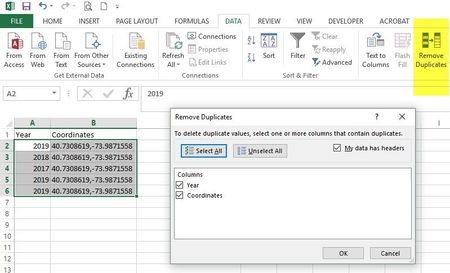
Hi Nick_S, Fortunately this is a really easy thing to do using Excel's Remove Duplicates data tool: Highlight your data Click on Data > Remove duplicates Ensure year and coordinates are checked Click OK Excel will automatically delete the duplicates. Please note, since Excel deletes the data, you may want to first make a copy of the sheet before using remove duplicates to preserve your original data.783Views0likes0CommentsRe: PLEASE HELP
If you just need to delete columns, this is very simple: Select the column you want to delete by clicking on the column header (the letter) so the whole column turns gray to indicate it has been selected Right click on the column header to open your options & click on delete OR press ctrl & - If you have multiple columns to delete, for example you need to delete columns E through L: Click (left click) on the column header for E Hold down the left mouse button and drag the cursor across the column header over to L to highlight all of the columns from E to L Right click on the column header to open your options & click on delete OR press ctrl & - It works the same way to delete rows, just click on the number of the row you want to delete to highlight it, right click and click on delete OR press ctrl & -. Sidenote: It sounds like you're fairly new to Excel and will be using it at your internship and likely any job you get, so I'd highly recommend watching some videos or taking free courses to learn the basics. Here's a free course https://www.udemy.com/excel_quickstart/ to help you get started, but there are plenty of other free resources online, including YouTube. Best of luck to you!898Views1like1CommentRe: Summarising the difference of 2 cells from 100 sheets to one sheet
Assuming the sheets are all in the same workbook, there's a pretty simple method for getting a list of the sheet names. Personally, I thought method 2 from this article was easiest for this scenario: https://www.datanumen.com/blogs/3-quick-ways-to-get-a-list-of-all-worksheet-names-in-an-excel-workbook/ For performing your calculations, I'd initially used CONCATENATE to build the formulas which created the formulas correctly, but they didn't paste as expected. I think Rich99's method using INDIRECT is far more efficient, so if your data started on row 2, the formulas would look like: F9-E9: =INDIRECT($A2&"!F9")-INDIRECT($A2&"!E9") F10-E10: =INDIRECT($A2&"!F10")-INDIRECT($A2&"!E10") F11-E11: =INDIRECT($A2&"!F11")-INDIRECT($A2&"!E11") Just copy/paste or drag the formulas down & you're all set.2.9KViews0likes5CommentsRe: Using Data in one field to fill check boxes or add yes or no into other fields.
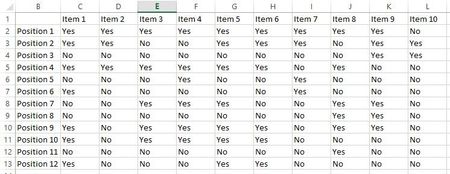
Hi Frazz4real, This can be handled using a MATCH & VLOOKUP function. This looks a bit insane, but it's not as complicated as it seems, so please bear with me. I included my file so you can see exactly what I did. On one sheet, I created a matrix with the positions listed down the left, the items across the top and a yes or no for each position/item combo. (I started on B in this example): On another sheet, I have a column that shows the employee name in column A and their position in column B. I copied the item row and pasted it across the top. What I want to do is create a formula for each item that's going to look at the role and the item, then search the matrix to see if that role gets that item. This is where I used the MATCH & VLOOKUP functions. It's a bit of a hassle for one row, but then you can copy the formula to all of the cells and it'll calculate correctly. Starting with the first item for the first person, I used formula: =VLOOKUP((MATCH($B2,'Item Matrix'!$B:$B)),'Item Matrix'!$A:$L,3,FALSE) I started with MATCH simply to determine which row the position was on: Lookup value: click in the cell of the first position and add a $ before the column to lock the match to that column since we're going to be pasting this formula across - that way it will always look in the position row. I entered $B2 since I want to lock the column, but not the row. Lookup array: select the row on your matrix where the positions are listed. Again, place a $ before the columns to lock the lookup to just that column. I entered $B:$B to only look in column B Next, I created my VLOOKUP formula. You're going to do this once, then paste it to each column updating just 1 value, so it should be decently easy to do: Lookup value: my MATCH formula in parentheses - this tells VLOOKUP which row to search Table array: I selected all the columns that contained my matrix info. You can select just the matrix, but if you end up adding more positions, this will make it so you don't have to update your formulas, just the matrix. Add the $ to lock the lookup to those columns. I entered Sheet6!$A:$L to search columns A-L. Col Index #: This is the column that corresponds to the item you're looking up. Since I'm starting with item 1 which is in column 3, I enter 3. This is the value you will need to change for each column you paste this formula into; everything else will remain the same. Once you've entered this formula for the first person/first item, ensure the answer is correct. Then, copy and paste the formula across the first row for the first person. Now you'll need to update the Col Index No for each column. Mine started with a col index value of 3 in column C, so in column D, I'll need to update that to 4. In column E, I'll change it to 5, in F I'll change it to 6 and so on until I've reached the end. Now, I can just copy that first row of formulas and paste them down the columns for each person and the formulas will auto-update showing the correct info for the correct person and position. I hope this helped you accomplish what you want to do!6.1KViews0likes1Comment
Recent Blog Articles
No content to show