User Profile

davidleal
Iron Contributor
Joined Feb 01, 2019


User Widgets
Recent Discussions
Office Script works on Web but provides a wrong result on Excel Desktop for updating formulas
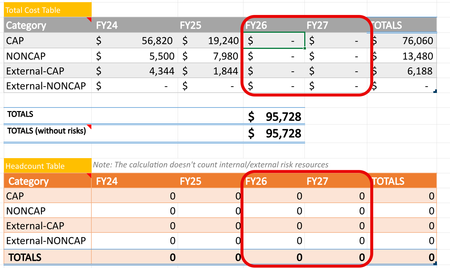
I built an Office script to add FYXX (FY26, FY27, etc.) columns to three excel tables, and to expand the formulas accordingly for the following year. The script works as expected in the web browser but when I run the same Script in my Excel Desktop (Current Channel), the formulas don't get updated correctly in the last two Excel tables (where they have formulas). I suspect it is related to the refresh process during the Script execution, I followed some recommendations on the web on how to overcome this well-known problem, but I am not able to fix it. (most of the tricks are commented in the source code, because I could not make it work. The problem can be isolated in the following inner function: function addFYXXCols(): void { // Logic for adding FYXX columns // Define the new column names for (var i = 1, addColNames = []; i <= colsNum; i++) { addColNames.push(FYCOL_PREFIX + (lastYearCounter + i)) } const lastCol = table.getColumnByName(lastFYXXColName) const lastRng = lastCol.getRangeBetweenHeaderAndTotal() const ROWS = lastRng.getRowCount() const regExUpdateFormula = new RegExp(`\\[${lastFYXXColName}\\]`, "g") const UPDATE_FORMULA = TABLE_NAME_SUFFIX_FORMULA.includes(tableName) const POS = lastFYXXColIdx + 1 // column position where to add the new column // Checking FYXX columns exist in COST table, before adding them to TCOST or HC Excel tables if (UPDATE_FORMULA) { const COST_TABLE_NAME = tableNames[0] const missingCols = findMissingCols(workbook.getTable(COST_TABLE_NAME), addColNames) if (missingCols.length > 0) { const MSG = `For adding '${addColNames}' columns in '${tableName}' they need to exist first in '${COST_TABLE_NAME}'. Please add missing columns '${missingCols}' and run it again.` Logger.error(MSG) } } Logger.trace(`Adding columns '${addColNames}' to Excel table: '${tableName}'.`) for (let j = 0; j < addColNames.length; j++) { // Iterating by new columns to add const COL_NAME = addColNames[j] const col = table.addColumn(POS + j) const newColRange = col.getRangeBetweenHeaderAndTotal() col.setName(COL_NAME) // Rename directly on the reference //table.getRangeBetweenHeaderAndTotal().getText() // forcing re-fresh of the table if (UPDATE_FORMULA) { // The formula needs to be updated for (let i = 0; i < ROWS; i++) { // iterating by rows const lastCell = lastRng.getCell(i, 0) const FORMULA = lastCell.getFormula() if (FORMULA) { // if it has a formula, then update it const NEW_FORMULA = FORMULA.replace(regExUpdateFormula, `[${COL_NAME}]`) const newCell = newColRange.getCell(i, 0) //newCell.setValue("") // prep the cell //table.getRangeBetweenHeaderAndTotal().getUsedRange() newCell.setFormula(NEW_FORMULA) //newCell.getUsedRange() // A force-refresh trigger, to make Excel "commit" } } // end for iterating by rows } // end if //flushTable(table) //table.getRangeBetweenHeaderAndTotal() // A force-refresh trigger, to make Excel "commit" } // end for iterating by columns } // End function I am attaching the Excel file, as you can see the formulas are not correct for the added columns FY26, FY27 in the tables TB_P4TCOST, TB_P4HC they are not consistent with the previous column for the same row, the only change by row should be the reference to the new added columns. I could not load the Office Script, so I am adding it the Excel file, under the tab Office Script. It tested using the Office Script input parameters just modifying one of the tables with formula (table input argument: TOTAL_COST, HEADCOUNT for example), to check if there is any conflict processing more than one Excel Table, but the problem remains the same. Here the screenshot of the Excel table, where the formulas are not correct. The helper function flushTable, that is commented, was one of the solution I found on internet, but calling it didn't solve the problem: /*Trick to force flush the table*/ function flushTable(table: ExcelScript.Table) { const dummyCol = table.addColumn() dummyCol.setName("_temp") dummyCol.getRangeBetweenHeaderAndTotal().setValue("refresh") dummyCol.delete() } The Logger is a singleton class I created to handle the logging process. Since it is an inner function it inherits variables and functions from the main/outer function. There is no issue with the source code since it works as expected in Web Excel, so it is a specific platform/version problem, I am looking for some workaround on how to fix it so it works for Excel Desktop too. Any help is appreciated, thanks in advance for your help.437Views0likes3CommentsRe: Office Script works on Web but provides a wrong result on Excel Desktop for updating formulas
Thanks for sharing and for your help, I read it, but I was not able to find something related to my specific case. It seems my problem is related to the following: timing/refresh conflict caused by Excel Desktop's deferred rendering and batching model, but I am not able to find more specific details on my research.128Views0likes0CommentsRe: Office Script works on Web but provides a wrong result on Excel Desktop for updating formulas
Thanks, for pointing it out, interesting, I took a look at it, but I don't see anything similar, it is referring to errors, but not about different behavior between Web Excel and Desktop, unless I missed something, if that is the case, please let me know. Thanks!130Views0likes0CommentsRe: Show correct %-Allocation in Resource Usage for a specific project when using Resource Pool
Thanks, I thought you were willing to share the macro if it is broken down by project it would be great, if not you can please share it, I am not a VBA expert, but I will see what I can do. You are correct about NETWORKDAYS, it is a simplification, but INMO there is no other way to do it, because MS Project as we know now, doesn't calculate %-Allocation in certain scenarios, so we can not rely on this calculation. The only calculation we know is correct by projects is Work, so we can calculate a specific allocation, say %-Theoretical Allocation, since it doesn't consider the particular resource constraints such as vacation, local holidays, etc. That is what I meant. Export to Excel will do one portion of the work, exporting hours, then find a way to deduce from the hours %-Allocation. It is a pitty that MS Project doesn't provide %-Allocation in all cases. Thanks so much for your help.537Views0likes1CommentRe: Show correct %-Allocation in Resource Usage for a specific project when using Resource Pool
I am glad you came to the same conclusion. Since Work is calculated correctly, then knowing the working days per month via the Excel function NETWORKDAYS, the allocation can be calculated. I read that using Project's Visual Reports it is possible to export to Excel, but I haven't tried it. I haven't tried the VB approach, if you share the Excel file for this scenario (pool resource and filtering for a given project only) it would be great. As you said it is not the solution I was looking for, but probably a good workaround. Thanks again for your help on this.562Views0likes3CommentsRe: Show correct %-Allocation in Resource Usage for a specific project when using Resource Pool
John-project Thanks, this is an option I didn't consider. I tried it but I got the same result for Res1. Using Assignment for Project and Resource for Name (%-Allocation is empty): Using Assignment in both cases: The %-Allocation value is provided for Res1, but the value is wrong, it is not by group. Would you try with the same sample files I shared just to double check. Thanks! Please advise, and thanks again for your response!561Views0likes5CommentsShow correct %-Allocation in Resource Usage for a specific project when using Resource Pool
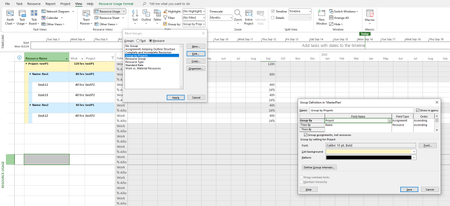
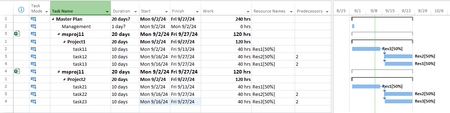
I would like to get Percent Allocation in Resource Usage, by a specific project when I have a pool of resources and a master project using two simple projects (testP1, testP2) like the following to illustrate the point: And I would like to visualize the monthly percent allocation in the Resource Usage view by project. Considering Sept,2025 which has 168 working hours. I created the following custom group: Group by Projects as follows, to group by project, so I can have the information I am looking for: Note: I followed the answer from Ignacio_Martin for this question: MS Project Resource Pool Usage. Then I followed the instructions from this post: https://support.microsoft.com/en-us/office/view-resource-workloads-and-availability-in-project-desktop-3ee16869-68ad-4e63-bcb3-278ae34f7459 to add Percent Allocation in the Detail column of the Resource Usage view. Now using this custom group I would like to get the calculation for %-Allocation for project testP1, so I filter the Project column to select just this project. I am getting the following results: As you can see the result is as expected for Work, but not for % Allocation. For example, Res1 is working 80 hours, so its allocation should be: 80/168=48%, but the allocation cell is empty for Res1. If it is a single task, as it is for Res2, then the %-Allocation is correct: 40/168=24%. Why it is not possible to calculate the %-Allocation for Res1? Here is the filter used in the Project column: What I am doing wrong here? Is there a way to get the %-Allocation per project when using a pool of resources? Attached are sample files compressed in a zip folder, since mpp files are not supported for attach.983Views0likes7CommentsRe: MS Project Resource Pool Usage
Ignacio_Martin thanks for your help, I have the same situation and it worked for me to get project cost and hours (Work) for shared resources. Now I realize that for %-Allocation the same logic doesn't work as expected. I posted the following question: Show correct %-Allocation in Resource Usage for a specific project when using Resource Pool. If you have any idea on how to solve this, please help answer the question. Thanks so much.669Views0likes1CommentRe: Office Script: Add Hyperlink to a column within an Excel Table
Thanks @SergeiBaklan, maybe I was not clear enough. The variant approach is the fast solution, no need to improve it. The solution using setHyperlink is the one that has performance issue. Looking at your last approach is an improvement of the variant solution and as you indicated it has some limitations in terms of Excel environment.3.5KViews1like0CommentsRe: Office Script: Add Hyperlink to a column within an Excel Table
@Sergei Baklan Exactly we replied at the same time, I got to a similar conclusion, to get the value first and to invoke getRange.getValue() to get the value of the named Range. Anyway performance is an issue, for 500 rows about 25 seconds under Excel Desktop, and running from my Mac using Excel Web, more than 2 minutes and sometime I got a time out. On contrary, the variant approach using HYPERLINK function is incredibly fast. The output is less friendly, because the cell has instead of the key value the call to HYPERLINK. I don't think the variant approach can be applied for setHyperlink, because this function needs a range and the variant needs an array.3.6KViews0likes2CommentsRe: Office Script: Add Hyperlink to a column within an Excel Table
Thanks SergeiBaklan yes, it works for url as literal, but not when the value is taken from a named range. It indicated some error, but changing: const v = cell.getValue() by const v = cell.getValue().toString() it works. Here is the updated formula: function main(workbook: ExcelScript.Workbook) { const tableName = "TB_TEST" //const url = "https://MYSITE.atlassian.net/browse/" const url = workbook.getNamedItem("jiraSiteIssue").getValue().toString() console.log(`url: '${url}'`) const keyColumn = workbook .getTable(tableName) .getColumn(1) .getRangeBetweenHeaderAndTotal() const rows = keyColumn.getRowCount() for (let i = 0; i < rows; i++) { const cell = keyColumn.getCell(i, 0); const v = cell.getValue().toString(); const hyperlink: ExcelScript.RangeHyperlink = { address: url + v, screenTip: url + v, textToDisplay: v }; cell.setHyperlink(hyperlink); } } it indicates a performance warning in line 14, I was trying to use a variant as in your other example, but I couldn't make it works. Under this approach the warning can be removing getting the values first. Update: I found the way to get the value of the named range, it should be like this: const url = workbook.getNamedItem("jiraSiteIssue").getRange().getValue() Here it the final script: function main(workbook: ExcelScript.Workbook) { const tableName = "TB_TEST" //const url = "https://MYSITE.atlassian.net/browse/" const url = workbook.getNamedItem("jiraSiteIssue").getRange().getValue() console.log(`url: '${url}'`) const keyColumn = workbook .getTable(tableName) .getColumn(1) .getRangeBetweenHeaderAndTotal() const rows = keyColumn.getRowCount() const values = keyColumn.getValues() for (let i = 0; i < rows; i++) { const cell = keyColumn.getCell(i, 0) const v = values[i][0].toString(); const hyperlink: ExcelScript.RangeHyperlink = { address: url + v, screenTip: url + v, textToDisplay: v } cell.setHyperlink(hyperlink) } } Yes it works when there are empty cells. Thanks again, David3.5KViews0likes4CommentsRe: Office Script: Add Hyperlink to a column within an Excel Table
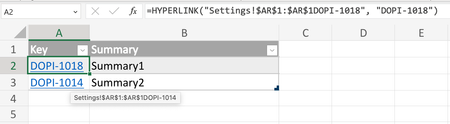
Thanks SergeiBaklan great it works and it doesn't show the warning about performance. I just have a couple of questions/comments. What if the Excel table has empty rows?, is it possible to prevent this?, basically I could have empty lines at. the end, so the hyperlink function should apply only if the cell is not empty. How we can prevent this? In my real example I take the url from a named range (defined in the Name Manager), as in my original post. I was trying to adapt it from your last code, but it doesn't work, for example: function main(workbook: ExcelScript.Workbook) { const tableName = "TB_TEST" //const url = "\"https://MY_SITE.atlassian.net/browse/" const url = "\"" + workbook.getNamedItem("jiraSiteIssue").getValue() console.log(`url: '${url}'`) const keyColumn = workbook .getTable(tableName) .getColumn(1) .getRangeBetweenHeaderAndTotal() const formulae = keyColumn .getValues() .map(x => Array.of("=HYPERLINK(" + url + x + "\", \"" + x + "\"")) keyColumn.setFormulas(formulae) } The log output is the following: url: '"Settings!$AR$1:$AR$1' so the output is the location of the value, but not the actual value, and therefore the output is not the expected: Thanks for any help, David3.6KViews0likes6CommentsRe: Office Script: Add Hyperlink to a column within an Excel Table
JKPieterse thanks it works, but it adds an extra column, which is something I can do with Excel, no need to use Office Script for that. I would say I can delete the original column, no to append the Link column but insert after the first column, then delete Key column and rename the inserted column. I guess it is doable, but I am new to Office Script (I had a similar idea using Power Query, but it doesn't support hyperlink and at the end requires manual intervention). I my real example I have additional information in the Sheet and I don't know how this will affect formula integrity, I have several formulas in this Sheet. Is there a way to do it without adding a new column?3.8KViews0likes9CommentsOffice Script: Add Hyperlink to a column within an Excel Table
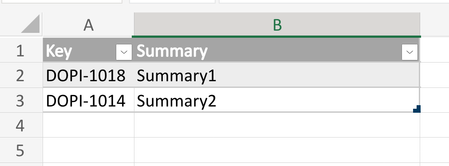
I am trying to use Office Script to add hyperlink to a given Excel Table column. I have the following input data: in an Excel Table named TB_TEST. I am using the following script to change the Key column adding the corresponding hyperlink: function main(workbook: ExcelScript.Workbook) { // Get the current worksheet. const TARGET_TABLE_NAME = "TB_TEST"; const table = workbook.getTable(TARGET_TABLE_NAME); const keyColumn = table.getColumn(1).getRangeBetweenHeaderAndTotal(); const keyColumnName = table.getColumn(1).getName(); console.log(`Column name: '${keyColumnName}'`); //const url = workbook.getNamedItem("jiraSiteIssue").getValue(); const url = "\"https://MY_SITE.atlassian.net/browse/\""; const key = "\"DOPI-1018\""; //keyColumn.setFormula(`=HYPERLINK(${url}&${key},${key})`); keyColumn.setFormula(`=HYPERLINK(${url}&[@[${keyColumnName}]],[@[${keyColumnName}]])`); } I verified it works when I replace the entire column using a constant value. The following line that was commented works: keyColumn.setFormula(`=HYPERLINK(${url}&${key},${key})`); Here is the output: but I am not able to make it works the following line, that should change each element of the Key column: keyColumn.setFormula(`=HYPERLINK(${url}&[@[${keyColumnName}]],[@[${keyColumnName}]])`); Here is the output: The row values [@Key] are not replaced. There is no too much documentation about Office Script, any help is appreciated. Thanks, DavidSolved4.7KViews0likes12CommentsRe: Populate Excel Table column with a column from another Excel Table, generates !VALUE#
Thanks SergeiBaklan, it has to be modified a little bit, if Table2 has more rows than Table1, for example: =LET(x, IFERROR(INDEX(Table1[Link], ROW()-ROW(Table2[#Headers])),""), IF(x="","",x)) Now is we expand Table2 to have more rows than Table1 and fill the last row of Table1 it works as expected.4.1KViews0likes1CommentRe: Populate Excel Table column with a column from another Excel Table, generates !VALUE#
SergeiBaklan thanks for your hint, as per my understanding of https://support.microsoft.com/en-gb/office/implicit-intersection-operator-ce3be07b-0101-4450-a24e-c1c999be2b34@ for Excel tables, the documentation states: "The @ symbol is already used in table references to indicate implicit intersection. Consider the following formula in a table =[@Column1]. Here the @ indicates that the formula should use implicit intersection to retrieve the value on the same row from [Column1]" my understanding is that the same row is relative to the table, i.e. within the table, not related to the position in the sheet. I think the issue is that the at symbol, refers to the current table, not to the referred table, even it doesn't give an error, it doesn't understand it well. The formula in Table2 for getting the values from Table1: =IF(Table1[@Link]="", "", Table1[@Link]) The at symbol @ is supposed to refer to the values in the current table (Table2), not Table1, but for some reason Excel doesn't complain, changing the columns names from Table2 to avoid having the same names as in Table1, still doesn't get an error, but returns !VALUE# if tables are not at the same row. My goal is to have simple way to copy one column from one table to another. For some columns I would need to do some transformations, but because Excel Table doesn't accept dynamic array function, it is difficult to achieve it. I can refer to the cell and drag it down, but if the columns in Table1 can increase dynamically which is my case, I would need to expand rows of Table2 enough to cover all the values from Table1. The other option that I was thinking is to use Power Query, but then you loose the hyperlinks and I don't want to use VBA for adding the hyperlinks, I have seen some workarounds, to add them, but you need the explicit URL in separated place to add them. Thanks for any advice, David4.2KViews0likes3CommentsPopulate Excel Table column with a column from another Excel Table, generates !VALUE#
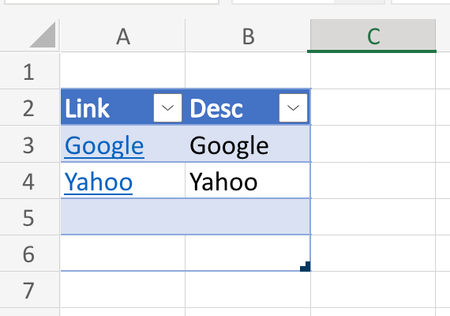
I have two tables Table1, Table2, for illustrative purpose of my real scenario, I realized that you can populate the columns from Table2 based on the columns from Table1. It works as expected only if both tables start at the same row, selecting a given column: Table[@Link] should not depend on the location of the table, but it seems that it depends, unless I am doing something wrong. Here is the Table 1: This is the Table2: The formula used in Link column is: =IF(Table1[@Link]="", "", Table1[@Link]) The formula used in Desc column is: =IF(Table1[@Desc]="", "",Table1[@Desc]) If Table1 and Table2 start on the same row, then first row has the expected result, i.e. no !VALUE# is returned. The IF condition is to avoid returning 0 instead of empty string. Attached the sample file, for a better understanding. Additional question: The hyperlink is lost in Table2, it can be built via HYPERLINK function, but I am wondering if there is an Excel setting that allows to automatically copy the value with the hyperlink all together. Thanks in advance, DavidSolved5.6KViews0likes5Comments- 1.1KViews0likes1Comment
Re: Lambda Example: Generate Fibonacci series
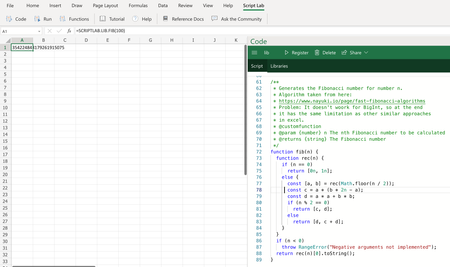
Given the limitations we have with Excel precision for large Fibonacci numbers it is worth to consider this approach that uses Excel Javascript API, with the help of Microsoft Garage Project: https://github.com/OfficeDev/script-lab Here a https://www.nayuki.io/page/fast-fibonacci-algorithms (something we discussed in this post also trying to implement it in Excel): /** * @customfunction * {number} n The nth Fibonacci number to be calculated * @returns {string} The Fibonacci number */ function fib(n) { function rec(n) { if (n == 0) return [0n, 1n]; else { const [a, b] = rec(Math.floor(n / 2)); const c = a * (b * 2n - a); const d = a * a + b * b; if (n % 2 == 0) return [c, d]; else return [d, c + d]; } } if (n < 0) throw RangeError("Negative arguments not implemented"); return rec(n)[0].toString(); } Please keep in mind that @tags in the comment section are required to register properly the custom function. The calculation is carried out with BigInt precision (n suffix in the numbers used) otherwise we would have the same limitation Excel has loosing precision. Working with BigInt numbers, there is no precision limitation. Finally, we convert the result into a string so the output will be as text data type. If the function was defined, for example in the LIB Snippet, then you can invoke it as follows: =SCRIPTLAB.LIB.FIB(10000) It returns the correct result in less than 2 secs! I tested also for 100K Fibonacci number with similar execution time, so it a scalable solution. Here is the output for Fibonacci number 100:3.2KViews1like0CommentsRe: Lambda Example: Generate Fibonacci series
lori_mI tested it with Excel for Web (free version), I haven't tried with my work computer that comes with Excel Desktop (I cannot use AFE Add-ins, that is why I prefer to test on the free version online). CORRECTION: The limit is reached with the function I used to calculate the performance (https://github.com/microsoft/advanced-formula-environment/blob/main/examples/Lib.md from Andrew D Gordon from AFE Add-ins). Now I tested it without using this function, and results now look better: FIB (lor_m using convolution) for 10K Fibo number: 1,150 ms FIBO_STR (using BigAdd) for 10K Fibo number.: 12,510 ms so FIB solution is about 10x faster!!!, not just that, the duration is not linear, so it is very efficient, for example for FIBO 100K it takes around 2,000 ms. Obviously the number cannot be represented in Excel entirely, but it returns a result. Python is not even able to compute this number. Great solution lori_m finally we have an Excel efficient solution for large Fibonacci numbers!3.3KViews0likes1Comment
Recent Blog Articles
No content to show