User Profile

CubanGuy
Copper Contributor
Joined Apr 19, 2022


User Widgets
Recent Discussions
Hiding commands using JSON Format doesn't work in web part
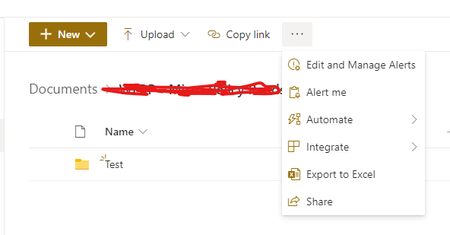
I have a document library that I would like to show in the home page of a modern SharePoint site. I added the document library web part to the page, selected the folder I want to show, and selected the view I want to use. In this view I used JSON to hide and move around some of the commands from the command bar: { "$schema": "https://developer.microsoft.com/json-schemas/sp/v2/row-formatting.schema.json", "commandBarProps": { "commands": [ { "key": "new", "hide": false }, { "key": "sync", "hide": true }, { "key": "editInGridView", "hide": true }, { "key": "download", "hide": true }, { "key": "automate", "sectionType": "Overflow", "position": 3 }, { "key": "manageAlert", "sectionType": "Overflow", "position": 1, "iconName": "AlertSettings", "text": "Edit and Manage Alerts" }, { "key": "alertMe", "sectionType": "Overflow", "position": 2, "iconName": "WorkItemAlert" }, { "key": "export", "sectionType": "Overflow", "position": 5, "iconName": "ExcelDocument" }, { "key": "integrate", "sectionType": "Overflow", "position": 4 }, { "key": "share", "position": 6, "sectionType": "Overflow", "title": "Share this List" } ] } } It works perfectly when I'm in the library itself: But it doesn't when I add this library to a page as a web part: Is it possible to modify which commands to show/hide from a document library when it is a web part in a page?Solved2.9KViews0likes2CommentsRe: SharePoint JSON formatting document library columns
CubanGuy I think I figured it out. It won't hide the columns from view, but at least won't show the NaN. Just in case someone is in a similar situation. I used the Content Type column to do the trick: { "$schema": "https://developer.microsoft.com/json-schemas/sp/v2/column-formatting.schema.json", "elmType": "div", "attributes": { "class": "=if(@currentField > 0,'', '')" }, "children": [ { "elmType": "span", "txtContent": "=if([$ContentType] != 'Folder', if(Number([$YearPublished]) != 0, floor(Number(getYear(@now)) - Number([$YearPublished])), 'Year Published not provided'), '')" } ] }3.5KViews0likes0CommentsSharePoint JSON formatting document library columns
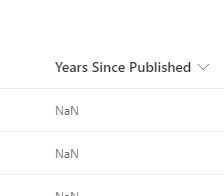
I'm using a JSON Formatting in one of the columns of a document library, and so far works just fine. I have only one issue. The documents inside the library are organized in folders, and those document have metadata (columns) generated when the documents are provided, but that's not the case for the folders themselves. For example. one of the columns is called Year Published (not created). I added another column called Years Since Published. I make some calculations using JSON formatting to calculate the years difference between that year, and the current year: { "$schema": "https://developer.microsoft.com/json-schemas/sp/v2/column-formatting.schema.json", "elmType": "div", "attributes": { "class": "=if(@currentField > 0,'', '')" }, "children": [ { "elmType": "span", "txtContent": "=if(floor((Number([$YearPublished]) != 0, Number(getYear(@now)) - Number([$YearPublished]), 'Year Published not provided')" } ] } The issue is that it display perfectly when I'm inside a folder, looking at the documents, but when I'm at the parent folder level, it shows NaN. I know this is a tricky question/issue, and probably more related to Views, but is there a way to at least show the column blank when I'm at the parent folder level? Ideally, it would be great to only show the metadata/columns when I'm inside the folder, but that's probably impossible to accomplish. Thanks in advance.3.7KViews0likes1Comment
Recent Blog Articles
No content to show