office 365
6308 Topics
MISSING FUNCTIONS THAT I PREVIOUSLY HAD ACCESS TO
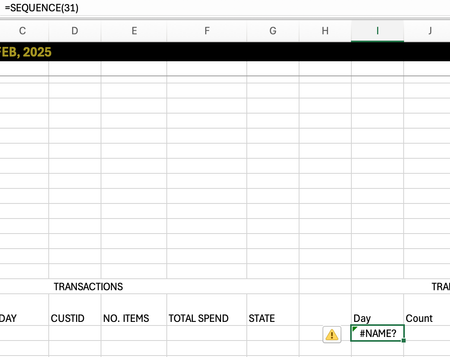
I just switched macbooks and opened my excel to discover I had a few missing functions: MAXIFS, SEQUENCE. This is not a problem regarding the software as mine is MICROSOFT365 and I used the same account previously. Is there any way I can gain these functions back! Thank you!14Views0likes0CommentsSTOCKHISTORY and Stock Data not working
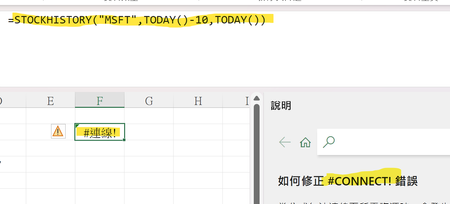
Is it only me? Or everyone else having the same problem? My Excel 365 cannot use STOCKHISTORY Function anymore. It shows #connect! Error. Also, I cannot use the stock data anymore. (The other data types are not functioning as well.) (The error message says "Sorry, we are having a temporary server error. We are trying to fix this problem.") Is it only me? Or everyone else is having this problem?Solved1.1KViews14likes29Comments
Microsoft Excel Update Changed Formula
I've used Excel for the last 2-3 years to track changes in a sheet by month the data listed is added or changed. The formula I've used worked fine until today, when I started receiving an _xlfn in the formula. It now reads as follows: =IF(ISBLANK($A6),$A2,IF((_xlfn.MAXIFS(A$7:A$41,D$7:D$41,">"&0))>=$A$2,_xlfn.MAXIFS(A$7:A$41,D$7:D$41,">"&0),"")) My goal was to have Excel look if there were updated values in D6 and enter the most recent date associated with that value from A6 to A41. Does Excel no longer support MAXIFS?86Views0likes3Comments
Help with Excel pop out window
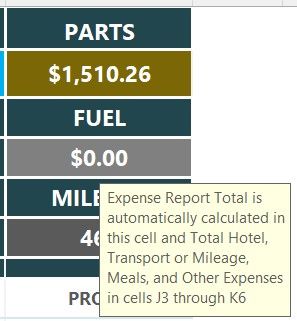
I found a free spreadsheet online that I wanted to use. I am able to manipulated it for my use case. But the original creator added these call out fields that I cannot seem to find out how to delete or change the syntax. I can't even find out what they are called. Any suggestions?? In the attachment, I select a filed and a little yellow box pops up. How do I change or delete these??41Views0likes1Comment
Look up two parts of a string in a cell
Hello All, I know all about the XLOOKUP() but at times I need a special type of a look up. if I have a cell with the text “Apples and Oranges” how can I write an XLOOKUP to evaluate the “Apples” and then evaluate the “Oranges” parts. for example if I have a list of fruits in a column, then in the next column I have true if the fruit has seeds and false if the fruit does not have seeds. now normally the XLOOKUP will look for the whole string, so if there is no fruit called “Apples and Oranges” it will fail and not return anything. But I do have “Apples” in one cell and it has true for having seeds, AND I do have “Oranges” and it has false for seeds (these are Naval oranges 🤪) so the XLOOKUP will not return false. how can I write an XLOOKUP to return “Apples”, “Oranges”, AND “Apples and Oranges”? I thought of replacing the part after the And but then I’ll lose the fine parts, then I tried splitting the string on “AND” and that did not work at all. I guess you can’t run an XLOOKUP on an array part??? any help will be greatly appreciated!75Views0likes2CommentsHow XLOOKUP arguments apply in this case
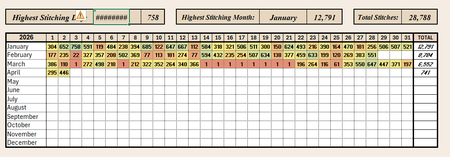
I'm not an Excel newbie, but I have never had cause to use XLOOKUP, INDEX, or MATCH before. I'm not understanding how the xlookup arguments would apply in my case or if index/match would be better. I have an array with months as my row headings and dates as my column headings. The array itself is filled with number of pages read each day. I'm trying to have a cell indicating on which date I did the maximum amount of reading. So I want to start with the max value of my array and return the month (row) and date (column) heading using xlookup. Whether those are in one cell or two, doesn't so much matter - it's a hobby tracker, but no matter how I try and call this, I end up with a value error So for example, I would want this to return January 3rd. Every example I'm finding seems to show how to input Jan 3rd and return the value 758. What am I missing to look this up the other way around? Should I be using index or match instead?131Views0likes4Comments
Finding return value from multiple columns/cells with specific text
Hello, I have to verify multiple cells (C2 to F2) with two possible statuses: "Eligible" and "Not Eligible". In Excel, would it be possible to: If all cells "Eligible", then the result is "Passed". If any of the columns is "Not Eligible", then the result is "Failed". (additional issue) this is not super important but it would be helpful to add one more condition: if any of the columns is "Consult", then the result is "No Result". I'm fine if only the 1st and 2nd issue works, though. I have tried finding solutions in other discussions, but usually the formula that I copy-pasted keep showing "Passed" even if one of the documents is listed as "Not Eligible". Thanks in advance. A B C D E F G 1 No. Name Document 1 Document 2 Document 3 Document 4 Result 2 1 Candidate A Eligible Eligible Eligible Eligible Passed 3 2 Candidate B Eligible Not Eligible Eligible Eligible Failed 4 3 Candidate C Eligible Eligible Consult Eligible No Result 5 4 Candidate D Eligible Eligible Eligible Not Eligible FailedSolved81Views0likes4Comments
File always corrupt
Anyone have the same problem with me? I use microsoft excel 365 on my mac. At the beginning everything alright, until i use formula and then save the file. When i want to re-open the file, the messagebox showed up "we found something wrong in your content...". It gives 2 option, yes and no. If i click no, the file wont open. If i click yes, the file open, the excel do the recovery, the file open but end up with all the formulas is gone, deleted by excel and just left the value. What should i do? Do the file can still be fixed?243Views0likes5CommentsAllow removal of "Copilot Suggestions" from right-click menu
I have been using Excel for decades and CONSTANTLY use the right-click menu for quick access to basic functions (e.g., "Insert"). Ever since "Copilot Suggestions" was added to the drop-down list, it always throws me off due to its placement. I have Microsoft 365 on Windows 11 Pro. I have searched for ways to remove this from appearing there and the result said "go to File > Options > Copilot and uncheck the 'Enable Copilot' box". However, when I attempt to do that, there is NO "Copilot" option available! PLEASE allow removal of "Copilot Suggestions" from the right-click menu OR at least the option to move it to the bottom (so it isn't in the way of things used ALL the time). I realize that Copilot is a great resource for many users, but I am confident in my Excel skills and in my ability to research/learn new skills the "old school" way, so I have little use for this feature now and would prefer to hide it.2.7KViews19likes8Comments