Forum Discussion

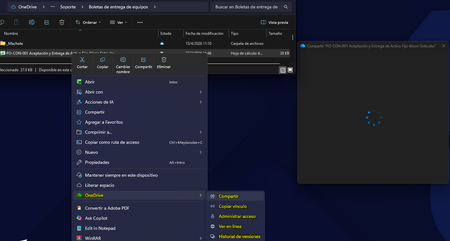
OneDrive “Share” window stuck loading from File Explorer (works on web)

 Microsoft
As users report that it is part of recent Microsoft 365 / OneDrive / SharePoint updates Folder sharing and permission management are now intentionally routed through SharePoint and Microsoft Teams instead. To centralize sharing and access control in the web-based collaboration experience and to reduce sync and security issues caused by creating sharing links from Explorer.
Due to this situation. I recommend you go to Feedback community to vote this similar feedback: (find out similar feedback, if not, provide the feedback forum link Ideas · Community). Our product team is in charge of the site, and they constantly check customer reviews and feedback, The higher votes, the more attention the related team will pay on. And a lot of the features are developed and improved based on customer feedback.
In case you need more information above your situation, I kindly recommend creating a new, separate post for your issue and applying the correct tags. Opening a dedicated thread helps ensure that your question is clearly visible to the community and not overlooked within an older or inactive discussion.
Creating a new post also allows more community members, including those who specialize in your specific topic, to discover your question and provide faster assistance. In general, new threads receive higher visibility and engagement, which increases the chances of receiving helpful replies.
Microsoft has recently updated OneDrive’s sharing system, which may affect how share links appear, especially for large files. While the traditional “Copy link” option might no longer be visible in some cases, you can still share large files reliably using the following solutions:
Recommended Methods for Sharing Large Files via OneDrive
1.Use OneDrive Web Interface
- Go to https://onedrive.com, locate the file, and click Share > Copy Link.
- Adjust permissions if needed (e.g., “Specific people” or “Can view”).
- This method bypasses glitches in the Windows Explorer context menu and works reliably for large files.
2.Share via Folder Link
- Place the large file in a folder and share the folder instead.
- This avoids bugs with direct file links and allows future additions under the same link.
- Be sure to set permissions to “Can view” if you want read-only access.
3.Use Windows Explorer’s “Share” Dialog
- Right-click the file and select Share (blue cloud icon).
- You can enter email addresses or copy a link with customized permissions.
- This replaces the old “Copy link” shortcut with a more controlled process.
4.Compress (Zip) the File
- Zip the file using Send to > Compressed folder, then upload and share the .zip.
- Useful if the file is near the 250 GB limit or if other methods fail.
- Recipients will need to unzip the file after download.
5.Sync Status
- Ensure the file is fully synced to OneDrive (check for “Up to date” status).
- Unsynced files won’t generate share links.
6.File Size Limits
- OneDrive supports files up to 250 GB.
- Files larger than that must be split or compressed into parts.
- Most sharing issues are due to UI changes, not size limits
Please also check your organization’s sharing policies, as some settings may restrict external sharing or anonymous links.
I hope you find this message helpful. If the issue persists after these steps, please let us know any error messages you’ve received or recent changes to your Outlook setup. We’re here to assist you further