Forum Discussion

Mac: OneDrive Couldn't Start: Please restart your computer and try again
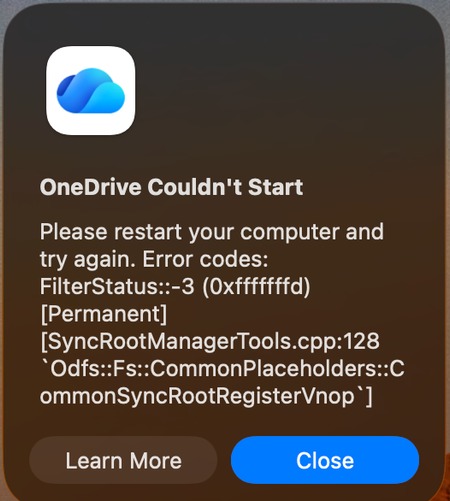

I'm actively dealing with the same issue. This started right around Sep 10th or so.
I think I found a solve but you might not like it: READ THIS ALL BEFORE TRYING IT
Use Activity Monitor to close our of all OneDrive stuff. Navigate to One Drive in your finder window, right click and show package contents, click Contents, click Resources. Then I opened the RemoveOneDriveCreds.command then I ran the ResetOneDriveApp Standalone.command scripts.
Warning: this looks like it does remove / delete the sync completely. So the OneDrive folder will disappear from your finder window. If you've been using your OneDrive folders even while you've had this syncing issue, I'm fairly certain you will lose these unsynced files. BACK UP YOUR STUFF. Anything you worked on while OneDrive has been failing you'll probably lose.
I just went through this process. It removed all the OneDrive folders from my machine but OneDrive is running now. I went onto OneDrive.com and set the folders to sync and they're now downloading onto my computer again.
I kind of used this, but just reset, not remove and had no issues with folder loss.
After re-opening OneDrive, my mac said it couldn't save on a particular disk (the reason we're getting that issue in the first place) and asked me to select a new disk. I SELECTED THE SAME DISK and it worked fine. I logged in again and it synced all my same files.
I also had to re-add the synced folders, but it's not terrible since they're already shared in OneDrive online.
Sorry OP - either wait for a fix or you may have to re-add all the folders if you want a sooner option :/
This resets OneDrive's internal configurations without touching your actual cloud data.
- Open Finder and navigate to your Applications folder.
- Find OneDrive (or Microsoft OneDrive), right-click (or Control + click) it, and select Show Package Contents.
- Navigate to Contents > Resources.
- Look for a file named ResetOneDriveApp.command (or ResetOneDriveAppStandalone.command) and double-click it.
- A Terminal window will open and run a quick script. Once it finishes, close Terminal and try opening OneDrive again.
If you want to confirm
- Navigate to finder.
- Press Command+Shift+G
- Paste: ~/Library/CloudStorage
- Click Enter
It will show you your old OneDrive Folder with date-time stamps and a list of your previously shared folders (highlighted in pink), which you can un-collapse to find the previously synced shared folders online