crash
2 Topics
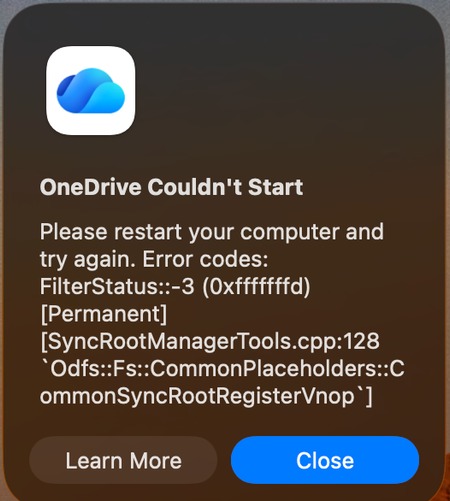
Mac: OneDrive Couldn't Start: Please restart your computer and try again
When OneDrive updated on 9/11, with build 26158.0816, I started to get this error: OneDrive Couldn't Start: Please restart your computer and try again. Error codes: FilterStatus::-3 (0xfffffffd) [Permanent] [SyncRootManagerTools.cpp:128 `Odfs::Fs::CommonPlaceholders::CommonSyncRootRegisterVnop`] I have powered off my Mac and rebooted. Restarting OneDrive does nothing. It keeps giving me this error and as a result, I also cannot live edit docs using the thick clients (Word, Excel, etc). Files I have modified with them are stuck on my Mac. I am looking for tips. Please do not ask me to unlink/de-register all of my Onedrive sync'd shares.6.6KViews13likes29Comments
When OneDrive crashes I lose all my synced SharePoint folders
We have OneDrive for Business running on an AWS EC2 instance that connects back to an account that we use for our automation processes. Uptime and sync stability are key to these processes. Lately, I have noticed times that if OneDrive fails (is not shut down properly) all of the associations to synched SharePoint folders are lost and I have to manually resync ALL of them again. there are about 30 different synced locations that we use which I, fortunately, have documented now because of this issue, but it is a painful process to resync them all manually. Is there a way to resync all of the SharePoint locations with a script instead of doing it one by one? is there a config file or registry key I can point to reestablish the connection? A separate but maybe related issue is that our process in the server sometimes generate a lot of new files or file changes and this makes OneDrive also crash. I have tried numerous ways to temporarily shutdown OneDrive and restart it but I have not been successful unless I am logged into the AWS server directly. It doesn't work when logged off (using Task Scheduler or other methods). Any help would be appreciated. Regards, Adam2KViews0likes2Comments