Forum Discussion

Booking Error Message
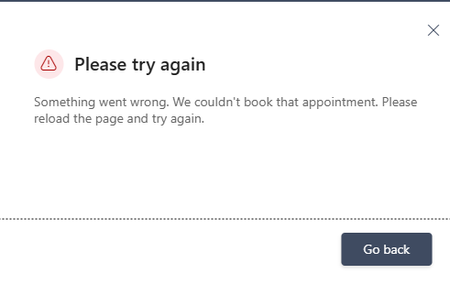

Because the appointment is actually created, ask users not to submit the form a second time when they see the error; repeated attempts can create duplicate bookings. First confirm the business time zone, each staff mailbox time zone, and the service schedule all use the same supported Windows time-zone entry.
The Alberta time-zone change is a useful lead. Create a duplicate test service with no staff rotation, no Teams meeting, and email notifications disabled. Use a time zone already recognized by both Bookings and Exchange that has the same current UTC offset, then submit one booking. If the success page appears, re-enable notifications and meeting creation one at a time. Keep the temporary choice documented and review it when daylight-saving rules change.
If the error still occurs after the time zones are aligned, preserve the created appointment and give Microsoft support its booking ID, service name, staff mailbox, business time zone, customer time zone, and UTC submission time. That lets them trace the response failure without guessing from the browser message.