Forum Discussion

Excel Sum
Hello all
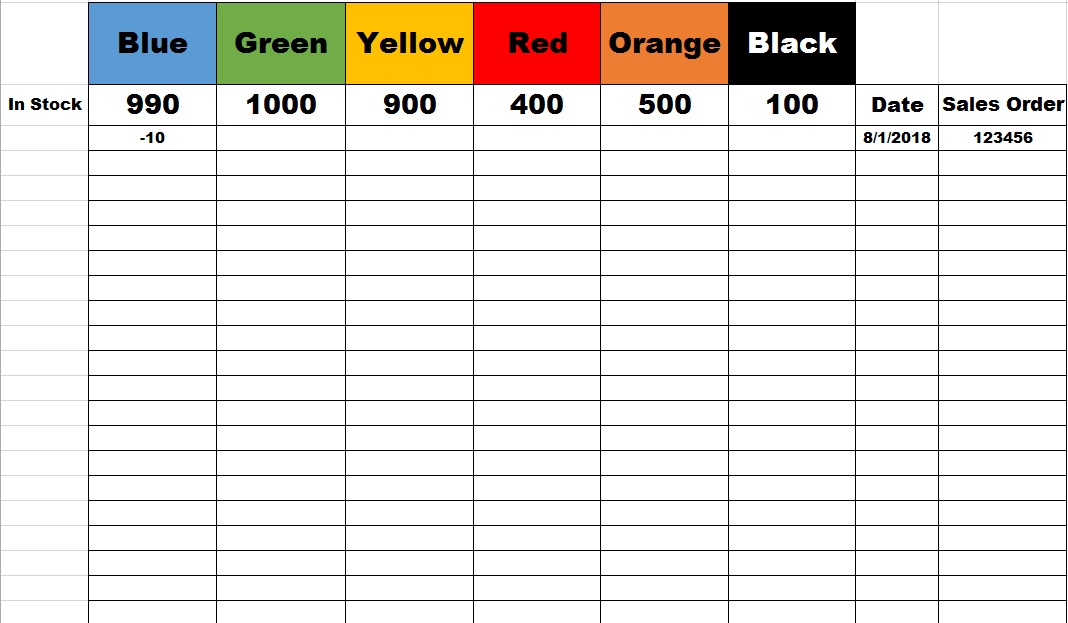
I would like to sum the total of a column but display the total at the top of the column instead of the bottom as shown in the picture. I want to start with the number shown in the top cell the enter minus amounts in the cells below it. The cell with the larger number is only to display the totals and the lower cells is where i can enter the amounts. Currently using the auto sum format.
Any help is appreciated
Thanks
Hi Jack,
If your "blue" 990 is in B3 you may use for B3 something like
=990+SUM(B4:B100)
or which range you have. If B3 is variable, you may change them in a helper sheet and use
=Sheet2!B3+SUM(B4:B100)

4 Replies
- SergeiBaklanDiamond Contributor
Hi Jack,
If your "blue" 990 is in B3 you may use for B3 something like
=990+SUM(B4:B100)
or which range you have. If B3 is variable, you may change them in a helper sheet and use
=Sheet2!B3+SUM(B4:B100)
 PennyHCopper Contributor
Hi There
Similar question really but I think more straightforward:
How do you simply get the SUM row to show at the top of the sheet, instead of at the bottom?
I'm adding values below, across several columns and need to see total for each as I go. Panes already frozen to see list on right and top row choices.
Hope that makes sense...!
Thank you
Penny.
 Jack GlassCopper Contributor
Thank you very much. Work perfectly.
- SergeiBaklanDiamond Contributor
You are welcome