Forum Widgets
Latest Discussions
Detecting AI agents and non-human identities in Microsoft Sentinel: the classic-agent blind spot
Build 2026 made the direction official. The industry is moving from the app era into the agent era, and Microsoft spent a real share of the keynote on securing agents across their lifecycle, from discovering what is exploitable to governing what is running in production. On the identity side the centerpiece is Microsoft Entra Agent ID, now generally available, which gives AI agents first-class identities and extends Conditional Access, Identity Protection, and full audit logging to them. That is good news for agents you build the new way. It is not the whole picture, and the gap is where most SOCs will get hurt first. Modern agents are covered. Classic agents are not. Entra Agent ID draws a hard line between two kinds of agent. Modern agents are created through the Agent ID platform, each backed by an agent identity blueprint. They carry a proper Agent ID, a full audit trail, and the complete set of governance capabilities, including Identity Protection for Agents, which establishes a baseline for an agent's normal activity and flags anomalies automatically. Classic agents are everything that came before, or that gets built outside the platform: AI agents implemented as ordinary service principals or app registrations, for example Copilot Studio agents created before Agent ID was enabled, or any home-grown automation calling Graph with client credentials. In the Entra agent registry they appear with "Has Agent ID: No," and that flag matters, because the Agent ID protections apply to identities that actually hold an Agent ID. Classic agents sit outside Identity Protection for Agents and Conditional Access for Agents. Here is the uncomfortable part. The non-human identities you already run, the service principals behind your pipelines, your integrations, your scripts, your pre-platform Copilot Studio bots, are almost all classic agents. They tend to outnumber your human accounts, they have no MFA in any meaningful sense, and a credential added to one does not show up in the Azure portal. The new platform protections do not reach them. Until you migrate them, the only place you get detection coverage on that population is your SIEM. So this is the job Sentinel does that Agent ID does not: detect risky behavior on the classic, service-principal-backed agents that the platform cannot yet protect. The telemetry you have, and the one switch people forget Three tables carry most of the signal. AADServicePrincipalSignInLogs records service principal authentications, the client-credentials sign-ins your agents and automation use. No user, no MFA, just an app proving it holds a secret or certificate. AADManagedIdentitySignInLogs does the same for managed identities. AuditLogs records directory changes, including the one that matters most for persistence: a new credential added to an application or service principal. One practical warning before any of this works. Service principal and managed identity sign-in logs are not streamed by default. You have to enable those categories explicitly in the Entra diagnostic settings feeding your workspace. Plenty of teams write the detection, never check, and never notice the table is empty. Verify that first. Detection 1: a new credential on a service principal or app Adding a secret or certificate to an existing service principal is one of the cleanest persistence techniques in a Microsoft cloud. The attacker compromises a privileged user or app, drops a fresh credential on a service principal that already holds useful Graph permissions, and now has access that survives password resets and session revocation. It maps to MITRE T1098.001, Account Manipulation: Additional Cloud Credentials. For a classic agent it is especially nasty, because there is no Identity Protection baseline watching it. // Detection 1: new secret or certificate added to an application or service principal // MITRE T1098.001 - Account Manipulation: Additional Cloud Credentials AuditLogs | where OperationName has_any ("Add service principal", "Certificates and secrets management") | where Result =~ "success" | extend Initiator = coalesce( tostring(InitiatedBy.user.userPrincipalName), tostring(InitiatedBy.app.displayName)) | extend InitiatorIp = tostring(InitiatedBy.user.ipAddress) | mv-apply Target = TargetResources on ( where Target.type =~ "Application" | extend TargetName = tostring(Target.displayName), TargetId = tostring(Target.id), KeyChanges = Target.modifiedProperties ) | mv-apply Prop = KeyChanges on ( where tostring(Prop.displayName) =~ "KeyDescription" | extend NewKeys = parse_json(tostring(Prop.newValue)), OldKeys = parse_json(tostring(Prop.oldValue)) ) | extend AddedKeys = set_difference(NewKeys, OldKeys) | where array_length(AddedKeys) > 0 | project TimeGenerated, Initiator, InitiatorIp, TargetName, TargetId, AddedKeys | order by TimeGenerated desc The operation filter catches the three shapes this event takes in the log: "Add service principal," "Add service principal credentials," and "Update application - Certificates and secrets management." The modifiedProperties parsing isolates the KeyDescription change, and set_difference confirms a key was actually added rather than removed, so rotating out an old credential does not, on its own, fire the rule. False positives come from legitimate rotation and from automation that provisions app credentials (CI/CD, infrastructure as code). The initiator is the discriminant. A credential added by your deployment pipeline's service account at the usual time is routine. The same change initiated by an interactive admin out of hours, or by an account that never normally touches app credentials, is what you want to surface. Allow-list the expected initiators, not the targets. Detection 2: a classic agent signing in from a first-seen IP A service principal that has only ever authenticated from your Azure regions and suddenly signs in from somewhere new is a strong signal that its credential has been lifted and is being used elsewhere. Service principals have stable, boring network behavior, which makes a first-seen IP a far cleaner indicator for them than it is for roaming human users. This is the behavioral baseline Identity Protection gives you for free on modern agents, rebuilt in KQL for the classic ones it ignores. MITRE T1078.004, Valid Accounts: Cloud Accounts. // Detection 2: classic-agent service principal signing in from a previously unseen IP // MITRE T1078.004 - Valid Accounts: Cloud Accounts let baseline = 14d; let detection = 1d; let KnownIPs = AADServicePrincipalSignInLogs | where TimeGenerated between (ago(baseline + detection) .. ago(detection)) | where tostring(ResultType) == "0" | summarize KnownIPSet = make_set(IPAddress) by AppId; AADServicePrincipalSignInLogs | where TimeGenerated > ago(detection) | where tostring(ResultType) == "0" | lookup kind=leftouter KnownIPs on AppId | where set_has_element(KnownIPSet, IPAddress) == false | summarize FirstSeen = min(TimeGenerated), Resources = make_set(ResourceDisplayName, 10) by ServicePrincipalName, AppId, IPAddress | order by FirstSeen desc The query builds a per-application baseline of source IPs over the previous two weeks, then flags any successful sign-in today from an address outside that set. Two tuning notes. Brand-new service principals have no baseline, so they surface on first use. That is usually worth seeing once, but you can exclude AppIds younger than the baseline window if it gets noisy. And if your agents egress through shifting cloud IP ranges, widen the comparison from an exact IP to the autonomous system number or a known-range allow-list, otherwise you will chase your own infrastructure. This complements Agent ID, it does not replace it! The endgame is not to run these rules forever. It is to shrink the population they apply to. Inventory your tenant for agents marked "Has Agent ID: No," prioritize the ones holding sensitive Graph permissions, and migrate them onto the Agent ID platform, where Identity Protection and Conditional Access take over the baselining you are doing here by hand. Microsoft has signaled a migration path from classic to modern agents. Treat these two detections as the coverage you need in the meantime, and as a permanent safety net for anything that never makes the move. If you do one thing this week: enable the service principal sign-in log category, deploy detection 1, and pull a list of every service principal that had a credential added in the last 90 days. That list alone tends to be more interesting than people expect. Cheers, MarcelMarcel_GraewerJun 09, 2026Brass Contributor131Views0likes0Comments
MSSP migration to Unified portal: how are you sequencing your customer portfolio?
Following the automation and SOAR discussion, I wanted to open a conversation specifically focused on the MSSP and multi-tenant side of the migration, because this is where the coordination challenges are an order of magnitude higher than the technical ones. A few things I am working through before writing this up as Part 5 of the migration series. On Workspace Manager: Microsoft's own documentation now points you away from Workspace Manager at the point of onboarding to the Defender portal, directing you to Microsoft Defender multitenant management instead. For MSSPs who built their operating model around Workspace Manager, this is a significant structural change. For those implementing now, the recommendation is to go straight to the multitenant portal. I am interested in what the transition has looked like in practice for teams who were mid-flight on Workspace Manager when this became clear. On access delegation: one of the more honest framings I want to include in the article is around the GDAP plus Unified RBAC gap. A Microsoft employee confirmed in the RSAC 2026 thread that Unified RBAC support for GDAP in the Defender portal is on the roadmap with no firm date. MSSPs choosing between Entra B2B and the governance relationships model today are making an architectural call that is difficult to reverse. I want to present this accurately, and real experience from practitioners will sharpen that framing. On the connector deployment constraint: you cannot deploy connectors from a managed workspace configured with Azure Lighthouse alone, you also need GDAP. This makes a layered delegation architecture, Lighthouse plus GDAP plus B2B or governance relationships, necessary rather than optional. I am curious whether MSSPs are already running this layered model or whether most are still trying to make Lighthouse work as a single mechanism. On migration sequencing: the question I want to ask specifically is how teams are structuring their customer portfolio migration. Are you running waves based on customer complexity, based on contract renewal timing, based on customer risk appetite, or some other factor? And when something goes wrong in one tenant's migration, how are you containing the impact on the rest of the programme? Sharing the full article once it is written. Happy to discuss anything above in more detail in the thread.AnthonyPorterJun 07, 2026Brass Contributor43Views0likes0Comments
SentinelHealth: Scheduled Rule Retry Logging Does Not Match Docs
## Objective I am working on a health checks architecture for Microsoft Sentinel analytic rules. The goal is to build a set of monitoring queries/approaches that cover rule execution failures, configuration issues (entity mapping, partial success), rule audit tracking, and auto-disabled rule detection. ## My Current Approach So far I have built monitoring for the following areas using the SentinelHealth and SentinelAudit tables: - Scheduled rule window failures (retry exhaustion) - NRT rule execution delays (cumulative delay over 25 minutes) - Partial success and configuration issues (entity mapping drops, alert size limits, semantic errors) with transient error codes filtered out - Auto-disabled rules detection - Rule disable/delete audit tracking via SentinelAudit + AzActivity ## The Issue: Scheduled Rule Retry Logging The documentation at https://learn.microsoft.com/en-us/azure/sentinel/monitor-analytics-rule-integrity#scheduled-rules states that when a scheduled rule fails, it is retried 5 more times on the same window (6 total attempts). It also provides this query to detect completely skipped windows: ```kql _SentinelHealth() | where SentinelResourceType == @"Analytics Rule" | where SentinelResourceKind == "Scheduled" | where Status != "Success" | extend startTime = tostring(ExtendedProperties["QueryStartTimeUTC"]) | summarize failuresByStartTime = count() by startTime, SentinelResourceId | where failuresByStartTime == 6 | summarize count() by SentinelResourceId ``` This query assumes that each retry attempt is logged as a separate event in SentinelHealth, all sharing the same QueryStartTimeUTC. You would then count 6 failure records per startTime to identify a fully skipped window. However, in practice I am seeing different behavior. I ran a diagnostic query with a 90-day lookback (480 non-success events total, 73 unique rules). Every single event had a count of 1 per unique (SentinelResourceName, startTime) combination. No grouping of retries was observed at all. I then found an actual failed-window event that confirms this. Here is the record: - Rule: Port scan detected (ASIM Network Session schema) - Status: Failure - Description: "Rule's scheduled run at 06/01/2026 10:43:55 failed after numerous attempts. It will be re-executed over the next scheduled time." - Issue Code: SemanticErrorInQuery - Only 1 SentinelHealth record exists for this failed window The Description field says "failed after numerous attempts" which indicates the retries happened internally, but only one consolidated Failure event was written to SentinelHealth after all retries were exhausted. The individual retry attempts do not appear as separate records. This means the failuresByStartTime == 6 query from the documentation would never match this pattern, because there is only 1 record per failed window, not 6. ## Why This Matters Yes, completely skipped windows are rare. In my 90-day dataset most failures were permanent types (SemanticErrorInQuery, QueryGeneralError) that would not benefit from retries anyway. But they still happen, and if a tenant experiences a transient issue that causes a higher rate of failed windows, the documented query would silently return nothing. For my health checks I have rewritten the detection to simply look for Status == "Failure" with Description containing "failed after numerous attempts" which matches the actual consolidated event Sentinel writes. ## Questions Is the documented failuresByStartTime == 6 query still accurate? Or has the retry logging behavior changed to write a single consolidated event per failed window? Are there specific failure types or conditions where individual retries are logged as separate events? Perhaps transient failures behave differently from permanent ones in this regard? For anyone else building health monitoring on SentinelHealth - am I missing any important use cases beyond what I described above? Any clarification would be appreciated.SomeZnimavJun 03, 2026Copper Contributor30Views0likes0CommentsSecurity Copilot Integration with Microsoft Sentinel - Why Automation matters now
Security Operations Centers face a relentless challenge - the volume of security alerts far exceeds the capacity of human analysts. On average, a mid-sized SOC receives thousands of alerts per day, and analysts spend up to 80% of their time on initial triage. That means determining whether an alert is a true positive, understanding its scope, and deciding on next steps. With Microsoft Security Copilot now deeply integrated into Microsoft Sentinel, there is finally a practical path to automating the most time-consuming parts of this workflow. So I decided to walk you through how to combine Security Copilot with Sentinel to build an automated incident triage pipeline - complete with KQL queries, automation rule patterns, and practical scenarios drawn from common enterprise deployments. Traditional triage workflows rely on analysts manually reviewing each incident - reading alert details, correlating entities across data sources, checking threat intelligence, and making a severity assessment. This is slow, inconsistent, and does not scale. Security Copilot changes this equation by providing: Natural language incident summarization - turning complex, multi-alert incidents into analyst-readable narratives Automated entity enrichment - pulling threat intelligence, user risk scores, and device compliance state without manual lookups Guided response recommendations - suggesting containment and remediation steps based on the incident type and organizational context The key insight is that Copilot does not replace analysts - it handles the repetitive first-pass triage so analysts can focus on decision-making and complex investigations. Architecture - How the Pieces Fit Together The automated triage pipeline consists of four layers: Detection Layer - Sentinel analytics rules generate incidents from log data Enrichment Layer - Automation rules trigger Logic Apps that call Security Copilot Triage Layer - Copilot analyzes the incident, enriches entities, and produces a triage summary Routing Layer - Based on Copilot's assessment, incidents are routed, re-prioritized, or auto-closed (Forgive my AI-painted illustration here, but I find it a nice way to display dependencies.) +-----------------------------------------------------------+ | Microsoft Sentinel | | | | Analytics Rules --> Incidents --> Automation Rules | | | | | v | | Logic App / Playbook | | | | | v | | Security Copilot API | | +-----------------+ | | | Summarize | | | | Enrich Entities | | | | Assess Risk | | | | Recommend Action| | | +--------+--------+ | | | | | v | | +-----------------------------+ | | | Update Incident | | | | - Add triage summary tag | | | | - Adjust severity | | | | - Assign to analyst/team | | | | - Auto-close false positive| | | +-----------------------------+ | +-----------------------------------------------------------+ Step 1 - Identify High-Volume Triage Candidates Not every incident type benefits equally from automated triage. Start with alert types that are high in volume but often turn out to be false positives or low severity. Use this KQL query to identify your top candidates: SecurityIncident | where TimeGenerated > ago(30d) | summarize TotalIncidents = count(), AutoClosed = countif(Classification == "FalsePositive" or Classification == "BenignPositive"), AvgTimeToTriageMinutes = avg(datetime_diff('minute', FirstActivityTime, CreatedTime)) by Title | extend FalsePositiveRate = round(AutoClosed * 100.0 / TotalIncidents, 1) | where TotalIncidents > 10 | order by TotalIncidents desc | take 20 This query surfaces the incident types where automation will deliver the highest ROI. Based on publicly available data and community reports, the following categories consistently appear at the top: Impossible travel alerts (high volume, around 60% false positive rate) Suspicious sign-in activity from unfamiliar locations Mass file download and share events Mailbox forwarding rule creation Step 2 - Build the Copilot-Powered Triage Playbook Create a Logic App playbook that triggers on incident creation and leverages the Security Copilot connector. The core flow looks like this: Trigger: Microsoft Sentinel Incident - When an incident is created Action 1 - Get incident entities: let incidentEntities = SecurityIncident | where IncidentNumber == <IncidentNumber> | mv-expand AlertIds | join kind=inner (SecurityAlert | extend AlertId = SystemAlertId) on $left.AlertIds == $right.AlertId | mv-expand Entities | extend EntityData = parse_json(Entities) | project EntityType = tostring(EntityData.Type), EntityValue = coalesce( tostring(EntityData.HostName), tostring(EntityData.Address), tostring(EntityData.Name), tostring(EntityData.DnsDomain) ); incidentEntities Note: The <IncidentNumber> placeholder above is a Logic App dynamic content variable. When building your playbook, select the incident number from the trigger output rather than hardcoding a value. Action 2 - Copilot prompt session: Send a structured prompt to Security Copilot that requests: Analyze this Microsoft Sentinel incident and provide a triage assessment: Incident Title: {IncidentTitle} Severity: {Severity} Description: {Description} Entities involved: {EntityList} Alert count: {AlertCount} Please provide: 1. A concise summary of what happened (2-3 sentences) 2. Entity risk assessment for each IP, user, and host 3. Whether this appears to be a true positive, benign positive, or false positive 4. Recommended next steps 5. Suggested severity adjustment (if any) Action 3 - Parse and route: Use the Copilot response to update the incident. The Logic App parses the structured output and: Adds the triage summary as an incident comment Tags the incident with copilot-triaged Adjusts severity if Copilot recommends it Routes to the appropriate analyst tier based on the assessment Step 3 - Enrich with Contextual KQL Lookups Security Copilot's assessment improves dramatically when you feed it contextual data. Before sending the prompt, enrich the incident with organization-specific signals: // Check if the user has a history of similar alerts (repeat offender vs. first time) let userAlertHistory = SecurityAlert | where TimeGenerated > ago(90d) | mv-expand Entities | extend EntityData = parse_json(Entities) | where EntityData.Type == "account" | where tostring(EntityData.Name) == "<UserPrincipalName>" | summarize PriorAlertCount = count(), DistinctAlertTypes = dcount(AlertName), LastAlertTime = max(TimeGenerated) | extend IsRepeatOffender = PriorAlertCount > 5; userAlertHistory // Check user risk level from Entra ID Protection AADUserRiskEvents | where TimeGenerated > ago(7d) | where UserPrincipalName == "<UserPrincipalName>" | summarize arg_max(TimeGenerated, RiskLevel), RecentRiskEvents = count() | project RiskLevel, RecentRiskEvents Including this context in the Copilot prompt transforms generic assessments into organization-aware triage decisions. A "suspicious sign-in" for a user who travels internationally every week is very different from the same alert for a user who has never left their home country. Step 4 - Implement Feedback Loops Automated triage is only as good as its accuracy over time. Build a feedback mechanism by tracking Copilot's assessments against analyst final classifications: SecurityIncident | where Tags has "copilot-triaged" | where TimeGenerated > ago(30d) | where Classification != "" | mv-expand Comments | extend CopilotAssessment = extract("Assessment: (True Positive|False Positive|Benign Positive)", 1, tostring(Comments)) | where isnotempty(CopilotAssessment) | summarize Total = dcount(IncidentNumber), Correct = dcountif(IncidentNumber, (CopilotAssessment == "False Positive" and Classification == "FalsePositive") or (CopilotAssessment == "True Positive" and Classification == "TruePositive") or (CopilotAssessment == "Benign Positive" and Classification == "BenignPositive") ) by bin(TimeGenerated, 7d) | extend AccuracyPercent = round(Correct * 100.0 / Total, 1) | order by TimeGenerated asc For this query to work reliably, the automation playbook must write the assessment in a consistent format within the incident comments. Use a structured prefix such as Assessment: True Positive so the regex extraction remains stable. According to Microsoft's published benchmarks and community feedback, Copilot-assisted triage typically achieves 85-92% agreement with senior analyst classifications after prompt tuning - significantly reducing the manual triage burden. A Note on Licensing and Compute Units Security Copilot is licensed through Security Compute Units (SCUs), which are provisioned in Azure. Each prompt session consumes SCUs based on the complexity of the request. For automated triage at scale, plan your SCU capacity carefully - high-volume playbooks can accumulate significant usage. Start with a conservative allocation, monitor consumption through the Security Copilot usage dashboard, and scale up as you validate ROI. Microsoft provides detailed guidance on SCU sizing in the official Security Copilot documentation. Example Scenario - Impossible Travel at Scale Consider a typical enterprise that generates over 200 impossible travel alerts per week. The SOC team spends roughly 15 hours weekly just triaging these. Here is how automated triage addresses this: Detection - Sentinel's built-in impossible travel analytics rule flags the incidents Enrichment - The playbook pulls each user's typical travel patterns from sign-in logs over the past 90 days, VPN usage, and whether the "impossible" location matches any known corporate office or VPN egress point Copilot Analysis - Security Copilot receives the enriched context and classifies each incident Expected Result - Based on common deployment patterns, around 70-75% of impossible travel incidents are auto-closed as benign (VPN, known travel patterns), roughly 20% are downgraded to informational with a triage note, and only about 5% are escalated to analysts as genuine suspicious activity This type of automation can reclaim over 10 hours per week - time that analysts can redirect to proactive threat hunting. Getting Started - Practical Recommendations For teams ready to implement automated triage with Security Copilot and Sentinel, here is a recommended approach: Start small. Pick one high-volume, high-false-positive incident type. Do not try to automate everything at once. Run in shadow mode first. Have the playbook add triage comments but do not auto-close or re-route. Let analysts compare Copilot's assessment with their own for two to four weeks. Tune your prompts. Generic prompts produce generic results. Include organization-specific context - naming conventions, known infrastructure, typical user behavior patterns. Monitor accuracy continuously. Use the feedback loop KQL above. If accuracy drops below 80%, pause automation and investigate. Maintain human oversight. Even at 90%+ accuracy, keep a human review step for high-severity incidents. Automation handles volume - analysts handle judgment. The combination of Security Copilot and Microsoft Sentinel represents a genuine step forward for SOC efficiency. By automating the initial triage pass - summarizing incidents, enriching entities, and providing classification recommendations - analysts are freed to focus on what humans do best: making nuanced security decisions under uncertainty. Feel free to like or/and connect :)241Views0likes0CommentsWebinar Cancellation
Hi everyone! The webinar originally scheduled for April 14th on "Using distributed content to manage your multi-tenant SecOps" has unfortunately been cancelled for now. We apologize for the inconvenience and hope to reschedule it in the future. Please find other available webinars at: http://aka.ms/securitycommunity All the best, The Microsoft Security Community Team128Views0likes0CommentsWebinar Rescheduled: AI-Powered Entity Analysis in Sentinel's MCP Server
Hi folks! The webinar: AI-Powered Entity Analysis in Sentinel's MCP Server which was previously scheduled for: January 13th, 2026, has been rescheduled to: January 27th, 2026, at 9:00 AM PT. Please delete the old invite from your calendar and find the new one at aka.ms/securitycommunity. We apologize for the inconvenience and hope to see you there!emilyfallaDec 04, 2025Microsoft201Views0likes0CommentsSentinel to Defender webinar series CANCELLED, will be rescheduled at a later date.
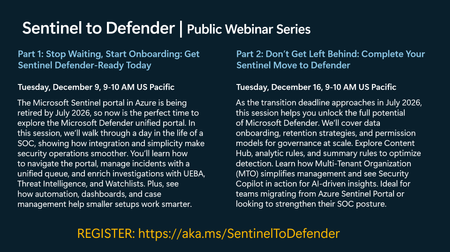
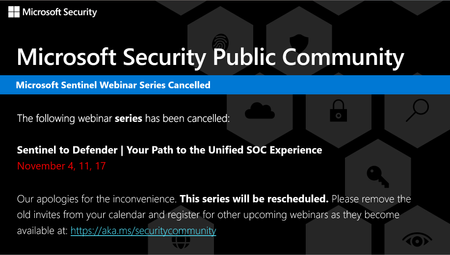
The Sentinel to Defender webinar series has been cancelled. Please visit aka.ms/securitycommunity to sign up for upcoming Microsoft Security webinars and to join the mailing list to be notified of future sessions. We apologize for any inconvenience.RenWoodsNov 04, 2025Microsoft1KViews0likes0CommentsModernize security operations to secure agentic AI—Microsoft Sentinel at Ignite 2025
Security is a core focus at Microsoft Ignite this year, with the Security Forum on November 17, deep dive technical sessions, theater talks, and hands-on labs designed for security leaders and practitioners. Join us in San Francisco, November 17–21, or online, November 18–20, to learn what’s new and what’s next across SecOps, data, cloud, and AI—and how to get more from the Microsoft capabilities you already use. This year, Microsoft Sentinel takes center stage with sessions and labs designed to help you unify data, automate response, and leverage AI-powered insights for faster, more effective threat detection. Featured sessions: BRK235: Power agentic defense with Microsoft Sentinel Explore Microsoft Sentinel’s platform architecture, graph intelligence, and agentic workflows to automate, investigate, and respond with speed and precision. BRK246: Blueprint for building the SOC of the future Learn how to architect a modern SOC that anticipates and prevents threats using predictive shielding, agentic AI, and graph-powered reasoning. LAB543: Perform threat hunting in Microsoft Sentinel Dive deep into advanced threat hunting, KQL queries, and proactive investigation workflows to sharpen your security operations. Explore and filter the full security catalog by topic, format, and role: aka.ms/Ignite/SecuritySessions. Why attend: Ignite is your opportunity to see the latest innovations in Microsoft Sentinel, connect with experts, and gain hands-on experience. Sessions will also touch on future directions for agentic AI and unified SOC operations, as outlined in Microsoft’s broader security roadmap. Security Forum (November 17): Kick off with an immersive, in‑person pre‑day focused on strategic security discussions and real‑world guidance from Microsoft leaders and industry experts. Select Security Forum during registration. Connect with peers and security leaders through these signature security experiences: Security Leaders Dinner—CISOs and VPs connect with Microsoft leaders. CISO Roundtable—Gain practical insights on secure AI adoption. Secure the Night Party—Network in a relaxed, fun setting. Register for Microsoft Ignite >MSdellisOct 22, 2025Microsoft254Views0likes0Comments






Tags
- siem452 Topics
- KQL309 Topics
- data collection246 Topics
- Log Data227 Topics
- analytics167 Topics
- azure160 Topics
- automation148 Topics
- integration141 Topics
- alerts128 Topics
- kusto127 Topics