zoom
16 TopicsMonitoring Zoom with Azure Sentinel
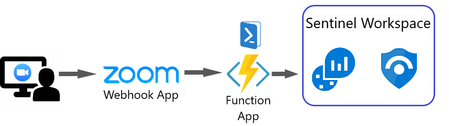
In a recent blog we talked about the explosion in usage we had seen with Microsoft Teams as the world has moved to working from home. However, Microsoft Teams is not the only application to see such as surge, Zoom is another remote productivity tool that has seen a massive increase in users, with more than 200 million daily meeting participants being reported in March. Just as Security Operation Centers (SOCs) need to monitor Microsoft Teams activity they also need to be able to secure and monitor other productivity applications such as Zoom. One of the great features of Azure Sentinel is its ability to ingest and analyze data from any source not just from Microsoft products. In this blog I will show you how you can collect logs from Zoom, ingest them into Azure Sentinel, and how a SOC team can start to hunt in the logs to find potentially malicious activity.38KViews7likes8CommentsZoom in or out of forms, tables, and queries when in Form View or Datasheet View
Access now lets you zoom in and out when you’re working with forms, tables, and queries in Form View or Datasheet View. Zoom in for a closer look at your data or zoom out to see more on screen at once. You can adjust the zoom level using the Zoom button on the ribbon, the zoom slider on the status bar, or keyboard shortcuts. Zoom is also available in Print Preview for reports. Zoom isn’t supported in Report View or Design View. This feature is available in Access for Microsoft 365, version 2605 and later. Choose a magnification setting from the ribbon On the Home tab, select Zoom and choose one of the following options: 50%, 75%, 125%, 150%, 175%, 200%, or 500%. To return the view to 100% zoom, click Zoom 100%. If you prefer to use the keyboard, you can press Ctrl + Alt + 0 (zero). Use the zoom slider to quickly zoom in or out On the status bar in the lower right-hand corner of Access, select the zoom slider. Slide to the percentage zoom setting that you want. Press – or + to zoom in gradual increments. Use zoom keyboard shortcuts or mousewheel To zoom in, press Ctrl + Alt + Plus (+). To zoom out, press Ctrl + Alt + Minus (-). To return to 100% magnification, press Ctrl + Alt + 0 (zero). To use the mousewheel and scroll to zoom in or out, press Ctrl + mousewheel. Change your default zoom percentage Access doesn't save zoom settings on closing and reopening a form. Instead, it opens your form using the default zoom setting. To set your zoom default percentage, choose File > Options > Current Database > Application Options and choose the Default Zoom setting. Note Content inside of ActiveX controls, such as the text in a TreeView control, doesn't resize when zoomed. Zooming in Access only affects Access-native controls. If a form uses ActiveX controls, consider replacing them with native Access controls so they scale with the rest of the form.1.2KViews4likes10Comments
Microsoft Teams vs. Zoom
Hi Community We are in need of great marketing material to convince our customers that MS Teams is better, safer and provides all the benefits that Zoom provides. Some of our feedback includes In a large group setting there will be some participants who are worried about using any system other than Zoom. Slack has a video meeting feature now, so you have meetings and collaboration spaces. Two-person Huddles are available in the free version of Slack. A https://slack.com/pricing slack account can support Huddles of up to 50 people. Some outside presenters simply don’t want to use anything but Zoom. You can establish a Zoom ongoing meeting link where a staff member doesn’t have to be present, and participants can use it whenever they want to meet. With Teams, at least one participant needs to have a Guest account in our tenant to start the meeting. The browser is more difficult to use, and participants don’t want to install the software. The meeting join experience is more cumbersome. Don’t know how to enable audio devices. Don’t realize that the hyperlink is the meeting link. Takes time to embed the entire, visible meeting link like Zoom. A plus is that Teams allows you to set up features and initial chat ahead of time. Some people have trouble with the Bookings experience. Staff and others experience what appears to be bandwidth issues, running other apps at the same time. Teams Notes and Loop seem useful, but there is some initial confusion about how the new features work. Thanks.9.9KViews2likes5Comments
Unable to Expand images
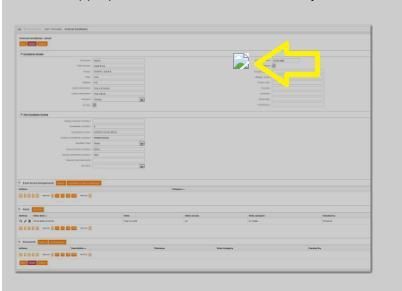
Myself and colleagues are encountering an issue when trying to expand an image (using Microsoft Teams Version 1.3.00.8663 (64 bit) app on a pc). Clicking on the image results in the background darkening and a small broken icon appearing. It seems to mostly apply to images that have been pasted. The issue eventually clears itself after a week or so but then returns. Is this a known issue? Is there any way to resolve this?Solved6.7KViews2likes6Comments
Camera goes black in zoom meetings
Hi all, I tried to search but could not find anything. We are using Teams Rooms with zoom enabled on them. When we start the meetings it goes all good, but after some time, the camera just goes black. Sometimes, the participants cameras also go black. This has been happening for some time now and zoom is been quite useless, have anyone else had this issue? We are running the latest 4.10.10.0.7.2KViews1like11Comments