windows 11
173 Topics
Windows 11 Insider 26220.9587 keeps reinstalling
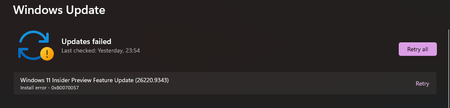
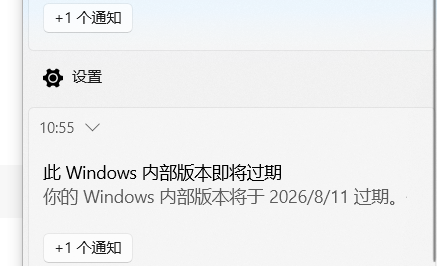
Hi, I need some help with Windows 11 Insider Beta. I'm currently on Windows 11 Home Insider Preview build 26220.9587. The build installed successfully, but Windows Update keeps offering the same 26220.9587 feature update again and later attempts fail with error 0x80246019. I also have the “Evaluation copy” watermark even though Windows is permanently activated. I have enabled the option to unenroll my device from Insider builds. My goal is to return to stable Windows 11 without resetting the PC, deleting my applications/files, or doing a clean installation. What is the safest supported way to do this?32Views0likes0Comments
Repeated prompt "Some information has changed" when reconnecting to mobile hotspot
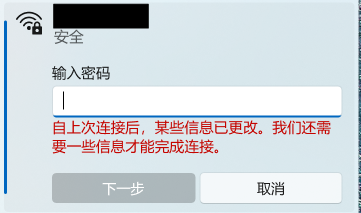
Problem Description When attempting to reconnect Windows 11 to a personal mobile hotspot, the connection frequently fails to connect automatically. Instead, Windows displays the following prompt: "Some information has changed since the last time you connected. We need additional information to complete the connection." (自上次连接后,某些信息已更改。我们还需要一些信息才能完成连接。) The system forces re-entering the Wi-Fi security key every time, even though the SSID, password, and security type on the phone have not changed. Steps to Reproduce Turn on the personal mobile hotspot on the smartphone (WPA3-Personal). Connect the Windows PC to the hotspot, check "Connect", and verify successful connection. Disconnect or disable the mobile hotspot. Turn on the hotspot again later and try to reconnect from Windows. Windows fails the handshake and displays the "information has changed" prompt requiring manual password entry. Observations & Potential Causes Forgetting the network via `Settings > Network & internet > Wi-Fi > Manage known networks` temporarily resolves the issue for one session, but it recurs on subsequent reconnections. Device & OS Environment OS Version: Windows 11 Insider Preview (Build 26340.9577) Network Adapter: [Intel Wi-Fi 6E AX210 160MHz] Hotspot Device: Android 16 Smartphone Hotspot WPA3-Personal 5GHz134Views0likes3Comments
Windows 11 Insider Beta version add smarter instant captions and fixes an issue with file history
After I updated KB5124008 recently, file history was disabled, and many users reported being affected. Some netizens said they had spoken with others and confirmed that other users had encountered similar issues, but they had not yet confirmed that KB5124008 was the root cause. https://learn.microsoft.com/zh-tw/windows-insider/release-notes/experimental/preview-build-26340-9502 https://learn.microsoft.com/zh-tw/windows-insider/release-notes/beta/preview-build-26220-9492 Microsoft released version 26340.9502/26220.9492. These two URLs contain fixes for the issue where backups using [File History] unexpectedly fail and display the error message "No available disk drive found". So happy What is Windows 11 Insider Beta? When will all these features be released to everyone?156Views0likes0CommentsNo matter what I try, Windows Update always says that my PC is up to date.
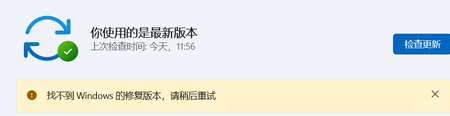
After installing Windows 11 Insider Experimental (Future Platforms) Preview Build 29639.1000.rs using an ISO, I registered for the Windows Insider Program and signed in with my Insider account. I also submitted a bug report. Later, after an engineer informed me that the bug had been fixed, I tried to check for updates so that I could receive the build containing the fix. However, Windows Update consistently reported that my device was up to date, regardless of how many times I checked for updates. I later learned that Build 29667.1000 appeared to have been released, but my system still did not receive the update. My Windows Insider settings also appear to be unavailable or unselectable. Could this be related to why my device is not receiving newer Insider builds? If I want to receive the update containing the mouse cursor flickering fix and upgrade to Build 29667.1000, what should I do? Is there a way to restore or reconfigure my Windows Insider settings so that my device can receive the appropriate Insider builds through Windows Update? And my Windows Insider settings also seem to be unavailable / unselectable. Could this be related to why I am unable to receive updates? If I want to receive the update that contains the mouse cursor flickering fix and upgrade to Build 29667.1000, what should I do?209Views0likes1CommentFile History problems after installing KB5124008, KB5126052,KB5126146, KB5122878, and KB890830
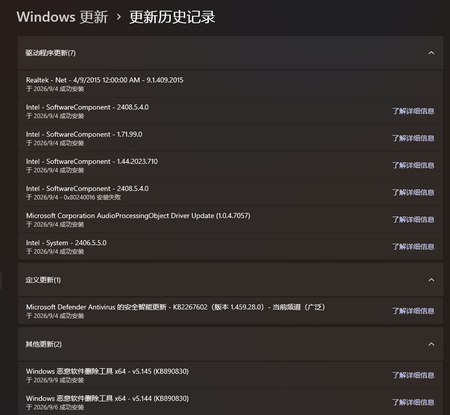
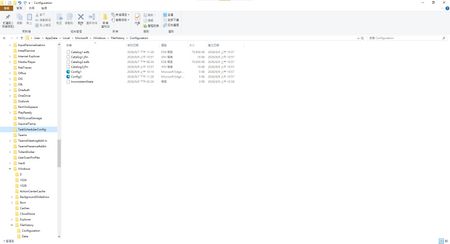
This morning, I ran Windows Update on two Windows 10/11 computers, but the file history feature stopped working completely after the update. Previously, after updating KB5120249 and KB5101684, files could still be backed up to the D: drive normally. The "Last Backup" time in "File History" is not updating correctly. Newly created or saved Word documents, pictures, videos, etc., still show "No previous version available" in "Content → Previous Versions". No folders were corrected; their dates are automatically updated. After running Windows Update again today, the file history feature stopped working on both computers. The File History panel pops up but cannot be used, prompting for a hard drive connection. (The hard drive is connected and I've confirmed it can read and write.) resulting in an "InconsistentState" entry in C:\Users\User\AppData\Local\Microsoft\Windows\FileHistory\Configuration. I'm very angry. If Microsoft doesn't address this, I'll keep complaining. If anyone else has encountered the same situation, please leave a comment below. You can also check Microsoft Q&A or the Microsoft Community Hub. The five updates installed are: September 8, 2026—KB5122878 (OS Builds 19045.7725 and 19044.7725) September 8, 2026-KB5126146 Cumulative Update for .NET Framework 3.5, 4.8 and 4.8.1 for Windows 10 Version 22H2 2026-09 Security Update (KB5124008) (26200.9445) 2026-09 .NET Framework Security Update (KB5126052) Windows Malicious Software Removal Tool x64 - v5.145 (KB890830) Deleting the %LocalAppData%\Microsoft\Windows\FileHistory folder also failed. Furthermore, "File History" itself is not listed in Microsoft's "Deprecated Features List." While other backup features suggest that Microsoft has no plans to discontinue it. Microsoft is going to pretend it doesn't exist. These worked normally before the update but stopped working afterward. This is to inform other users experiencing the same problem.5.6KViews5likes40CommentsThere is problem with file history logging after the recent Windows updates (KB5101684 / KB5121003)
Hi everyone, This is not spam, I did not spam the site. It appeared after the update. I hope Microsoft can resolve this issue, and I also hope other users experiencing the same problem can reply to me. Please, please. Ever since the latest Windows updates (specifically around KB5101684 / KB5120249 on Windows 11 Build 26200/Windows 10 Build 19045), The File History feature is almost unusable for me; although it works, the problem only occurs after an update. Symptoms: The "Last Backup" time in File History is not updating correctly. Newly created or saved Word documents, images, videos, etc., still show "No previous version available" in "Content → Previous Versions". The Correct folder's date is automatically changed. System details: OS: Windows 11 25H2 (Build 26200.9278) OS: Windows 10 22H2 (Build 19045.7663) Recent Updates Installed: KB5120998, KB5120249, KB5101684. Has anyone else experienced this issue with recent Windows updates? Currently, the only solution is to go to Control Panel → All Console Items → File History → Select Drive → Select D: drive again. After completing this step, File History will return to normal. This is a post I made. Other users who have experienced the same thing left comments below. KB5101684/KB5120249 caused File History errors, but Microsoft has not acknowledged them. | Microsoft Community Hub Welcome to comment if KB5101684 or KB5120249 caused the same File History issue. | Microsoft Community Hub I want to ask Microsoft, why are there abnormal in the file history logs after these two updates? | Microsoft Community Hub Win 10/11 file history is malfunctioning after an update why hasn't Microsoft fixed this issue yet? | Microsoft Community Hub https://learn.microsoft.com/en-nz/answers/questions/5972265/windows-11-file-history-not-updating-correctly-aft https://learn.microsoft.com/en-nz/answers/questions/5978256/win-11-25h2kb5101684-os-builds-26200-8973-and-2610 https://www.reddit.com/r/computerhelp/comments/1vituh0/comment/p6dxvs4/?context=1&screen_view_count=2&ext-referrer=DIRECT https://www.reddit.com/r/WindowsHelp/comments/1w6zlem/comment/p8bbu3j/?context=1&screen_view_count=2&ext-referrer=DIRECT386Views2likes1CommentI've tried the methods but they still don't work. I don't know what to do.
This past month has been very frustrating for me. It's not that I like to ramble, but I've genuinely encountered problems after updating. I want to ask Microsoft: after updating my laptop and desktop to KB5101684 and KB5120249, I'm experiencing issues with file history: Files can still be backed up to the D drive normally. The "Last Backup" time in "File History" is not updating correctly. Newly created or saved Word documents, images, videos, etc., still show "No previous version available" in "Content → Previous Versions". I haven't modified some folders; please change the modification dates yourself. Both updates state, "This update fixes an issue that affects File History automatic backups to network shares using Server Message Block (SMB). Backups did not work because Windows showed a false 'invalid credentials' error when connecting to SMB shares." I didn't expect the update to cause this problem; dozens of users have reported the same issue. Microsoft, please investigate and fix this. When will it be fixed? If you have the same problem as me, please leave a comment below. I want to ask Microsoft, why are there abnormal in the file history logs after these two updates? | Microsoft Community Hub According to methods suggested by online users: Open File Explorer, navigate to C:\Users\[Your Username]\AppData\Local\Microsoft\Windows\FileHistory, and delete all contents in the Configuration folder. Next, go to Settings > System > Storage, turn off File History, and then re-add drive D as the backup destination. This method still did not work. Both updates state, "This update fixes an issue that affects File History automatic backups to network shares using Server Message Block (SMB). Backups did not work because Windows showed a false 'invalid credentials' error when connecting to SMB shares." I didn't expect the update to cause this problem; dozens of users have reported the same issue. Microsoft, please investigate and fix this. When will it be fixed? If you have the same problem as me, please leave a comment below.346Views0likes2Comments