user adoption
275 Topics
BYROW/BYCOL/MAP Variants for Nested Arrays + BENCHMARK
Hey everyone! I made some simple BYROW, BYCOL, and MAP variants that can return nested arrays, and I also made a BENCHMARK function for performance testing. Here's some code for testing: BYROW⊟ = LAMBDA(array, function, [orient], LET( me, LAMBDA(me, seg, LET( n, ROWS(seg), IF( n = 1, function(seg), IF( orient, HSTACK( me(me, TAKE(seg, INT(n / 2))), me(me, DROP(seg, INT(n / 2))) ), VSTACK( me(me, TAKE(seg, INT(n / 2))), me(me, DROP(seg, INT(n / 2))) ) ) ) ) ), IFNA(me(me, array), "") ) ); I didn’t put a huge amount of effort into polishing this but In my tests on my device, these performed a lot better than using REDUCE + VSTACK for the same kind of thing, so maybe it’ll be useful to someone. Really curious to see how people use it, and if something looks like it should be optimized or changed, say so. I'll update them regularly, fix bugs whenever I can. You can find the rest of them on my Gist pages: https://gist.github.com/Medohh2120/f565516bc636700adf5ba27fd8f0d19e, https://gist.github.com/Medohh2120/d9d04f56d93694aed9d0c49d516f0fbf.129Views0likes0Comments
Excel App Builder: Should Excel Support Turning Workbooks into Standalone Low-Code Applications?
Excel has been much more than a spreadsheet application for a long time. In many organizations, Excel is already used as an informal low-code development platform. Advanced workbooks often contain not only data and formulas, but complete domain-specific logic: calculation models, planning tools, dashboards, input forms, reports, simulations, administrative workflows, and sometimes even small internal business applications. This is one of Excel’s greatest strengths. It allows domain experts, power users, analysts, engineers, teachers, consultants, and small businesses to build working tools without becoming full-time software developers. However, there is a structural limitation: the final product usually remains an Excel workbook. That creates several problems: the user needs a compatible Excel installation, macro security and Trust Center settings can block functionality, formulas and business logic are difficult to protect properly, distribution and updates are not as clean as with real applications, workbook-based tools often look less professional than standalone software, user interface, data, and logic are often mixed together in the same file. I believe Microsoft could turn this existing reality into a major strategic opportunity. Core proposal: Excel App Builder / Excel Runtime My suggestion is an official Excel App Builder or Excel Runtime. The idea would be to allow selected Excel workbooks to be packaged as protected standalone applications. Excel would continue to serve as the calculation, data, and automation engine in the background. The end user would not necessarily see the workbook itself. Instead, they would interact with a clean application interface: input forms, buttons, dashboards, charts, reports, controlled tables, and export options. Possible output formats could include: Windows apps, web apps, Teams apps, SharePoint apps, mobile-friendly internal tools, protected specialist applications. This would not replace Power Apps. In my view, it could complement Power Apps very well. Excel could remain the place where fast domain logic, calculations, prototypes, and models are created. Power Apps, Dataverse, Azure, and the wider Microsoft ecosystem could then support larger, scalable, enterprise-level workflows. In other words: Excel could become the natural entry point into Microsoft’s low-code ecosystem. Why this could matter strategically Excel already has an enormous “hidden developer base”: people who are not traditional programmers, but who build useful tools with formulas, tables, Power Query, Power Pivot, VBA, Office Scripts, and now AI assistance. This is a unique market position. Many of these users would not start with C#, JavaScript, Python, or a full application framework. But they already start with Excel. They already build the logic there. The missing step is a professional way to package, protect, distribute, and update those solutions. An official App Builder could: strengthen Excel’s long-term relevance, differentiate Excel from simpler spreadsheet competitors, create a stronger bridge between Excel and Power Platform, give power users a professional deployment path, create new commercial licensing opportunities, reduce the need for fragile VBA/UI workarounds, make Excel-based tools more secure and maintainable. Example use cases A small engineering office creates a technical calculation workbook and exports it as a protected customer tool. A school or university builds a grading, diagnostic, or planning tool with Excel logic but provides staff with a clean app interface. A small business turns an Excel-based quotation calculator into an internal sales app. A finance department packages a planning model as a controlled scenario tool for managers. A consultant builds specialized calculation tools and distributes them professionally without exposing the workbook structure. These are not exotic scenarios. Many people already build this kind of logic in Excel today. The difference would be that Microsoft could provide an official, safe, and professional deployment path. Supporting features that would make this stronger 1. Modern UI layer for Excel-based apps Excel-based applications would need a modern interface layer: forms, dialogs, navigation pages, buttons, card layouts, dashboards, responsive views, mobile-friendly layouts, role-based views, binding to cells, tables, named ranges, and data models. This would create a clearer separation between data, logic, and user interface. 2. Protected workbook logic A professional app export would require strong protection options: hidden formulas, protected named ranges, protected scripts or macro logic, defined input areas, digital signing, controlled editing, update mechanisms, possible licensing controls for commercial distribution. 3. Formula cells with controlled manual override One frequent Excel problem is that users overwrite formulas. A useful new cell mode could be: default formula + optional manual override The cell would keep the original formula internally but allow a controlled manual exception value. Excel could show whether the formula is active or manually overridden. This would remove many helper-column and VBA workarounds in planning, pricing, grading, budgeting, and technical models. 4. Native database layer inside Excel Excel is widely used as a database, even when that becomes fragile. A native database layer could support: primary keys, relationships between tables, required fields, validation rules, change history, duplicate detection, form views, simple queries, optional cloud synchronization. This should feel like a natural extension of Excel tables, not like a separate database product. 5. Multidimensional workbook models Many workbooks use separate sheets for months, locations, versions, departments, or scenarios. This often creates duplication and maintenance problems. Excel could support native dimensions for tables and models, for example: time period, location, scenario, version, department. Formulas, charts, dashboards, and PivotTables could become dimension-aware. This would be especially useful for financial planning, controlling, simulations, scientific models, and project planning. Why now? AI is changing how people build with Excel. Copilot and other AI tools make it easier for non-programmers to generate formulas, scripts, models, and structured workflows. That means more users will be able to build complex Excel-based solutions. But if AI helps users create more advanced workbooks, the next logical question is: How can these workbooks be safely packaged, shared, protected, and used as real tools? An Excel App Builder could be the answer. Possible first step This does not need to start as a massive platform. A realistic first version could be experimental: selected workbook ranges, simple input forms, protected formulas, dashboard view, Windows or web runtime, export as an internal app, optional Teams or SharePoint integration. It could even begin as an Excel Labs / Microsoft Garage style experiment to test demand and gather feedback from power users, developers, and organizations. Core question for the community Excel is already used as a hidden development platform. Should Microsoft make this official? Would an Excel App Builder / Excel Runtime be useful for your organization, clients, or internal tools? Which feature would matter most in a first version? protected workbook runtime, modern UI layer, formula override cells, native database layer, multidimensional models, Power Platform integration, commercial app distribution? I would be very interested to hear how other Excel users, developers, MVPs, and Microsoft product people see this idea. In short: Excel already allows millions of people to build domain-specific logic. Microsoft could turn that strength into an official, secure, and economically attractive low-code application platform.196Views0likes1Comment
Pivot Table
Hello, I am currently working on several dashboards that include multiple Pivot Tables Is there a way to filter data using the Filters field in Pivot Table design with conditions such as "greater than", "less than", etc..? At the moment, I have to manually select each value I want to keep, which is quite frustrating when the selection is huge It would be very helpful to have condition filtering available in this area Could you consider adding this feature in a future update ? Thanks in advance,82Views0likes2Comments
Getting started in Excel Labs Custom Modules (missing "publish" step)
First-time poster — please be gentle! Context Excel for Mac I have a large library of LAMBDA formulas and wanted to manage them using Excel Labs In particular, I wanted to organise formulas into custom Modules Issue How to actually activate functions defined in custom Modules in Excel Labs I recently discovered Excel Labs and was very excited to use it to manage and structure a large library of LAMBDA formulas. My goal was straightforward: create custom Modules to organise formulas by purpose, and then use those formulas in the workbook. However, it took several hours of experimentation and debugging — even to get a trivial example like: ABC() = 12 to work when defined in a custom Module. The missing piece (which Copilot, Google searches, and the README all missed) is this: Functions defined in custom Excel Labs Modules are inert until the module is imported into the special Workbook module. Until that import step occurs, functions in custom Modules: do not appear in Excel Labs → Names do not appear in Formulas → Name Manager are not callable from the grid According to Copilot this behaviour is not currently documented, and the UI strongly suggests that custom Modules are “active” by default — which they are not. Working workflow (for others who hit the same issue) This is the workflow that finally made things work for me (possibly sub‑optimal, but reliable): Create and maintain functions in custom modules (e.g. Transformations) Explicitly import the required functions into the Workbook module, e.g.: TransformAtoB = Transformations.TransformAtoB Workbook module now publishes to: Excel Labs → Names Formulas → Name Manager This makes conceptual sense — maintain a large structured library of formulas (or import libraries from GitHub), only activate the formulas required by a particular workbook. But without documentation, it’s very easy to assume custom Modules are active by default. Why I’m posting this When I finally asked Copilot “Why didn’t you say this up front?”, the answer was essentially: This publish step is not documented in the README or the UI, and users are easily led to assume Modules are active by default. So I’m posting here to save others from repeating the same debugging journey. Documentation request It would help enormously if the documentation (README / FAQ) stated explicitly that: Custom Modules are source-only Importing into the Workbook module is the publish step Only the Workbook module is wired to Name Manager and the Excel grid Even a short note would remove a major stumbling block for new users. I’m not a GitHub user, otherwise I would also raise this there — if someone from the community is able to mirror this feedback on GitHub, that would be much appreciated.107Views0likes0Comments
Excel - single window, more files
How difficult it is to convince Microsoft team to fix major problems? I've recently switched to new Excel and I'm ...amazed. We used to be able to open multiple files, sheets in the same window. Opening multiple windows was possible as well. Now everything, even the same sheet is in new window. Every new window has it's own tool ribbon. Which is taking space. Ribbons do not synchronize - also slowing down the work. I get that there is and idea behind it. Probably more stable, easier to code or something entirely different that I do not know. But this is so annoying to work with. Is it possible to convince Microsoft that they should find a solution to problem they created?367Views0likes3CommentsHelp needed with IF and COUNTIFS Formulas
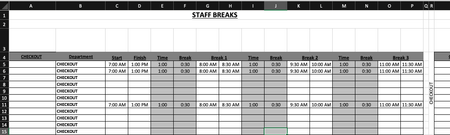
Is anyone able to advise the following formula: =COUNTIFS($B$5:$B$15,$R$4,$C5:$C15,"<=" & V3,$D5:$D15, ">" & V3)-COUNTIFS($B$5:$B$15,"="&$R$4,$G5:$G15,"<=" & V3,$H5:$H15, ">" & V3)-COUNTIFS($B$5:$B$15,"="&$R$4,$K5:$K15,"<=" & V3,$L5:$L15, ">" & V3)-COUNTIFS($B$5:$B$15,"="&$R$4,$O5:$O15,"<=" & V3,$P5:$P15, ">" & V3) Is there a way to simplify this? Is there a way to make this more accurate? Cells in column G & H, I & J, O & P are using the following format: =IF(C6="","",C6+E6) Cells in U4:CC4 are using the following format: =COUNTIFS($B$5:$B$15,$R$4,$C5:$C15,"<=" & U3,$D5:$D15, ">" & U3)-COUNTIFS($B$5:$B$15,"="&$R$4,$G5:$G15,"<=" & U3,$H5:$H15, ">" & U3)-COUNTIFS($B$5:$B$15,"="&$R$4,$K5:$K15,"<=" & U3,$L5:$L15, ">" & U3)-COUNTIFS($B$5:$B$15,"="&$R$4,$O5:$O15,"<=" & U3,$P5:$P15, ">" & U3) Cells in U5:CC15 are using the following format: =IF(U$4>=$T5,1,"") My issue is is when I put in the three break times, the mid break comes out at a shorter time. My other issue is is that when I put in the times in row 5,6and 11, the data is coming up as a combined data in rows 5, 6 and seven on the page two. Just for reference, "page two" is the same spreadsheet. What I need to happen is that I enter in the shift start time and finish time. This then populates through to Break 1, 2 and 3. The Time entry is the time the break starts. ie: 1 hour after start of shift, 1 hour after coming back from break, etc. The break entry is the duration of the break taken. ie: 30 minutes. Once all the info is put in, the relevant "Time Block" on "Page 2" shows a 1. What is happening at the moment is that when I enter all the time data, the time blocks are not populating correctly in accordance to the entry. Basically, If I have numerous people on shiftI need the time blocks to show where I have shortfalls in shift cover and not having too many people on break at the same time. IE: Link to Live Copy: https://www.dropbox.com/scl/fi/eur1j526htu1j8a4d4290/Staff-Breaks.xlsx?rlkey=r4tm9xts4tonofpa2th2cusfw&st=nueyk0d7&dl=0 Any ideas would be greatly appreciated.271Views0likes4Comments