suggestion
271 TopicsSign in with a Google account - Discussion
Thanks for your feedback requesting the ability to sign in with a consumer Google account. From what we’re hearing, you’d like the ability to bring over data from Chrome, use your Google services and keep Microsoft Edge and Chrome in sync. While we recognize this need, we’re currently focused on creating great 1st party account experiences with your Microsoft account and Work or School account. We appreciate the feedback around supporting signing in with other providers such as Google and will be taking this under consideration. One option available to you now would be to create a new Microsoft Account using your @gmail address, which would allow you to use a single user identifier across the various services you use. Today, you can import your data from Chrome by going to edge://settings/importData for a one time import. You can also sign into Google websites and remember your password in Microsoft Edge to reduce the number of times you need to sign into these websites. And you can access your Microsoft Edge data on the go by signing into Microsoft Edge with a Microsoft account and syncing with Microsoft Edge Mobile apps and Microsoft Edge on other devices. We will keep you updated as we further explore support for other sign-in providers in Microsoft Edge as well, it is on our roadmap.Solved244KViews13likes328Comments
{Question / Suggestion} - Is there a way to email files or links directly from Teams?
Hello! I am wondering if there is a way from the Teams desktop app to select a file and either email the link, or a current copy of the file, directly to an email address? This could be useful for possibly keeping a dated log of progress by emailing current copies of the files stored on a weekly/monthly/whatever basis, Or to share files outside of teams more easily than downloading a copy of the file and then sending that out through Outlook. It seems like it would be an easy integration to the Office 365 email service, and would improve ease of use for several scenarios. If this already exists, please let me know where to find it! Otherwise, consider this a suggestion for a new feature. Thanks,33KViews1like5CommentsSmart 💡 Idea: use Automatic Profile Switching in Edge to create a Container like experience
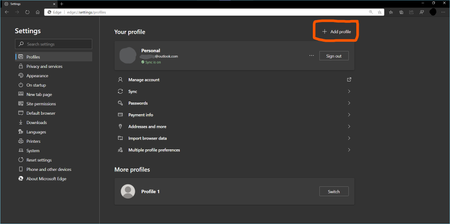
The description for containers or multi-containers in Firefox is this: https://support.mozilla.org/en-US/kb/containers Multi-Account Containers is a Firefox add-on that lets you separate your work, shopping or personal browsing without having to clear your history, log in and out, or use multiple browsers. It's an improved version of the Containers feature built into Firefox Nightly and the completed Firefox Containers Test Pilot experiment. What are Containers? Container tabs are like normal tabs except that the sites you visit will have access to a separate slice of the browser's storage. This means your site preferences, logged in sessions, and advertising tracking data won't carry over to the new container. Likewise, any browsing you do within the new container will not affect your logged in sessions, or tracking data of your other containers. Back to the Microsoft, in Edge browser, we have profiles, we can create multiple profiles and give them custom names we can create offline profiles or we can connect those profiles to online Microsoft accounts (free or work accounts) Edge also has other features (in Canary and Dev channels at the moment of writing this) Automatic profile switching Multiple profile preferences the description text says: Automatic profile switching feature detects links being opened in incorrect Microsoft account profiles and guides users to correct work, school or personal profile by showing a prompt that lets user switch to correct profile. So, now consider all that's been said above, there is an opportunity here. Microsoft Edge already has the base and fundamental features to have a container experience, the only things left to be done are some tweaking. How? Container/multi-container in Firefox is basically an add-on. I've been testing Firefox nightly in the past few months as my default browser and used containers extensively, I've also been using Edge browser and multiple profiles and I'm 100% sure this can happen. Microsoft (i.e Edge browser team) kindly need to improve the Automatic profile switching. so what I mean is, this feature that can already detect links and switch/open them in a different/correct profile, now it needs to Also be able to switch/open links that the user manually specifies. Edge team need to simplify the profiles that are going to be used for container. the profiles used for containers need to share the same installed extensions, favorites, history etc but when it comes to cookies, site cache etc they should be isolated. So for Example, I want all of the links coming from Facebook.com domain to be opened in a profile that's named "Facebook". I want all of the links coming from Twitter.com domain to be opened in a profile called "Twitter" and so on. this is Exactly how multi-container in Firefox works, users specifies a list of addresses and websites and they are automatically opened in their own container, separate from the other containers and the main browsing session, but still in the same window. each container is opened as a tab, next to other tabs, Not in a separate window. so one of the tweaks that I mentioned that need to happen is that Edge should let us open links from different profiles in the same window. currently it can't and each profile is opened in a separate window. so once Edge is able to open Tabs belonging to different profiles in the same window (next to other tabs), those tabs can be colored and marked with a feature that is already available in Edge, called "Tab Groups", the job of which is to put different tabs together and give them a specific color and name. in the screenshot above, I'm showing the end goal and what I hope to happen. so the group "Facebook" with the Cyan color means those tabs belong to a Different profile in Edge that is called "Facebook, but are in the same Edge window next to other tabs that belong to other profiles. I really believe this is totally possible and achievable. let me know what you think and if there is something that can improve this in case I missed it, please comment down below. thank you Deleted MissyQ please review and let the team know? 🙏18KViews15likes15Comments
A Vision for Windows 12: Familiar Power Meets Modern Innovation
Dear Microsoft Windows Development Team and Community Hub, With the inevitable speculation around Windows 12, I wanted to share a comprehensive vision for the next iteration of Windows. The goal is to blend the best elements of past versions with modern needs, creating a truly powerful and personalizable operating system. Here’s what many users like myself are hoping to see: 1. A Revitalized Start Menu & Screen Fresh, Resizable Layout: A clearly divided Start Menu with dedicated zones: Account Area (top-left), Shortcut Area (far left for common folders), List Area (pinned, most-used, and suggested apps), and a Pinned Tiles Area (right side, four-column layout). It should be resizable by dragging its edges. Full-Screen Start Screen Option: A return of the full-screen Start that combines the easy-to-browse list from Windows 7 with the dynamic Windows 8.1-style Live Tiles, supporting both horizontal and vertical arrangements. Enhanced Tile Flexibility: Tiles in five sizes (small, medium, long, wide, large, tall) with smooth resizing animations. New customization options should include colorful, gradient, light, dark, transparent, and semi-transparent tones. Migration Friendly: When upgrading from Windows 7, 8.1, 10, or 11, all pinned apps and websites should automatically migrate. Copilot Integration: A dedicated, prominent Copilot Tile to highlight the AI assistant's role, perhaps with a new rainbow effect for visual flair. 2. A More Functional Taskbar & Search Comprehensive Taskbar: Featuring the Cortana icon, mobile devices, Start, Search, Task View, Chat, applications, and the system tray. Prominent Search Box: The search box should be more prominent, changing from a circle to a rectangular shape, serving as a stronger entry point. Flexible Search Menu: The search interface should be highly adjustable and consistent with the new Start menu's style. 3. Personalized User Experience Lock Screen Customization: Options for left or center-aligned date and time. New photo effects that highlight the main subject, allowing it to overlay the time. Windows Hello: Facial recognition that works while wearing a mask. Enhanced Widgets: Desktop Pinning: Widgets should be pinnable anywhere on the desktop, not just in a sidebar. Full-Screen Widgets Board: A full-screen mode with a widget panel on the left and news/feeds on the right, supporting up to six columns. New Widgets: Introduction of a 'Calendar', 'People', 'Microsoft Edge', 'Cortana Suggestions', and a dedicated 'Microsoft Store' widget. 4. Peak Productivity & Multitasking Task View & Virtual Desktops: A return to the mature Windows 10 experience, allowing windows to be dragged directly to other desktops in Task View. Timeline Returns: The Timeline feature should come back, including cross-device history. Classic Alt+Tab: The Windows 10 Alt+Tab window switcher experience should be restored. Supercharged Snap Assist: Enhanced Snap Layouts supporting up to 8 segments for large screens, with specific, intelligent layouts for ultrawide (21:9, 32:9) monitors. 5. Application & Ecosystem Evolution App Updates: New versions of Mail, Calendar, and People. The new Outlook app should fully support popular third-party email services like QQ, 163, and 126. A New Cortana: Multilingual support with the return of consumer skills (music control, smart home, third-party skills). It could be offered in two visual forms and power the 'Cortana Suggestions' widget. Screenshot Tool Upgrade: Should support full-screen recording. Media Player: The return of an appearance selector and support for live tiles. Microsoft Store Revamp: UWP Return: High-quality UWP and classic Metro apps should return to the store, with PWAs transitioning to UWP. Gaming Expansion: Addition of dedicated PlayStation and Nintendo Switch apps, including a Nintendo game section. 6. Visual & Nostalgic Enhancements Refined Aesthetics: Improved window transparency with a new glass effect, rounded rectangle system avatars, and a new top bar (weather, system tray, time). Dynamic wallpaper effects would be a welcome addition. Keep the Win11 Sound: The Windows 11 startup sound is great and should be retained. The "Bold Strategy" – Legacy Feature Return: To satisfy power users and nostalgia, consider the large-scale return of beloved features like MSN apps, Windows 7 Desktop Gadgets, Windows Media Center, Groove Music, HomeGroup, a significantly enhanced Tablet Mode, and Windows Ink Workspace. 7. Hardware, Compatibility & Core System Broad Controller Support: Native compatibility with DualShock 4/5, Joy-Con, and others. Android Subsystem (WSA) Return: WSA should return with a focus on fixing previous pain points, especially full-screen landscape app support. Separated Notification Center: The Notification Center and Calendar quick actions should be separated for a cleaner interface. "Next-Gen PC" Promise: Windows 12 should deliver on larger storage, longer battery life, more power, and enhanced security/stability. Enhanced Backup & Transfer: Windows Backup should expand to more regions and add support for backing up personal files and apps to external drives, including migration from old PCs or to new hard drives. 8. Core Versioning & Hardware Requirements A Fresh Start: Version 26H1, with an internal OS version reset to 12.0.0.0. Tiered Editions: Windows 12e (for education, 2GB RAM), Windows 12 (mainstream, 4GB RAM, removing strict TPM restrictions), and Windows 12 Ultra (flagship, 8GB RAM, unlocking all AI and performance features). Extensive Free Upgrade Path: A critical strategy, offering free upgrades from Windows 11 (including SE), Windows 10 (including S), Windows 8/8.1 (including RT), and Windows 7. Doubled Support Lifecycle: Home/Pro/Workstation: 24 months → 48 months. Enterprise/Education/IoT: 36 months → 72 months. In summary, we envision a Windows 12 that isn't afraid to learn from its rich history while pushing forward with modern innovation. It should be a system that respects user choice, empowers productivity, and welcomes everyone from legacy users to those with the latest hardware. If you like this vision and want to support it, you can upvote it here: https://aka.ms/AAylqhw Thank you for considering this feedback. Sincerely, A Passionate Windows User12KViews1like10CommentsSuggestion: Add page up and Page down button to PDF reader in Microsoft Edge
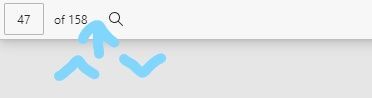
I have been using Microsoft Edge PDF reader for months now and have been loving it but the problem I find when using different PDF readers such as Adobe Acrobat and Microsoft Teams PDF reader is that there is no page up and page down button in PDF reader in Microsoft Edge. I sometimes want to just go to the next page or the previous page but then I need to manually scroll to change the page, if there is an up and down button then it would just take me to the next page with a click and also align the page properly from the start in the window. If you like this suggestion, please consider sending feedback about it through the in-app feedback tool (Alt+Shift+I) in Microsoft Edge from your side as it would give this suggestion a +1 helping it make a part of Microsoft Edge in the future.12KViews2likes8Comments[Feature Suggestion] Show update history in Edge
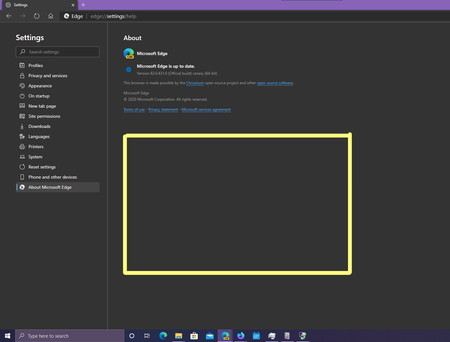
Please show the update history in edge://settings/help lots of spaces left there, it helps to keep track of installed updates on the local machine. only show update history after Edge is installed on the system, not from the beginning of the time. Firefox has this and it's very helpful, specially for insider channel. I only want to see the time and the version number of previously installed updates on my system. you can add a scroll bar to the right side to scroll down/up when the history rows are too many to fit that area. Like this:11KViews9likes8CommentsWeb Capture "copy" button should copy an image file, ready to be pasted into a folder
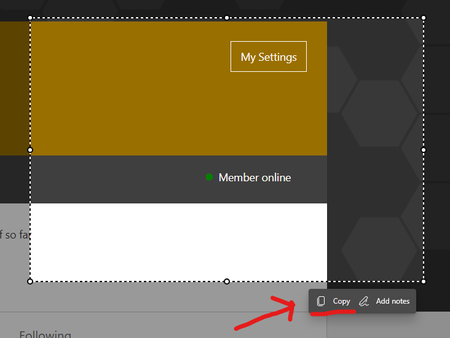
after using Web capture and snipping part of the screen, when you use the Copy button, you don't get an image file in the clipboard, you still need to open a new program like Paint to paste it in there and then save it as a file to desktop or folder. I'm suggesting to change this and simplify it, when we press Copy, then copy the actual image file ready to be pasted in a folder or desktop. you can still get the old way of copying if you press "add notes" and then press copy. I'm sending this as feedback using feedback button on Edge, if you like this, do the same. more feedback = higher priority11KViews4likes6CommentsAdd Cryptocurrency Watchlist Widget to Windows 11 Widgets, more useful than stock market watchlist
I need a Windows 11 Widget that tracks and shows prices for Cryptocurrencies, not the regular stock markets. if you're interested, please upvote this in feedback hub: https://aka.ms/AAddmqf11KViews1like0Comments