office
95 Topics
Unable to Setup Billing for new tenant account: Error code - 43881
I set up a Microsoft 365 Education tenant for a school in Uganda but received error code 43881 during billing verification. The tenant was created but A1 trial licenses were not attached. I have no chat or email support options available in the admin center. Error code: 43881410Views0likes1Comment
Problem restoring deleted user with mggraph
Hello, I have done a few 365 migration and almost everytime there are some user data that has been missed in the migration. Earlier I solved this by restoring the 365 user in the source tenant to another domain using this msol script in powershell: Restore-MsolUser -UserPrincipalName email address removed for privacy reasons -Verbose Restore-MsolUser -UserPrincipalName email address removed for privacy reasons -Verbose -AutoReconcileProxyConflicts Restore-MsolUser -UserPrincipalName email address removed for privacy reasons -Verbose -AutoReconcileProxyConflicts -NewUserPrincipalName email address removed for privacy reasons I know it is not perfect but it worked well and saved a bunch of times. I have now done another migration now and got the same issue so I need to restore the users so we can access the data again and move it. BUT! I realized today that msol service is no more, so I am kinda stuck with figuring this out in mggraph. I have tried for a few hours now and I am not sure if this even possible with mggraph. Whenever I try to build a script using Restore-MgDirectoryDeletedUser/Item which google, copilote etc tells me to use I only get this error: The term 'Restore-MgDirectoryDeletedUser/item' is not recognized as the name of a cmdlet, function, script file, or operable program. Check the spelling of the name, or if a path was included, verify that the path is correct and try again. Or I get that it "works" but that the proxy/domain conflicts: Errors detected while trying to restore the user restoreUserErrors: ErrorValue:<pii><pii>E*****.E*******</pii>@domain.com</pii> ObjectType: ConflictingObjectId:, ErrorType:UserPrincipalName, ErrorId:InvalidDomainErrorValue:<pii>smtp:<pii>ee</pii>@domain.com</pii> ObjectType: ConflictingObjectId:, ErrorType:ProxyAddress, ErrorId:InvalidDomain Status: 400 (BadRequest) ErrorCode: Request_BadRequest Date: 2025-09-08T13:49:36 Since I do not have the first domain in the source tenant anymore I need to restore the user to a different domain. Does anyone have any idea on how I can recreate the msol version to mggraph? I feel like I have tried everything to my knowledge now so hopefully anyone here can give me help or tips. Thanks! /Adam851Views0likes5Comments
1000 Free Udemy Coupons on Microsoft Power Automate With AI Builder
<<BAKRI ID(Id-ul-Ad'ha) -- 1000 FREE UDEMY COUPONS ON RPA>> On the Occasion of BAKRI ID(Id-ul-Ad'ha), I am very happy to share 1000 Free udemy coupons on Microsoft Power Automate With AI Builder Title : Advanced RPA - Microsoft Power Automate With AI Builder https://www.udemy.com/course/microsoft-power-automate-with-ai-builder/?couponCode=LT-BAKRID <<Our other courses on Udemy and Udemy Business>> Title : PL-500 Microsoft Power Automate RPA Developer BootCamp Link: https://www.udemy.com/course/pl-500-microsoft-power-automate-rpa-developer-bootcamp/?referralCode=891491BAB7F20B865EE6 Title 1: Become RPA Master in MS Power Automate Desktop https://www.udemy.com/course/microsoft-power-automate-desktop-tutorials-for-beginners/?referralCode=03D49B549EE2193E79EE Title 2: RPA : Microsoft Power Automate Desktop - Zero to Expert : 2 https://www.udemy.com/course/microsoft-power-automate-desktop-course-zero-to-expert-2/?referralCode=783F39A1D0CDB4A70A7C Title 3: RPA:Microsoft Power Automate Desktop:Intelligent Automation https://www.udemy.com/course/power-automate-desktop-course-intelligent-automation/?referralCode=E8C51F3C27EA98FE100C Connect with me on LinkedIn : https://www.linkedin.com/in/ameer-basha-p-b44880262/ Youtube Channel : www.youtube.com/learningtechnologies764Views2likes1CommentMouse pointer disappearing over Word/Excel/Outlook in AVD
Hi We are seeing a strange issue on a bunch of session hosts where user over certain apps cannot see the mouse pointer in their full screen AVD sessions. Session hosts are running Windows 10 22H2 up to date (well to February B week release); user client up to date, I am not aware we had user ever report this prior to completely rebuilding a new host pool last autumn for the AppReadiness crashing issues. From what we can tell this only seem to happen with Microsoft Excel, Word and the Outlook compose window, the mouse pointer basically becomes transparent as you can't see it so it makes it hard to select text or cells accurately. Clients are mostly a mix of HP and Lenovo PCs micro PCs running Windows 10 22H2 and Windows 11 23H2 Enterprise on Intel 8th to 12th Gen CPUs and AMD Ryzen Pro CPUs with integrated graphics. Does anyone else see this or any ideas what might be causing it?26KViews2likes4Comments
Change work hours
Hello, I am trying to change users' work hours as I would do via the web interface. However, I am unable to find a way to do this using PowerShell. I’ve seen suggestions to use Set-MailboxCalendarConfiguration, such as: Set-MailboxCalendarConfiguration -Identity email address removed for privacy reasons -WorkingHoursStartTime "09:00:00" -WorkingHoursEndTime "17:00:00" However, I need to set different working hours for each day, and I can’t find any parameters that would allow me to do this. Is this possible? Do I need to use Update-MgUserMailboxSetting for this? Thank you, Alejandro900Views0likes2Comments
A powershell 7 script that will grant a global admin rights to users OneDrive
Hello, I'm wondering if this has ever been done, and if yes, can someone either give me the script or point me to where it is. I have a CSV of users which I need to grant a global admin access to their One Drives. I've scoured the internet for scripts that will iterate through my CSV and grant me access but I am always getting errors no matter what I try to do. I am using PS7 for this. Has this ever been done? If yes can someone please give me a script that can do it. Thanks491Views0likes2Comments
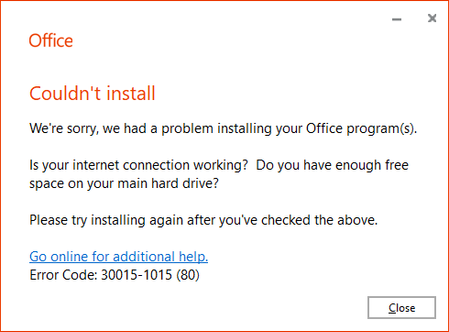
Error PowerShell 300-1015 (80)
Hello, using P.Shell for office installation, with ODT, it gives me the following error shown in the photo, or opening the console in any folder with the right mouse button "open the P.S. window here" gives an error: Missing termination character in the string: ". + CategoryInfo : ParserError: (:) [], ParentContainsErrorRecordException + FullyQualifiedErrorId : TerminatorExpectedAtEndOfString While if I run the command on the desktop, the window opens normally! Thanks490Views0likes1Comment
Adding External Users in-bulk to: Microsoft Teams & Private Channel(s) within the Team
We have a customer who requires over 350 external users (their customers) to be added / invited into a Team which has been created. "Half" of the users need to be added into "private channel a", and the other "Half" need to be added into "private channel b". We have attempted to add the users via various PowerShell scripts, however none of these scripts that we have been provided with have worked for various reasons. I have been unable to locate any native methods for this within the MS 365 admin centre, therefore believe that the only way to achieve this is by PowerShell scripting. Example of the most recent script we have is as follows, omitting the creation of the private channel(s) as they have already been created - see below: We require assistance with the actual script itself to: Add users into the team from a CSV of their email addresses. Assign the users to the correct private channel. Note - users will be added in 2 batches - 1 per private channel, so we just require scripting that can be modified to achieve this. # Install the Microsoft Teams PowerShell Module Install-Module -Name PowerShellGet -Force -AllowClobber Install-Module -Name MicrosoftTeams -Force -AllowClobber # Connect to Microsoft Teams Connect-MicrosoftTeams # Define the team name and path to the CSV file $teamName = "Your Team Name" $csvPath = "C:\path\to\your\users.csv" # Get the GroupId of the team $team = Get-Team -DisplayName $teamName $groupId = $team.GroupId # Import users from the CSV file $users = Import-Csv $csvPath # Add external users to the team foreach ($user in $users) { Add-TeamUser -GroupId $groupId -User $user.Email } # Define the private channel name $privateChannelName = "Private Channel Name" # Create the private channel New-TeamChannel -GroupId $groupId -DisplayName $privateChannelName -MembershipType Private # Get the ChannelId of the private channel $channel = Get-TeamChannel -GroupId $groupId -DisplayName $privateChannelName $channelId = $channel.Id # Add users to the private channel foreach ($user in $users) { Add-TeamChannelUser -GroupId $groupId -User $user.Email -ChannelId $channelId }280Views0likes0Comments