office 365
20845 Topics
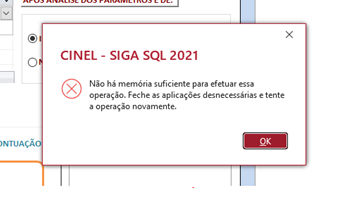
Erro de Limite de memoria
Boa tarde Sem ter sido feito qualquer alteração de programação começou a aparecer em muitos relatórios este aviso "Não há memoria suficiente. feche todas aplicações desnecessárias e tente a operação de novo" Dá ideia que este aviso não corresponde à verdade..... Podem ajudar ? Good afternoon Without any programming changes being made, this warning has started appearing in many reports: "Not enough memory. Close all unnecessary applications and try the operation again." It seems that this warning is not true... Can you help?20Views0likes1Comment
Recuperação do Onedrive não funciona.
Não sei o que aconteceu, mas nos dias 04 e 08, dois dias que não acessei meu onedrive, milhares de arquivos meus foram deletados. Foram parar na lixeira, tentei de várias formas restaurá-los, mas o onedrive não permite restaurar todos de uma vez e depois de horas tentando, percebi que nunca iria conseguir terminar. Resolvi tentar a restauração do onedrive para o dia 04/09 as 00h00, mas a restauração nunca funciona, para pelo meio do caminho e a todo instante pede nova autenticação, tornando também inviável a recuperação dos arquivos. Não posso perdê-los e amanhã é o prazo de retenção dos arquivos e isso se tornará irreversível. Preciso de ajuda URGENTE para resolver esse problema, pois nada está funcionando e não encontro respostas para solucioná-lo. Tenho várias imagens de tela gravadas provando que depois de horas, nunca sai do 0% e também das constantes solicitações de verificação que impedem a restauração de forma funcional. Espero realmente que resolvam esse problema e restaurem meu onedrive por completo para o dia 04/09 as 00h00 ou precisarei tomar as medidas necessárias por terem eliminado definitivamente meus arquivos sem que eu tivesse a chance de recuperá-los. Agradeço a atenção e aguardo providências URGENTES!50Views0likes2Comments
Theme Not Available For Cengage Project
I am currently trying to do a Cengage project for Microsoft power point. I need the Berlin theme and it is currently unavailable. I am using Microsoft 365 Family and only see a limited set of themes. Can someone PLEASE help me? Thank you!11Views0likes0Comments
Excel can still use legacy “Move and Size with Cells” checkboxes — but can no longer create them
Excel Can Still Use “Move and Size with Cells” Form Checkboxes — But It Can No Longer Create Them A reproducible Excel compatibility regression hiding inside legacy Form Controls For years, I have used Excel workbooks containing hundreds of Form Control checkboxes attached to product rows. These checkboxes behaved exactly as you would expect: - change the row height, and the checkbox stays inside that row; - filter the worksheet, and the checkbox disappears together with its product; - remove the filter, and the checkbox returns to the correct row; - no overlapping controls; - no “click one checkbox, activate another” behaviour. Recently, while rebuilding one of these workbooks in Excel 2024 LTSC, I discovered something very strange. The old checkboxes still work perfectly. But if I delete one and recreate it — even using the same VBA code that originally created the controls — Excel creates a different kind of placement behaviour. After a full day of controlled testing, XML inspection and A/B workbook comparison, the problem became clear: Excel can still read, display, save and execute legacy Form Control checkboxes using true “Move and size with cells” behaviour — but current Excel cannot recreate that same state for a newly created Form Control checkbox through the normal UI or VBA object model. That is not just inconvenient. For existing business workbooks, it is a serious backward-compatibility problem. The simple VBA code that used to work The original controls were created with ordinary Excel VBA: Set myCBX = wks.CheckBoxes.Add( _ Top:=cell.Top, _ Left:=cell.Left, _ Width:=cell.Width, _ Height:=cell.Height) Nothing exotic. No custom event engine. No ActiveX. No external add-in. Just a standard Excel Form Control checkbox positioned exactly over a cell. The workbook contains roughly 1,000 of these controls. The old ones still behave correctly today. The problem starts only after deleting them and creating new ones. What changes? In the Excel UI, the difference is immediately visible. For an original legacy checkbox: Format Control → Properties shows: Move and size with cells The option is selected, although it is greyed out. For a newly created checkbox in current Excel: Move but don’t size with cells is selected instead. That already suggests something changed internally. But the real evidence is inside the .xlsm package. The OOXML tells the story I created two controlled test workbooks: Workbook A Original legacy Form Control checkboxes that behave correctly. Workbook B The same workbook, but the checkboxes were deleted and recreated in current Excel using the original VBA logic. The internal OOXML differs. The working legacy controls contain placement information equivalent to: moveWithCells="1" sizeWithCells="1" and use genuine two-cell anchoring. The newly generated controls are instead stored using one-cell-style placement semantics, including: <xdr:twoCellAnchor editAs="oneCell"> The important part is not merely the XML syntax. The resulting behaviour is observably different. With the legacy control, both ends of the object are anchored to the worksheet grid. With the newly created control, Excel effectively preserves the control size while cells move underneath it. That distinction becomes disastrous when rows are resized, hidden or filtered. Why filtering exposes the problem Imagine a checkbox sitting on row 50. With the legacy behaviour: Checkbox ↔ Row 50 boundaries When row 50 changes size, the checkbox changes with it. If row 50 is filtered out, the control disappears with the row. When the row becomes visible again, the control is still exactly where it belongs. With the newly generated control, its dimensions are not tied to both cell boundaries in the same way. After repeated resizing and filtering, controls can begin to overlap. That leads to one of the worst possible spreadsheet UI failures: You click the checkbox you can see, but another checkbox receives the click. For a workbook containing hundreds or thousands of rows, this makes the controls unreliable. “Just use .Placement = xlMoveAndSize” That was the obvious first solution. Excel VBA defines: xlMoveAndSize as the placement mode where an object moves and resizes with cells. So I tested: myCBX.Placement = xlMoveAndSize and: myCBX.Placement = 1 I also tested placement through the corresponding Shape: ws.Shapes(myCBX.Name).Placement = xlMoveAndSize And through a ShapeRange. And through DrawingObjects. And even the commonly suggested workaround: Group controls → set Group.Placement = xlMoveAndSize → Ungroup None of these recreated the original internal state in Excel 2024 LTSC. The workbook continued to serialize the new controls differently. This matches long-standing Microsoft guidance that Form Control checkboxes do not normally support “Move and size with cells” as an editable option, while ActiveX checkboxes do. And yet — this is the important part — existing legacy Form Control checkboxes in real workbooks can still possess and use that state. The most revealing experiment I then modified the OOXML manually. I took the newly generated workbook and patched the checkbox placement metadata to match the working legacy controls: moveWithCells="1" sizeWithCells="1" with proper two-cell anchoring and without the one-cell override. Then I reopened the workbook in Excel 2024 LTSC. And it worked. Immediately. No custom VBA reposition engine. No ActiveX. No workaround running continuously. The same Excel installation that would not create this state through VBA had absolutely no problem: - reading it, - displaying it, - saving it, - resizing the controls with rows, - and filtering them correctly. That is the key finding. The Excel rendering and file engines still fully understand this checkbox state. The missing part is the supported creation path. So is this an unsupported feature or a compatibility regression? Microsoft has historically documented Form Control checkboxes as not supporting “Move and size with cells” in the normal UI. That makes the situation unusual. The issue is not simply: “Excel removed a documented checkbox feature.” The stronger and more accurate statement is: Excel supports a legacy Form Control state in existing workbooks, continues to execute it correctly, but no longer provides an ordinary supported mechanism to reproduce that same state for a replacement control. For users maintaining long-lived Excel systems, the difference is academic. If an old control is accidentally deleted, replacing it with an apparently identical Form Control changes the behaviour of the workbook. That is a backward-compatibility problem. Why not switch to ActiveX? ActiveX checkboxes support richer placement behaviour. But that creates another problem. Microsoft now disables ActiveX controls by default in Microsoft 365 and Office 2024 for security reasons. When ActiveX is disabled, users cannot create new ActiveX objects or interact with existing ones. So the official alternatives are hardly attractive: Legacy Form Controls Lightweight and reliable — but cannot reproduce this legacy placement state normally. ActiveX Supports more control behaviour — but is now a legacy security-sensitive technology disabled by default in current Office. New in-cell checkboxes Architecturally much better — because the checkbox is part of the cell and represents TRUE/FALSE. But Microsoft’s own documentation currently lists the feature for: - Excel for Microsoft 365 - Excel for Microsoft 365 for Mac not Excel 2024 LTSC. That leaves perpetual Office users in an uncomfortable middle ground. This is where the product story becomes difficult to defend I am not claiming that Microsoft intentionally removed this behaviour in order to sell subscriptions. There is no evidence for that claim. But the resulting user experience is still hard to justify: 1. Excel can execute the legacy checkbox behaviour. 2. Excel can preserve it. 3. Excel can save it. 4. Excel accepts a manually patched workbook containing it. 5. Excel’s current object model does not provide a reliable way to recreate it. 6. The modern replacement — native in-cell checkboxes — is documented for Microsoft 365 rather than Excel 2024 LTSC. 7. The other legacy alternative, ActiveX, is now disabled by default for security reasons. For users maintaining mature Excel applications, this is a poor migration path. Why this matters beyond checkboxes This is not really a story about one checkbox property. It is about the contract users expect from long-lived productivity software. Excel workbooks are often not disposable documents. They can be: - product-management systems, - pricing tools, - engineering calculators, - operational forms, - purchasing systems, - inventory tools, - reporting applications, - or business processes maintained for ten or twenty years. When Excel continues to support the execution of an old document feature but silently prevents users from recreating an equivalent object, maintaining those systems becomes unnecessarily difficult. Backward compatibility should mean more than: “The file still opens.” It should also mean: “A user can maintain the workbook without reverse-engineering its OOXML package.” What Microsoft could do There are several reasonable fixes. Option 1 — Restore proper placement support Allow: CheckBox.Placement = xlMoveAndSize to generate the same placement state that Excel already understands for legacy controls. Option 2 — Expose the existing capability If the engine already supports it, expose “Move and size with cells” again for Form Control checkboxes. Option 3 — Provide a migration path Make the new in-cell checkbox functionality available to perpetual Excel releases as well, or provide an official conversion tool from legacy Form Controls to cell checkboxes. Option 4 — At minimum, document the limitation If this legacy state is intentionally read-only for compatibility, document it clearly. Currently, a user can spend hours debugging VBA without realizing that two visually identical Form Control checkboxes can have fundamentally different internal placement semantics. A workaround exists — but users should not need it The workaround I eventually used was to modify the .xlsm OOXML package so that newly generated controls use the same anchor metadata as the working legacy controls. That solved the problem immediately. But manually patching Office XML should not be necessary to restore behaviour that Excel itself already supports. It is a useful proof of concept. It is not an acceptable product-level solution. The reproducible evidence I have retained minimal A/B test workbooks demonstrating the problem: OLD Original Form Control checkboxes with correct legacy placement. NEW The same workbook after deleting and recreating the controls. The differences can be reproduced and inspected directly in the workbook OOXML. I would be happy to provide the files to Microsoft Excel engineering. Final thought Excel’s reputation was built partly on extraordinary backward compatibility. That is why companies still trust .xls and .xlsx files created years — sometimes decades — ago. This case shows an uncomfortable edge of that compatibility: Excel remembers how to use an old feature, but appears to have forgotten how to create it. When the workaround is to unzip an .xlsm, manually alter OOXML placement records, rebuild the package and reopen it in Excel — and Excel then works perfectly — it is difficult to argue that the capability itself is gone. The engine still knows how. The user simply no longer has a supported button or VBA path to ask for it. Microsoft, please give that capability back — or provide a proper migration path. Sources Microsoft documentation for native cell-based checkboxes: https://support.microsoft.com/en-us/excel/using-check-boxes-in-excel Microsoft-hosted discussion on Form Control checkbox limitations: https://learn.microsoft.com/en-us/answers/questions/4813119/is-there-a-way-to-assign-a-checkbox-to-a-cell Microsoft documentation on ActiveX controls being disabled by default: https://support.microsoft.com/en-us/office/vba/activex-controls-are-disabled-by-default-in-microsoft-365-and-office-202459Views0likes2CommentsMS Outlook 2024 LTSC automatically gets closed and later not getting open
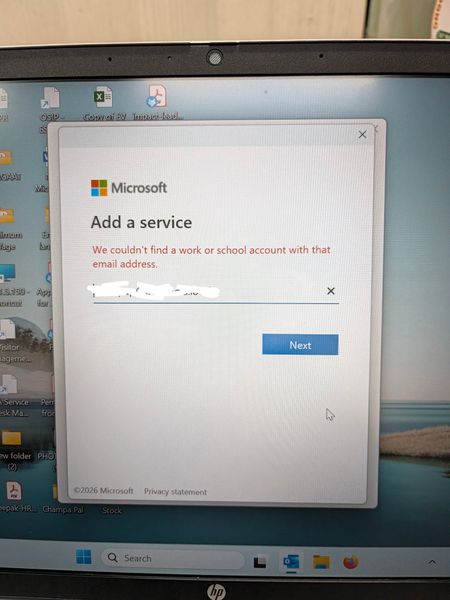
In Outlook 2024 LTSC, the application suddenly stops and closed automatically. Later troubleshooting, it is observed that it doesn't even open in safe mode. Tried to create a new profile where it is not able to search the user from exchange and automatically redirect to Microsoft 365 login page whereas our mail server works in exchange mode. Even after reinstalling the MS office 2024, it is not able to search the user and redirects to Microsoft 365 login page. What is the issue and resolution.43Views0likes1CommentFree Mac app: fixes PowerPoint images that look sharp on Mac but pixelated on Windows
If you paste figures or tables from PDFs into PowerPoint for Mac, they may look pixelated when the deck is shown on a Windows PC (conference rooms, classrooms). This has been reported for years without a fix. Cause: PowerPoint for Mac stores the pasted PDF plus a small low-res backup image. Windows can't read the PDF, so it shows the backup. I made a small, free, open-source menu bar app that uses the sharp PDF already in the file to create a Windows-safe copy (name_windows.pptx). Your original is never changed. Drop files on the icon, or let it watch a folder so it happens automatically. https://github.com/Filhgd/pptx-mactowindows-fix Signed and notarized, macOS 13+. Feedback welcome, especially files where it doesn't work.14Views0likes0CommentsBring Azure Logic Apps connectors into your .NET applications with the Azure Connectors SDK
Modern business applications rarely work in isolation. An order exception might need an email, a support case might need a Teams notification, and a completed document might need to be stored in SharePoint. Developers can build each integration directly against a service API, but that also means owning different authentication models, request and response shapes, pagination rules, and error handling for every service. The Azure Connectors SDK brings the typed experience of a .NET client library to Connector Namespace, which makes the Logic Apps and Power Platform connector runtime available to developers as a programmable integration layer. Your application can call connector operations through generated clients and models while Azure manages the connection to the external service. In this post, we will build a small Azure function app that reacts to a new email through a Connector trigger and sends a formatted review email through the Office 365 Outlook connector. The same pattern can then be extended to many other business systems. Preview: Azure Connectors SDK is currently in preview. Preview features are provided without a service-level agreement and are not recommended for production workloads. APIs and setup steps can change before general availability. Why this matters Integration code often starts with one HTTP call and grows into a collection of service-specific concerns. The Azure Connectors SDK gives .NET developers: Typed clients, request models, and response models generated from connector contracts Async operations with cancellation-token support Azure credential integration for authenticating the calling application Consistent connector exceptions and diagnostics Built-in retry support for transient failures Pagination, binary payload, and dynamic-schema support where connectors expose them OpenTelemetry integration for tracing connector calls Access to a broad connector ecosystem that includes Microsoft 365, Azure services, data platforms, storage, messaging, and SaaS applications The SDK does not put external-service credentials in your application. Instead, your code authenticates to a Connector Namespace connection. That connection holds the authorization for Office 365 Outlook or another target service. Scenario: notify operations about an order exception Imagine an order service that flags transactions for manual review by sending an email to an Office 365 mailbox. The subject identifies the order and the body briefly explains the exception: To: orders@contoso.com Subject: Order exception: SO-10482 Body: Customer requested a delivery-address change after payment. Connector Namespace polls the mailbox for new messages matching the subject filter and calls an Azure function app's Connector trigger. The function reads the typed email payload and sends a formatted review email to a separate operations inbox. Unlike an HTTP-triggered function, there is no application endpoint or 202 Accepted response to invoke. Prerequisites You need: An Azure subscription in which Connector Namespace is available Permission to create Connector Namespace resources and connections .NET 10 SDK Azure Functions Core Tools v4 Azure CLI Azure Developer CLI ( azd ) for deployment, or an existing .NET 10 isolated-worker function app An Office 365 account that can authorize the connection and send email At the time of writing, Connector Namespace is available in a limited set of preview regions. Confirm current region availability before creating the resource. 1. Create an Office 365 connection First sign in and select the subscription that will own the Connector Namespace: az login az account set --subscription "<subscription-id>" $subscriptionId = "<subscription-id>" $resourceGroup = "<resource-group>" $namespaceName = "<connector-namespace-name>" $connectionName = "office365-orders" $location = "<supported-azure-region>" $apiVersion = "2026-05-01-preview" $nsId = "/subscriptions/$subscriptionId/resourceGroups/$resourceGroup/providers/Microsoft.Web/connectorGateways/$namespaceName" Create a Connector Namespace with a system-assigned managed identity: $namespace = @{ location = $location identity = @{ type = "SystemAssigned" } properties = @{} } | ConvertTo-Json -Depth 5 -Compress $tempFile = Join-Path $env:TEMP "connector-namespace.json" [System.IO.File]::WriteAllText($tempFile, $namespace) az rest --method PUT ` --uri "https://management.azure.com${nsId}?api-version=$apiVersion" ` --body "@$tempFile" ` --headers "Content-Type=application/json" ` --output none Remove-Item $tempFile Create the Office 365 connection: $connection = @{ properties = @{ connectorName = "office365" } } | ConvertTo-Json -Depth 5 -Compress $tempFile = Join-Path $env:TEMP "connector-connection.json" [System.IO.File]::WriteAllText($tempFile, $connection) az rest --method PUT ` --uri "https://management.azure.com${nsId}/connections/${connectionName}?api-version=$apiVersion" ` --body "@$tempFile" ` --headers "Content-Type=application/json" ` --output none Remove-Item $tempFile The new connection is not authorized yet. Request an OAuth consent link and open it in your browser: $consentRequest = @{ parameters = @( @{ redirectUrl = "https://portal.azure.com" parameterName = "token" } ) } | ConvertTo-Json -Depth 5 -Compress $tempFile = Join-Path $env:TEMP "connector-consent.json" [System.IO.File]::WriteAllText($tempFile, $consentRequest) $consent = az rest --method POST ` --uri "https://management.azure.com${nsId}/connections/${connectionName}/listConsentLinks?api-version=$apiVersion" ` --body "@$tempFile" ` --headers "Content-Type=application/json" ` --output json | ConvertFrom-Json Remove-Item $tempFile Start-Process $consent.value[0].link Complete the sign-in and consent flow. Then verify that the connection reports Connected : az rest --method GET ` --uri "https://management.azure.com${nsId}/connections/${connectionName}?api-version=$apiVersion" ` --output json | ConvertFrom-Json | Select-Object -ExpandProperty properties | Select-Object -ExpandProperty statuses 2. Allow your local identity to call the connection OAuth consent authorizes the connection to call Office 365. A separate access policy authorizes your application to call the connection. This distinction is important: without the policy, the runtime call fails with HTTP 403 and a missing connection ACL message. Add an access policy for the identity currently signed in to Azure CLI: $userObjectId = az ad signed-in-user show --query id --output tsv $tenantId = az account show --query tenantId --output tsv $policy = @{ properties = @{ principal = @{ type = "ActiveDirectory" identity = @{ objectId = $userObjectId tenantId = $tenantId } } } } | ConvertTo-Json -Depth 6 -Compress $tempFile = Join-Path $env:TEMP "connector-policy.json" [System.IO.File]::WriteAllText($tempFile, $policy) az rest --method PUT ` --uri "https://management.azure.com${nsId}/connections/${connectionName}/accessPolicies/local-dev?api-version=$apiVersion" ` --body "@$tempFile" ` --headers "Content-Type=application/json" ` --output none Remove-Item $tempFile Access-policy changes can take a few minutes to reach the connector runtime. Finally, retrieve the connection runtime URL. Treat this value as application configuration rather than source code: $connection = az rest --method GET ` --uri "https://management.azure.com${nsId}/connections/${connectionName}?api-version=$apiVersion" ` --output json | ConvertFrom-Json $connectionRuntimeUrl = $connection.properties.connectionRuntimeUrl 3. Create the Azure function app Create an isolated-worker function app with the current Core Tools template. Some Core Tools v4 versions do not offer net10.0 as a func init --target-framework option; use the .NET 9 template, then change the generated project's TargetFramework to net10.0 before building: func init ConnectorsSdkOrderAlerts --worker-runtime dotnet-isolated --target-framework net9.0 Set-Location ConnectorsSdkOrderAlerts In ConnectorsSdkOrderAlerts.csproj , set: <TargetFramework>net10.0</TargetFramework> Add the connector packages: dotnet add package Azure.Connectors.Sdk --version 0.13.0-preview.1 dotnet add package Azure.Identity dotnet add package Microsoft.Azure.Functions.Worker.Extensions.Connector --version 0.2.0-alpha Register an Azure credential and only the connector client this function needs. DefaultAzureCredential can use your Azure CLI identity locally and the function app's managed identity in Azure: using Azure.Connectors.Sdk; using Azure.Core; using Azure.Identity; using Microsoft.Extensions.Configuration; using Microsoft.Extensions.DependencyInjection; using Microsoft.Extensions.Hosting; var host = new HostBuilder() .ConfigureFunctionsWorkerDefaults() .ConfigureServices((hostContext, services) => { services.AddSingleton<TokenCredential>(new DefaultAzureCredential()); services.AddOffice365Client( hostContext.Configuration.GetSection("Connectors:Office365")); }) .Build(); host.Run(); Add the function. The Connector trigger binds the OnNewEmailV3 callback to a typed payload. Filter the subject again in code, HTML-encode untrusted email fields, and send the review message through the generated SendEmailInput model: using System.Text.Encodings.Web; using Azure.Connectors.Sdk.Office365; using Azure.Connectors.Sdk.Office365.Models; using Microsoft.Azure.Functions.Worker; using Microsoft.Azure.Functions.Worker.Extensions.Connector; public sealed class OperationalAlertFunctions { private const string SubjectPrefix = "Order exception:"; private readonly Office365Client _office365Client; public OperationalAlertFunctions(Office365Client office365Client) { this._office365Client = office365Client; } [Function("OnOrderExceptionEmail")] public async Task OnOrderExceptionEmailAsync( [ConnectorTrigger] Office365OnNewEmailTriggerPayload payload, CancellationToken cancellationToken) { foreach (var message in payload.Body?.Value ?? []) { if (message?.Subject?.StartsWith( OperationalAlertFunctions.SubjectPrefix, StringComparison.OrdinalIgnoreCase) != true) { continue; } var orderId = message.Subject[OperationalAlertFunctions.SubjectPrefix.Length..].Trim(); if (string.IsNullOrWhiteSpace(orderId)) { continue; } var email = new SendEmailInput { To = "operations@contoso.com", Subject = $"Order {orderId} requires review", Body = "<h2>Order review required</h2>" + $"<p><strong>Order:</strong> {HtmlEncoder.Default.Encode(orderId)}</p>" + $"<p><strong>From:</strong> {HtmlEncoder.Default.Encode(message.From ?? string.Empty)}</p>" + $"<p><strong>Reason:</strong> {HtmlEncoder.Default.Encode(message.BodyPreview ?? string.Empty)}</p>" }; await this._office365Client.SendEmailAsync(email, cancellationToken); } } } Use a monitored mailbox or folder separate from the operations inbox. Keep the outgoing subject different from the trigger's subject filter so the notification cannot trigger itself. For production workloads, account for repeated callbacks and partial failures within a batch before performing non-idempotent actions such as sending mail. 4. Deploy and register the Connector trigger Keep the runtime URL out of source control. Set it for local development, then deploy the function app with a system-assigned managed identity and the same setting in its application configuration: $env:Connectors__Office365__ConnectionRuntimeUrl = $connectionRuntimeUrl The public Office 365 connector-trigger sample is a downloadable .NET 10 function app with deployment infrastructure, an OnNewEmail binding, and post-deploy trigger registration. Use its azd up workflow or deploy this function app through your existing pipeline. A locally running Functions host is not reachable by the Connector Namespace polling callback unless you provide a secure public callback endpoint. Once the function app is deployed, add its managed identity to the connection's access policies, just as you added your CLI identity for local development. For a system-assigned identity, get its principal ID and use it in the access policy from step 2 instead of $userObjectId : $functionAppName = "<function-app-name>" $functionObjectId = az functionapp identity show ` --resource-group $resourceGroup --name $functionAppName ` --query principalId --output tsv $policy = @{ properties = @{ principal = @{ type = "ActiveDirectory" identity = @{ objectId = $functionObjectId tenantId = $tenantId } } } } | ConvertTo-Json -Depth 6 -Compress $tempFile = [System.IO.Path]::GetTempFileName() try { [System.IO.File]::WriteAllText($tempFile, $policy) az rest --method PUT ` --uri "https://management.azure.com${nsId}/connections/${connectionName}/accessPolicies/order-alert-function?api-version=$apiVersion" ` --body "@$tempFile" ` --headers "Content-Type=application/json" ` --output none } finally { Remove-Item $tempFile } Obtain the Connector extension's system key and the function app's actual default hostname, then construct the callback URL for the deployed function. Do not assume that the hostname is <function-app-name>.azurewebsites.net ; the default hostname format can vary: $connectorExtensionKey = az functionapp keys list ` --resource-group $resourceGroup --name $functionAppName ` --query "systemKeys.connector_extension" --output tsv $functionAppHostname = az functionapp show ` --resource-group $resourceGroup --name $functionAppName ` --query "defaultHostName" --output tsv $callbackUrl = "https://$functionAppHostname/runtime/webhooks/connector?functionName=OnOrderExceptionEmail&code=$connectorExtensionKey" The system key is a secret. Do not log, publish, or commit the callback URL. Create the Office 365 polling trigger config using the same connection and a subject filter matching the incoming order messages: $triggerConfig = @{ properties = @{ operationName = "OnNewEmailV3" connectionDetails = @{ connectorName = "office365" connectionName = $connectionName } notificationDetails = @{ callbackUrl = $callbackUrl httpMethod = "Post" } parameters = @( @{ name = "folderPath"; value = "Inbox" } @{ name = "subjectFilter"; value = "Order exception:" } ) metadata = @{ destinationType = "functionApp" functionAppName = $functionAppName functionAppResourceGroup = $resourceGroup functionAppSubscriptionId = $subscriptionId functionName = "OnOrderExceptionEmail" recurrenceFrequency = "Minute" recurrenceInterval = "5" } } } | ConvertTo-Json -Depth 6 -Compress $tempFile = [System.IO.Path]::GetTempFileName() try { [System.IO.File]::WriteAllText($tempFile, $triggerConfig) az rest --method PUT ` --uri "https://management.azure.com${nsId}/triggerConfigs/order-exception-email?api-version=$apiVersion" ` --body "@$tempFile" ` --headers "Content-Type=application/json" ` --output none } finally { Remove-Item $tempFile } Confirm that the trigger config reports Enabled . Send a test email to the monitored mailbox, and allow for the polling interval before checking the function logs and the operations inbox: az rest --method GET ` --uri "https://management.azure.com${nsId}/triggerConfigs/order-exception-email?api-version=$apiVersion" ` --query "properties.{operation:operationName,state:state}" ` --output table Confirm all three outcomes before considering the test complete: The trigger config is Enabled and the function logs show the invocation. The operations inbox receives a review email with the expected order ID and reason. Unrelated messages do not produce review emails. From local development to Azure For a deployed function app, use its managed identity instead of a developer identity: Enable a system-assigned or user-assigned managed identity on the function app. Add that identity as an access policy on the Connector Namespace connection. Register DefaultAzureCredential or ManagedIdentityCredential as the TokenCredential . Store the connection runtime URL in function app configuration. Protect the Connector trigger callback with the Connector extension system key; use a stronger authorization model for production as appropriate. The external-service credential remains in the connector connection. The function app presents its Azure identity when it calls the runtime URL. The Connector Namespace uses the callback URL and its system key to invoke the function. Go beyond email The order-alert example is intentionally small, but the programming model supports much broader integration scenarios: Microsoft 365: work with Outlook, SharePoint, Teams, OneDrive, Excel, Planner, Forms, and Microsoft Entra ID-backed operations. Azure services: connect to Blob Storage, queues, tables, Event Grid, Event Hubs, Service Bus, Key Vault, Azure Monitor Logs, and Azure Data Factory. Business applications: integrate with Salesforce, Dynamics 365, Jira, ServiceNow-style workflows, DocuSign, Zendesk, and other SaaS systems represented in the connector catalog. Event-driven applications: register polling triggers that call back to an Azure function app when connector events occur. Data-rich APIs: consume paginated operations, binary content, and operations whose input or output schema is resolved dynamically. Observable integrations: capture connector activity in distributed traces with OpenTelemetry. Because connector clients are typed, developers can discover operations through IntelliSense and keep connector calls alongside the rest of their application code. The connection layer handles authorization to the external system, while Azure identity and access policies govern which application may use that connection. Troubleshooting The call returns 403 with “missing connection ACL.” The external OAuth connection may be healthy, but the calling Azure identity is not authorized. Add an access policy for the Azure CLI user during local development or the workload managed identity after deployment. Allow time for the policy to propagate. The connection remains in an error state. Complete the OAuth consent flow and query the connection again. Make sure the account used for consent has access to the target service. The client fails during startup because the runtime URL is missing. Make sure Connectors__Office365__ConnectionRuntimeUrl is present in the process environment. In a larger application, register only the connector clients whose configuration is available. Authentication works locally but fails in Azure. The local Azure CLI user and the function app managed identity are different principals. Add a separate connection access policy for the function app identity and use a managed-identity-capable credential in the deployed host. The email trigger does not fire. Verify the trigger config is Enabled , its operation is OnNewEmailV3 , its folderPath and subjectFilter match the test email, and its callback uses the deployed function's OnOrderExceptionEmail name and Connector extension system key. Polling is not instantaneous. Get started Explore the Azure Connectors SDK repository, try the samples, and tell us which connectors and application patterns would be most useful for your team. Azure Connectors SDK for .NET Azure Connectors SDK samples Downloadable Office 365 connector-trigger function app Azure Logic Apps connectors overview Azure Identity client library for .NET294Views0likes0Comments
AutoUpdate fails trying to update old V3.11 of AutoUpdate on MacOS Sequoia 15.8.1
I have the latest version of AutoUpdate (4.85) installed on my Mac. For several years and versions of MacOS, every time AutoUpdate runs it fails to update AutoUpdate Version 3.11 with a "Check Error..." or Download error. I've searched for solutions but only find how to totally disable AutoUpdate. I want to remove whatever remnants of V3.11 are somewhere on my system so I can run the latest AutoUpdate without this failure. Any suggested fixes...? TIA74Views0likes2Comments
Unable to Open an Old OST File After Outlook Profile or Mailbox Changes
Hi everyone, I am looking for suggestions on handling an old OST file where the original Outlook profile or mailbox is no longer available. The situation is that an OST file contains important mailbox data, but Outlook cannot open it normally after changes to the user account or profile. This can happen after a Microsoft 365 mailbox change, Exchange migration, user account removal, or when an OST file becomes damaged. Since OST files are linked to the Outlook profile and mailbox that created them, simply moving the file to another system does not always make the data accessible. Before attempting any recovery approach, I would like to understand the recommended steps: Is there any Microsoft-recommended method to access an orphaned OST file? What checks should be performed before trying to recover data from the OST? How do administrators usually handle old OST files when the original mailbox is no longer available? What is the best way to validate recovered mailbox data? I would appreciate feedback from anyone who has handled similar Outlook OST recovery scenarios after Microsoft 365 or Exchange changes.100Views0likes3Comments