office 365
22 TopicsWhat's new in Microsoft Planner - March 2025
We're excited to introduce a range of updates designed to enhance your planning and task management experience. In this release, you'll find improvements such as the ability to reorder columns in basic plans, a comprehensive view of all due date categories in Board view, persistent filters in premium plans, and a fix for the default view in basic plans. These changes aim to provide you with greater flexibility, better organization, and a more seamless user experience. Let's dive into the details of these exciting new features! Reorder columns in basic plans You can now reorder columns in basic plans! This capability allows you to prioritize and organize your tasks in a way that best suits your workflow. Previously, reordering columns was only available in premium plans. With this update, reordering columns is available across all Grid views. To try it out, simply select and drag the column headers to rearrange them, or use the CTRL+Shift+< and CTRL+Shift+> keyboard shortcuts. Show all due date categories When you group by Due Date, the Board view will now show all due date categories, such as Today, Tomorrow, This week, Next week, and Future, regardless of whether there are tasks assigned. Previously, only categories with assigned tasks were displayed. This change provides a comprehensive overview of all potential due dates and helps you and your team in planning ahead by visualizing all time frames. Save filters across sessions in premium plans When using a premium plan, you can now persist filters across sessions. This means that any filters applied will remain active even after logging out and back into the application. This feature ensures consistency and saves time by maintaining your preferred view settings without needing reconfiguration each time you log in. Bug fix: Opening basic plan defaults to Board view We have fixed an issue to ensure that when you open a basic plan, it continues to default to Board view. Thank you for your feedback in helping us identify and catch this issue! Share your feedback Tell us your thoughts on the new Planner by using the Feedback button in the top right corner of the app. We also encourage you to share any features you would like to see in the app by adding it to our Planner Feedback Portal. Your feedback helps inform our feature updates, and we look forward to hearing from you as you try Planner’s new and existing capabilities! Resources Check out the Planner adoption page. Sign up to receive future communication about Planner. Check out the Microsoft 365 roadmap for feature descriptions and estimated release dates for Planner. Watch Planner demos for inspiration on how to get the most out of the new Planner app in Microsoft Teams. Visit the Planner help page to learn more about the capabilities in the new Planner.8KViews5likes11CommentsEnhancements to Planner in Microsoft Teams channels
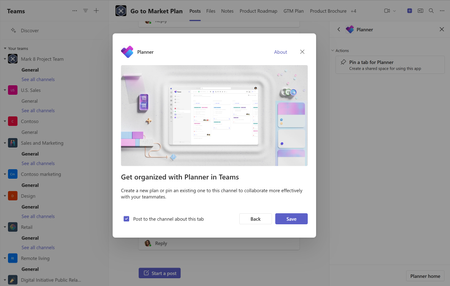
By adding Planner as a Teams tab, you can now seamlessly create and add both basic and premium plans directly to your standard Teams channels. This includes the ability to start a plan as a tab from any of our out-of-the-box templates. This unified experience means everything you need is now in one place, making it simpler to collaborate on shared projects right within your conversations. Try it out To get started, follow these steps: Select any standard Teams channel. Select the Open Apps icon at the top right of the channel and search for Planner. Select Pin a tab for Planner. Select Save. You can now add an existing plan to the channel or create a new plan. Note: When you create a new plan, you have the option of starting from scratch or trying one of our templates. These templates range from event planning to building a CRM pipeline. A video demonstrating how to pin a tab for Planner and create a shared space for using the app in a Teams channel. What’s new to Planner in Teams channels One of the most significant advantages of adding Planner as a tab to a Teams channel is the ability to track your work, visualize progress towards goals, and monitor workloads—all within the context where your team works. Our most recent updates extend this benefit further by integrating both basic and premium plans directly into your Teams channels. By consolidating these into a single interface, you can now create and manage your plans without needing to switch between different apps or tabs. As your project requirements grow, you can also easily upgrade to a premium plan from a basic plan right within the Teams tab. This transition between plan types ensures that you can get access to the features you need as seamlessly as possible. This includes capabilities such as: Task dependencies: View and manage the relationship between interconnected tasks. Task history: Review all progress and changes made to tasks. Custom fields: Keep track of important information specific to your plans and workflows. Subtasks: Break down complex deliverables into smaller, more actionable tasks. People view: Visualize and manage team members and their workloads, assign tasks, track progress, and collaborate efficiently, ensuring everyone stays aligned and productive. Goals view: Set, track, and link project goals to tasks, ensuring alignment and visibility of progress towards key objectives. Copilot: Leverage AI to assist users in planning, managing tasks, and generating project insights, enhancing productivity and project visibility. Baselines: Capture and compare the state of a project at specific moments, helping to track progress and identify variances from the original plan. Portfolios: These plans can now be added to portfolios. Check out the full list of advanced capabilities with premium plans in Planner. If you don’t have a premium license, you can still try the feature by acquiring a free 30-day trial. Your team can continue to edit the same fields as before on the premium plan with their Microsoft 365 subscription. Share your feedback We’d love to get your input on this new experience! We're committed to continuously improving your experience with Planner, and your perspective is one of the channels that enables us to shape future investments. There are several ways to share your feedback with us—either via the Planner Feedback Portal or directly in the Planner app in Teams by selecting More (the questions mark) in the upper right corner, then Feedback. Resources Check out the Planner adoption page. Sign up to receive future communication about Planner. Check out the Microsoft 365 roadmap for feature descriptions and estimated release dates. Watch Planner demos for inspiration on how to get the most out of Planner. Watch the recording from September's What’s New and What’s Coming Next + AMA about the new Planner. Visit the Planner help page to learn more about the capabilities in Planner.6.8KViews2likes8CommentsHow Microsoft Planner Works
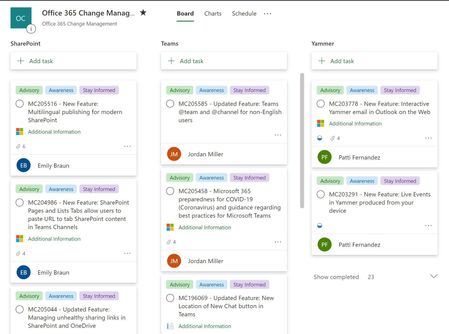
*** Update 11/5/2021 - we now have a public article of the various limits in Planner - https://docs.microsoft.com/en-us/office365/planner/planner-limits *** Planner is pretty straightforward to use, so I guess you all know how it works – but the aim of this blog is to explain how some of the features are implemented and the parts of the Microsoft stack they use – which I hope will help you understand some of the scenarios where Planner might not work. This could be situations where you are in certain configurations where you might have changed some settings in Exchange Online or Office 365 not realizing that this would impact Planner. TL;DR - Comments are in the Group inbox, Attachments in the Group's SharePoint document library - and the Planner has it's own stuff stored in Azure. Read on to find out how Planner really works!34KViews12likes16CommentsUse sprints to be more Agile in Planner
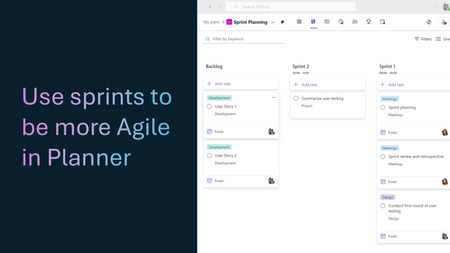
The Planner team uses the sprints feature in premium plans to schedule tasks, balance our team’s workload, and run team retrospectives. Today, we want to share some of our tips for how sprints planning in the new Planner app in Teams can transform both your individual task management and collaborative team processes.26KViews0likes0CommentsHow do I find all my Planner plans?
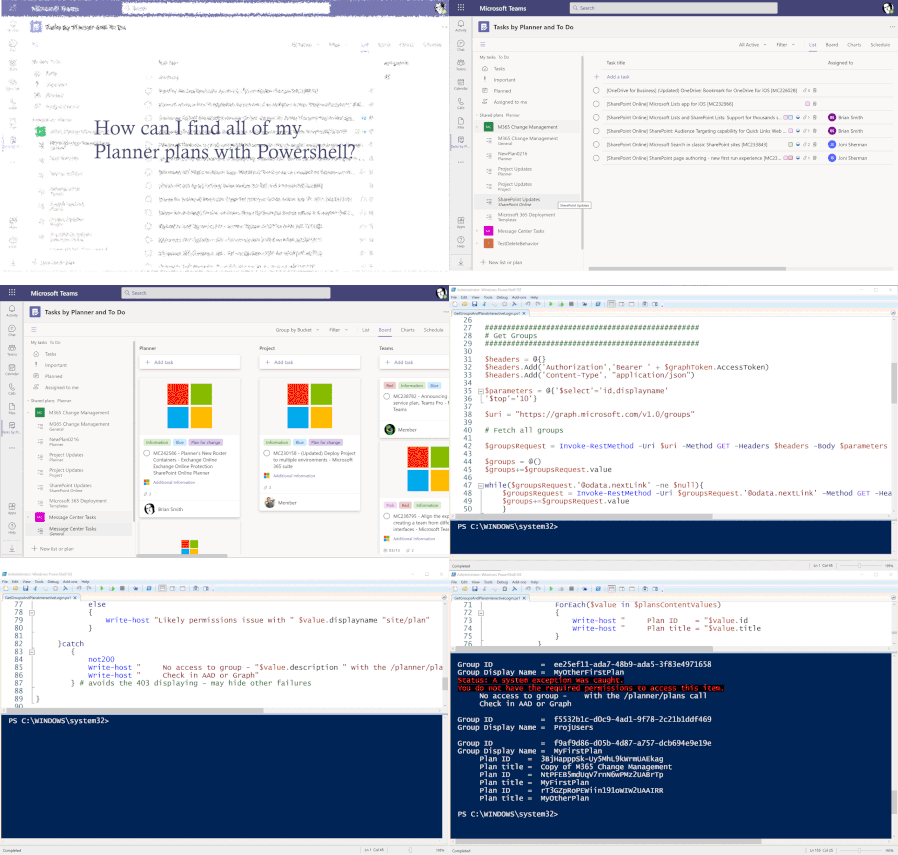
One question we often get in support is, “How do I find all my Planner plans?” The answer to this is not too tricky—the tricky bit is ‘all plans; rather than ‘all my plans’—as, due to security and privacy controls, you can only ever see plans that are in a group where you are a member (and being an owner does not automatically mean you are a plan member as far as Planner is concerned). But with that constraint how can I get a list of all my plans other than looking at the Planner hub? PowerShell and the Microsoft Graph API are one way.23KViews6likes12CommentsEnhanced collaboration in Project for the Web with your Microsoft 365 license
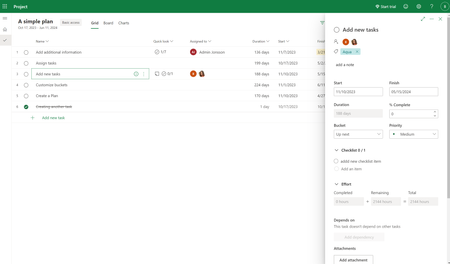
We’re excited to share that as of today, users with Microsoft 365 licenses can edit shared projects in Project for the Web. This frequently requested feature enables users to collaborate more seamlessly within projects.7KViews4likes6Comments
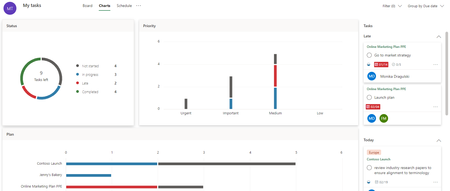
My tasks gets upgraded with Charts and Schedule view
We’re bringing the power of the Charts and Schedule views to My Tasks! Few of us collaborate on just one plan at a time: in fact, you’re probably working on five, ten, maybe even dozens of plans right now. My Tasks helps you manage this by aggregating all your tasks across plans, making it easy to focus on your work inside of Planner.9.6KViews7likes7Comments