microsoft365
304 Topics
PnP Modern Search v4 multitext column search on a non queryable managed property
In order to use PnP Search, i tried to map a crawled property into the Refinablestring managed one, however all of them does not have or allow to use the "queryable" property. Results in Copilot and GPT prompts say it should be checked, already tried to change in the site collection and in only one site. When i tried to create a new managed property, couldn't make it "refinable" but "queryable" was available for selection. The use of the filtering in the PnP Search would be: (1)One Sharepoint library with choice and text columns filled with metadata regarding PDF documents from my org, like tecnical notes, laws, etc. This one is intended to have some kind of search inside the doc too. (2)One Sharepoint list that would contain a text column with entire sections of a manual and a column with the sharepoint link to it inside a page. Expected behavior is: User types text -> Finds section -> Redirection. This manual is stored in SP Online as a page with collapsed sections and has lots of images and text, so it probably will be moved into more than one page shortly, the links are generated when the text webparts get some kind of "Title" on it. Its also on a PDF and thats roughly 500 pages now. The PnP webparts used are search, search verticals and search results. Any ideas if i can make the Refinablestring queryable or create a new property thats refinable?71Views0likes1Comment
Excel Desktop App hangs when attempting to open documents from SharePoint to edit
User attempts to open Excel Documents saved in SharePoint by selecting Edit in Desktop App. As the Excel Desktop App begins to open a message displays stating: We have opened this document in Microsoft Excel in your computer. However, the Excel App just hangs without fully opening (see Screenshot). No problem detected when opening the Excel Desktop app directly, Desktop App opens freely. Excel MS365 is up-to-date version 2609 build 16.0.20430 64 Bit (Before reinstall). I have uninstalled the MS365 Office packet and reinstall it directly from the User's Office Portal, to no avail.125Views1like2Comments
SharePoint News Email “Content too large” issue – size limit clarification
Hi, We are currently trying to send a SharePoint News post via email and encountering the following error: “The contents of this page are too big to send in email.” We performed testing to understand the limitation and observed the following: Full newsletter (~5.29 MB) → ❌ Error Pages 1–12 (~3.11 MB) → ❌ Error Pages 1–11 (~2.80 MB) → ✅ Works Slight increase (~2.90 MB) → ❌ Error again ✅ Based on testing: Practical threshold seems around ~2.7–2.8 MB Above this, email rendering fails ❓ Questions: Is there a documented maximum size limit for SharePoint News email content? Is the limit based on: Total content size after rendering? Image count/size? Can this limit be configured or increased? What are the recommended best practices for image-heavy newsletters? ✅ Current understanding: It appears that the limitation is due to HTML email rendering size rather than just file size Any clarification or official guidance would be appreciated. Thanks.247Views0likes1CommentHub Site association approval request fails with 403 Forbidden (previously working, regression)
Sites configured to require approval before joining our Hub Site are failing the association request with an HTTP 403 Forbidden error[browser DevTools Network tab}. This same workflow was functioning correctly as of [early August 2026]. Hub sites that do not require join approval continue to associate successfully — the failure is isolated specifically to the approval-required path. Steps to Reproduce As a site owner, go to Site Settings → Site Information (or Site Contents → hub association) on a site that is not yet associated with the hub. Attempt to associate it with [Hub Site URL], which has RequiresJoinApproval set to $true. Observe that the request fails immediately (or fails when the approver attempts to approve it — specify which point in the workflow fails). Repeat the same steps against a hub site that does not require approval — association succeeds without error. Expected Behavior The association request should be submitted and routed to the configured approver(s) for review, consistent with behavior observed as recently. Actual Behavior Request fails with HTTP 403 Forbidden. [browser DevTools Network tab - attached the HAR file for reference] Error Details HTTP Status: 403 Forbidden [browser DevTools Network tab - JoinHubSite(@v1)?@v1] Troubleshooting Already Performed Confirmed association without approval works (isolates the issue to the approval workflow specifically)214Views0likes2Comments
Your SharePoint Sharing Might Break in 2026
A major change is coming and it’s not getting enough attention. Microsoft is moving away from simple OTP sharing and shifting to full Entra B2B. It sounds like a security upgrade, but it completely changes how external access works. This isn’t a small tweak: Existing sharing links may stop working as expected External users will go through new authentication flows Access will rely heavily on identity and guest policies Yes, you get better control and visibility but also more friction if your setup isn’t ready. If your organization relies on quick sharing links, this could become a real issue fast. Curious how others are handling this: Are you already using Entra B2B? Seeing any access or adoption issues? How are you balancing security vs usability?698Views1like1Comment
pnp-modern-search does not work in the local SharePoint workbench
Version used 4.9.0 (SPFx 1.15.0) Describe the bug The solution works correctly when deployed using the .sppkg package in SharePoint Online, but it does not work in the local SharePoint workbench. There are two related issues: When running gulp serve, the build/runtime reports an error related to BANNEDUSERNAME/sp-webpart-workbench/lib/api/, suggesting a failure in loading or resolving the local workbench API module. When adding the web part to the local workbench page, the web part fails to render with the following error: Error: Cannot find module './15.js' The second error appears to be related to a missing or incorrectly resolved chunk/module during bundle loading. The issue only occurs in the local workbench. The deployed .sppkg solution in SharePoint Online works correctly. Node.js version: 16.8.0 (compatible with SPFx 1.15.0). Dependencies installed via npm install without errors. To Reproduce Clone the repository Run npm install Run gulp serve Open the local SharePoint workbench Add the web part to the page Observe: Error during gulp serve related to BANNEDUSERNAME/sp-webpart-workbench/lib/api/ Web part fails to load with Cannot find module './15.js' Expected behavior The web part should load and render correctly in the local workbench without module resolution errors. Desktop : Browser: Chrome Node.js: 16.8.0 SPFx: 1.15.0172Views0likes2Comments
I don't want 100 different SharePoint sites. How to create private teams w/o a new site?
Guys. WTF. I've inherited a problem where a company of 50 people has 100 sharepoint sites - because users created different Teams for different projects, and Microsoft makes it incredibly opaque what this actually means. Now we have 100 SharePoint sites, many of which are unused, but all of which appear in the list of sites in 365AC. The structure we WANT is 1 Sharepoint site for our 1 org, but multiple locations within that site, and multiple groups for multiple projects. I THOUGHT what could work was converting the excess Teams into Private Channels. But I have now learned that private channels ALSO create SharePoint sites, because _______. Most confusingly, all of these sharepoint 'sites' DO exist within our main SharePoint website - they're just pages (but not 'pages') pretending to be a fresh sharepoint website. This confuses the **** out of people, the way they've redefined what a 'site' is, what a 'team' is, etc. This is genuinely hot garbage, and it's suddenly clear to me why people always push back on using SharePoint over OneDrive. Recommendations for... not having this disaster? Making a structure that is intuitive and doesn't redefine what a site and page are, and allows you to have private locations for management or projects, but DOESN'T create a 'site' within the main 'site', with it's OWN 'documents', and it's own 'Notebook' (which isn't a document) and it's own 'Conversations' (which are NOT conversations), and it's own 'pages'? I don't work with dumb people - these are very technical people. But even our main SharePoint guy is mystified by these interactions. Does it make more sense in another language? If anyone at Microsoft is reading - the english term 'site', comes from the word 'website', which generally refers to a distinct web service with a distinct domain name. These contained different webPAGES.. When websites started existing off a shared domain name, like company1.sharepoint.com and company2.sharepoint.com - this confused people, but they put up with it, because it was relatively easy to explain the tech behind this - having websites under a single site, that wasn't too hard to understand. But what SharePoint seems to do, is extend this practice into absolute hysteria, where a particular webPAGE of a webSITE is ALSO a site, but also is a TEAM, or COULD be a CHANNEL. OR it could be a PAGE - WHO knows? If it's a TEAM, that TEAM could have CONVERSATIONS, which aren't actually Team Conversations - they're EMAILS. But this is fine, because all CONVERSATIONS of a TEAM done in TEAMS are actually stored as EMAILS so really those, CONVERSATIONS should be CONVERSATIONS... So why aren't these conversations in Teams between a Team that are stored as Emails not showing in the Conversations which show emails within that Team? aefggaddadsfasd921Views4likes7Comments
PowerPoint Brand Images: folders appear as tabs, but images only show under “All”
Hi, I’m testing PowerPoint Brand Images with a SharePoint Organizational Asset Library and I’m seeing unexpected behaviour with folders. The image library is registered correctly as an ImageDocumentLibrary. PowerPoint detects the library and all images are visible under All. I created several first-level folders in SharePoint, for example: Photos Icons Logos Test PowerPoint correctly reads these folders and shows them as separate tabs in Insert > Pictures > Brand Images. The issue: the tabs remain empty. For example, I created a completely new folder called Test directly in SharePoint and uploaded a new PNG directly into that folder. Result: Test appears as a tab in PowerPoint the PNG appears under All the PNG does not appear under Test I see exactly the same behaviour in PowerPoint Desktop and PowerPoint for the web. I have already checked: OrgAssetType: ImageDocumentLibrary Private CDN: enabled library registered as Private CDN origin CopilotSearchable: enabled SharePoint Online Management Shell: 16.0.27515.12000 PowerPoint Microsoft 365 Beta Channel, version 2609, build 16.0.20416.20004, 64-bit direct upload through SharePoint instead of OneDrive/File Explorer completely new folder and image manual reindexing of the SharePoint library So PowerPoint finds both the folder names and the images, but the folder-to-image relationship does not seem to work in Brand Images. Has anyone successfully used first-level SharePoint folders as working tabs in the new PowerPoint Brand Images experience? Is there an additional configuration step required, or could this be an issue with folder-scoped retrieval in the current rollout?678Views0likes2CommentsRecycle Bin and Site Content Hidden for Site Members and Site Visitors
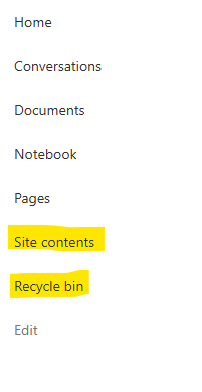
I posted this before but made a mistake with my write up, so I am reposting. I have a requirement that the Recycle bin and Site Contents should be be hidden from the Site Members and Site Visitors. Please how can I achieve this because the Server Infrastructure activation is not working for me. Any workarounds? Please help470Views0likes1CommentSharePoint Permissions Management
Over the last 3 years of managing permissions across a suite of sites, I have uncovered more new issues with the way SharePoint permissioning is designed at every turn. A few examples, before the question: If I "Share" a file or folder somewhere on the site (breaking permissions inheritance), it is very inconvenient to find it again. If I "copy link" in this one particular way, permissions inheritance is broken. When looking at site-level permissions, I see site-level permissions groups, but there could be hundreds of other users who have been added to my site(s) without my knowing. If I want to reset permissions in an area (set of folders or library), I have to do it file-by-file or folder-by folder. If I want to get an excel snapshot of - anything really - IT has to pull it and it takes a couple days. Not to mention the permissions interface is incredibly clunky. All-in-all, there seem to be a million ways to break permissions inheritance, creating an access tracking and security nightmare. AND there's no easy way to truly see and understand who has access to what or what is broken, without spending hours with IT to pull a bunch of narrow-visibility reports. So my question is: what is the best way to navigate full permissions visibility? Am I doing something wrong? Is anyone else experiencing these issues? We have resorted to having a very strict "no outsides besides a few exceptions" policy and only managing permissions at the site-level, which really hampers on the collaboration benefits that SharePoint is trying to enable. It is also very administratively intensive. One of the benefits to SharePoint is that users don't really need to understand how it works to use it, but that's becoming less and less true with the increasing lack of security we feel in the platform.616Views3likes4Comments