microsoft teams
17201 TopicsUse multiple phone numbers in a unified experience with Teams Phone user multi-line
We’re excited to announce general availability of Microsoft Teams Phone user multi-line, which lets admins assign up to 10 phone numbers to a single Teams Phone user. What is Teams Phone user multi-line? Many organizations need a simple way for a single person to represent multiple lines of business or regions across calling without juggling multiple Teams accounts, devices, or complicated call routing workarounds. Teams Phone user multi-line helps streamline that experience by enabling a Teams user to make and receive calls for multiple phone numbers within one unified Teams experience. Here’s what the experience delivers: Assign up to 10 phone numbers to one user: Administrators can configure multiple numbers for a single user, such as when one person needs to handle calls for different departments or roles. Supports localized calling across markets: Serve customers with a familiar local caller ID by using region-specific numbers, helping build greater trust into each interaction. One experience across endpoints: Supported across Teams desktop and Teams Phone devices, so users can make and receive calls from multiple numbers without the hassle of switching accounts or hardware. The result: less overhead for admins and a cleaner calling experience for users who need to handle more than one business calling number in Teams. Teams Phone user multi-line in action Here are a few example use cases for how user multi-line can help workers be more effective: Represent multiple departments or brands. A communications director supports both press relations (PR) and analyst relations (AR). With user multi-line, they can take inbound calls for either function and place outbound calls using the appropriate number. Support different regional identities. A customer success manager covers North America and Europe. They can use dedicated regional numbers so customers reach the right line and see a familiar local caller ID. Operate multiple roles without switching contexts. A Facilities Manager supports both day-to-day operations and after-hours incident response. With two dedicated numbers assigned, they can keep communications organized while managing calls from one Teams client. Get started today Teams administrators can set up the experience. Start using Teams Phone user multi-line today, learn more. 1.9KViews1like4Comments
Update: You can now control Teams Meeting Recording expiration notification emails
Hey Teams community, We've heard the feedback. For admins and users managing a high volume of meetings, TMR expiration emails can pile up fast. We've been working on giving you control, and that control is now here. What's new Tenant admins can now use a PowerShell cmdlet to suppress Teams Meeting Recording expiration and deletion notification emails across their organization. Notifications stay on by default (no change if you do nothing), but if you'd like to turn them off, here's how. Prerequisites Latest version of SharePoint Online Management Shell (download here). Note, it's Windows-only, so you'll need a Windows machine or Azure Virtual Desktop SharePoint Admin or Global Admin permissions Steps 1. Connect to your tenant powershell Connect-SPOService -Url https://<your-tenant>-admin.sharepoint.com 2. Check the current value powershell Get-SPOTenant | Format-List *Recording* False = notifications currently on (default). True = notifications suppressed. 3. Suppress notifications powershell Set-SPOTenant -DisableTeamsMeetingRecordingDeletedNotification $true You'll see a confirmation prompt — enter Y to proceed. 4. Verify powershell (Get-SPOTenant).DisableTeamsMeetingRecordingDeletedNotification True means you're all set. No more expiration emails for your tenant. Want to turn them back on later? Just run the same command with $false. What doesn't change Recordings still expire and delete on the same schedule No per-user settings, no UI changes. This is purely a tenant-level admin toggle We'll keep monitoring feedback, and as always, drop your questions below.28Views0likes0Comments
'New Teams' - DOES NOT Remember Window Positions
Can anyone tell me if there is a FIX for this??? Ever since I upgraded to the NEW and IMPROVED [and I choke on those words] Teams, DOES NOT remember my previous window positions for either the main window or individual chats. The Classic Teams did this. When can we expect this be FIXED? This is HIGHLY annoying. It is bad enough that Microsoft feels the need to have this fill nearly your entire screen [as if it was the only application you used]. The very least you could do is check these sorts of issues before the app went to production and in my opinion this app is nowhere near production worthy. Please FIX this immediately or provide a workaround that can be utilized as soon as possible. I wish I could use the old 'classic' Teams, but it will no longer let me. At least it would remember my previous Window Positions.842Views2likes1Comment
Easily deploy and manage hundreds of Teams Rooms on Windows with Autopilot and Autologin
Deployment of Teams Rooms on Windows is getting a serious upgrade. As announced at InfoComm this week, Autopilot and Autologin for Teams Rooms on Windows is now generally available. It enables you to deploy at scale and configure Teams Rooms with minimal onsite interaction, which can help save you time and resources.14KViews2likes7CommentsIntroducing a refreshed design, task chat, and more in Microsoft Planner
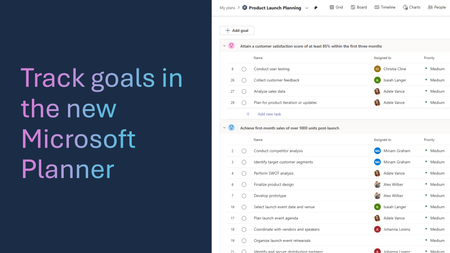
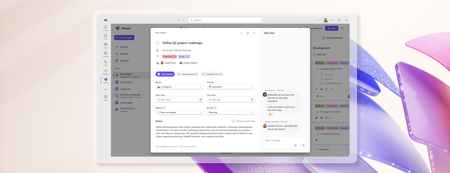
We’re excited to announce that a modernized user interface and new features are now rolling out to basic plans in both Planner in Teams and Planner for the web. The updated design offers enhanced navigation, responsive layouts, a new goals view for setting objectives and priorities, and task chat—one of your most requested features—to enable real-time collaboration and @ mentioning team members. This release aims to make planning easier for everyday users while preparing for future AI-powered capabilities. Our goal is to streamline planning by making it more intelligent and connected, so teams can concentrate on achieving results rather than managing tasks. What's new in Planner A refreshed design: With this rollout, users will be able to manage their plans in a cleaner, more modern interface that brings a more consistent planning experience across work. Planner’s new look was designed to feel simpler, allowing users to find what they need. It reduces visual clutter, improves layout and spacing, and creates a more focused workspace. Task chat with @ mentions: A new task chat is coming to basic plans, bringing real-time, threaded conversations directly into tasks, including @ mentions, rich formatting, emojis, and notifications to help keep decisions tied to the specific task at hand. Plan members who are @ mentioned in a task will receive a notification in their Teams Activity feed and via email and can select the notification which takes them directly to the task card for additional context. Note that previously, users received notifications for every task comment, but as a result of customer feedback, we now only send notifications to mentioned users. The ability to @ mention team members directly in a task has been a top request, and we’re excited to roll this out in a familiar, chat-based experience. Please note, premium plans will continue to utilize the existing task conversation experience. This will converge into the new experience at a later point in time. Goals view: Basic plans will now include a dedicated Goals view, allowing teams to set clear, well-defined objectives to help prioritize work. By connecting tasks to shared goals, teams achieve greater alignment, gain clarity on priorities, and track progress and outcomes—driving the plan forward together. Access to Goals view in basic plans requires either a Planner premium license or a Microsoft 365 Copilot license. Notes on availability Please note that not all users will see the new Planner interface at the same time. This refreshed interface, along with Task chat and Goals view, begins rolling out to basic plans today and will continue to roll out over the coming weeks. This is only the beginning This redesign lays the groundwork for many more improvements coming to Planner in the next few weeks and months, including: Project Manager agent in basic plans – to help with task execution and the creation of status reports. Custom templates. Planner in Outlook. Stay tuned for announcements regarding these updates and more aligned to our long-term vision for integrated work management. Feature availability, naming, and timelines are subject to change. Please refer to the Microsoft 365 Roadmap for the latest status. Addressing your feedback We heard your feedback about inconsistencies between basic and premium plans. This refresh starts closing those gaps, so features appear consistently across plans based on your license. For example, users with a Planner premium license will now see Goals in basic plans, and users with a Microsoft 365 Copilot license will soon have access to Project Manager Agent in basic plans as well. Tell us what you think about the new Planner interface, Task chat, and Goals view by selecting More (circled question mark icon) in the top right corner of the app, then selecting Feedback from the dropdown menu. We also encourage you to share any feature requests by adding your ideas to the Planner Feedback Portal. Your feedback helps inform our feature updates, and we look forward to hearing from you. Learn more Visit planner.cloud.microsoft to access Planner directly from your browser. Sign up to receive future communication about Planner. Learn more about Planner in our Frequently asked questions. Check out the Planner adoption page and Planner help & learning page to learn more about Planner. Visit the Microsoft 365 roadmap for feature descriptions and estimated release dates for Planner. Walk through the interactive demos for Project Manager Agent in Planner and Project Manager Agent skills in Teams meetings.41KViews9likes119Comments
Teams app window keeps jumping back to main Window
I'm using three monitors, on one monitor I usually have the Teams app window. That monitor is not my main display. I can move the Teams app windows to any of my three monitors and it stays there but as soon as I switch focus to the Teams app windows it pops back to my main display. Very annoying. Anyone experienced this behavior?Solved25KViews12likes17Comments
"None" option missing from Teams background options
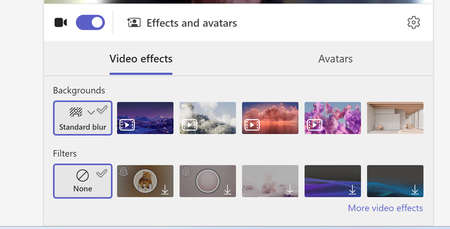
Hi, Our teams "none" background option is missing. Forcing users to use a background or the blur backgrounds. I have tried to revert back to classic teams to see if that is a fix, but I am unable to toggle it off and it takes me to download the classic teams which is just the new teams download. I do see this message "Your org sets background to blur unless something else is selected" when trying to update the background in a call. We are not disabling this option as an organization. And I can switch to other backgrounds.1.6KViews1like6CommentsWhat's new in Microsoft Teams | May 2026 - Build Edition
It's hard to believe May is over already! You may have noticed this edition of What's new in Teams is landing a few days later than usual — that's intentional. We're publishing alongside Microsoft Build, our annual developer conference where we showcase the latest in AI, agents, and the tools that help developers. It's one of the most energizing weeks of the year, full of announcements, hands-on sessions, and a first look at where the platform is headed. A lot of what's in this release ties directly to what's being unveiled on the Build stage, and I wanted to highlight a few Teams Platform features worth calling out: Linear, Cursor, and Atlassian Rovo agents in Teams — three powerful new partner agents that turn channel conversations into shipped code, filed issues, and updated project plans without ever leaving the chat. New Teams CLI — one command to register, configure, and deploy a Teams agent, so developers can spend their time on agent logic instead of managing complex processes Collaborative features for agents – our new agent capabilities include quoted replies to keep conversations anchored, slash commands to quickly take action in the flow of work, and expressive emoji reactions that add nuance without adding noise, all helping teams stay aligned and move faster in collaboration with agents. A few other highlights I'm especially excited about beyond Platform: New AI-generated Video recap in Teams turns meeting recordings into short, narrated highlight reels—so you can quickly catch up on what matters most without watching the full session. In Teams Phone, Brand Impersonation Protection alerts you in real time when a caller may be posing as a trusted brand like your bank or IT helpdesk, so you can decline or report the call with confidence. These are just a taste of what's new. Read on to see everything we've released in May across chat, meetings, phone, rooms, frontline, and more. Product areas covered in this update: (All features are generally available unless otherwise noted.) Teams Platform Chat and Collaboration Meetings Teams Phone Workplace - Places and Teams Rooms Fundamentals and Security Frontline workers Certified for Teams Devices Teams Platform Slash commands for agents- Public Preview Triggering an agent shouldn't break your flow. With slash commands, users can invoke agent actions, retrieve information, or kick off tasks directly from the compose box using simple "/" prompts — keeping agents one keystroke away in any chat or channel. Quoted replies for agents- Public Preview Threaded conversations are easier to follow when agents stay anchored to the right message. With quoted replies, your agent can now reference the exact message a user is responding to so context isn't lost as threads grow longer or branch into side discussions. Agents can also send quoted replies of their own, keeping multi-turn exchanges clear and traceable for everyone in the chat. Message Reactions for Agents – Public Preview Ever wish your agent could just give a thumbs-up instead of cluttering a thread with another reply? Now it can. Agents in Teams can now respond with emoji reactions the same way people do, matching the rhythm of the conversation with a lightweight signal instead of an extra message. Threads stay clean, exchanges feel more natural, and you get a clear acknowledgment without the noise. New Teams CLI Building an agent today means juggling registration, credentials, manifest creation, and deployment across multiple tools, slowing developers down before they even get to the interesting work. The new Teams CLI collapses all of it into a single command, working alongside coding agents to take a Teams agent from idea to running instance in minutes. By handling setup and diagnostics behind the scenes, developers can focus on agent logic instead of managing configuration complexity. Learn more here. Linear agent in Teams Software teams lose momentum every time a channel decision has to be manually translated into a Linear issue or project update. The Linear agent in Teams closes that gap by turning conversations directly into actionable work — creating issues, capturing context, and updating project workflows from inside the thread where the decision was made. The Linear agent is available now in the Microsoft Marketplace. Cursor agent in Teams Engineering work stalls every time you have to leave a Teams discussion to fix a bug or ship a feature in a separate tool. The Cursor agent in Teams keeps you in the flow: @mention it in any channel or chat to invoke Cursor's Cloud Agents directly inside the conversation, where it returns results with full context of the discussion. The result is a faster path from idea to production, without ever leaving Teams. The Cursor agent is available now in the Microsoft Marketplace. Atlassian Rovo agent in Teams Jumping between Teams, Jira, and Confluence to turn a chat decision into actual project work slows everyone down. The Atlassian Rovo agent in Teams brings AI-powered context and action across Jira, Confluence, and Teamwork Graph organizational data into your conversations — so you can go from a question in chat to creating Jira issues, drafting Confluence pages, and updating workflows in a single interaction. Rovo evolves Atlassian's previous Jira and Confluence apps into an orchestrating "uber agent" for Atlassian AI, now available in the Microsoft Marketplace. MCP servers/connectors discovery and connection UI from agent settings- Public Preview Connecting an agent to the right external system used to mean piecing together configurations from multiple places. Now, you can discover, connect, and manage MCP servers and connectors all from one unified experience inside agent settings in Teams — so it's faster and more secure to plug external data and services into agent workflows. Bot Detection - TAC Policy Bots and other automated participants are joining more meetings than ever, and organizers don't always know which attendees are human. With the new Bot Detection policy in the Teams Admin Center, IT admins can set tenant-wide rules for how automated participants are handled when they try to join. Organizers can see them clearly flagged in the lobby and make intentional decisions about admitting them, resulting in more predictable meetings and consistent admin controls across the organization. App centric management in Teams Admin Center to manage the Apps access for tenants, end-users, and groups in GCC In GCC environments, controlling who can install which Teams apps used to require broad permission policies that didn't scale well as app catalogs grew. With app-centric management, GCC admins can now set defaults for newly published apps and decide app-by-app whether everyone, specific users and groups, or no one, can install them. Existing app permission policies are migrated automatically, so current availability stays intact. Visual enhancements in adaptive cards Agent responses used to feel flat, with long walls of text and little room for users to drill into the details that matter. New visual TableSet, Accordion, and Loop components let agent builders structure responses into navigable tabs, expandable sections, and repeating content so users can scan and act on information the same way they would in a polished app. Expanded action capabilities such as Popover and richer content support through references and Citations round out the experience. Organization evaluation score for apps and agents- Public Preview IT admins used to manually review trust data for Teams agents and apps in the admin center to verify security, privacy, and compliance standards. This new feature enables admins to define their company's approval requirements once; the system then automatically assesses apps and agents, generating an evaluation score and detailed report per agent/app. This speeds up decision-making by clearly surfacing which ones meet all company standards and which need further review. M365 Agents Toolkit and Developer Portal Support for Agents in Gov Clouds Developers building for regulated customers used to face a choice: ship in commercial cloud, or rebuild from scratch for government environments. Now, the Microsoft 365 Agents Toolkit and Developer Portal are expanding support for building agents in Government Community Cloud (GCC), GCC High (GCCH), and DoD — so the same solution can reach highly regulated organizations without redesign or re-architecture. M365 certification bulk management IT admins today have to enable trusted third-party apps one at a time in the Teams admin center, a slow and repetitive process when working across hundreds of apps. This feature evolves the org-wide third-party app setting from a simple ON/OFF toggle into a granular dropdown with a new "Allow only Microsoft 365 certified apps" option, letting admins turn on every Microsoft-certified app across their tenant in a single click. As apps earn or lose certification, the platform keeps availability in sync automatically — no ongoing manual upkeep. Observability features for A365 Agents in Teams- Public Preview As more A365 agents act on behalf of users in Teams, IT needs more than just visibility and control—they need to understand how those agents are operating in real time. These new observability capabilities provide deep insights into agent activity, usage, performance, and interactions across Teams and the Microsoft 365 Copilot Agent Store. By surfacing real-time metrics and governance signals, admins can monitor behavior, identify issues, and ensure agents are operating securely, compliantly, and effectively at scale. A365 agents on Teams mobile- Public Preview Bring AI agents with you wherever work happens. A365 agents are now available on Teams mobile in public preview, so you can discover, chat with, and add approved agents to conversations and meetings from your phone, the same way you would from desktop. From the Teams mobile app store, browse the "Agents for your team" category, request an agent, and start delegating tasks on the go after admin approval. Enhanced Teams Store- Public Preview Finding the right agent in Teams just got easier, and knowing what it does is now instant. The enhanced Teams Agents & Apps Store solves both problems. Smarter search surfaces helpful suggestions that appear the moment you open the search box, and results update instantly as you type. Once you find what you're looking for, redesigned tiles, clickable sample prompts, and a personalized "Your Agents & Apps" view make it easy to evaluate an agent and put it to work right away. Chat and Collaboration Create workflows with slash commands Jumping out of a chat to update your status or schedule a message breaks your concentration just when you're trying to get something done. Now, you can stay in the compose box using slash commands. Type / on an empty line to interact with apps and agents, create and manage workflows, or run Teams actions like /busy, /goto, or /schedulemessage. Whether you're inserting a GIF or managing workflows, slash commands offer a consistent and efficient way to get things done without leaving your flow. Improved code readability with line numbers Pointing teammates to "the third line from the bottom" gets old fast when you're reviewing code in a chat. Teams now displays automatic line numbers in code blocks so you can reference specific lines naturally in reviews and discussions, and enhanced keyboard navigation lets you move through code without reaching for the mouse. Badging updates help find messages that count in the chat list That little badge on your Teams app icon tells you something needs attention, but tracking down exactly which message is driving it can take longer than you'd like. Now, unmuted chats show a purple indicator when they affect the badge. In addition, mentions, followed threads, and tag mentions display a purple number showing how many unread items are part of the count. Catch up on Teams conversations on mobile Catch up on everything that needs your attention in a single, unified view. Each conversation appears on its own swipeable card with full context and all the actions you need - reply, react, save, mark read/unread, follow/unfollow - to complete your triage. Simply tap the Catch up button at the top of your chat list to get started and get swiping! Learn more about Catch up. Quick access to read items from unread-only mode Unread-only mode keeps your chat list focused on what needs attention, but sometimes you still need to find a message you read earlier. Now, hovering over any section in unread-only view reveals an eye icon that opens a list of read chats and channels for that section, without leaving your unread view. Instant search results when typing in Teams Find in chat and channel Hitting Enter, scanning results, refining your query, and trying again is a slow way to find a message. Find in chat and Find in channel now show results instantly as you type, so you can refine on the fly and get to the right message faster. Advanced filters in Teams Find in chat and channel When the right message is buried under hundreds of others, scrolling isn't a search strategy. New filters in Find in chat and Find in channel let you narrow results by sender, date, attachments, or mentions directly from the right rail — accessible via Ctrl+F (Windows), Cmd+F (Mac), or the Find icon in any chat or channel header. Teams honors the Windows Do not disturb setting Setting Windows to Do not disturb but still getting pinged by Teams defeats the whole point of focus time. Teams integrates with the Do not disturb setting in Windows to help reduce interruptions during focused work. Teams notifications are paused when the Windows Do not disturb setting is turned on, and resume after it is turned off. Meetings Video recap Catching up on meetings just got a whole lot faster. Video recap turns your recorded Teams meetings into short, narrated highlight reels, pairing an AI-generated voiceover with real clips of the key moments, decisions, and shared visuals from the conversation. Whether you missed a meeting or just want to revisit the most important parts, video recap helps you quickly grasp the flow, tone, and outcomes without scrubbing through the full recording. Available to Microsoft 365 Copilot–licensed users on Teams for Windows, Mac, and the web, for recorded English-language meetings between 10 and 90 minutes. Ability to delete recap Cleaning up after a sensitive meeting used to mean deleting recording, transcript, AI summary, and notes from separate places, or asking an admin for help. Organizers can now delete all of it in one place from the recap page's More (…) menu. Shared files stay put in their original locations. It's a quick, confident way to support your retention practices — no admin setup required. Teams Phone Brand Impersonation Protection in Microsoft Teams Calling Stay one step ahead of scammers. Teams now detects and warns you when a caller may be impersonating a trusted brand—like your IT helpdesk, bank, or Microsoft Support—before you engage. When a potential threat is detected, you'll see an in-call alert with clear identity signals (such as "Scam suspected"), empowering you to decline, leave, or report the call instantly. No extra tools needed—protection is built right into your calling experience. It's proactive security that keeps your credentials, data, and organization safe without disrupting your workflow. Report a Suspicious Call in Teams Suspicious calls used to be easy to hang up on but hard to actually do anything about. Users can now report calls that appear unusual or suspicious directly in the Calls app history. After selecting, “Report call”, in the call’s additional options, users can add a reason to the report and have the option to block the caller. When a call is reported, the signal helps strengthen Microsoft’s detection systems to reduce future unwanted or malicious activity. By making it easy to report in the moment, users can contribute to ongoing threat protection while helping improve overall call security across the organization. Queues app for Teams Mobile Customer-facing employees can't always sit at a desk all day, but stepping away used to mean dropping out of the queue and missing calls. The Queues app — with advanced queue management and collaborative calling — is now supported on Teams mobile, so information workers like bank tellers or IT help desk representatives can stay opted in, review recent calls, and return missed customer calls from their phone. The result: faster response, fewer missed opportunities, and a more consistent customer experience away from the desk. Consult and merge a PSTN caller through DTMF Need to consult a subject matter expert in a private conversation before merging them into a meeting, but they're behind an auto attendant phone menu? Now you can. Meeting organizers can consult and merge PSTN callers into active Teams meetings, even when reaching them requires navigating Dual-Tone Multi-Frequency (DTMF) menus, so the right person joins the conversation without delays or call drops. Workplace - Places and Teams Rooms Enhanced media quality for Direct Guest Join in Teams Rooms on Windows You’ll notice media quality improvements including support for up to 16 participant videos (4×4 grid) available in May and simulcast streaming (June) when using Direct Guest Join. These updates make cross-platform meetings more immersive and reliable when joining Teams meetings from Zoom, Google Meet, or Cisco devices. Learn more. Miracast support for Teams Rooms on Windows devices including touch boards Cables and connectors slow down meetings, especially in flex spaces where guests and visitors need to share quickly. Teams Rooms on Windows all-in-one touch boards, now support Miracast for cable-free wireless screen mirroring alongside Teams Cast and HDMI ingest. Walk in, mirror your screen, present. Available with Teams Rooms Pro. Learn more. Multi-camera view support for GCC-H and DoD in Teams Rooms on Windows Remote participants in large rooms often miss what's happening because they're stuck looking at a single, fixed camera angle. GCC-H and DoD cloud customers can now use multi-camera views in Microsoft Teams Rooms on Windows, allowing remote participants to switch between multiple in-room camera feeds for improved visibility and engagement in larger spaces. Find camera requirements here. Available with Teams Rooms Pro. Learn more. Multi-stream IntelliFrame support for GCC-H and DoD in Teams Rooms on Windows In hybrid meetings, remote attendees often see in-room participants in a single distant frame— making it hard to read faces and engage. Multi-stream IntelliFrame, now available for GCC-H and DoD customers in Teams Rooms on Windows, sends a separate video feed of each in-room participant for far more inclusive hybrid conversations. Requires a compatible intelligent camera. Available with Teams Rooms Pro. Learn more. Book future meetings directly from Teams panels You can now make an upcoming meeting reservation from a Teams panel by browsing the calendar on the device and choosing any open time slot through midnight the next day. Add a guest during booking streamlining ad-hoc scheduling and coordination. Available with Teams Rooms Pro and Shared Device licenses. Learn more. Enhanced issue detection in Teams Rooms on Windows and auto-remediation with Teams Rooms Pro Management To minimize delays due to equipment issues, Teams Rooms on Windows proactively monitors room audio, video, and display signals to detect issues in meeting spaces. Teams Rooms Pro Management automatically remediates common issues that can be resolved through software, configuration changes, or device resets during nightly maintenance. This ensures users have reliable, ready-to-use meeting rooms, while IT admins benefit from reduced manual troubleshooting and increased uptime. Available for Teams Rooms Pro-licensed rooms. Learn more. Room health signals and notifications in Teams Rooms on Windows When critical issues impact room functionality, meetings can be delayed or derailed. Room health signals now trigger display of a banner notification on both the front-of-room display and console in Teams Rooms on Windows. Room health signals help get issues resolved quickly and ensure productive meetings. Available with Teams Rooms Pro. Learn more. Expanded access to the AI Assistant for all roles in the Teams Rooms Pro Management portal Admins now have broader access to the AI Assistant in the Teams Rooms Pro Management portal, no longer limited to global admin roles. Using role-based access controls (RBAC), admins see only rooms and devices they manage, improving visibility and support while adhering to security policies. Learn more. Fundamentals and Security Agent metadata visibility in Teams Admin Center Approving an AI agent for the organization used to mean piecing together what it could actually do from multiple places. IT admins can now view detailed agent metadata — capabilities, knowledge sources, and allowed actions — directly in the Teams Admin Center before approving or enabling agents. With this visibility centralized in one place, admins can understand what kind of agent they are approving and broaden rollout once they're certain agents meet their security and compliance standards. User-Reported Teams Message Security Signals in the Teams Admin Center Users flag suspicious messages every day, but those signals used to be hard for IT to act on at scale. Admins can now monitor user-reported security signals directly in the Teams Admin Center through the Security Message Violation report, surfacing flagged messages and false-positive reports in one centralized view, so security controls can be tuned to real-world threat exposure without leaving the admin center. Account switching for native Mac controls via dock and menu bar Juggling work, guest, and tenant accounts in Teams on Mac used to mean opening the full app every time you needed to switch. Now, account and tenant switching controls live directly in the macOS dock and menu bar — exactly where Mac users expect them — so toggling between organizations or accounts takes one click. Frontline workers Explore our learn docs for more information on all of our Teams for frontline solutions. Guided setup for Frontline Rolling Teams out to thousands of frontline workers used to mean stitching together onboarding, team structure, and pinned-app policies across multiple tools. Guided setup in the Teams Admin Center now walks admins through all of it in one place — making it easier to expand pilots, keep app layouts uniform, and track adoption with built-in insights. Learn more in the official documentation here or sign up here to explore additional deployment capabilities in private preview. Automatically fill open shifts with Smart Scheduling Smart scheduling in Shifts takes the manual effort out of building frontline schedules. Managers can automatically assign open shifts based on employee availability, scheduled time off, constraints such as maximum weekly or daily hours, and historical data about what shifts people usually work. Simply create open shifts for the required number of positions, select "Assign open shifts," and let Teams find the best match for each slot. Any shifts that can't be filled automatically are flagged for manual review, so managers stay in control while saving significant time. The result: faster, fairer schedules with less effort for managers and frontline workers alike. Deliver operational updates with the Communicator app Critical updates for frontline workers — safety alerts, training reminders, outage notifications — often get lost in long channel threads or scattered across other apps. The Communicator app in Microsoft Teams enables operations teams to deliver structured, actionable updates directly within the channels frontline workers already use. Whether sharing safety alerts, training reminders, or outage notifications, teams can publish consistent, easy-to-act-on messages, track delivery and engagement, and communicate seamlessly without requiring additional apps or workflow changes. Sign up for the limited public preview: aka.ms/CommunicatorApp Run hands-free site walkthroughs with voice in Frontline Agent Typing inspection notes on a phone while walking a site is slow, error-prone, and can be a safety risk. Frontline Agent enables voice-driven site walkthroughs, allowing workers to complete inspections, capture issues, and document compliance tasks using natural speech. Inputs are automatically transcribed into structured digital records, reducing manual data entry, speeding up reporting, and ensuring critical insights from the field are consistently captured. Sign up for the limited public preview: aka.ms/SiteWalkthrough Certified for Teams Devices Barco ClickShare Hub Core with Logitech Meetup 2 The ClickShare Hub Core and Logitech MeetUp 2 bundle is a solution certified for Microsoft Teams Rooms designed for small meeting rooms. ClickShare Hub Core enables one-click, wireless conferencing and 4K content sharing with one next-gen ClickShare Button (featuring Wi-Fi 6E and USB-C DisplayPort™). Built on the Microsoft Device Ecosystem Platform (MDEP), it’s designed to deliver a secure meeting experience. The widely recognized Logitech MeetUp 2 video bar delivers USB-connected high-quality audio and video with AI-enhanced performance. For meeting participants, this bundle ensures intuitive and engaging meetings. For IT managers, it pairs ease of installation and eco-friendliness with enterprise-grade security, compliance, and standardized integration. Learn more Jabra Scheduler Jabra Scheduler is a smart, professional room scheduling panel that makes finding and booking meeting rooms fast. With an integrated lightbar and intuitive touchscreen, it’s certified for Microsoft Teams. Easy to deploy, simple to scale, and built to unlock more productive meetings across your workplace. Learn more Neat Pad Pro Neat Pad Pro elevates how meetings come together. As a meeting room controller or scheduling display, it gives teams effortless command and IT a simple, scalable way to manage rooms. With a 10-inch touchscreen, built-in microphones, and intelligent processing, it enhances audio, sharpens control, and improves accessibility—so meetings run more smoothly and sound clearer. Learn more Jabra Speak2 40 Built for hybrid workers who take meetings from anywhere, the Jabra Speak2 40 delivers true full-duplex audio with a 50mm speaker, wideband sound, and four advanced beamforming microphones — connecting via either USB-C or USB-A on the same cable. Learn more. Owl Labs Meeting Owl 5 Pro The Meeting Owl 5 Pro is redefining the center-of-table experience by making hybrid meetings simpler and smarter than ever. Our next-gen camera, speaker, and microphone device powers enterprise-grade hybrid meetings with an easy-to-use BYOD solution. It combines 360-degree 4K video with award-winning automatic speaker-switching software to enable effective hybrid collaboration in any space. Features native HDMI and Ethernet ports for a seamless single-cable BYOD experience built with security and reliability in mind. Compatible with all video conferencing platforms, including Microsoft Teams, Zoom, and many others. Learn more.1.9KViews0likes0Comments
How much should Teams presence influence call routing
One thing I've noticed recently is that many Teams Phone environments still treat presence as a destination state rather than a routing input. A typical flow might look like: Caller selects an option Call is transferred User is unavailable Caller ends up in voicemail or another queue Technically the routing worked. From the caller's perspective, it often didn't. I'm curious how others are approaching this. Are you using Teams presence as part of your call-routing logic? For example: Available → transfer immediately Busy → offer an alternative path In a meeting → capture context Offline → route elsewhere Or are traditional queues and escalation paths still sufficient for most scenarios? Interested to hear what people are doing in real deployments.26Views1like0Comments