microsoft teams
17403 Topics
Disable incessant nagware popups
I don't know about everyone else, but I am sick and tired of the nagware pop ups in Word, Excel, PowerPoint, Outlook, etc. Every single product harasses me with pop ups trying to tell me "hey, did you know this feature was here?", "you can do this if you click that", "let me hold your hand through using products you've used for decades even though you don't want daddy Microslop to do that". This is a prime example. I keep getting the same ones again and again and again and everything I've read indicates they should only appear once. But they don't. They keep coming back like a psychotic stalker ex who wants alimony even though you were never married. How do I get this nagware to stop?!19Views0likes1CommentIntroducing a refreshed design, task chat, and more in Microsoft Planner
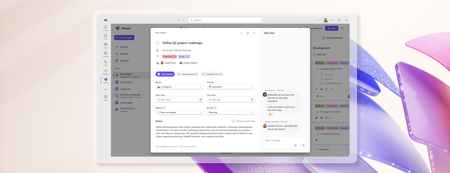
We’re excited to announce that a modernized user interface and new features are now rolling out to basic plans in both Planner in Teams and Planner for the web. The updated design offers enhanced navigation, responsive layouts, a new goals view for setting objectives and priorities, and task chat—one of your most requested features—to enable real-time collaboration and @ mentioning team members. This release aims to make planning easier for everyday users while preparing for future AI-powered capabilities. Our goal is to streamline planning by making it more intelligent and connected, so teams can concentrate on achieving results rather than managing tasks. What's new in Planner A refreshed design: With this rollout, users will be able to manage their plans in a cleaner, more modern interface that brings a more consistent planning experience across work. Planner’s new look was designed to feel simpler, allowing users to find what they need. It reduces visual clutter, improves layout and spacing, and creates a more focused workspace. Task chat with @ mentions: A new task chat is coming to basic plans, bringing real-time, threaded conversations directly into tasks, including @ mentions, rich formatting, emojis, and notifications to help keep decisions tied to the specific task at hand. Plan members who are @ mentioned in a task will receive a notification in their Teams Activity feed and via email and can select the notification which takes them directly to the task card for additional context. Note that previously, users received notifications for every task comment, but as a result of customer feedback, we now only send notifications to mentioned users. The ability to @ mention team members directly in a task has been a top request, and we’re excited to roll this out in a familiar, chat-based experience. Please note, premium plans will continue to utilize the existing task conversation experience. This will converge into the new experience at a later point in time. Goals view: Basic plans will now include a dedicated Goals view, allowing teams to set clear, well-defined objectives to help prioritize work. By connecting tasks to shared goals, teams achieve greater alignment, gain clarity on priorities, and track progress and outcomes—driving the plan forward together. Access to Goals view in basic plans requires either a Planner premium license or a Microsoft 365 Copilot license. Notes on availability Please note that not all users will see the new Planner interface at the same time. This refreshed interface, along with Task chat and Goals view, begins rolling out to basic plans today and will continue to roll out over the coming weeks. This is only the beginning This redesign lays the groundwork for many more improvements coming to Planner in the next few weeks and months, including: Project Manager agent in basic plans – to help with task execution and the creation of status reports. Custom templates. Planner in Outlook. Stay tuned for announcements regarding these updates and more aligned to our long-term vision for integrated work management. Feature availability, naming, and timelines are subject to change. Please refer to the Microsoft 365 Roadmap for the latest status. Addressing your feedback We heard your feedback about inconsistencies between basic and premium plans. This refresh starts closing those gaps, so features appear consistently across plans based on your license. For example, users with a Planner premium license will now see Goals in basic plans, and users with a Microsoft 365 Copilot license will soon have access to Project Manager Agent in basic plans as well. Tell us what you think about the new Planner interface, Task chat, and Goals view by selecting More (circled question mark icon) in the top right corner of the app, then selecting Feedback from the dropdown menu. We also encourage you to share any feature requests by adding your ideas to the Planner Feedback Portal. Your feedback helps inform our feature updates, and we look forward to hearing from you. Learn more Visit planner.cloud.microsoft to access Planner directly from your browser. Sign up to receive future communication about Planner. Learn more about Planner in our Frequently asked questions. Check out the Planner adoption page and Planner help & learning page to learn more about Planner. Visit the Microsoft 365 roadmap for feature descriptions and estimated release dates for Planner. Walk through the interactive demos for Project Manager Agent in Planner and Project Manager Agent skills in Teams meetings.18KViews7likes33Comments
Question about barCode.scanBarCode
Dear sir I'm developing Teams mobile application, static tab(Personal app Tab). We need a QR scan feature. However I can't use that. barCode.isSupported() is always false. Is there any restriction on static tab app? Here are my conditions. -. "import { app, authentication, barCode } from '@microsoft/teams-js';" . version : 2.37.0 -. manifest.json : "devicePermissions": ["media"], -. app.initialize() is sucessfully done. I can see the barCode object Unfortunatly, barCode.isSupported() shows false. Android, iOS has the same result. Can you advise how I can use the barCode camera.? Many thanks17Views0likes0CommentsAnnouncing the 2026 Microsoft 365 Community Conference Keynotes
The Microsoft 365 Community Conference returns to Orlando this April, bringing together thousands of builders, innovators, creators, communicators, admins, architects, MVPs, and product makers for three unforgettable days of learning and community. This year’s theme, “A Beacon for Builders, Innovators & Icons of Intelligent Work,” celebrates the people shaping the AI‑powered future — and the keynote lineup reflects exactly that. These leaders will set the tone for our biggest, boldest M365 Community Conference. Below is your first look at the official 2026 keynote order and what to expect from each session. Opening Keynote Jeff Teper — President, Microsoft 365 Collaborative Apps & Platforms Building for the future: Microsoft 365, Agents and AI, what's new and what's next Join Jeff Teper, to discover how AI-powered innovation across Copilot, Teams, and SharePoint is reshaping how people communicate, create, and work together. This session highlights what’s new, what’s fundamentally different, and why thoughtful design continues to matter. See the latest advances in AI and agents, gain insight into where collaboration is headed, and learn why Microsoft is the company to continue to bet on when it comes to building what’s next. Expect: New breakthroughs in collaboration powered by AI and agents Fresh innovations across Teams, Copilot, and SharePoint Practical guidance on how design continues to shape effective teamwork Real world demos that show how AI is transforming communication and content Insight into what is new, what is changing, and what is coming next Business Apps & Agents Keynote Charles Lamanna — President, Business Apps & Agents In this keynote, Charles Lamanna will share how Microsoft 365 Copilot, Copilot Studio, Power Apps, and Agent 365 come together to help makers build powerful agents and help IT teams deploy and govern them at scale. We’ll share how organizations can design, extend, and govern a new model for the intelligent workplace – connecting data, workflows, and systems into intelligent agents that move work forward. Copilot, apps, and agents: the next platform shift for Microsoft 365 Microsoft 365 Copilot has changed how we interact with software. Now AI agents are changing how work gets done – moving from responding to prompts to taking action, across the tools and data your organization already relies on. Expect: A clear explanation of how to leverage and build with Copilot and agents How agents access data, use tools, and complete multi-step work A deeper look at the latest capabilities across Microsoft 365 Copilot, Copilot Studio, and Power Apps End-to-end demos of agents in action Security, Trust & Responsible AI Keynote Vasu Jakkal — Corporate Vice President, Microsoft Security & Rohan Kumar — Corporate Vice President, Microsoft Security, Purview & Trust In our third keynote, Vasu Jakkal and Rohan Kumar join forces to address one of the most urgent topics of the AI era: trust and security at scale. As organizations accelerate into AI‑powered work, safeguarding identities, data, compliance, and governance is mission‑critical. Securing AI: Building Trust in the Era of AI Join Vasu Jakkal and Rohan Kumar as they unveil Microsoft’s vision for securing the new frontier of AI—showing how frontier firms are protecting their data, identities, and models amid rapid AI adoption. This session highlights how Microsoft is embedding security and governance into every layer of our AI platforms and unifying Purview, Defender, Entra, and Security Copilot to defend against threats like prompt injection, model tampering, and shadow AI. You’ll see how built-in protections across Microsoft 365 enable responsible, compliant AI innovation, and gain practical guidance to strengthen your own security posture as AI transforms the way everyone works. Expect: Microsoft's unified approach to secure AI transformation Forward‑looking insights across Security, Purview & Trust Guidance for building safe, responsible AI environments How to protect innovation without slowing momentum Future of Work Fireside Keynote Dr. Jaime Teevan — Chief Scientist & Technical Fellow, Microsoft Dr. Jaime Teevan, one of the foremost thought leaders on AI, productivity, and how work is evolving. In this intimate fireside‑style session, she’ll share research, real‑world insights, and Microsoft’s learnings from being both the maker and the first customer of the AI‑powered workplace. Expect: Insights from decades of workplace research The human side of AI transformation Practical guidance for leaders, creators, and practitioners Why collaboration is essential to unlock the true potential of AI. Community Closer Keynote Karuana Gatimu - Director, Microsoft Customer Advocacy Group & Heather Cook - Principal PM, MIcrosoft Customer Advocacy Group From Momentum to Movement: Where Community Goes Next As the final moments of Microsoft 365 Community Conference come to a close, Heather Cook and Karuana Gatimu invite the community to pause, reflect, and look forward together. This Community Closer keynote connects the breakthroughs, conversations, and shared experiences of the week into a bigger story—one about people, purpose, and progress. Together, they’ll explore how community transforms technology into impact, how advocates and builders shape what’s next across Microsoft 365, and why this moment matters more than ever. More than a recap, this session is a call to action—challenging attendees to take the energy of the conference back to their teams, regions, and communities, and turn inspiration into sustained momentum. You’ll leave not just with ideas, but with clarity, confidence, and a renewed sense of belonging—because community doesn’t end when the conference does. It’s where the real work begins. More Than Keynotes: Why You’ll Want to Be in Orlando The M365 Community Conference brings together: 200+ sessions and breakouts 21 hands‑on workshops 200+ Microsoft engineers and product leaders onsite The Microsoft Innovation Hub Ask the Experts, Meet & Greets, and Community Studio Women in Tech & Allies Luncheon SharePoint’s 25th Anniversary Celebration And an epic attendee party at Universal’s Islands of Adventure Whether you create, deploy, secure, govern, design, or lead with Microsoft 365 — this is your community, and this is your moment. Join Us for the Microsoft 365 Community Conference April 21–23, 2026 Loews Sapphire Falls & Loews Royal Pacific 👉 Register now: https://aka.ms/M365Con26 Use the SAVE150 code for $150USD off current pricing Come be part of the global community building the future of intelligent work.2.3KViews3likes2Comments
Feature Suggestion: hover over description for teams within MS Teams
My organization has been using teams for about six years now. Slowly, my left column in teams has filled up with many teams. Sometimes I'm added to a team and I don't even know what it is! Sometimes I joined the team three years ago and forget what they do. The name of the team may not be very descriptive, or is an acronym I've forgotten / never learned, and this leads me to browsing posts to get an idea of the main function of the team. I predict that this issue will only grow as time goes on. In the early days of teams, this was not as much of an issue. I'm suggesting a feature with this intent: allow users either with a mouseover on the team name, or with clicking on the three dots next to a team name (ideally both), to see a brief 200 character or less synopsis / description of the team. In this way, we'll quickly relay the intent of the team to any / all users. Currently, hovering your mouse over the team name produces the team name again and "Public" or "Private" as far as I can tell. Currently it is clean and light, but I propose adding an optional description below the "Public" / "Private" part. Thoughts? NOTE: I would have submitted this in other more appropriate forums like feedbackportal.microsoft.com but i don't have access.15Views0likes0Comments
New enhancements in Private Channels in Microsoft Teams unlock their full potential
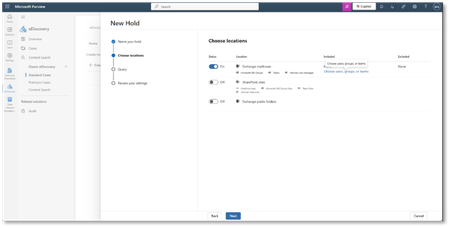
Private channels have long empowered focused collaboration among a subset of a team’s members. Whether you're managing sensitive projects, driving confidential initiatives, or simply need a space for more targeted discussions, private channels offer the control and privacy your team needs. Now, private channels are evolving to meet the needs of modern teams. In response to customer feedback, we are introducing enhanced flexibility, greater scalability, and streamlined compliance management. Read on to learn about these key enhancements and how to prepare. Why Private Channels Matter Private channels offer a dedicated space for conversations that benefit from added structure, persistence, and control. They’re especially valuable when navigating sensitive topics like budgets, HR discussions, managing project-specific workstreams, or collaborating with clients and vendors who require limited access .While chat are ideal for quick exchanges, private channels help keep discussions organized, make shared files easier to find, and help ensure conversations remain accessible over time, all while giving you more control over who can access. What’s Changing—and Why It Matters To support growing usage and help simplify compliance, private channels will now use a group mailbox (like shared channels) instead of storing messages in individual user mailboxes. This change unlocks several key benefits: 🚀 Expanded Limits Feature Current New Max private channels per team 30 1000 Max members per private channel 250 5000 Meeting scheduling ❌ ✅ Supported Simplified Compliance At a user level Group Helping to Simplify Compliance By aligning private channels with group-based storage, compliance policies (e.g., retention, legal hold, DLP, eDiscovery) can be applied at the team (Microsoft 365 group) level, helping to reduce complexity and driving consistency across channel types. For example, one retention policy can be applied to the team’s group, instead of managing a separate policy for private channels. Organizations with compliance policies (retention, legal hold, DLP, eDiscovery, Optical Character recognition) for private channels must ensure those policies are also applied to the team’s group scope before migration begins. Existing policies for user mailboxes will continue to apply; post-migration, new private channel data will be governed by policies of the group mailbox. What Compliance Admins Need to Do To enable a smooth transition and help maintain compliance coverage, follow the below: Microsoft Purview Hold and eDiscovery Before Migration: In Microsoft Purview compliance portal, update hold policies to include the team’s Microsoft 365 group mailbox in addition to user mailboxes. After Migration: New data will reside in the group mailbox. For full eDiscovery, search both user and group mailboxes. Note: Private channel message history (edits/deletes) in user mailboxes under an existing hold will remain in their preserved user library folder until the hold expires. Microsoft Purview Data Loss Prevention (DLP) Policies Before Migration: In Microsoft Purview compliance portal, update DLP policies to include team’s group. After Migration: Check that the DLP policies are scoped to the group mailbox for private channels. Microsoft Purview Retention Policies Before Migration: In Microsoft Purview compliance portal, go to solutions -> Data Lifecycle Management -> Retention policies Create Teams channel messages policy scoped to Teams having equivalent Retention type and duration similar to existing private channel retention policies. After Migration: Set retention policies for the parent team with all channels in the team in mind, including private channels. Microsoft policies for Optical Character Recognition Optical character recognition (OCR) is managed via Data Loss Prevention (DLP) policy. Before migration, modify the corresponding DLP policy that needs be applied for OCR to private channels and change locations to all users and groups. What’s Next This update helps make private channels more scalable, manageable, and compliant. It’s a big step forward for organizations that rely on Teams for secure, structured collaboration. Migration is scheduled to begin in early October 2025 and is expected to be completed by the end of December 2025 for the worldwide cloud. During this period, private channel data will gradually move from user mailboxes to the team’s group mailbox. Private channels can be used throughout the migration. Special cloud migration will happen in early 2026. Migration can start or end at different times for each tenant during the rollout period. To track progress, a new PowerShell command will be available for tenants to check whether their migration has started or is completed. The command will be - Get-TenantPrivateChannelMigrationStatus -TenantId <tenantId> We’ll be updating public documentation soon and will share links here.24KViews8likes32CommentsMicrosoft Teams Takes Center Stage at the 2026 Microsoft 365 Community Conference
Microsoft Teams is where people, Microsoft 365 Copilot, and agents come together to collaborate, communicate, and get work done—before, during, and after every interaction. Contributing to and benefiting from Work IQ, Copilot in Teams understands the context, relationships, and signals behind real work, bringing meetings, calling, chat, and collaboration into a single, connected experience across Microsoft 365. At the 2026 Microsoft 365 Community Conference, Teams will be front and center with a broad set of sessions that reflect how teamwork is evolving. From everyday collaboration and meetings to frontline communications, external collaboration, and Copilot‑powered workflows, Teams is designed to help organizations move work forward with clarity and confidence. Register for the M365 Conference today and save $150 with code SAVE150. #M365Con26 Across the Teams sessions at the conference, you’ll see how AI‑powered capabilities—like intelligent meeting recap, real‑time language interpretation, AI‑assistance for calling, and collaborative agents—help teams stay aligned whether work happens in the office, on the front line, or across time zones. What to Expect from the Teams Track The Teams track at the M365 Community Conference offers a practical, end‑to‑end view of how Teams supports new ways work gets done and how organizations can continue their journey toward becoming a Frontier Firm by connecting communication, collaboration, intelligence, and governance in one AI-powered platform. Sessions span key areas including: Collaboration across meetings and events, chats and channels AI-powered communications and modern calling Enabling frontline teams Seamless and secure external collaboration Workplace collaboration and management Operational excellence for IT admins Protection against modern and evolving threats How Teams integrates across Microsoft 365 and contributes to Work IQ for Copilot Whether you’re deploying Teams, managing it at scale, building on it, or using it to drive business outcomes, the Teams track is designed to meet you where you are and help you plan what’s next. You can find the full list of sessions here. Start Here: The Teams Track Session You Shouldn’t Miss To set strategic context for the Teams track, start with Your Guide: What’s New in Teams — Collaboration, Communication, and Copilot. Led by Ilya Bukshteyn, Corporate Vice President, Microsoft Teams, and Chandra Chivukula, Vice President, Microsoft Teams Engineering, this session sets the foundation for the Teams track. You’ll get a high‑level view of where Teams is headed—how it’s becoming more intelligent, easier to manage, and increasingly shaped by Copilot across collaboration, meetings, and calling—before diving deeper into the rest of the Teams sessions throughout the conference. Women in Tech and Allies Lunch: featuring Lan Ye and Sumi Singh Lan Ye and Sumi Singh will join this year’s Women in Tech and Allies Lunch as featured panelists. As Corporate Vice Presidents leading Microsoft Teams product and engineering, they’ll share insights, experiences, and advice on fostering diversity and empowerment in technology. Their participation promises a dynamic and engaging discussion you won’t want to miss. Exclusive: Executive Teams Pre-Day Microsoft Teams will host an exclusive Teams Pre‑Day on Monday, April 20, 2026, in Orlando, FL., the day before the conference begins. This full‑day experience is designed for executive IT and business decision makers who shape productivity, collaboration, and communications strategy within their organizations. The day features direct engagement with Microsoft Teams leaders and product experts, with a focus on what’s next across Teams, including Copilot and AI within Teams, and how to maximize value across meetings, calling, devices, and collaboration. Space is limited, and attendance will be aligned to the intended audience for the day. If you’re interested in attending, connect with your Microsoft account team to see if there is still availability. Explore 1:1 Strategic Discussions at the Conference A limited number of 1:1 side meetings will be available during the conference for customers looking to discuss Teams strategy, roadmap alignment, and organizational priorities. These conversations are designed for higher‑level planning discussions and complement the technical depth available across breakout sessions and the Teams booth. Availability is limited. Connect with your Microsoft account team to explore options. Experience Teams Beyond the Sessions In addition to breakout sessions and lightning talks, visit the Microsoft Teams product demos in the Microsoft Innovation Hub on the show floor. It’s a great opportunity to see the latest Teams capabilities in action, explore real‑world scenarios, and connect directly with the product experts behind the experiences. Register for the M365 Conference today and save $150 with code SAVE150. We hope to see you there!641Views0likes1Comment
Teams auto selecting "Missed Calls"
I have the calls tab selected. On that tab I have "All" selected. I then click the Activity tab. Teams is selecting "Missed" on that tab. Why is it selecting "Missed"? The issue is when I click back to the calls tab Teams then selects the "Missed" on the calls area. Now if I click on "All" on the Activity tab and then click back to the Calls tab everything is fine. Seems like it is auto selecting stuff for me I didn't ask it to do.64Views0likes2CommentsMS Teams crashes *sometimes* during Video calls/meetings
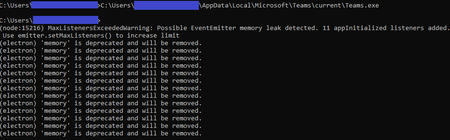
I've been researching an issue where several users are experiencing periodic Teams crashes always during a Video call/meeting. A call that crashes once is often successful right after, and the crashes don't follow any pattern. I haven't found any commonalities across hardware or drivers, and have been checking network quality pretty closely. It really seems like it's a Teams software issue. Is anyone else dealing with this kind of inconsistent stability? The errors in logs (that I've seen) are always: Renderer process crashed; rendererName=mainWindow; crashType=crashed; url=https://teams.microsoft.com; restarting app=YES Other forum threads haven't been useful; they usually point to a software glitch that has since been patched, or some common hardware issue with a specific laptop model (Surface) or webcam (Logitech). I tried to figure out if I could disable GPU rendering (just as a test) and that doesn't appear to be an option. Is there another test we could try? This seems to be related to graphics rendering, particularly since it always happens during a beginning of a Video call or meeting, and the detail in the error logs... I opened a Microsoft support case, but it's going no where fast, particularly since the issue isn't reproducible on-demand. In my various testing and research, I tried launching Teams from a command prompt window (thinking maybe "--disable-gpu" would be an option to launch with). It launched and then I stumbled upon this strange output; I eventually canceled with Ctrl+C and Teams closed. I think this is totally unrelated, but figured I'd share it in case it ends up being relevant. The messages sure look like Teams is experiencing a memory leak ("MaxListenersExceededWarning: Possible EventEmitter memory leak detected."). In any case, this output was on a system where Teams has never crashed as described before, so probably not the best clue.Solved125KViews0likes52Comments