microsoft copilot admin
23 TopicsDigital Deep Dive: Copilot Control System (CCS)
Join us for two days of insights, demos, and deep dives on Copilot Control System (CCS)! Learn how to secure, manage, and analyze Microsoft 365 Copilot, Copilot Chat, Microsoft Copilot Studio, and agents across your organization using the Copilot Control System (CCS). This two-day digital skilling event kicks off with a guided overview of CCS—your framework for managing Copilot securely, at scale, and with clarity. Day 1 dives into security, governance, and preparing your environment for Copilot and agents. Day 2 shifts to management controls, agent lifecycle, reporting, and user enablement. We’ll close with key takeaways and resources to support your next steps. What to Expect A breakdown of the Copilot Control System and how it applies across workloads Technical guidance for managing oversharing, insider risks, and web search settings Practical ways to build and secure enterprise-scale agents Lifecycle management approaches for Copilot agents and Copilot Studio makers Insights on measurement, analytics, and usage trends Guidance on enabling users and aligning AI adoption with organizational goals Live AMAs with Microsoft product team members throughout the event Day 1: Foundations & Security – Tuesday, June 17, 2025 (PT) Time Session Title Speaker(s) Description 8:00–8:30 AM PT Introduction to Copilot Control System Ben Summers Overview of the event structure, CCS components, and session navigation tips. 8:30–9:30 AM PT Secure Microsoft 365 Copilot and agents Sophie Ke, Dave Minasyan Addressing oversharing risks using SAM and Purview. 9:30–10:30 AM PT Prevent data loss and insider risks for Microsoft 365 Copilot Erica Toelle Using Microsoft Purview to mitigate insider threats and enforce protections. 10:30–11:00 AM PT Understanding web search controls in Microsoft 365 Copilot Alex Pozin, Suhel Parekh Configuring and governing Copilot's web search behavior. 11:00 AM–12:00 PM PT Build enterprise-scale agents securely Mik Ferland Best practices for secure agent lifecycle management and governance. Day 2: Management & Adoption – Wednesday, June 18, 2025 (PT) Time Session Title Speaker(s) Description 8:00–9:00 AM PT Copilot agent management and controls James Bell, Ganesh Krishnamurthy How to manage Copilot agents in the Microsoft 365 admin center. 9:00–10:00 AM PT Empower Copilot Studio makers with enterprise-grade management controls Asaf Tzuk Governance, visibility, and cost management in Copilot Studio. 10:00–11:00 AM PT Measure usage and impact of Copilot and agents Mike Walsh, Samer Baroudi Using Copilot Analytics to assess adoption, usage, and impact. 11:00 AM–12:00 PM PT Practical guidance for AI and collaboration adoption Karuana Gatimu Real-world strategies for enabling collaboration and AI adoption. 12:00–12:15 PM PT That’s a wrap! What’s next for your Copilot Control System journey Efe Abugo Key takeaways, resources, and how to continue learning after the event. How to Participate Register for the Microsoft Tech Community using your email if you haven’t already. This allows you to post comments and ask questions. Visit each individual session page during its scheduled time to join the conversation. You can post your questions in the comments, and product team members will respond live during the AMA. Watch the session live or catch the recording on demand after the event. Keep the conversation going in the Microsoft 365 Copilot Tech Community discussion space after the sessions conclude. It’s a great place to follow up, share what’s working, and connect with others exploring similar topics. Hope to see you there! Come ready to learn and ask our experts all of your burning questions! Access session presentations Looking for session materials or presentations? Visit the new Copilot Control System page on AMC to download resources and explore more content from the event.100KViews37likes68CommentsMicrosoft 365 Copilot AMA
We are very excited to announce a Microsoft 365 Copilot AMA on Thursday, September 28 th at 9:00 AM Pacific time!! Get answers to your questions around Microsoft 365 copilot from our team of experts! *For questions about any details about the Early Access Program (EAP), please address them to your Microsoft account team. How does it work? We will have a broad group of product experts, servicing experts, and engineers representing Microsoft 365 Copilot. They will be standing by here -- in chat during the live hour -- to provide guidance, discuss best practices, and, of course, answer any specific questions you may have. Post your questions in the comments early and throughout the one-hour event. Note: This is a chat-based event. There is no video or live meeting component. Questions and answers will appear in the Comments section below. Please post each question as a new comment16KViews14likes156CommentsPrevent data loss and insider risks for Microsoft 365 Copilot with Microsoft Purview
To be truly enterprise-ready, a generative AI tool must do more than generate content—it must actively help prevent data loss and mitigate insider risks. Microsoft Copilot and agents are built with security in mind, integrating seamlessly with Microsoft Purview to deliver robust data protection capabilities. In this session, you’ll learn how to: Receive real-time alerts and detailed reports on risky behaviors and AI usage. Safeguard sensitive files and interactions with Copilot and agents. Automatically enforce security policies in response to high-risk actions. Empower your organization to adopt Copilot and agents with confidence—securely, responsibly, and at scale. How do I participate? No registration is required. Select "Add to calendar" to save the date, select "Attend" to receive event reminders, then join us live on June 17th ready to learn and ask questions! Feel free to post questions and comments below. You can post during the live session and/or in advance if the timing doesn't work for you. Access session presentations Looking for session materials or presentations? Visit the new Copilot Control System page on AMC to download resources and explore more content from the event. This session is part of the Digital Deep Dive: Copilot Control System (CCS). Add it to your calendar, select "Attend" for event reminders, and check out the other sessions! Each session has its own page where the session livestream and discussion space will be available at the start time. You will also be able to view sessions on demand after the event.3.5KViews3likes15CommentsIntroducing Copilot in the Microsoft 365 admin centers
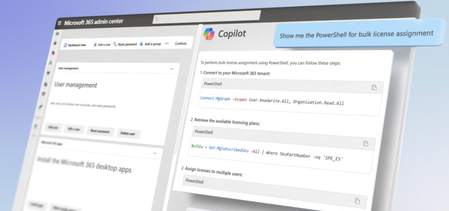
Streamline daily admin tasks with AI-powered insights, natural language queries, and automation using Copilot in Microsoft 365 admin centers. Quickly recap key updates, monitor service health, and track important changes — all in one place. No more digging through multiple pages — just ask Copilot for the answers you need, grounded in real-time data from your tenant. From finding users and managing licenses to generating visual insights and automating tasks with PowerShell, use Copilot to simplify complex admin workflows and save valuable time. For Copilot in the admin center to light up, all you need is one active Microsoft 365 Copilot license for any user in your tenant and from the Microsoft 365 admin center, you can get started right away. Jeremy Chapman, Director of Microsoft 365, demonstrates how to leverage Copilot for proactive guidance, whether in the Microsoft 365 admin center or directly within Copilot Chat. Save time with Copilot. Type Recap to instantly see critical admin updates and actions in one view. Check it out in the Microsoft 365 admin center. Stay on top of changes. Copilot summarizes new features & updates from the Message Center, so you never miss an important rollout. Get started. Instant visual insights. Ask Copilot how many Copilot licenses are left and see a breakdown, no manual reports needed. Watch it here. Watch our video here. QUICK LINKS: 00:00 — Copilot in Microsoft 365 admin centers 00:42 — Use Copilot for change management 02:13 — Stay ahead of upcoming changes 03:31 — User and licensing queries 04:21 — Generate Visual Insights for Licensing and Usage 04:50 — Author PowerShell scripts for bulk operations 06:07 — Copilot Chat using Microsoft 365 Admin agent 07:37 — Copilot coming soon to other admin centers 07:51— Wrap up Link References For more information, check out https://aka.ms/CopilotinMAC Start using Copilot in the Microsoft 365 admin center at https://admin.microsoft.com Unfamiliar with Microsoft Mechanics? As Microsoft’s official video series for IT, you can watch and share valuable content and demos of current and upcoming tech from the people who build it at Microsoft. Subscribe to our YouTube: https://www.youtube.com/c/MicrosoftMechanicsSeries Talk with other IT Pros, join us on the Microsoft Tech Community: https://techcommunity.microsoft.com/t5/microsoft-mechanics-blog/bg-p/MicrosoftMechanicsBlog Watch or listen from anywhere, subscribe to our podcast: https://microsoftmechanics.libsyn.com/podcast Keep getting this insider knowledge, join us on social: Follow us on Twitter: https://twitter.com/MSFTMechanics Share knowledge on LinkedIn: https://www.linkedin.com/company/microsoft-mechanics/ Enjoy us on Instagram: https://www.instagram.com/msftmechanics/ Loosen up with us on TikTok: https://www.tiktok.com/@msftmechanics Video Transcript: -If you’re a Microsoft 365 admin, you can now take advantage of Copilot and generative AI to perform tasks across different Microsoft 365 services. In the next few minutes, in fact, I’ll show you how you can interact with it using natural language, get contextual guidance, and find proactive suggestions for common admin tasks. For the experience to light up, all you need is one active Microsoft 365 Copilot license for any user in your tenant. And from the admin center, you can get started right away. That said, before we get started, in case you’re wondering, Copilot Microsoft 365 admin centers does not make configuration changes autonomously on your behalf. As I’ll show you, it’s designed to save you time and many of the things that you do every day as an admin or business owner. -And I’ll start by showing you an example of how you can use it for change management. I’m in the Microsoft 365 admin center, and now Copilot can help you keep track of new capabilities rolling out, as well as changes that you need to action as an admin. In fact, you can use the starter prompt recap, and I’ll add the latest admin info, and you’ll see that Copilot is generating an up-to-date view of important information and key insights across service health, message center, and Microsoft 365 Copilot usage insights. This summary is personalized to you based on your specific admin role, highlighting the parts of the admin center that you use most, and your real-time individual tenant information. So this saves you time looking for information and insights that are typically spread across multiple locations in the Microsoft 365 admin center. And you can click on the see details controls to expand each area, and find out more, as well as where you can go to take any corresponding actions. For example, with these now expanded, I can see my tenant service health status, and a summary of active incidents, issues and advisories. In this case, I have one issue and three total advisories across Microsoft 365 suite, Microsoft Purview, and others. -From here I can even use these as deep links to click into my active issue for the updated attack simulations, and training URL endpoint, in this case, to find out more. Copilot can also help you stay ahead of upcoming changes, along with the items that you need to take care of from the message center. For example, back in my recap, I can see details highlighting three new features, and also three feature updates. So for this new feature, I can see details about Copilot in Edge, new contextual features to find out more about its capabilities and rollout details. I can also use the view in buttons for deep links directly into service health or the message center, like you’re seeing here with all my recent unread messages. -So as we saw, Copilot helps you stay on top of issues with its suggested prompt starters, like recap, and, of course, you can author your own prompts too, and they’ll also be grounded on data from your individual tenant. In this case, I’ll type in “Summarize my announcements for Outlook,” and Copilot generates a full summary with feature updates from the past week for Outlook. For example, here’s a new capability rolling out for the Microsoft 365 app, getting updated to be the Microsoft 365 Copilot app, and corresponding changes to the Outlook apps for iOS and Android. This change will allow more people to experience Copilot chat from their mobile apps. And now you have all the details you need to prepare for the update. -Next, let me show you how Copilot can help you with common admin tasks, like user and licensing queries using natural language. So I’ll prompt Copilot to find users in the marketing department with a Copilot license, and submit. Now, behind the scenes, it’s combining a directory attribute, the marketing department, with a licensing attribute for Copilot, what would’ve previously required advanced filtering or PowerShell. And it finds three people that match the query. And if it’s a larger group of people, you can use the CSV file option to export a list that you might use for a broader email campaign or with PowerShell scripting. -To be clear, everything that you’ve just seen is running under the permissions context of the admin using Copilot, so it can only find information that the individual account specifically has access to. Now, another area where Copilot can help is with generating visualizations for bulk insights into things like usage and licensing. For example, you might want to see how many Copilot licenses in your tenant have been acquired, and how many are available to assign. So for that, I can prompt Copilot, “How many Copilot licenses do I have available to assign?” And it generates an inline bar chart with details about Microsoft 365 Copilot, Copilot Studio, and Sales Copilot licenses available to assign. -And since this is Mechanics, let me show you an early look at a more advanced admin scenario to help author PowerShell scripts for bulk operations. Now, this is useful where performing specific tasks in the admin center at scale might be too manual or in cases where the control is not available in the admin center. For example, as part of my Microsoft 365 Copilot rollout, if I want to enable restricted SharePoint search using a list of allowed sites, which is only possible using PowerShell, I can prompt Copilot with “How do I get the SharePoint online PowerShell module, then enable restricted SharePoint search using a CSV file with a allowed sites using PowerShell?” And Copilot will use the Microsoft 365 admin documentation and PowerShell reference guides so that I can save time by not having to look that information up myself. And notice that everything is formatted so I can easily parse what the commands are doing, and I just need to change the placeholder values for the URL and file path, and I can run what’s presented. -Okay, and just to prove that it will work, let’s test it out. So these are the cmdlets that we just saw from Copilot with updated placeholders. So I’ll go ahead and run it. You’ll see there are no errors. Now, I’ll get the status of the feature. It’s enabled. Then get the list of allowed sites, and there they are. Next, let me show you another early look for performing these tasks in Copilot Chat using a Microsoft 365 admin agent. If your day-to-day Microsoft 365 account is the same account that you use for admin tasks, and you don’t use a separate admin-only account, you’ll be able to access these admin experiences from Copilot Chat. I’m in the Microsoft 365 Copilot app. I just need to type the @ symbol to pull up a list of available agents or I could directly type @Microsoft365Admin. -And from here I can run the same admin recap we saw earlier by typing “recap important info for me” as my prompt. You’ll see that it surfaces the same information that we saw before in the admin center. In fact, when I expand the details under service health, there’s our attack simulation’s URL endpoint update. The view in buttons also link me directly to the Microsoft 365 admin center. And because it’s an agent, you’ll also be able to access the Microsoft 365 admin agent from other app endpoints, like you’re seeing here with Microsoft Word. I can get the same information with my recap from before, and once it completes, I can use that right from Word, for example, if I wanted to write a change management report. Now, it’s worth pointing out that whereas everything I showed from the admin center does not require a Microsoft 365 Copilot license for your admin account, to use the Microsoft 365 admin agent, your admin account would need one. Finally, Copilot in admin center’s experiences will extend to other surface areas, as we presented in November, including the admin centers for Microsoft Teams, as well as SharePoint online, and more details for those are coming soon. -So those are just a few examples of how Copilot can help you as an admin save time with your day-to-day work, and give you proactive suggestions for different admin tasks. Again, all you need is just one active Microsoft 365 Copilot license in your tenant, and you can get started right away. To find out more, check out aka.ms/CopilotinMAC, and start using it today in the Microsoft 365 admin center at admin.microsoft.com. Keep watching Microsoft Mechanics for the latest tech updates. Subscribe to our channel and thanks for watching.3.3KViews2likes0CommentsUnderstanding Microsoft 365 Copilot Risk Surface and Mitigations
Microsoft 365 Copilot acts on the access users already have. It does not grant new permissions — it is a force multiplier that makes existing access faster and easier to discover, aggregate, and act on across Microsoft 365. That speed and accessibility can also amplify existing security and governance gaps. In environments with overshared content, excessive permissions, or inconsistent governance, users may gain faster access to sensitive information than organizations realize. It’s a shift that carries important security implications organizations should understand before scaling deployment. Customers with Microsoft 365 E5 licensing may already have access to many of the tools that can help identify and reduce Copilot-related risk, but licensing alone does not reduce exposure. What’s often missing during early Copilot deployments is a clear understanding of the risk surface itself: what data is exposed, who can access it, and through which vectors.Microsoft 365 Champion community call | July 2025 | AM
Join our next community call on July 22, 2025, to learn more about IT management controls and measurement for Copilot and agents, as well as People Skills and the Skills agent. Host: Tiffany Lee Guests: Samer Baroudi, Anirudh Bajaj Moderator: Jessie Hwang 📢 NOTE: our community call format has changed to using Teams webinars to enable more dynamic discussions! Join link is still the same but you must register to be able to join the call when it starts: https://aka.ms/M365ChampionCallAM ⏰ 🗨️ Each call includes an open Q&A discussion section, where you'll have a chance to ask your questions about Microsoft 365. 👋 Join the Microsoft 365 Champion program today! Champions combine technical acumen with people skills to drive meaningful change. Our community calls are open to everyone but only Champions have access to the presentation resources (access link in the initial welcome email and in the monthly newsletters). Join now: https://aka.ms/M365Champions. Note: If you are unable to watch the recording on YouTube, try watching it here.599Views0likes0Comments
Please Remove Daily Cap Usage for Free Copilot Text Chat
Dear Microsoft Copilot Team, I am writing to express my disappointment with the new daily usage caps on Microsoft Copilot, particularly for ordinary text-based conversations. In the past, I could use Copilot freely for everyday questions, learning, research, brainstorming, and general conversations without constantly worrying about reaching a daily limit. The newer restrictions have made the experience significantly more frustrating and less useful. I understand that running AI services requires computing resources and that Microsoft must manage operating costs. However, I believe ordinary text chat should remain uncapped, especially when it was previously possible to use Copilot much more freely. Text conversations are a fundamental part of the service, and users should not have to stop in the middle of a useful discussion because they have exhausted a daily allowance. The move toward a unified Copilot experience should make the product simpler, more consistent, and more useful—not make existing users feel that they have lost access to a service they have come to rely on. I am therefore asking Microsoft to: Remove daily usage caps entirely for ordinary text-based Copilot conversations, including for free users. Keep basic text chat freely accessible without arbitrary daily cutoffs or lengthy waiting periods. If stricter limits are necessary for resource-intensive features such as image generation or advanced research, apply those limits separately rather than restricting ordinary text conversations. Clearly communicate any usage policies and reconsider changes that negatively affect the experience of long-time users. Unlimited text chat would help preserve user trust, encourage continued engagement, and distinguish Copilot as an accessible AI assistant for everyone. Restricting basic conversations risks pushing loyal users toward competing services that offer a more suitable experience. I hope Microsoft will take this feedback seriously and reconsider the current daily cap policy. Please restore uncapped text chat so users can rely on Copilot whenever they need assistance, without worrying about running out of messages. People on Reddit and online have been criticizing these changes ever since Copilot was unified under one product between enterprise and personal, If you guys dont do anything now it might reduce user trust and might be bad business decisions so please fix Copilot Thank you for your time and consideration. I look forward to seeing Microsoft make Copilot more accessible and user-friendly again.301Views4likes2CommentsFix all annoying Copilot bugs
I’m experiencing an issue with Microsoft Edge on Android. Starting today (September 22, 2026), whenever I try to visit copilot.microsoft.com, Edge automatically redirects me to the Google Play Store to install the Copilot app. I prefer using Copilot in the browser and do not want to install the app. And even when i try to install the copilot app it does not let me do anything and thinks I need a license or subscription to access it like copilot is litterly supposed to be free and also even when i try to get rid of the app redirection it for some dumb reason it redirects me to from copilot.microsoft.com to copilot.com and they put in restrictions like after a lot of chats you must wait for a specific time period and a couple months ago you guys removed the ability to use copilot without registration like come on that is so dumb I want Microsoft Copilot to be fixed revert how copilot was before how is this consumer friendly299Views1like2CommentsUpcoming July 2025 Microsoft 365 Champion Community Call
Join our next community call on July 22, 2025, to learn more about IT management controls and measurement for Copilot and agents, as well as People Skills and the Skills agent. Our community calls are now in the Teams webinar format, which means you must register to ensure you will be able to join the call when it starts. An on-demand recording will still be available on our Driving Adoption > Events pages, as well as on our Microsoft Community Learning YouTube channel. The calls will still start at 5 minutes past the hour for both sessions (at 8:05 AM and 5:05 PM PT), and it will still end at the top of the hour (9:00 AM and 6:00 PM PT, respectively). The registration links for both sessions are below. Once you register, you will receive an email confirmation and calendar invite with the event join link. https://aka.ms/M365ChampionCallAM https://aka.ms/M365ChampionCallPM Since our calls are open to everyone, you must be a member of the Microsoft 365 Champion Program in order to access the presentation materials - the access link is in the initial welcome email and the monthly newsletter emails sent the week before the community calls. If you have not yet joined our Champion community, sign up here to get access to the monthly newsletters, calendar invites, and program assets (e.g., the presentations).299Views0likes0Comments
Microsoft Copilot 365 Personal Premium limits
In my Copilot Notebook, I deliberately loaded 20 PDF files in order to test Copilot’s grounding behavior across the full set of available references. At the time this testing setup was created, 20 references represented the effective grounding limit described for Copilot Notebooks, meaning that these references were expected to form the source base used by Copilot when generating grounded responses. The references consisted of fully functional, original academic textbooks containing relevant and up-to-date scientific information, mostly published within the last ten years. Importantly, the sources do not differ from one another in terms of accessibility, file type, availability, or how they were added to the notebook. They are all PDF files, they are all available in the same environment, and there is no obvious difference in access conditions that would explain why some are consistently used while others are repeatedly treated as inaccessible, unavailable, summarized, or skipped. The purpose of the test was therefore not simply to see whether Copilot could access 20 files, but whether it could actually ground its answers in the complete reference set when explicitly instructed to analyze all available sources. Despite this, in approximately 99.9% of my tests, Copilot appears to ground its responses in only 3 to 5 of the 20 available references, often repeatedly using the same documents. When I ask what happened to the remaining sources, Copilot gives different explanations. Sometimes it says that it does not have access to certain files. Sometimes it says that it only received a summary of the file. Sometimes it says that a step involved in retrieving or processing the information failed. The way Copilot explains this often makes it sound as if access to the uploaded files depends on some external or intermediate system, rather than being something Copilot itself can directly control. This is difficult to understand from a user perspective because the files are already uploaded into the Copilot environment and were specifically provided as source material for analysis. The practical result is that a task explicitly requesting analysis of 20 sources often produces an answer based on only 3 to 5 of them. For academic or research use, this is a serious limitation. If 15 to 17 out of 20 carefully selected sources are not actually examined, then the final synthesis cannot realistically represent the full source base. This also creates uncertainty about what Copilot means when it claims to have used the provided materials. My question to Microsoft is: Is there a technical limit on how much information Copilot can actually retrieve, open, and analyze from uploaded files during a single task or session? If such a limit exists, what is that limit? And why, when 20 valid PDF sources are uploaded and Copilot is explicitly instructed to analyze all of them, does it so often appear to open only 3 to 5 files, while describing the others as inaccessible, summarized, or unavailable because some retrieval step failed?202Views1like1Comment