metadata
104 Topics
OneDrive suddenly became empty after university storage policy change Is recovery still possible?
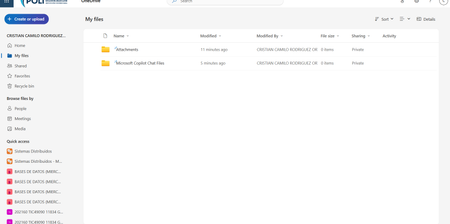
Hello everyone, I am looking for technical guidance regarding a serious OneDrive for Business issue under Microsoft 365 Education. Environment - Microsoft 365 Education tenant. - University-managed account. - OneDrive for Business. - My account is still active and I can sign in normally. What happened On July 16, 2026, I signed into my OneDrive and discovered that my entire "My files" folder was empty. I verified the following: - I am signed into the correct account. - "My files" is completely empty. - The OneDrive Recycle Bin is empty. - "Restore your OneDrive" does not show any mass deletion event. - My OneDrive site is accessible, but there are no files. - I unfortunately do not have a complete local backup. A few days later, my university informed students that they had reduced the OneDrive storage quota from 5 TB to 30 GB due to a Microsoft/provider policy update. I suspect my OneDrive contained more than 30 GB because I had stored backups from my previous computer together with years of academic, personal and work files. However, I would like to understand whether exceeding the new storage quota could actually cause an existing OneDrive site to appear completely empty, or whether this suggests another issue such as: - OneDrive reprovisioning - Site replacement - License reassignment - Site deletion - Storage migration - SharePoint issue - Other administrative problem The university initially described this as a temporary Microsoft incident, but later told me that the files had been deleted because of the OneDrive application, without providing any technical explanation. I have already asked the university IT department to investigate: - Deleted Sites in SharePoint Admin Center - Second-stage Recycle Bin - Retention policies - Previous OneDrive site - Licensing history - Possible restore options My question to Microsoft experts is: 1. Can a storage quota reduction (5 TB → 30 GB) ever make an existing OneDrive appear completely empty? 2. Are there other administrative scenarios that could produce this behavior while leaving the account active? 3. Is there anything specific I should ask my Microsoft 365 administrator to verify that is commonly overlooked? Any guidance would be greatly appreciated because these files represent several years of academic, professional and personal work. Thank you very much.607Views0likes2CommentsWhy AI Can't Find Your Files (And the Simple Fix)
I was watching someone the other day and learned something about AI that I believe is going to be important in the future. It wasn't a flashy new model or some prompt trick. It was something way more practical: how the way we name and build our files is either going to help AI or quietly work against it. And the more I sat with it, the more I realized this is going to matter a lot as we build for an AI-first world. We organize files for humans, not for AI Think about how most of us organize things today. We nest everything. A folder for 2026, then the customer, then the opportunity, and inside it a file called "Notes." Or maybe a policy and SOP folder tree that goes five levels deep with broad, generic titles. That structure makes sense to us (humans). We navigate by memory and location. We know the file is in the customer folder, under this opportunity. That's how humans think. But AI doesn't think like that. Now picture that same sales folder with three or four different "Notes" files spread across different subfolders under the same customer. When you ask AI to find something in there, it's going to guess. A lot. Especially when everything is named "Notes." And the messier the structure, the worse the guessing gets. It comes down to metadata So here's what I learned that actually helps. It comes down to metadata. When AI looks for a file, it isn't always reading every word of every file. It works in two levels, and once that clicked for me, the whole thing made sense. Level one: the title The first thing AI looks at is the title. And this is where most of us are leaving value on the table. A file called "Customer, Opportunity, Subject" gives AI so much more to work with than a file called "Notes." Same thing on the policy side. A file named "Benefits, Parental Leave, 2026" tells AI exactly what it's looking at before it even opens it. Compare these two: notes.docx acme-corp-renewal-q3-discovery-notes-2026 One of those is invisible to AI. The other one is basically answering the question before it's asked. Level two: the top of the file Once AI decides a file might be relevant, it starts reading it. And some of the most valuable real estate in the entire file is the very top. If you put a short structured block at the beginning that spells out what the file is about and the topics inside it, AI immediately understands what it's looking at. Something like this: Title: Parental Leave Policy (US) Type: HR policy Topics: parental leave, benefits, time off Effective date: January 1, 2026 Last reviewed: May 14, 2026 Version: 3.0 Status: active That little block does a lot of work. It tells AI what this is, who it's for, and just as important, whether it's current. So when I say metadata, that's really all I mean. It's the title of the file, plus a little bit of context right at the top, so that when AI scans it, it knows fast whether this is the file it actually needs. You don't need this on every file Now, I'm not saying do this for every file. That's overkill, and honestly it would be exhausting. But think about the static stuff. The files that don't change much. HR policies. Benefits. SOPs. The things people search for in a ServiceNow or SharePoint knowledge base using AI. For those files, a little structure does two things. First, it helps AI find the right answer for the person asking. When someone types "how much parental leave do I get," the right file basically raises its hand. Second, it cuts down the latency. If AI is sitting there scanning through a pile of vaguely named files, the user is just waiting around for it to think, and that gets annoying fast. When AI has the right context up front, it gets to the answer quicker. Pro Tip: You can use AI to create the metadata for you, just ask it!! Where this is headed I keep coming back to this because it's such a small change with a real payoff. We've spent years building file structures that make sense to people. Folders inside folders, organized by how we remember things. That's not wrong. But as more of how we find information runs through AI, the files that win are the ones that are easy for a machine to read, not just easy for a human to browse. I don't think every file needs this. But as we get more serious about how we build file structures for an AI-first world, I think this is one of the concepts that's going to really matter. Curious if anyone else is already thinking about this in how they build their knowledge bases. If you are, I'd love to hear how you're approaching it in the comments!1.1KViews2likes0Comments
Metadata for .mov files radically different to originals
My iPhone's photos and videos are backed up to OneDrive. The files are al synced to my PC hard drive. I'm just clearing off some of the larger .mov files from my iPhone as a quick way to make space. I reconcile that they've definitely been backed up by finding the file on my PC. Only, when I'm doing this the videos aren't there! Thankfully, they are, but with completely different dates and timestamps. For example, a video I took at 0715 on 1 December 2025 shows on my PC as 2 December 2025 at 1458! This is a nightmare scenario. I've also tried Date Created, Date Modified and Date Taken (always blank for .mov files) but none accurately correspond with the correct date and timestamps on my iPhone. Has anyone else experienced this or found a work around?910Views1like4Comments
Corrupted VT+ transaction files
We are a small accounting company using VT+ Transaction on a local drive synchronized with OneDrive for backup and file storage. A few days ago when we tried to open the application, we suddenly started receiving the following error messages: Run Time Error 0 and Run Time Error 440, and the program does not start. According to VT+ support the program files are corrupted and the data can only be restored up to the year 2022, as the more recent backups are also affected. Somehow the system is overriding our backups, which makes the latest ones unusable. Any advice what could cause that and how to resolve the issue. Thanks456Views0likes1CommentSynchronization issue with unknown files
Hello. I have synchronization issue with 2 uknown files since 2 years or so. During that period I've restarted synchronization once. It didn't help. The weight of files sometimes changes what suggests that those files are in constant use. I would have excluded them from synchronization, but I can't identify them. There is no place where I could have found the name and location of those files. Does anyone know, by any chance, where are any logs or how to enable them, if they are not enabled by default, to troubleshoot that? Thanks in advance for any help in that matter... and Happy New Year!!360Views0likes1CommentHow does local OneDrive determine if a local file needs to be updated?
When using multiple computers to edit a OneDrive file, a computer often fails to recognize its local copy needs to be updated, even though the file on all computers is set to "Always keep on this device." This means changes are lost with no conflict error generated. Is the OneDrive algorithm for deciding when to update a local version of a file documented anywhere? Usually when a change is made to a file, it starts uploading to the cloud within seconds. Within several seconds after the changed file is uploaded, other computers will recognize their local copy is outdated and will begin downloading the changed version. That is the expected behavior. But often, that doesn't happen. The outdated version is used to make new changes. Those new changes are uploaded successfully. No conflict warning is generated. The earlier changes are lost forever. I have not found any documentation on how local Windows OneDrive decides if its local version of a file needs to be updated. Is it looking at file size? Timestamps? If timestamps, is there a margin of time sync differences? Does the OneDrive metadata include the source device of the last upload? Not knowing any of this I cannot troubleshoot the problem much beyond establishing that the problem is not with uploading changes. OneDrive local is reliably uploading changes. MD5 hash codes in the cloud match the hash of the changed file on the source computer. I don't have time to jump through hoops with someone at frontline Microsoft support who doesn't know any more about the algorithm than I know in order to get the issue escalated to someone with the information needed to pinpoint the issuse.642Views0likes2Comments
Face scan recognition limits?
I was a big fan of adding name tags in photos before, and was eager to have it back. Problem is, I have quite a large number of photos, and onedrive just stopped scanning, being very far from finishing the job. I mean, considering for example the pictures my spouse appears in, one drive started recognizing her in the most ancient photos quite nicely, but stopped somewhere in 2006, and than added just a dozen from the most recent pictures. Yes, I keep taking photos of her meanwhile. Unfortunately it didn't accept help from me, like hey look here, this is a face, and is the face of this person. Any idea if this is just temporary?912Views0likes1CommentMove files from Account A to Account B 165 GB data
I’ve been using Microsoft Office 365 Family for several years, sharing it with my family members. We have 6 accounts, each with 1 TB of storage. One of my accounts has now reached 985 GB, so I need to transfer files from Account A (my account) to Account B (my wife’s account). These files mainly consist of photos and videos — over 200,000 files in total. I tried transferring a 6 GB wedding shoot (.ISO format), but it took more than an hour. Re-downloading and uploading all the data isn’t feasible as my internet connectivity is limited to 100 mbps only. I’m looking for the best and most efficient way to move these files directly between OneDrive accounts.678Views0likes2Comments