m365
42 Topics
Frustration with Microsoft’s Task Ecosystem
Why is planner development so slow. Is missing no brainer features that a 12 year old program manager or junior developer would even know what is needed at a very basic level. I’m not going to mention what these features are because this community is full of posts about this. You killed off ToDo which was an incredibly good app and had huge potential now left rotten away. Despite no development for years it’s still a great app and would be up there with the best of them - Todoist, Tick Tick, Apple Reminders, Things. Don’t get me started on Loop. What is the point of it. Planner in Teams is still slow. you have ruined Microsoft Project trying to get it integrated with Planner. Planner licensing is a mess. Planner agent currently doesn’t see premium projects. I know it’s coming. M365 Copilot can only see the default Task list in ToDo but no other list. Who thought that one up? You allow people create multiple lists in Todo but ignore them for Copilot query. I would post a really good convo with Copilot about all of this and even Copilot is scratching its head as to why Microsoft is so crap offering up half baked apps and then drop them for something else thus creating an ecosystem that barely functions and leaves people so frustrated. I could go on but I won’t. Rant over but no wonder people are opting to move to dedicated applications like Asana or Monday.com or Todoist for stuff like this. 🥸🤔😳🤦♂️🤷♂️💋539Views8likes1Comment
Issue Sideloading Word Extension into Word Online via GoDaddy M365 Account
Hi everyone, We’re currently facing an issue while trying to sideload a Word extension into Word Online. From what we understand, the standard process is to upload the add-in through the Microsoft 365 Admin Center, after which users within the organisation can access it through the “Add-ins” section in Word Online. However, our organisation’s Microsoft 365 account was purchased through GoDaddy instead of directly from Microsoft. Because of this, attempts to access certain Microsoft 365 Admin Center features appear to get redirected to the GoDaddy Admin Center instead. We suspect this may be preventing us from accessing the required deployment/app management options needed for sideloading the extension. Has anyone faced a similar issue with GoDaddy-managed Microsoft 365 accounts? Any guidance or workaround suggestions would be greatly appreciated. Thanks in advance.252Views0likes1CommentStudy and Learn Agent: your study coach, built for learning
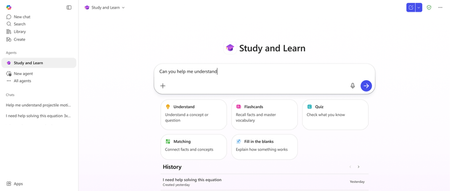
It's 11 pm. A student is at the kitchen table with a chemistry problem they can't crack, an essay due tomorrow, and a quiz in the morning. They open their laptop, open an AI chatbot, and in thirty seconds, they have an answer, an essay, and a study guide. The thinking didn't happen. The grade might still come. That moment is why so many educators and IT leaders feel a knot in their stomach about AI in the classroom. The concerns are real, and we built with them firmly in view. Now picture the same student, same kitchen table, same 11 pm. This time the Study and Learn Agent is beside them. Patient. Tireless. Knows the material because the student is studying with their own notes. Asks the right question at the right moment. Pushes them to try first, then helps them see what they missed. Quizzes them. Introduces flashcards, fill-in-the-blanks and matching activities. Helps them build and check their understanding. The student does the thinking. The Study and Learn Agent coaches the thinking. Most students have not had access to that kind of support. Potential is equally distributed, but opportunity is not. Today, with the general availability of the Study and Learn Agent in Microsoft 365 Copilot, every student K12 and Higher Education with a Microsoft Education license can get personalized coaching when they need it, where they need it, at no extra cost. Study and Learn Agent is in the left navigation and works across any subject the learner is studying. It explains concepts, supports writing without doing the writing for the students, gives step-by-step coaching on problems, generates flashcards, runs quizzes, and creates activities to build and check understanding. The agent is designed to lead with a question so the learner stays in the driver's seat. It is available in English (US) and coming to additional languages in the coming weeks. ⚙️For IT admins — read this first Study and Learn Agent runs inside Microsoft 365 Copilot Chat. For your K-12 students aged 13–17, Copilot Chat is OFF by default. You have to turn it on. Until you do, students in your tenant cannot access Study and Learn. The good news: Study and Learn is available to all licenses A1 / A3 / A5, and the agent is available from the left navigation bar of M365 Copilot app and in the Chat dropdown at https://aka.ms/studyandlearn. Action: Enable Copilot Chat for your 13–17 student group in the Microsoft 365 admin center using these resources: Full step-by-step video tutorial: https://aka.ms/enablecopilotchatvideo IT documentation: Education Tenant Identifier Student Age Groups 🎉What is available at GA Conversations that coach: Scaffolded conversations on any subject or topic K12 through HED for: Understanding concepts Working through step-by-step problems Getting writing support The agent recognizes the kind of help a learner needs and adapts the conversation accordingly. Soon, images will show inline in explanations to make abstract concepts concrete — especially for visual subjects like biology, geography, and chemistry. Practice activities that stick: Flashcards to learn terms and definitions, vocabulary, and recall facts Quizzes with multiple choice and open-ended questions with per-answer explanations Fill-in-the-blank for understanding how things work, or the sequence of connected events or facts in a process Matching activities that connect terms to definitions, causes to effects, concepts to examples — building the mental web that makes knowledge usable All activities are created with the learner’s own materials, or with just a topic name. Quizzes can also be created using a web-linked resource Students can chat with the agent during and after completing an activity to get immediate and remediation help with the agent still not giving away answers Responsible AI and data privacy: Study and Learn is built into the Microsoft 365 Education environment that schools already manage, giving IT administrators familiar controls and enterprise-grade data and privacy protection rooted in Microsoft's responsible AI principles. Students get a structured, accountable AI experience, and schools get a credible, learning-first option they can deploy with confidence. An AI literacy resource teaches responsible AI use from the very first interaction. Coming soon! Inline images: GA ships with links to images, images embedded in the flow of the conversation are coming soon Multiple languages: Study and Learn has been optimized for and Generally Available in English (US). Additional languages will become available in the coming weeks. Explanation and engagement callouts: Visual call outs for questions, tips and moments of persistence 💡Built on learning science The pedagogy is the product. The Study and Learn Agent is grounded in four research-based principles about what makes learning stick. They aren't a layer on top of the experience — they shape what the agent does in every interaction. Adaptive scaffolding: meeting students where they are by activating what they already know, then providing enough support to stretch them into what's next. In practice, this is why the agent opens a chemistry problem by asking what the learner already understands about molar mass — not by launching into a worked solution. It then tunes its support — worked examples, hints, or step-by-step guidance — to match. The result is a learner who stays productively engaged instead of overwhelmed or under-challenged. Productive struggle: asking before telling, so students retrieve, attempt, and reason their way toward answers. This is why the agent invites a first attempt before offering help, and why it surfaces a misconception as a question rather than a correction. Mistakes become data, not failure — the moments where actual learning happens. Active learning: practice that sticks, with retrieval-based activities including flashcards, fill-in-the-blanks, quizzes, and matching. The agent generates activities from the learner's own materials and lets them re-attempt the items they missed. Learners can pause during an activity and chat with the agent about a card they don't understand — building clarity in the moment, without the agent giving the answer away. Pulling knowledge out of memory, with feedback in the loop, is what builds durable understanding. Application and transfer: giving students the agency to go deeper, apply their learning, or reinforce it with an activity. This is why the agent invites learners to teach concepts back, apply ideas to new problems, and connect what they're studying to real-world contexts. It's the kind of work that builds flexible understanding beyond a single test. We built this with learning science researchers, cognitive scientists, and educators in the room from the beginning. 👩🏽🏫For educators The best way to understand what Study and Learn does differently is to spend a few minutes with it. Open it at aka.ms/studyandlearn and try it with your Microsoft Education account in the M365 Copilot app on a unit you're teaching next week. Take the professional development course at aka.ms/studyandlearnmodule to get a deep dive overview, and earn a badge! Most educators tell us this is the moment the design clicks — noticing where the agent asks a question instead of giving an answer. A few things educators in our preview have found useful: Pointing learners to it for a specific moment in an assignment can be more effective than a blanket "you can use this." Something as simple as "if you get stuck on problem 4, ask Study and Learn to walk you through it after you've taken a first attempt" tends to shape how learners engage. The activities lend themselves to specific moments. Flashcards before a vocabulary check. Matching for a unit on cell biology. A quiz the day before a test, with the agent's per-answer explanations as a self-review loop. The agent itself is a useful AI literacy artifact. Some educators use its behavior as a discussion starter — "notice that it didn't give you the answer? Why do you think that is?" — to open up conversations about how to use AI well. A short framing for learners helps a lot. Naming up front that the agent will ask questions before helping, push them to try first, and quiz them on what they missed — and why that's the design — shifts how learners engage. One small tip worth passing on: the more specifically a learner can name what's tripping them up, the better the agent can help. "I can't picture what's happening here" gives the agent more to work with than "I don't get it." Feedback shapes what we ship next. There's an OCV form linked from inside the agent, and educator input has driven much of the roadmap so far. 🫱🏼🫲🏾The bet For decades, the students who got one-on-one coaching outperformed the students who didn't. That gap was a function of access — who had a tutor, who had a teacher with bandwidth, who had a parent at the kitchen table. AI is the first technology in the history of education with a real shot at closing it. That's the bet we are making. AI as a coach. Built on learning science. Built into the tools schools already trust. Available to every student, not just the ones whose families can afford it. Study and Learn is the first move. Open Microsoft 365 Copilot. Look in the left navigation. The coach is there as long as Copilot Chat is enabled. Get going at https://aka.ms/studyandlearn Resources: Enable Copilot Chat step-by-step video tutorial Educator professional development Support documentation Anoo Padte is Principal Product Manager for AI in Education at Microsoft.1.2KViews1like0CommentsAccess fixes released in Version 2604 (Build 16.0.19929.20090)
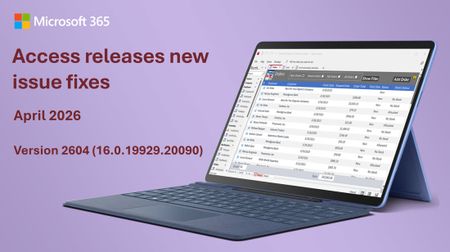
Bug Name Issue Fixed Values display in the wrong control when using a form as a sublist When a form was used as a sublist (subdatasheet), field values could display in the wrong control, showing data in incorrect positions. Values now display in the correct controls. Applications that use the Access Database Engine (ACEOLEDB) terminate unexpectedly on exit Third-party applications using the Access Database Engine (ACEOLEDB) provider could terminate unexpectedly when closing. The shutdown sequence has been corrected. Long Text field corrupted when a query updates a record while a user is editing it When a query updated a Long Text field on a record that was simultaneously open for editing, the field data could become corrupted. The record update now correctly handles concurrent access to Long Text fields. Rendering errors with Aptos (Detail) font Controls using the Aptos (Detail) font variant could render incorrectly, with characters appearing misaligned or garbled. The font rendering has been corrected. Standard colors in Access didn't match other Office apps The standard color palette in Access used different color values than other Office applications like Word and Excel. The color palette has been updated to match the rest of Office. Option Group with Vertical Anchor Bottom: option buttons show incorrect visual state after clicking When an option group control had its Vertical Anchor property set to Bottom, clicking an option button would not correctly update the visual state of the buttons. The visual state now updates correctly regardless of the anchor setting. Query Design: Insert/Delete Columns don't work when ribbon is set to Show Tabs Only In Query Design view, the Insert Columns and Delete Columns commands on the ribbon did not work when the ribbon display option was set to "Show Tabs Only." The commands now work correctly regardless of ribbon display mode. SQL View: Ctrl+K should toggle pretty formatting off/on In the Monaco SQL editor, the Ctrl+K keyboard shortcut did not toggle SQL formatting. Ctrl+K now correctly toggles pretty formatting on and off. Monaco editor incorrectly converts Unicode characters in SQL view When switching between Design View and SQL View, the Monaco SQL editor could incorrectly convert certain Unicode characters, corrupting the SQL text. Unicode characters are now preserved correctly. Importing text files with Unicode characters in the filename fails Attempting to import a text file whose filename contained certain Unicode characters would fail. File imports now handle Unicode filenames correctly. Added VarP and StDevP to the Totals query aggregate dropdown The VarP (population variance) and StDevP (population standard deviation) aggregate functions were missing from the Totals row dropdown in Query Design view. They have been added alongside the existing Var and StDev options. Added VarP and StDevP to the datasheet totals row dropdown The VarP and StDevP aggregate functions were missing from the Totals row dropdown in Datasheet view. They have been added to match the options available in Query Design view. Access hangs at shutdown when VBA holds temporary DAO field references Access could hang during shutdown when VBA code created temporary DAO field references. The shutdown process now correctly cleans up temporary field references. Full Screen Mode ribbon display option does nothing in Access Selecting "Full Screen Mode" from the ribbon display options had no effect in Access. This option now works correctly, hiding the ribbon to maximize the available workspace.2.2KViews3likes6Comments
Published agent from Foundry doesn't work at all in Teams and M365
I've switched to the new version of Azure AI Foundry (New) and created a project there. Within this project, I created an Agent and connected two custom MCP servers to it. The agent works correctly inside Foundry Playground and responds to all test queries as expected. My goal was to make this agent available for my organization in Microsoft Teams / Microsoft 365 Copilot, so I followed all the steps described in the official Microsoft documentation: https://learn.microsoft.com/en-us/azure/ai-foundry/agents/how-to/publish-copilot?view=foundry Issue description The first problems started at Step 8 (Publishing the agent). Organization scope publishing I published the agent using Organization scope. The agent appeared in Microsoft Admin Center in the list of agents. However, when an administrator from my organization attempted to approve it, the approval always failed with a generic error: “Sorry, something went wrong” No diagnostic information, error codes, or logs were provided. We tried recreating and republishing the agent multiple times, but the result was always the same. Shared scope publishing As a workaround, I published the agent using Shared scope. In this case, the agent finally appeared in Microsoft Teams and Microsoft 365 Copilot. I can now see the agent here: Microsoft Teams → Copilot Microsoft Teams → Applications → Manage applications However, this revealed the main issue. Main problem The published agent cannot complete any query in Teams, despite the fact that: The agent works perfectly in Foundry Playground The agent responds correctly to the same prompts before publishing In Teams, every query results in messages such as: “Sorry, something went wrong. Try to complete a query later.” Simplification test To exclude MCP or instruction-related issues, I performed the following: Disabled all MCP tools Removed all complex instructions Left only a minimal system prompt: “When the user types 123, return 456” I then republished the agent. The agent appeared in Teams again, but the behavior did not change — it does not respond at all. Permissions warning in Teams When I go to: Teams → Applications → Manage Applications → My agent → View details I see a red warning label: “Permissions needed. Ask your IT admin to add InfoConnect Agent to this team/chat/meeting.” This message is confusing because: The administrator has already added all required permissions All relevant permissions were granted in Microsoft Entra ID Admin consent was provided Because of this warning, I also cannot properly share the agent with my colleagues. Additional observation I have a similar agent configured in Copilot Studio: It shows the same permissions warning However, that agent still responds correctly in Teams It can also successfully call some MCP tools This suggests that the issue is specific to Azure AI Foundry agents, not to Teams or tenant-wide permissions in general. Steps already taken to resolve the issue Configured all required RBAC roles in Azure Portal according to: https://learn.microsoft.com/en-us/azure/ai-foundry/concepts/rbac-foundry?view=foundry-classic During publishing, an agent-bot application was automatically created. I added my account to this bot with the Azure AI User role I also assigned Azure AI User to: The project’s Managed Identity The project resource itself Verified all permissions related to AI agents publishing in: Microsoft Admin Center Microsoft Teams Admin Center Simplified and republished the agent multiple times Deleted the automatically created agent-bot and allowed Foundry to recreate it Created a new Foundry project, configured several simple agents, and published them — the same issue occurs Tried publishing with different models: gpt-4.1, o4-mini Manually configured permissions in: Microsoft Entra ID → App registrations / Enterprise applications → API permissions Added both Delegated and Application permissions and granted Admin consent Added myself and my colleagues as Azure AI User in: Foundry → Project → Project users Followed all steps mentioned in this related discussion: https://techcommunity.microsoft.com/discussions/azure-ai-foundry-discussions/unable-to-publish-foundry-agent-to-m365-copilot-or-teams/4481420 Questions How can I make a Foundry agent work correctly in Microsoft Teams? Why does the agent fail to process requests in Teams while working correctly in Foundry? What does the “Permissions needed” warning actually mean for Foundry agents? How can I properly share the agent with other users in my organization? Any guidance, diagnostics, or clarification on the correct publishing and permission model for Foundry agents in Teams would be greatly appreciated.Solved2.5KViews1like5CommentsCross Tenant Mailbox Migration: NotAcceptedDomainException
This week I'm performing a new cross tenant mailbox migration. I have some experience with this kind of migrations, ( it's the third one I'm in charge of ), and with the new procedure, ( will paste the link with the instructions at the end of this article ), an Azure Key Vault is no longer required, so I was very confident and thought that I would no have any issue. But, as sometimes occurs, I was wrong The setup was quite easy, and the mail users configuration was like always, so no a big deal. But now comes the point... Once I launched the migration batch, half of the users started syncing correctly and the ther ones failed, ( neither a MoveRequest was able to start for them ). Once I checked the errors, I got the same for all the failed ones: " NotAcceptedDomainException: You can't use the domain because it's not an accepted domain for your organization ". Ok. No problem... ( I thought ). I work with Exchange since more than 10 years and this is a common error message. ( Again I was wrong ). I started to check the mail users, looking for some misspelled domain, missing alias, spaces, etc... Basically, the troubleshooting for this kind of errors. But from my perspective all looked good. So, I decided to reconfigure all the mailusers with a script, launch a delta sync, and resume the failed moverequest. But again, same error for all of them. Checked again, with PS, from source and target tenant, checked in AD, all the proxy addresses... Nothing, all was correct! Non sense... Ok. At that point I decid to compare some syncing mail users with some failed ones, looking for anything that could be a pattern. And "voilá"! The syncing users were all licensed in O365... The failed ones not! After assigning a license to the failed ones and resume the MoveRequest, all started to work smoothly. For sure, I would have saved many hours of work if the error message had been: " The user is not licensed ". But, yeah... It would have been too simple 🙂 Summarizing, make sure that the mail users have an O365 license before you start the migration batch. And remember, not always the error messages are what they seems to be 🙂 Cross Tenant Mailbox Migration procedure, ( Preview 😞 https://docs.microsoft.com/en-us/microsoft-365/enterprise/cross-tenant-mailbox-migration?view=o365-worldwide2.4KViews3likes2CommentsFrom ESPN to the Spreadsheet Arena: How Excel MVPs Powered the Microsoft Excel World Championship
If you’ve ever watched someone do serious data work in Excel - building a model that feels like magic or using a perfectly crafted LAMBDA to do in one line what used to take a page of helper columns - you already understand the spirit of Excel esports. The Microsoft Excel World Championship (MEWC) turns that spirit into a live competition: timed “cases,” real-time leaderboards, and a crowd that cheers for spreadsheet moves the way sports fans cheer for a buzzer-beater. At the 2025 MEWC Finals (held December 1–3, 2025 at the HyperX Arena in Las Vegas), Microsoft MVPs showed up everywhere - on the broadcast desk, behind the scenes writing cases, and throughout the community sharing training tips and “inside tricks.” And in the biggest MVP moment of all, Excel MVP Diarmuid Early took home the world championship title. “The Excel World Championship is a high-stakes, fast-paced competition where top Excel users from around the world solve complex, timed challenges using advanced formulas and strategies.” – MVP Oz du Soleil Meet the Champion: MVP Diarmuid Early Winning the Microsoft Excel World Championship isn’t about memorizing a few formulas - it’s about staying calm under pressure, translating messy scenarios into clean models, and finding the fastest path from question to answer. In 2025, that combination belonged to Diarmuid Early, who battled through a field of elite competitors and emerged as the Microsoft Excel World Champion. One of the most MVP things about this win is what happened after the confetti: Diarmuid has been sharing how he thinks about cases and how he trains. If you want to learn by watching a world-class workflow end-to-end, start with his Road to Las Vegas 2025 video playlist, then check out his behind-the-scenes breakdown video, I won the Excel World Championship by folding Origami in a spreadsheet. It’s part engineering, part creativity - and 100% Excel. Diarmuid’s story also illustrates the bigger point: Excel esports is community-powered. The same people who teach, write, and answer questions every day are the ones shaping the competition - whether they’re designing challenges, explaining strategies on-air, or helping new players level up. Here’s a look at how MVPs helped make MEWC 2025 happen. (left) and MVP Oz du Soleil (right) in the commentary booth, breaking down the action at the Microsoft Excel Collegiate Championship (MECC) 2025. Photo credit: Giles Male On the mic: MVPs bringing Excel esports to the world “I was leaning over the commentators balcony looking out at hundreds of Excel fanatics who had travelled to Vegas to watch other people battle it out on spreadsheets… I just remember looking at Oz, and Oz looking at me, and he said '... we get to do this for a living?? I love my life'.” - MVP Giles Male For many viewers, the first “wait… Excel has a world championship?” moment happens because MEWC is genuinely fun to watch - especially with experts translating the action in real time. MVPs have been front and center on the broadcast, providing commentary that balanced entertainment with the kind of technical clarity only seasoned Excel educators can deliver. Oz du Soleil (Excel on Fire) is a long-time Excel educator known for making advanced concepts approachable - and for bringing serious storyteller energy. As an Excel esports commentator, Oz helps viewers understand not just what competitors are doing, but why their approach works (and when it doesn’t). Giles Male (Full Stack Modeller) brings deep modeling credibility to the desk - and, as he’s shared, sometimes gets the call with almost no notice. That combination of expertise and adaptability is exactly what makes live Excel commentary work. Jon Acampora (Excel Campus) is a familiar voice to many in the community, and his teaching-first mindset shows up perfectly in esports commentary: quick explanations, smart shortcuts, and a constant focus on helping viewers learn while they watch. Tim Heng (Sum Product) adds both technical sharpness and audience-friendly pacing - calling out the “tiny” decisions that separate good solutions from great ones (keyboard efficiency, formula structure, and when to stop polishing and submit). (left) and MVP Tim Heng (right) adding their commentary at the Microsoft Excel World Championship 2025. Photo credit: MVP Celia Alves What makes MEWC different: cases, clocks, and commentary prep “We get the cases a few days early so we can solve them ourselves - and then we map out how to explain the key moves, because the competition moves incredibly fast.” - MVP Oz du Soleil MEWC challenges competitors with timed Excel “cases” - scenario-based problem sets where accuracy, speed, and strategy all matter. The Finals are streamed on YouTube (and have also appeared on ESPN’s The Ocho), which means the broadcast must serve two audiences at once: hardcore Excel nerds who want to see the formula choices, and curious newcomers who just want to understand why the leaderboard is moving so fast. That’s where MVP commentary shines. As MVPs like Oz and Giles have shared, the commentary team typically receives cases in advance, works through solutions, and plans how to explain the key decision points - because once the clock starts, competitors can be done before you’ve even finished reading the question. “I was asked to step in 48 hours before the finals commenced. Which meant I had to try to learn all 9 battle cases in two days… this was all very intense, nerve-wracking, but just an amazing experience and opportunity overall.” - MVP Giles Male Behind the scenes: MVPs designing the puzzles (and sharing the playbook) Great esports needs great “maps.” In MEWC, that means cases that are tricky, fair, and fun - designed to reward strong spreadsheet fundamentals and creative approaches. Several MVPs contribute to the ecosystem that makes those cases possible, including MVPs David Brown, David Fortin Giles Male, Klinsmann Langhanz, Renier Wessels, and Tim Heng who create Excel challenge cases for the competition and for practice. And then there’s the part you can’t put on a scoreboard: the ongoing sharing culture. Around every battle, MVPs and community experts swap approaches, publish walkthroughs, break down solutions on YouTube, and teach the mental models that help competitors get faster. That might look like a new keyboard shortcut habit, a reusable “personal LAMBDA collection,” or a clever way to structure a model so you can answer six questions without rebuilding your logic six times. Why it matters (beyond bragging rights) Excel is one of the most widely used technology platforms on the planet - and yet many people still underestimate what it can do (or what great Excel users can do with it). MEWC puts advanced spreadsheet skills on a public stage and makes them legible: you can see the tradeoffs, the patterns, the creativity, and the discipline. When MVPs are involved at multiple levels - broadcasting, designing, teaching, competing - it sends a clear signal: this is a real craft, and the community around it is generous with knowledge. “Excel [is] the one tool that almost everyone has had to use at some stage in their career… 95% of the conversations I have with people who don’t know about it start with ‘No way… that exists??’ And then you start watching, and it’s just fascinating to see what a top Excel esport player can actually do.” - MVP Giles Male MVP Giles Male Watch it, learn from it, then try it Want to watch before you try it yourself? You’ve got two great options: a quick recap, or the full multi-hour deep dive. Highlights: Microsoft Excel World Championship 2025 Finals Highlights (12:43) Full competition: Microsoft Excel World Championship 2025 – Finals (4:00:54) And, if you’re thinking “My Excel skills aren’t enough,” that’s actually the perfect place to start - because you improve by doing cases, reviewing solutions, and iterating. You can jump in through Excel Esports Online, and explore practice material with sample cases (free) and case studies (fee). Many competitors (including MVPs) also share solution walkthroughs - often complete with explanations and reusable formulas. The pipeline is real: MECC and the next generation of Excel athletes One of the most exciting parts of the Excel esports story is how quickly it’s building a next-gen talent pipeline. Alongside MEWC is the Microsoft Excel Collegiate Challenge (MECC), a global competition for college students created by Excel MVP David Brown. It’s an on-ramp for students who want to test their skills, meet the community, and learn in public. If you haven’t read it yet, here’s a great starting point: From the Classroom to Las Vegas: MVP David Brown and the Excel Esports Revolution. Together, MECC and MEWC show how Excel learning can be both rigorous and genuinely fun - whether you’re a student, a seasoned analyst, or someone who loves discovering a cleaner way to write the same logic. Join the Excel community (and learn from the MVPs) Whether you watched MEWC on ESPN, caught a highlights clip on YouTube, or you’re quietly building a practice workbook at 1 a.m., the best part of Excel esports is that it’s welcoming. You don’t need to be “ready.” You just need to be curious - then practice, learn, and repeat. “To future competitors: just start. Don’t wait… You get better by competing. So just get stuck in, and learn from the early experiences which we all have to work through!” - MVP Giles Male If you want to sharpen your skills, trade ideas with other spreadsheet nerds, and learn directly from the people who teach the world’s best Excel techniques, join the Excel community and connect with our Excel MVPs. Start by exploring the championship home base at the Microsoft Excel World Championship website, try a few cases, and then share what you learned - because the fastest way to level up is to learn together.829Views2likes0CommentsIntroducing the Viva Engage Track at the 2026 Microsoft 365 Conference
Internal communications has never been more complex — or more essential. Whether you’re trying to cut through the noise, connect leaders with employees, or bring clarity to AI-driven change, the role of the modern communicator is evolving fast. At this year’s M365 Community Conference, we’re excited to bring you the Viva Engage Track — a focused learning path designed to help communicators, HR leaders, IT partners, and community champions build connected, informed, and high‑performing workplaces. You’ll get access to Microsoft’s own communications experts, Viva Engage product leaders, and practitioners who run global‑scale comms — all ready to share the patterns, storylines, frameworks, and real‑world playbooks that drive impact. You’ll learn how to inform, inspire, and activate employees in ways that actually work at scale. The sessions are stacked with can’t‑miss moments Across three days, this track walks you through the full modern comms lifecycle — strategy, storytelling, measurement, deployment, AI readiness, and community activation. Whether you’re focused on executive comms, knowledge sharing, community management, or engagement strategy, this is built for you. Today’s communicators are expected to: Navigate more channels than ever Reduce noise while increasing clarity Build trust in an era shaped by AI Move leaders closer to employees Create belonging in hybrid, dispersed organizations Support rapid change and transformation Here’s a closer look at what you’ll learn in the Viva Engage & Communications track: Modern Communications & Strategy How Microsoft Manages Global Employee and Executive Communications Learn from John Cirone, Sr. Director of Communications, how Microsoft orchestrates communications for 200,000+ employees, drives leadership connection, and uses Engage, SharePoint, and Copilot to scale impact. Breaking Through in a World of Information Overload and AI Amy Morris, Director of Communications, will help you reimagine channels and delivery across Engage and SharePoint to reach the right people at the right time—without adding noise. Use data, insights, and employee listening to build your comms strategy How do you measure and define success, and leverage signals from employee engagement and listening to drive business transformation and performance? Join Microsoft communications and product leaders for a practical look at how to build an effective listening system with tools including Engage, Insights, Glint and Pulse. Learn how to empower leaders and change agents with a comprehensive, 360-degree view of employee sentiment. And explore how insights can inform strategies and tactics to achieve your business objectives. Events, Communities & Knowledge Sharing Company-Wide Events—Scaling Innovation with Engage Learn how organizations run high-impact town halls, all-hands, and campaigns using Events, Q&A, Storyline, and Copilot. Product Group experts Dan Holme and Tricia Lybrook will give you the end-to-end experience for creating events your employees will remember! AI-Powered Collaboration: Unlocking Your Employee Knowledge Base See how Engage, Copilot, and intelligent agents help surface expertise and solve problems faster, while keeping people in the loop. See demos and learn directly from product group leaders Allison Michels and Ramya Rajasekhar about making this reality in your own organizations. Governance, Deployment & AI Transformation From Governance to Growth: A Practical Playbook for Viva Engage Deployment Turn governance, readiness, and compliance into a launchpad for adoption and engagement. Hear directly from the Product Group Leaders, Venkat Ayyadevara and Spencer Perry. Community in the Age of AI - Humans at the center of Copilot Adoption Elevate your communications and campaigns through the power of community and peer-to-peer lead learning. Communicators can lead the AI transformation at your company. Learn how AI-powered agents support community managers, but humans drive rituals, events, and engagement. Hear product experts Allison Michels and Sarah Lundy as they take you behind the scenes and showcase some Microsoft employee favorites, like the Copilot Adoption Community, campaigns, Camp Copilot and more. The Communicator’s Guide to Viva Engage Learn how to maintain relevance and authenticity in the age of AI through personalization, targeting, and sequencing that respects how people work. Learn from Product Group expert Sarah Lundy, drawing on her experience at Microsoft Digital Comms, and Product Manager Najla Dadmand as they show how technology and communications can work together. Spotlight Session: Engage Everywhere - The Viva Engage Roadmap One of the most anticipated sessions of the entire track, Engage Everywhere: Communities, Events & Storylines in Teams (Roadmap), offers a first look at what’s coming next. Hear directly from our Product Leadership Team, Jason Mayans, VP of Product, Steve Nguyen, Customer Experience, and Murali Sitaram, CVP Viva Engage. You’ll explore: The deeper native integration of Viva Engage inside Microsoft Teams -making communities, events, campaigns, and storylines feel seamless across devices and workstyles. AI-enhanced capabilities that connect employees to knowledge, leaders, and each other more intuitively and efficiently. New ways organizations can unify communications and engagement across Teams, Engage, Email, and SharePoint. What’s next for Events, Storyline, and Communities as Microsoft continues to converge engagement experiences in one place. This session is designed to help you visualize the future employee communications and engagement ecosystem—and understand how to build toward it today. Key Takeaways: Whether you’re modernizing communications, rolling out Copilot, building communities, or shaping culture, you’ll walk away with: Practical templates, patterns, and playbooks Insights from Microsoft’s own communications experts Guidance for integrating AI responsibly and effectively Clear steps to elevate engagement across your organization The Viva Engage Track brings together the people driving community and connection every day, inside Microsoft and across customers to explore what’s working, what’s changing, and what’s possible. If you want to build stronger community, elevate employee connection, or shape the future of workplace storytelling, this track belongs on your agenda. Join us!2.5KViews0likes0Comments