location
25 Topics
Geolocation wrong (really wrong) in Edge but correct in Chrome
This is probably a Windows 10 API problem not an Edge issue, but geolocation is wrong - usually really, really wrong - in Edge... while Chrome gets my location dead-on. On the same computer. At the same time. Before we get into any 101 fixes - I deal with location tech in my job, and I know W10 well enough to know how to correctly configure my country, and clear my location. This is a problem that exists on fresh installs of W10 and Edge. I can send some screenshots to engineers who may be lurking. The distance off is around 500 miles or so. It is locating me in a place that I've never visited. This has been a problem for years and a few (Google) searches shows that it pops up in the Feedback Hub, the user forums and other places every now and then, with no fix. I really want to use Edge. But correct geolocation is so fundamental to everything associated with search-based services today, and it gets old getting recommendations to walk down the street to a store that is 500 miles away.37KViews4likes16CommentsLet us Choose Download Location For each File Type separately in Edge insider browser
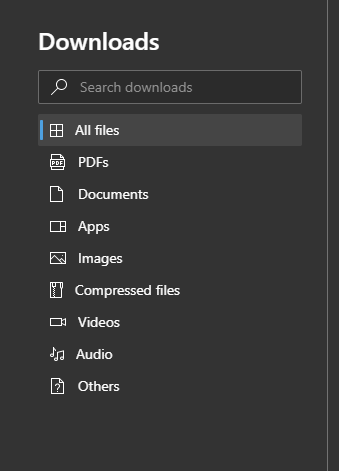
Here are the file types Edge insider browser currently recognizes in downloads My suggestion is to let us choose a separate Download location for each file type. Because: I usually download games or movies (compressed files for games and video files for movies/series) that are big (>10GB) and in multiple parts. I want them to be saved on somewhere else other than C drive, such as my HDD drive for archieve. I want PDF files to be automatically saved in Documents folder/PDF. I want downloaded Image file be saved in my OneDrive/Pictures folder so they get automatically synced and uploaded to my OneDrive cloud space. I want Audio files be saved in a Different folder where my music player program and Spotify watch those folders for music files (MP3, AAC etc). I want unknown files (files with extensions other than those mentioned above) to be saved in the default download location so I can decide what to do with them later. I want .exe files (programs) to be automatically saved in a different partition where the rest of my programs are. And so on. there is currently one global download location having to choose a download location and browse for a folder for each of them every time is not convenient, so, Please Let us Choose Download Location For each File Type separately in Edge insider browser. also let Edge insider Sync these download location settings with cloud so Users won't have to apply all of these modifications Again after reinstalling browser or OS change, etc. Thanks6.9KViews16likes5CommentsCreating Custom Map Visualizations with Azure Maps
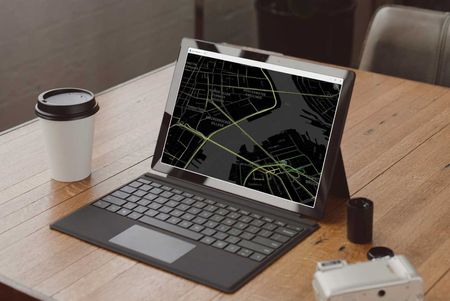
Azure Maps empowers businesses and developers by making it easy to create custom maps and interactive visualizations. Whether you’re using Power BI or integrating APIs directly into applications, Azure Maps simplifies each step—from data preparation to advanced customization. Its robust features, scalability, and superior support set it apart, enabling you to unlock deeper insights through the visualization of geospatial data6.2KViews1like0Comments
Locate Android fully managed
Hello, I read that is now possible to locate Android Entreprise Fully managed in Intune : https://learn.microsoft.com/en-us/mem/intune/remote-actions/device-locate#supported-platforms I activate the Locate device in the device restrictions for my phone test. But every time I try to locate the device in Intune, I have the notification on the phone but I have an error on Intune : The locate device action failed. Try refreshing. Did you try? Is it working?5.3KViews0likes6Comments
Introducing the Azure Maps Geocode Autocomplete API
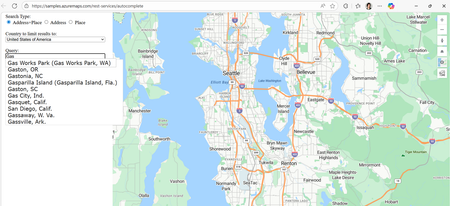
We’re thrilled to unveil the public preview of Azure Maps Geocode Autocomplete API, a powerful REST service designed to modernize and elevate autocomplete capabilities across Microsoft’s mapping platforms. If you’ve ever started typing an address into a search bar and immediately seen a list of relevant suggestions—whether it’s for a landmark, or your own home—you’ve already experienced the convenience of autocomplete. What’s less obvious is just how complex it is to deliver those suggestions quickly, accurately, and in a format that modern applications can use. That’s exactly the challenge this new API is designed to solve. Why Autocomplete Matters More Than Ever The Azure Maps Geocode Autocomplete API is the natural successor to the Bing Maps Autosuggest REST API, designed to meet the growing demand for intelligent, real-time location suggestions across a wide range of applications. It’s an ideal solution for developers who need reliable and scalable autocomplete functionality—whether for small business websites or large-scale enterprise systems. Key use cases include: Store locators: When a customer starts typing “New Yo…” into store locator, autocomplete instantly suggests “New York, N.Y.” With just a click, the map centers on the right location—making it fast and effortless to find the nearest branch. Rideshare or dispatching platforms: A rideshare driver needs to pick up a passenger at “One Microsoft Way.” Instead of typing out the full address, the driver starts entering “One Micro…” and the app instantly offers the correct road segment in Redmond, Washington. Delivery services: A delivery app can limit suggestions to postal codes within a specific region, ensuring the addresses customers choose are deliverable and reducing the risk of failed shipments Any Web UIs requiring location input: From real estate search to form autofill, autocomplete enhances the user experience wherever accurate location entry is needed. What the API Can Do The Geocode Autocomplete API is designed to deliver fast, relevant, and structured suggestions as users type. Key capabilities include: Entity Suggestions: Supports both Place (e.g., administrative districts, populated places, landmarks, postal codes) and Address (e.g., roads, point addresses) entities. Ranking: Results can be ranked based on entity popularity, user location (coordinates), and bounding box (bbox). Structured Output: Returns suggestions with structured address formats, making integration seamless. Multilingual Support: Set up query language preferences via the Accept-Language parameter. Flexible Filtering: You can filter suggestions by specifying a country or region using countryRegion, or by targeting a specific entity subtype using resultType. This allows you to extract entities with precise categorization—for example, you can filter results to return only postal codes to match the needs of a location-based selection input in your web application. How It Works The Geocode Autocomplete API is accessed via the following endpoint: https://atlas.microsoft.com/geocode:autocomplete?api-version=2025-06-01-preview This endpoint provides autocomplete-style suggestions for addresses and places. With just a few parameters, like your Azure Maps subscription key, a query string, and optionally user coordinates or a bounding box, you can start returning structured suggestions instantly. Developers can further issue geocode service with the selected/ideal entity as query to locate the entity on map, which is a common scenario for producing interactive mapping experiences. Let’s look at below examples: Example 1: Place Entity Autocomplete GET https://atlas.microsoft.com/geocode:autocomplete?api-version=2025-06-01-preview &subscription-key={YourAzureMapsKey} &coordinates={coordinates} &query=new yo &top=3 A user starts typing “new yo.” The API quickly returns results like “New York City” and “New York State,” each complete with structured metadata you can plug directly into your app. { "type": "FeatureCollection", "features": [ { "type": "Feature", "properties": { "typeGroup": "Place", "type": "PopulatedPlace", "geometry": null, "address": { "locality": "New York", "adminDistricts": [ { "name": "New York", "shortName": "N.Y." } ], "countryRegions": { "ISO": "US", "name": "United States" }, "formattedAddress": "New York, N.Y." } } }, { "type": "Feature", "properties": { "typeGroup": "Place", "type": "AdminDivision1", "geometry": null, "address": { "locality": "", "adminDistricts": [ { "name": "New York", "shortName": "N.Y." } ], "countryRegions": { "ISO": "US", "name": "United States" }, "formattedAddress": "New York" } } }, { "type": "Feature", "properties": { "typeGroup": "Place", "type": "AdminDivision2", "geometry": null, "address": { "locality": "", "adminDistricts": [ { "name": "New York", "shortName": "N.Y." }, { "name": "New York County" } ], "countryRegions": { "ISO": "US", "name": "United States" }, "formattedAddress": "New York County" } } } ] } Example 2: Address Entity Autocomplete GET https://atlas.microsoft.com/geocode:autocomplete?api-version=2025-06-01-preview &subscription-key={YourAzureMapsKey} &bbox={bbox} &query=One Micro &top=3 &countryRegion=US A query for “One Micro” scoped to the U.S. yields “NE One Microsoft Way, Redmond, WA 98052, United States.” That’s a complete, structured address ready to be mapped, dispatched, or stored. { "type": "FeatureCollection", "features": [ { "type": "Feature", "properties": { "typeGroup": "Address", "type": "RoadBlock", "geometry": null, "address": { "locality": "Redmond", "adminDistricts": [ { "name": "Washington", "shortName": "WA" }, { "name": "King County" } ], "countryRegions": { "ISO": "US", "name": "United States" }, "postalCode": "98052", "streetName": "NE One Microsoft Way", "addressLine": "", "formattedAddress": "NE One Microsoft Way, Redmond, WA 98052, United States" } } } ] } Example 3: Integration with Web Application Below sample shows user enter query and autocomplete service provide a series of suggestions based on user query and location. Pricing and Billing The Geocode Autocomplete API uses the same metering model as the Azure Maps Search service. For billing purposes, every 10 Geocode Autocomplete API requests are counted as one billable transaction. This approach keeps usage and costs consistent with what developers are already familiar with in Azure Maps. Ready to Build Smarter Location Experiences? Whether you're powering a store locator, enhancing address entry, or building a dynamic dispatch system, the new Geocode Autocomplete API gives you the precision, flexibility, and performance needed to deliver seamless location intelligence. With real-world use cases already proving its value, now is the perfect time to integrate this service into your applications and unlock richer, more interactive mapping experiences. Let’s build what’s next—faster, smarter, and more intuitive. Resources to Get Started Geocode Autocomplete REST API Documentation Geocode Autocomplete Samples Migrate from Bing Maps to Azure Maps How to use Azure Maps APIs4KViews1like1Comment[Fixed] Need help with Bing location
Can anyone tell me how to Stop Bing from changing my location and country when I connect to VPN? it's frustrating when Bing shows me non-English search result.. I might use for example a French VPN (IP) but that doesn't mean I can read French too.2.9KViews0likes11Comments