lists
3218 Topics
Workflow for importing Excel to List
I'm a novice developing a workflow for importing an Excel spreadsheet to a SharePoint list. Have I missed anything? Workflow: Thoroughly clean up the data in Excel before importing to a list. Caution: Excel filters (and list filters) are case-insensitive and ignore superfluous spaces, etc. So we can't rely solely on filter functionality to find messy values. Instead, consider using the EXACT function in Excel like this: =OR(EXACT(A2,"PRIMARY"),EXACT(A2,"SECONDARY")). See this Stack Exchange post for more options: https://sharepoint.stackexchange.com/questions/317576/find-list-values-that-arent-in-the-picklist-choices Or, as a last resort, we could consider importing to an Oracle table and use a GROUP BY query (SQL) to find incorrect values, since that's dead easy in databases. I don't use Access for this because it has the same filtering limitations that Excel and lists have. Manually create an empty list. Or import a blank list from Excel and modify it. Caution: When importing from Excel to a list, the list won't honor the Excel column names for the internal list names, even if the Excel names are clean. The list will generate column names like "field_0" through to "field_30" (or whatever applies). Google suggests importing from Access is an alternative -- the column names should be honored. https://i.sstatic.net/3KoAsrMl.png Caution: The time zone for my SharePoint sites and personal MS list environment is wrong. It's set to Pacific Time, when it should be Eastern Time. Keep an eye on any list date values to ensure they are correct and haven't been automatically changed to a different day. Import the Excel rows/data using Power Automate. For what it's worth, any dates that get imported via PA will be correct, despite the time zone, unlike when importing data from Excel using the list UI. Inspect the imported data, correct the list columns/settings, correct the Excel data, and repeat #3. Do this multiple times -- as many times as it takes.275Views0likes1CommentNew in SharePoint Lists: Choose How Views Appear
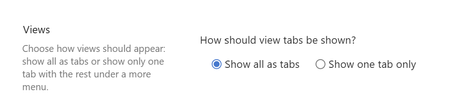
One of the newest SharePoint Lists features is also one of the simplest... and that's exactly why I like it. Microsoft has added a new setting that lets you choose how views are displayed in a SharePoint list. If you work with SharePoint Lists regularly, you've probably seen lists with a large number of views. Over time, the navigation bar can become crowded with tabs: 📋 All Items 📋 Active 📋 Completed 📋 My Items 📋 Archived 📋 Reports 📋 And many more... Now, SharePoint offers a new option in List Settings → Advanced Settings: ✅ Choose how views should appear You can either: ✅ Show all views as tabs or ✅ Show only one tab and place the remaining views under a More views menu This may sound like a small UI enhancement, but it can have a noticeable impact on usability. Benefits include: 🔹 Cleaner navigation 🔹 Less visual clutter 🔹 Better use of screen space 🔹 Easier experience for end users 🔹 A more modern and streamlined interface Interestingly, I don't see this setting available in Document Libraries yet, only in SharePoint Lists. It will be interesting to see whether Microsoft brings the same experience to Document Libraries in a future update. I often say that successful adoption is not only about new capabilities. It's also about reducing friction. When users can find what they need faster and the interface feels less overwhelming, the overall experience improves significantly. Not every Microsoft 365 update needs to be revolutionary. Sometimes the best improvements are the ones that quietly make everyday work easier. Have you already noticed this new SharePoint Lists setting, and which option would you choose for your users: All Views as Tabs or More Views? Check out the video i have recorded on the topic https://www.youtube.com/watch?v=y5jDYkkgL0E #SharePoint #SharePointLists #Microsoft365 #M365 #MicrosoftLists #SharePointOnline #Productivity #DigitalWorkplace #Collaboration #Microsoft365Tips398Views1like1CommentIf list multi-select choice column contains certain value, auto-populate flag column in related list
I have a SharePoint list called List1 with columns ID (single-line text) and Type (multi-select choice): ID Type ---- ------ ID1 Apple ID2 Apple, Pear ID3 Pear, Banana, Apple ID4 Pear ID5 And a second list called List2 with columns ID (a Lookup column) and Has_Pear (yes/no). I want to automatically populate Has_Pear with "Yes" if the related row in List1 has "Pear" in the Type column. Like this: ID Has_Pear ---- ------ ID1 No ID2 Yes ID3 Yes ID4 Yes ID5 No How can I automatically populate the Has_Pear column?574Views0likes3Comments
JSON formatting to change background color of ENTIRE column of list?
Hi, I'm trying to use JSON formatting to change the color of an entire column of a SharePoint list, and I can't figure it out. Setting the background-color style property appears to only affect the background color of the text. You can still see the default column color in between rows. I want the whole column to be one color. Is there a way to do that?Solved702Views0likes2Comments
Custom Formatter for Read-Only Fields conditional based on other columns
Hello! Does anyone know if it's possible with the fieldsettings, readonly formatting, to make it conditional based on a Person field? It's a multi people field if that makes a difference? I ideally want to make certain fields read only based on who is viewing it (without having to use a Power App customised form!). This is what I want (but I know the syntax is likely all wrong!) but not sure if it's possible to use an IF statement with boolean statements? { "sections": [ {} ], "fieldsettings": [ { "name": "Comments", "readonly": "=if([$People.email] == me, false, true)" } ] }1KViews0likes2Comments
MS List Column Width Forced
Hi, I've had a number of MS lists and been able to enter grid view and amend the width of columns and the text doesn't overflow which I want to keep the overall list width smaller; but as of yesterday all my columns are forced to be as wide as the text, meaning the that 1 column can be multiple screens wide for multi-line columns and they can't be resized smaller Is this a bug? Any help appreciated.876Views0likes2CommentsSharePoint list dynamic filtering on a multi-choice column
Hello, I was wondering if anyone has a solution/work around for a limitation I'm running into with using dynamic filtering on one of my SharePoint lists. The way I have it set up: there is a "Tags" column that has multi-selectible choices like "x", "y", "z", etc. The problem I'm running into is when you try doing dynamic filtering on the list webpart and want to view every item with tags "x AND y", it filters using the logic "x OR y". So, the output contains way too many unrelated items and the filtering is pretty much pointless. This is on top of the limitation that you can only dynamically filter by 1 column at a time, which is why I needed to add every tag to a multi-selectable choice column in the first place. Has anyone found a way around this? Or is there some solution I'm not seeing?Solved904Views0likes1CommentImport picklist values for SharePoint List choice field
I have a column in a SharePoint List that uses the choice field type. I'm able to manually enter each choice value by copying/pasting text from an Excel spreadsheet. Is there a way to import a long list of values directly into SharePoint to save time?714Views0likes3CommentsExternal Users Unable to Access Microsoft List Form
We have created a Microsoft List and are using the default Microsoft Lists Form for data entry / intake form. Internal users can access the form URL and submit items successfully. However, external users are unable to access the form link, even though they have been granted Contribute permissions to the SharePoint list. External users can: Access the list Create new items using the + New button Edit items based on their permissions However, they cannot access the dedicated Microsoft Lists Form URL and getting following error. This link is only available to internal users. This link is not available to you. Our requirement is to allow external users to: Open the Microsoft Lists Form URL View the form Submit new items without providing additional access beyond what is required for form submission, and without using Microsoft Forms. Is guest/external user access to the Microsoft Lists Form experience supported? If so, what configuration or permissions are required to enable external users to access and submit items through the form URL?Solved865Views0likes3Comments
Can you preserve links when exporting from a list to Excel?
Hi! I have a list with a multiline text field set to support enchanced richtext used to store URLs of files. I am inserting data into this list when people submit a Jotform using Power Automate to connect the two. In Power Automate, I build the field value by looping the uploaded files and building out HTML: <a href="https://www.server.com/path/file.png">file.png</a><br> <a href="https://www.server.com/path/file.pdf">file.pdf</a><br> Problem is, if I go to the list and do Export to Excel, the query.iqy file I get just shows file.png and file.pdf as basic, nonlinked text in the column. Is there any way to get Sharepoint to create an Excel file where the links are preserved?377Views0likes1Comment