issue
84 Topics
Thumbnails in Explorer.exe Using Up Significant Memory
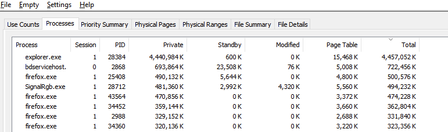
It seems that there is an issue with explorer with storing thumbnail cache for folders containing 6k to 8k resolution videos. For context, I keep virtual reality videos in one folder and every single time I open this folder and browse through all other files and sub folders, the memory usage for explorer spikes up. I need help on how to fix this issue. Any workarounds such as storing thumbnail cache on the drive instead of the RAM would help. I'm using Windows 10 22H215Views0likes0Comments
File History problems after installing KB5124008, KB5126052,KB5126146, KB5122878, and KB890830
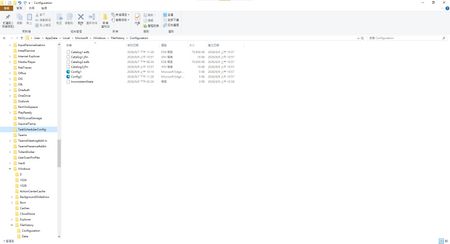
This morning, I ran Windows Update on two Windows 10/11 computers, but the file history feature stopped working completely after the update. Previously, after updating KB5120249 and KB5101684, files could still be backed up to the D: drive normally. The "Last Backup" time in "File History" is not updating correctly. Newly created or saved Word documents, pictures, videos, etc., still show "No previous version available" in "Content → Previous Versions". No folders were corrected; their dates are automatically updated. After running Windows Update again today, the file history feature stopped working on both computers. The File History panel pops up but cannot be used, prompting for a hard drive connection. (The hard drive is connected and I've confirmed it can read and write.) resulting in an "InconsistentState" entry in C:\Users\User\AppData\Local\Microsoft\Windows\FileHistory\Configuration. I'm very angry. If Microsoft doesn't address this, I'll keep complaining. If anyone else has encountered the same situation, please leave a comment below. You can also check Microsoft Q&A or the Microsoft Community Hub. The five updates installed are: September 8, 2026—KB5122878 (OS Builds 19045.7725 and 19044.7725) September 8, 2026-KB5126146 Cumulative Update for .NET Framework 3.5, 4.8 and 4.8.1 for Windows 10 Version 22H2 2026-09 Security Update (KB5124008) (26200.9445) 2026-09 .NET Framework Security Update (KB5126052) Windows Malicious Software Removal Tool x64 - v5.145 (KB890830) Deleting the %LocalAppData%\Microsoft\Windows\FileHistory folder also failed. Furthermore, "File History" itself is not listed in Microsoft's "Deprecated Features List." While other backup features suggest that Microsoft has no plans to discontinue it. Microsoft is going to pretend it doesn't exist. These worked normally before the update but stopped working afterward. This is to inform other users experiencing the same problem.6.1KViews5likes43Comments
Copilot Agent not consistently Respecting SharePoint Document Permission
Hi everyone, I have created a Copilot agent that answers questions based on documents stored in SharePoint, and I want the agent to respect the user's SharePoint permissions. For example: I have two documents: Document A and Document B. User A has access to Document A but does not have access to Document B. When User A asks a question related to Document A, the agent should provide an answer. When User A asks a question related to Document B, the agent should not provide any information because User A does not have permission to access that document in SharePoint. However, I am experiencing inconsistent behavior. Sometimes the Copilot agent correctly respects the SharePoint permissions, but at other times it provides an answer from a document that the user does not have access to in SharePoint. In some cases, even users who do have access to a document do not receive an answer from it. I am using Microsoft authentication and SharePoint as the knowledge source. Has anyone experienced this issue with Copilot Studio and SharePoint security trimming? Could this be related to indexing, caching, authentication, permissions propagation, or the way the agent retrieves documents? I would appreciate any guidance on how to ensure that the Copilot agent consistently respects the user's SharePoint permissions when retrieving and answering from documents.112Views1like0CommentsThere is problem with file history logging after the recent Windows updates (KB5101684 / KB5121003)
Hi everyone, This is not spam, I did not spam the site. It appeared after the update. I hope Microsoft can resolve this issue, and I also hope other users experiencing the same problem can reply to me. Please, please. Ever since the latest Windows updates (specifically around KB5101684 / KB5120249 on Windows 11 Build 26200/Windows 10 Build 19045), The File History feature is almost unusable for me; although it works, the problem only occurs after an update. Symptoms: The "Last Backup" time in File History is not updating correctly. Newly created or saved Word documents, images, videos, etc., still show "No previous version available" in "Content → Previous Versions". The Correct folder's date is automatically changed. System details: OS: Windows 11 25H2 (Build 26200.9278) OS: Windows 10 22H2 (Build 19045.7663) Recent Updates Installed: KB5120998, KB5120249, KB5101684. Has anyone else experienced this issue with recent Windows updates? Currently, the only solution is to go to Control Panel → All Console Items → File History → Select Drive → Select D: drive again. After completing this step, File History will return to normal. This is a post I made. Other users who have experienced the same thing left comments below. KB5101684/KB5120249 caused File History errors, but Microsoft has not acknowledged them. | Microsoft Community Hub Welcome to comment if KB5101684 or KB5120249 caused the same File History issue. | Microsoft Community Hub I want to ask Microsoft, why are there abnormal in the file history logs after these two updates? | Microsoft Community Hub Win 10/11 file history is malfunctioning after an update why hasn't Microsoft fixed this issue yet? | Microsoft Community Hub https://learn.microsoft.com/en-nz/answers/questions/5972265/windows-11-file-history-not-updating-correctly-aft https://learn.microsoft.com/en-nz/answers/questions/5978256/win-11-25h2kb5101684-os-builds-26200-8973-and-2610 https://www.reddit.com/r/computerhelp/comments/1vituh0/comment/p6dxvs4/?context=1&screen_view_count=2&ext-referrer=DIRECT https://www.reddit.com/r/WindowsHelp/comments/1w6zlem/comment/p8bbu3j/?context=1&screen_view_count=2&ext-referrer=DIRECT411Views2likes1CommentBroken File History after July/August Updates (KB5101684 on Win11 25H2 / KB5120249 on Win10 22H2)
Hi everyone, I am writing to report a major regression bug with File History that was introduced in the recent Windows updates. This is happening across two entirely different machines with no settings changed, no system files modified, and no registry tweaks applied. The Issue: Windows 11 25H2 > after installing KB5101684 (July 29, 2026) Windows 10 22H2 > after installing KB5120249 (August 12, 2026) On both PCs backing up to a local drive (D:), the underlying files are actually being written to the drive, but the File History interface is completely broken: TheLast Backup time stamp in Control Panel frozen and fails to update automatically. In File Explorer, right-clicking new files > Properties> Previous Versions shows There are no previous versions available, making daily time-travel restoration impossible. Temporary Workaround: The only way to force it to sync is to go to Control Panel > File History > Select Drive, and re-select the D: drive again. This proves the backup engine works, but the automatic scheduling and catalog syncing are completely frozen by these updates. Please Help Upvote on Feedback Hub: I have already submitted this issue via the Feedback Hub but have received no official response yet. Since File History is critical for users who prefer local offline backups over OneDrive, we need to bring this to Microsoft’s attention immediately so they can patch it in the next cumulative update. If you are experiencing the same issue, please upvote my feedback link below:[Post your Feedback Hub sharing screenshot]439Views4likes1CommentI've tried the methods but they still don't work. I don't know what to do.
This past month has been very frustrating for me. It's not that I like to ramble, but I've genuinely encountered problems after updating. I want to ask Microsoft: after updating my laptop and desktop to KB5101684 and KB5120249, I'm experiencing issues with file history: Files can still be backed up to the D drive normally. The "Last Backup" time in "File History" is not updating correctly. Newly created or saved Word documents, images, videos, etc., still show "No previous version available" in "Content → Previous Versions". I haven't modified some folders; please change the modification dates yourself. Both updates state, "This update fixes an issue that affects File History automatic backups to network shares using Server Message Block (SMB). Backups did not work because Windows showed a false 'invalid credentials' error when connecting to SMB shares." I didn't expect the update to cause this problem; dozens of users have reported the same issue. Microsoft, please investigate and fix this. When will it be fixed? If you have the same problem as me, please leave a comment below. I want to ask Microsoft, why are there abnormal in the file history logs after these two updates? | Microsoft Community Hub According to methods suggested by online users: Open File Explorer, navigate to C:\Users\[Your Username]\AppData\Local\Microsoft\Windows\FileHistory, and delete all contents in the Configuration folder. Next, go to Settings > System > Storage, turn off File History, and then re-add drive D as the backup destination. This method still did not work. Both updates state, "This update fixes an issue that affects File History automatic backups to network shares using Server Message Block (SMB). Backups did not work because Windows showed a false 'invalid credentials' error when connecting to SMB shares." I didn't expect the update to cause this problem; dozens of users have reported the same issue. Microsoft, please investigate and fix this. When will it be fixed? If you have the same problem as me, please leave a comment below.370Views0likes2Comments
Critical Pen Hover & Stray Ink Issue on New Surface Pro 11 for Business with Slim Pen 2
Hello Microsoft Community and Support Staff, I am writing to report a critical and seemingly widespread issue with the pen input on the brand-new Surface Pro for Business, 13-inch (Intel model, often called Surface Pro 11 "Luna Lake"). The Core Problem: Pen Draws Without Touching the Screen When using the Surface Slim Pen 2, the device begins to register ink input while the pen is still hovering a few millimeters above the screen. It does not require any physical contact or pressure. This "hover-inking" makes handwriting completely unusable. As I write, any time I lift the pen to start a new letter or stroke, the pen continues to draw a line as it moves through the air to its next position. This results in messy, connected handwriting with unwanted "tails," completely defeating the purpose of having a premium inking device. This is Not a Defective Unit - It's a Replicable Problem Initially, I thought I had a faulty device. However, to isolate the issue, I have performed extensive testing: I have personally tested this on [3] brand-new Surface Pro 11 (Intel) devices. I have used [4] different Slim Pen 2s. The exact same hover-inking problem occurred on every single combination of device and pen. Furthermore, I have already performed all standard troubleshooting steps, including: Clean OS installation via Surface Recovery Image. Ensuring all Windows, driver, and firmware updates are installed. Running the Surface Diagnostic Toolkit (which reported no errors). However, the same issue continues to occur even after trying these methods. Additionally, it has been reported that the issue also appears on the latest Surface Pro 12-inch model with the Snapdragon X Plus, just like on the Surface Pro 11 that uses the Qualcomm Snapdragon X Elite instead of Intel’s Lunar Lake. (I do not own any Snapdragon devices myself. If you own a Snapdragon device and are experiencing the same issue, please share your feedback.)" Video Evidence: I have recorded a clear video demonstrating the problem. It shows the pen drawing while hovering on the Surface Pro 11 and makes unwanted tails on handwriting letters. Video Link: https://youtube.com/playlist?list=PLG_7BXFA-cL4evqe0RmRz--iFjDC1HVgT&si=EmEypaAqSyRozr67 Questions for Microsoft: Is this a known issue with the new Surface Pro 11 (Intel) model's firmware or drivers? What are the official steps to escalate this issue directly to the Surface engineering team for a fix? This is a major flaw in a flagship product that severely impacts its core functionality. I have submitted a formal bug report through the Feedback Hub, which can be found here: Feedback Hub Link: https://aka.ms/AAxzh27 I urge the Microsoft team to investigate this with high priority and release a firmware or software update to recalibrate the pen's Initial Activation Force (IAF). Thank you for your attention to this serious matter.1.8KViews12likes9Comments
Microsoft Print to PDF not working/missing.
The Microsoft Print to PDF was not working on my PC so I tried reenabling it via Windows Features in Optional Features and it won't turn back on. It gives error code: 0x800f0922. I also tried other various methods online and none work. All end with various error codes which all result in the service not working/turning on. I even filed feedback about 2 weeks ago with no response yet. I contacted support, where I was recommended to perform a repair via ISO but was then canceled by the agent as I am on an Insider build. I am on build 26300.8687. This is a summary of my diagnostic from Gemini which I had used to try to solve my issue. Here is a summary of the diagnostic, tracking every command I executed in PowerShell and the specific roadblocks the Windows subsystem threw back. The Add-Printer Layer attempted to use modern PowerShell commands to register the printer onto both the interactive prompt port and the standard local file port. Commands Ran: PowerShell Add-Printer -Name "Microsoft Print to PDF" -DriverName "Microsoft Print to PDF" -PortName "PORTPROMPT:" Add-Printer -Name "Microsoft Print to PDF" -DriverName "Microsoft Print to PDF" -PortName "FILE:" * **Errors Faced:** * `ObjectNotFound: (MSFT_Printer:ROOT/StandardCimv2/MSFT_Printer)` * `HRESULT 0x80070002,Add-Printer` --- ## 2. The Legacy PrintUI Layer To bypass the modern PowerShell cmdlet, I tried using the legacy Windows user interface print engine via standard command prompt syntax and escaped quotes. * **Commands Ran:** ```powershell cmd /c "rundll32 printui.dll,PrintUIEntry /if /b `"Microsoft Print to PDF`" /r `"PORTPROMPT:`" /m `"Microsoft Print to PDF`"" rundll32 printui.dll,PrintUIEntry /if /b "Microsoft Print to PDF" /f "C:\Windows\System32\spool\DRIVERS\x64\3\prnms009.inf" /r "PORTPROMPT:" /m "Microsoft Print to PDF" Errors Faced: A graphical dialog box error: Operation could not be completed (error 0x00000002). The system cannot find the file specified. The Deployment Script Layer (WMI/CScript) I tried deploying the printer using Windows’ built-in visual basic administrative scripts to side-step the user interface layer completely. Command Ran: PowerShell cscript $env:windir\System32\Printing_Admin_Scripts\en-US\prnmngr.vbs -a -p "Microsoft Print to PDF" -m "Microsoft Print to PDF" -r "PORTPROMPT:" * **Errors Faced:** * `Unable to add printer Microsoft Print to PDF Error 0x80041002 Not found` * `Operation PutInstance` * `Provider Win32 Provider` * `Description The system cannot find the file specified. Win32 error code 2` Ultimately, every single command failed with an identical variation of **"File Not Found" (Error 2 / 0x80070002 / 0x80041002)**.1.2KViews0likes4Comments
Persistent issues with Read Aloud in Edge
I have Windows 11. Today I began having an issue wherein the Read Aloud feature built into Edge doesn't work. I was initially trying to use a similar function on Internet Archive, and noticed that while all the Microsoft voices seemed to be available in the onsite dropdown, the only voices that made any sound were David, Mark, and Zira---none of the "Online (Natural)" voices. I tried to use Read Aloud as a workaround, and found all the buttons greyed out completely. Mind you, everything worked fine yesterday, and I made no changes to my computer in the intervening time. I've opened up two support tickets, but neither live chat agent was able to resolve the issue. Here are the things I've tried with their help: trying the feature on different websites updating & restarting Edge resetting Edge settings to defaults updating & restarting computer switching wifi networks connecting to a hotspot using InPrivate mode using a new Edge profile (rule out interference from extensions) checking that English tts is downloaded in Time & language > Language & region turning Online speech recognition off and back on again resetting experimental features checking sound systems (they work, but just in case) doing a system reset (?) to 24 hours ago, which took about an hour and undid all the updates I just mentioned maybe something else I don't remember? The next thing I am going to try is give my computer a long nap. It's been a while, so maybe it just needs some shut eye. Otherwise, help????2.3KViews0likes2Comments