groups
578 TopicsMGDC for SharePoint: AadObjectId may sometimes be missing in User metadata (fixed)
We identified issues affecting specific Microsoft Graph Data Connect (MGDC) for SharePoint scenarios. In some cases, user identity records in the SharePoint Sharing and SharePoint Groups (SPGroups) datasets lacked the Entra ID object ID (formerly Azure Active Directory Object ID, or AadObjectId). As a result, the same user could appear differently across reports, causing discrepancies in reported user counts. We resolved the issue by improving the identity resolution. The Sharing and SPGroups datasets now use Entra ID identity information to retrieve the complete and accurate AadObjectId values. We also identified a scenario where a user was deleted from Entra Id but still showed in the dataset either with a stale or an empty value for AadObjectId. Going forward, those users will consistently show up with an empty AadObjectId. If you use the Sharing or SPGroups datasets, you may notice more accurate user information and changes in user counts compared with earlier reports. User objects may now include AadObjectId values where these did not show before and stale user objects will show up with empty values for AadObjectId. Delta datasets will also reflect these updated or removed objects as a result of this fix. This update is being rolled out in the next few weeks. It improves the accuracy and consistency of user identities in permissions datasets, giving customers greater confidence when reviewing which users have access to SharePoint and OneDrive content.MGDC for SharePoint: New Columns in September 2026
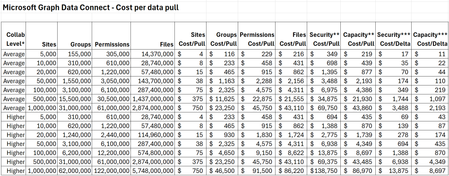
The MGDC for SharePoint team continues to improve the available datasets. This time around, we are introducing additional columns to some of our existing datasets. Here is a summary based on the different scenarios they support: Archive – Extends support for the SharePoint Archive feature. Includes a site property for size of archived files and a file property to indicate that the file is archived. E-signature – Supports the E-signature by adding a file to indicate there is a digital signature and the provider’s name. Filtering – The RootWebTemplateId was added to SharePoint Groups and SharePoint Permission dataset to facilitate filter by type of site, like it is currently available for Sites, Files and File Actions. Hub Site – Extends support for Hub Sites, introducing a column for ParentHubSiteId, to represent a hub site hierarchy. Restricted – Multiple columns indicating restricted flags in sites, including Restricted Access Control (RAC), Restricted Content Discovery (RCD) and Restricted Content Org-wide Search Policy. Retention – Support a set of file properties about Retention Labels, including label name, type, who applied it and when it was applied. Sharing – Extends the SharePoint Permissions properties to support the new sharing model. This includes information about the Main Link and Variants. Versions – Extends support for versions, including version storage metrics and version history policy. Here is a summary of all 26 columns in 4 datasets (Sites, Groups, Permissions and Files): Dataset Column Data type Description Sites ArchiveStorageUsed Number Total size of all archived storage in bytes Sites IsRestrictContentOrgWide SearchPolicyEnforcedOnSite Boolean Restricted Content Org-wide Search Policy Sites IsRestrictedAccess ControlPolicyEnabled Boolean Restricted Access Control Sites IsRestrictedContentDiscovery forCopilotAndAgentsEnabled Boolean Restricted Content Discovery Sites ParentHubSiteId String, GUID Parent hub site for this hub site Sites StorageMetrics, VersionCount Number Number of versions Sites StorageMetrics, VersionSize Number Total size of versions in bytes Sites StorageMetrics, VersionMetadataSize Number Total size of version metadata in bytes Sites VersionHistoryPolicy String Version history policy. Possible values: None, Automatic, Manual. If manual, uses “major version limit”. Sites MajorVersionLimit Number Limit for number of major versions Groups RootWebTemplateId Number Root web template id Groups Description String Description of the group Permissions RootWebTemplateId Number Root web template id Permissions SharingVariant String Sharing link variant. Possible values include: None, PasswordProtected, TrackLinkUsers, Embeddable, Ephemeral, RestrictToExistingRelationships, MainLink, NonDurableRedeem. Multiple values can be set at once. Permissions MainLinkAudience String Main link audience. Possible values include: Organization, Empty (people with existing access). Permissions MainLinkRole String Main link role. Possible values include View, Edit, others. Files RetentionLabel Object Retention label Files RetentionLabel, AppliedByEmail String Email of user who applied retention label Files RetentionLabel, AppliedByName String Name of user who applied retention label Files RetentionLabel, AppliedTime DateTme Time when retention label was applied Files RetentionLabel, Name String Name of retention label Files RetentionLabel, Type String Type of retention label. Possible values: Normal, Record or Regulatory Record Files HasDigitalSignature Boolean File has a digital signature Files DigitalSignatureProvider String Name of digital signature provider if digital Signature exist Files IsFileArchived Boolean File is Archived These changes are non-breaking, which means that your existing pipelines will continue to run. We also let this change sit for 21 days, so that delta datasets are also not impacted. Anyone starting fresh with MGDC for SharePoint will automatically get the new columns in their pipelines. If you have existing pipelines and want to use the new columns, you will need to update your MGDC application, get that update approved and then update your pipeline to pull the new schema. For more details about updating your pipelines to include new columns, or to see how these can be leveraged in specific scenarios, see these articles: Helpful blog on schema changes: MGDC for SharePoint FAQ: How to deal with schema changes Main MGDC for SharePoint article: https://aka.ms/SharePointData Updated schema for SharePoint datasets in MGDC: https://aka.ms/SharePointDatasetsMGDC for SharePoint: New Columns in Q1 CY2025
The MGDC for SharePoint team continues to improve the available datasets. This time around, we are introducing additional columns to some of our existing datasets. 2 new archive-related properties in the Sites dataset 2 new storage-related properties in the Sites dataset 4 new owner and member properties in the Groups dataset 1 new sharee property in the Permissions dataset Here is a summary of the 9 changes in the 3 datasets (Sites, Groups and Permissions): Dataset Column Type Description Sites SiteArchivedBy String Who archived the site. Null if not archived Sites SiteArchivedTime DateTime When the site was archived. Null if not archived Sites LastContentChange DateTime When the site contents were last changed (in UTC) Sites StorageMetrics. AdditionalFileStreamSize int64 Total size of additional file streams in bytes, excluding the latest version, previous versions and metadata Groups Owner. LoginName String Login name of group owner. If ending with _o, this should be expanded using the owners of the group, not the members Groups Owner. UPN String User Principal Name of group owner Groups Member. LoginName String Login name of group member. If ending with _o, this should be expanded using the owners of the group, not the members Groups Member. UPN String User Principal Name of group member Permissions SharedWith. UserLoginName String Login name for the sharee. If ending with _o, this should be expanded using the owners of the group, not the members * When the LoginName ends with _o, that means that this group should be expanded using the owners of the group, not the members of the group. These changes are non-breaking, which means that your existing pipelines will continue to run. We also let this change sit for 21 days, so that delta datasets are also not impacted. Anyone starting fresh with MGDC for SharePoint will automatically get the new columns in their pipelines. If you have existing pipelines and want to use the new columns, you will need to update your MGDC application, get that update approved and then update your pipeline to pull the new schema. For more details about updating your pipelines to include new columns, or to see how these can be leveraged in specific scenarios, see these articles: How can I track the lifecycle of a SharePoint site? How are SharePoint Groups and Security Groups used together? MGDC for SharePoint FAQ: How to deal with schema changes Main MGDC for SharePoint article: https://aka.ms/SharePointData To view the complete schema for all SharePoint datasets in MGDC, visit https://aka.ms/SharePointDatasets
Looking for Microsoft 365 best practices for a large dynamic company group
Looking for Microsoft 365 best practices for a large dynamic company group I'm a Microsoft 365 admin trying to figure out the best architecture for a company-wide group (100+ users) and I'm wondering if there's a better approach than what I'm currently doing. What I need I want a single company group that can: Automatically include users through dynamic membership Share SharePoint sites, files, OneDrive content, Teams resources, etc. Allow sending company-wide emails Allow sending required Outlook meeting invitations (not optional) Have moderation/approval for announcements, meeting invites, or posts Allow certain trusted users to bypass approval while everyone else requires approval Scale as employees are hired/terminated automatically Current setup Dynamic Distribution List Used for company-wide emails and Outlook meeting invites. Membership is dynamic using an Exchange recipient filter based on US users. Private Microsoft 365 Group Used for SharePoint, file sharing, and collaboration. Membership is dynamic through an Entra ID Dynamic Membership Rule. I had to use PowerShell to configure some permissions because the portal didn't support everything I needed. Problems I'm running into I now have two separate groups that should always contain the same people. The Dynamic Distribution List works well for email/meetings but doesn't provide SharePoint, Teams, or file collaboration. The Microsoft 365 Group provides collaboration but doesn't seem to support everything I need for company-wide communication. I haven't found a clean way to have approvers/moderators, while allowing a few designated people to post or send meeting invites without requiring approval. I also haven't found a good way to make Outlook meeting requests "required" from the sender side other than relying on attendees not changing their RSVP. My questions Is there a better Microsoft 365 architecture for this? Should I be using a Dynamic Distribution List, a Microsoft 365 Group, a Mail-enabled Security Group, Teams, Viva Engage, or something else? Is there a supported way to have dynamic membership + SharePoint + company email + moderated announcements/meeting invites all in one solution? How do large organizations typically handle company-wide communications while keeping membership automatic? Is maintaining two dynamic groups (one for collaboration and one for email) simply the recommended approach? I'd love to hear how other Microsoft 365 admins have solved this in production. Thanks!413Views0likes3Comments
Why is Microsoft 365 setup (Groups + SharePoint + Domains) still so complex?
Microsoft 365 Setup Feedback Summary Summary of Experience: Setting up two small business workspaces (Cork & Clarity and Stone Clarity Consulting) in Microsoft 365 required navigating multiple disconnected systems including the Admin Center, Outlook, SharePoint, and an external DNS provider. The process was significantly more complex than expected and not intuitive for a non-technical user. Key Issues Encountered: 1. Identity and Account Confusion - Unclear whether to create separate users or use one account with aliases - Creating multiple users caused login confusion, broken permissions, and access issues 2. Domain and DNS Setup Complexity - Required switching between Microsoft and external DNS (Looka) - Instructions were unclear and required manual troubleshooting - No clear distinction between required and optional DNS records 3. Default Domain Confusion - New groups defaulted to the wrong domain - No visible option to change domain during group creation - Required changing global default domain (non-intuitive) 4. Inconsistent Group Behavior - Outlook groups and Teams-backed groups behave differently - No indication of differences or consequences - Groups appeared in some places but not others 5. Membership and Ownership Issues - Group creator was not consistently added as member - Ownership did not always persist after changes - Groups existed but were inaccessible or invisible 6. Outlook UI Limitations - Groups not visible despite existing and being correctly configured - No clear instructions on how to 'activate' or 'follow' groups 7. SharePoint Site Not Created Automatically - SharePoint sites were not created when groups were created - Required hidden steps: Outlook → Files → Open in SharePoint - No indication that the site did not exist yet 8. SharePoint Discovery Issues - Sites do not appear until manually accessed or followed - No onboarding or guidance for discovering sites 9. Ghost/Deleted Items Still Visible - Deleted group (Cork & Clarity Hub) remained visible - No clear distinction between deleted vs followed sites 10. Fragmented User Experience - Required switching between multiple platforms - No single place to manage or understand setup status - High cognitive load for basic configuration Conclusion: While Microsoft 365 is a powerful platform, the initial setup experience is overly complex and fragmented, especially for small businesses. Simplifying group creation, making SharePoint provisioning automatic and visible, and improving UI consistency across apps would significantly improve usability and adoption.372Views0likes2Comments
View Group membership in outlook app for any user
Earlier version of Outlook Desktop application use to provide Group / DL membership information of any user, within the user property window opened from the Address Book or from any email. But the latest version of Outlook Windows app as well as the Outlook Webapp for Microsoft 365 no longer provide this Group / DL membership info within the User property. Does this require some configuration change at the Admin level (https://learn.microsoft.com/en-us/microsoft-365/enterprise/manage-microsoft-365-groups-with-powershell?view=o365-worldwide#hide-microsoft-365-groups-from-the-global-address-list) ? OR Is there an alternate option available within the new Outlook Windows app to view the Group / DL membership of any user?5.6KViews3likes5Comments
MAC - Importing Legacy POP On My Computer data
The end is nigh for Legacy thus I did the switch as a test knowing I could still revert. Background: I have long time POP account. In the UBF8T346G9.Office, Outlook, Outlook 15 Profiles, Main Profile: Data folder: 159 GB. Largest folders: Message Attachments: 90 GB Message Sources: 65 GB Messages: 5 GB Before I switching I tried: Export Data to OLM – don't have enough room Delete attachments from multiple emails – can only do one email at a time. Rules can't help After switch it began importing On My Computer data which was hopeful, but it held at 141498 items, and would take days I read. I reverted back to Legacy and will go another way about it when I have a few off days. My question: Apart from deleting years of emails, what's a better way to get the most data out of Legacy, and/or speeding up the import? Get another drive and Export Data to OLM, then manually import? Delete attachment folders directly from Message Attachments folder? Find something like Clean my Mac? ?? Perfect world I get all my in out mail with whatever attachments remain and Calendar data, but I'll take what I can get at this point. Appreciated!264Views0likes1CommentSynchronization issue in New Outlook for Mac – ״Failed to refresh subscriptions.״
Hello, I am using Microsoft 365 (Exchange Online) on Mac, running macOS 26.1 (Tahoe). My Outlook client is: Outlook for Mac Version 16.103.3 (25113013), with a Microsoft 365 Subscription license. Since yesterday morning, in the New Outlook interface, my inbox has suddenly appeared empty, and I constantly receive the following error message: “Failed to refresh subscriptions.” It’s important to note: In Legacy Outlook, everything works perfectly. The web version and the Outlook app on my mobile phone also work well. The issue persists regardless of the network I am on (home, office, cellular, etc.). Troubleshooting steps I already tried: • Updating Outlook to the latest version • Removing and re‑adding the account • Clearing cache and preferences • Formatting my Mac and reinstalling everything from scratch Unfortunately, none of these steps has resolved the issue. Is this a known bug, and is there a recommended workaround or an upcoming fix? Appreciate assistance on that issue.1.8KViews1like6Comments