gdpr
33 Topics
Guidance Required on Hands-on Labs for AI-500 Training
Dear MCT Support Team, Greetings! I am preparing to deliver the AI-500: Azure AI training course and would like some clarification regarding the hands-on labs. Could you please confirm whether Microsoft provides official lab environments for AI-500 through XtremeLabs, Skillable, or any other authorized lab provider? If lab environments are available, could you please guide me on how MCTs can access, provision, and conduct these labs during instructor-led training? If no hosted labs are currently available, could you please advise on the recommended approach for instructors and students to complete the practical exercises? Your guidance would be greatly appreciated, as I want to ensure a smooth and effective hands-on learning experience for participants. Thank you for your support. Best regards, Suman Jha Microsoft Certified Trainer (MCT)206Views0likes1CommentWhat is the best Dell laptop for digital marketing and video editing?
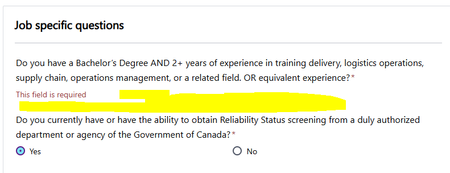
Hi everyone, I'm looking for recommendations for a Dell laptop that can handle both digital marketing work and video editing. My main requirements are: - Smooth performance with multiple browser tabs and marketing tools - Good CPU and enough RAM for multitasking - Dedicated graphics for video editing - Good display and color accuracy - Fast SSD storage - Good cooling and battery life - Reliable performance for long working sessions I'm considering different Dell models but would appreciate recommendations from people who have actually used them for similar workloads. Which Dell laptop would you recommend, and what model/specifications have worked well for you? thanks in advance!209Views0likes1CommentRadio buttons aren't functioning for a mandatory question in job application with Job ID - 200027012
Hi All, Yes and No radio buttons are missing for a mandatory question in one of the job application on Microsoft careers, without which application cannot be submitted, details as below Job ID - 200027012 Role - Inventory and Asset Technical Trainer Can anyone please look into this. I've raised the same concern yesterday night about 12hrs back, but it got disappeared, if possible can anyone let me know where to find my previous raised concerns.339Views0likes3Comments
W11 update bricked my pointer
i can't use my #%#$%#$ trackball (or anything with a logitech antenna) ever since W11 forced and update. how do i fix it? how do i fix it? i'm tired of this **bleep**, how do i **bleep**ing fix it??? FIX IT NOW! YOU DID THIS TO MY COMPUTER WITHOUT MY PERMISSION! FIX IT!365Views0likes1Comment
How to Get Microsoft Teams Phone Service Refund - Support System Completely Broken
I need help getting a refund from Microsoft for the Teams Phone service that has not been provided for 6 weeks. What Happened: Paid for Teams Phone - Domestic Calling 6 weeks ago Cannot activate due to Microsoft's broken domain verification process Multiple support agents across different teams - all incompetent Microsoft admits their phone services are "not operational" with no ETA Current Situation: Agent took ownership of refund request days ago Complete radio silence since claiming it was "escalated" Still being charged for a service I cannot use due to Microsoft's own system failures What I Need: How to actually get a refund processed from Microsoft? Escalation contacts for refund issues? Anyone successfully gotten refunds for unusable Microsoft services? Business Impact: As a small business CEO, I've wasted 6 weeks and lost revenue dealing with Microsoft's dysfunction. I no longer want their service - I just want my money back. Has anyone dealt with similar Microsoft refund issues? How did you get it resolved? Any guidance appreciated - their support system is completely broken.129Views0likes0Comments
Few problems after start Intune tested
Hello every one who read this. My company after years with MDM On-Prem instances want migrate to the cloud. We have few licenses with intune so i check the system. But for me it seems like early beta system. 1. Problem with BIOS password. Deployment is a really problem I create install .NET + Dell For Intune but in documentation are no words about what should see cctk file if i only want set up BIOS password 2. Android options are joke. Even less popular MDM have possibility to force gps ON but not intune my question why? it seems like a half product for Android OS 3. I enroll Android devices as corporate owned and have many funny options a) I cannot change Intune app seting for location (are grayed out and location for this app is turned off) b) after deployment Company Portal app installed sucessfully but wehen i click on it then app disapear and once again i cannot install manually because admin already install it :D There are many small and big things to fixed Another funny example are Device Encryption as standard user we have 2 option 1. Quiet encryption without password 2. Admin must start it. Why user cannot start encryption itself wehen i prepare custom profile in the way we want (user must only add a password)131Views0likes0Comments
Can MS Purview mask data in CE
Hi Can MS Purview enable data masking in Dynamics Customer Engagement / Service, If yes how this can be achieved? if No, Can we expect this feature in near future? Note: We would not enable any mask (Field Security Profile) features directly in CE, would like to happen using MS Purview427Views0likes1Comment