filtering
14 TopicsMGDC for SharePoint and SharePoint Embedded
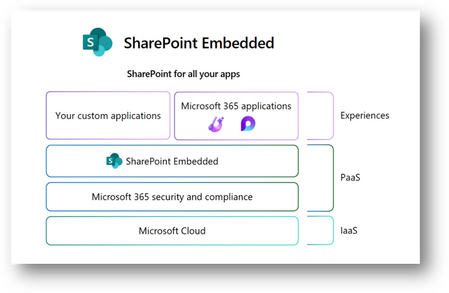
1. MGDC for SharePoint and SharePoint Embedded In this post, we’ll discuss how to use data from Microsoft Graph Data Connect (MGDC) for SharePoint to understand how SharePoint Embedded is being configured and used in your tenant. If you’re new to MGDC, get an overview at https://aka.ms/SharePointData. If you’re not familiar with SharePoint Embedded, check this Overview of SharePoint Embedded. 2. Introduction SharePoint Embedded is an API-only solution to use the power of the Microsoft 365 file and document storage platform. You can use it to build applications that expose Microsoft 365 features including those from Office, Purview and Copilot. The SharePoint Embedded files are stored in “File Storage Containers”, created by your enterprise applications or a third-party application. 3. MGDC for SharePoint and SharePoint Embedded One important detail is that MGDC for SharePoint sees these containers and files used by SharePoint Embedded. You can see the Containers (under Sites), the permissions granted and even each individual file inside the Containers. 4. Web Template Id To filter sites for SharePoint Embedded containers, just look for SharePoint Sites in MGDC that have the RootWeb.WebTemplateId of 70. This is used to differentiate this scenario, in the same way that OneDrives are sites with the RootWeb.WebTemplateId of 21. You can also check for the RootWeb.Template, which shows as “CSPCONTAINER” for SharePoint Embedded. A typical container for SharePoint Embedded will show in the SharePoint Sites datasets like this: { "ptenant": "00000001-0000-0000-0000-000000000000", "Id": "00000002-0000-0000-0000-000000000000", "Url": "https://tenantname.sharepoint.com/contentstorage/CSP_00000009-0000-0000-0000-000000000000", "ArchiveState": "None", "RootWeb": { "Configuration": 0, "Id": "00000003-0000-0000-0000-000000000000", "Title": "Ideas", "WebTemplate": "CSPCONTAINER", "WebTemplateId": 70, "LastItemModifiedDate": "2025-01-10T22:55:18.000Z" }, "WebCount": 1, "StorageQuota": 27487790694400, "StorageUsed": 149186, "StorageMetrics": { "MetadataSize": 8506, "TotalFileCount": 2, "TotalFileStreamSize": 41924, "TotalSize": 149186 }, "GroupId": "00000000-0000-0000-0000-000000000000", "GeoLocation": "CAN", "IsInRecycleBin": false, "RecycleBinItemCount": 0, "RecycleBinItemSize": 0, "SecondStageRecycleBinStorageUsage": 0, "IsTeamsConnectedSite": false, "IsTeamsChannelSite": false, "TeamsChannelType": "None", "IsCommunicationSite": false, "IsHubSite": false, "HubSiteId": "00000000-0000-0000-0000-000000000000", "IsOneDrive": false, "BlockAccessFromUnmanagedDevices": false, "BlockDownloadOfAllFilesOnUnmanagedDevices": false, "BlockDownloadOfViewableFilesOnUnmanagedDevices": false, "IsExternalSharingEnabled": true, "ShareByEmailEnabled": true, "ShareByLinkEnabled": true, "SensitivityLabelInfo": {}, "IBMode": "Open", "RelatedGroupId": "00000000-0000-0000-0000-000000000000", "Owner": { "Name": "System Account" }, "SecondaryContact": {}, "ReadLocked": false, "ReadOnly": false, "CreatedTime": "2025-01-09T22:54:50Z", "LastSecurityModifiedDate": "2025-01-09T22:57:11Z", "Operation": "Full", "LastUserAccessDate": "2025-01-09T22:54:51Z", "SnapshotDate": "2025-01-11T00:00:00Z" } Note: In all the sample JSON objects shown in this post, ids were redacted with zeros. You can learn more about how SharePoint uses WebTemplateId to identify the type of site at MGDC for SharePoint FAQ: Is OneDrive included? 5. Permissions The SharePoint Permissions dataset includes all the permissions granted for all the several types of SharePoint content, including OneDrive, Teams-connected sites, and SharePoint Embedded containers. Granular permissions by folder and individual files are also included. Here’s a typical object from the SharePoint Permissions dataset: { "ptenant": "00000001-0000-0000-0000-000000000000", "SiteId": "00000002-0000-0000-0000-000000000000", "WebId": "00000003-0000-0000-0000-000000000000", "ListId": "00000004-0000-0000-0000-000000000000", "ItemType": "File", "ItemURL": "contentstorage/CSP_00000009-0000-0000-0000-000000000000/Document Library/LoopAppData/ProjectBlue.loop", "FileExtension": "loop", "RoleDefinition": "Contribute", "LinkId": "00000005-0000-0000-0000-000000000000", "ScopeId": "00000006-0000-0000-0000-000000000000", "LinkScope": "Organization", "SharedWithCount": [], "SharedWith": [], "Operation": "Full", "SnapshotDate": "2025-01-11T00:00:00Z", "ShareCreatedBy": { "Type": "User", "Name": "Test User", "Email": "test@tenantname.onmicrosoft.com", "UPN": "test@tenantname.onmicrosoft.com" }, "ShareCreatedTime": "2025-01-09T22:55:51Z", "ShareLastModifiedBy": { "Type": "User", "Name": "Test User", "Email": "test@tenantname.onmicrosoft.com", "UPN": "test@tenantname.onmicrosoft.com" }, "ShareLastModifiedTime": "2025-01-09T22:55:51Z", "ListItemId": 4, "UniqueId": "00000007-0000-0000-0000-000000000000" } Note: The example above shows a single Contribute permission to a Loop file using a sharing link. Loop uses SharePoint Embedded to store files and it’s something you can easily configure and test in your tenant. MGDC for SharePoint will show all permissions granted in SharePoint Embedded containers, included permissions granted at various levels of the SharePoint hierarchy (site, web, library, folder, or file) and diverse types of security principals (users, SharePoint groups and Entra ID groups, internal or external). You can learn more about it at MGDC for SharePoint FAQ: What is in the Permissions dataset? 6. Files Finally, you can get a complete list of every file inside the SharePoint Embedded containers, including details like file name, size, author, last modifier and more. Here’s a typical object from the SharePoint Files dataset: { "ptenant": "00000001-0000-0000-0000-000000000000", "SiteId": "00000002-0000-0000-0000-000000000000", "Author": { "Name": "Test User", "Email": "test@tenantname.onmicrosoft.com" }, "DirName": "Document Library/LoopAppData", "Extension": "loop", "FileName": "ProjectBlue.loop", "IsLabelEncrypted": false, "ItemId": "00000008-0000-0000-0000-000000000000", "ListId": "00000004-0000-0000-0000-000000000000", "ListServerTemplate": "DocumentLibrary", "MajorVersion": 4, "MinorVersion": 0, "ModifiedBy": { "Name": "Test User", "Email": "test@tenantname.onmicrosoft.com" }, "Operation": "Full", "ScopeId": "00000006-0000-0000-0000-000000000000", "SensitivityLabelInfo": {}, "SiteUrl": "https://tenantname.sharepoint.com/contentstorage/CSP_00000009-0000-0000-0000-000000000000", "SizeInBytes": 24301, "SizeInBytesWithVersions": 57765, "TimeCreated": "2025-01-09T22:55:08Z", "TimeLastModified": "2025-01-09T22:56:13Z", "WebId": "00000003-0000-0000-0000-000000000000", "WebTemplateId": 70, "SnapshotDate": "2025-01-11T00:00:00Z" } Note: SharePoint Embedded does not support minor versions, so the “MinorVersion” column in the Files dataset will always show zero in this scenario. For details, check the schema for the SharePoint Files dataset. 7. Filtering You can easily download entire datasets and use Azure Data Tools to filter for rows where WebTemplateId is 70. For Sites and Files, there is also a mechanism to filter at the source, so you pull from Microsoft Graph Data Connect only the data related to SharePoint Embedded. The same filtering mechanism can be used to pull data just for a specific site, filtered by Id. For details, check this article about Filtering SharePoint dataset at the source. 8. Conclusion I hope this post helped you understand how to use MGDC for SharePoint to gather information about SharePoint Embedded containers and files. For more information, visit https://aka.ms/SharePointData.MGDC for SharePoint FAQ: Dataset types and features
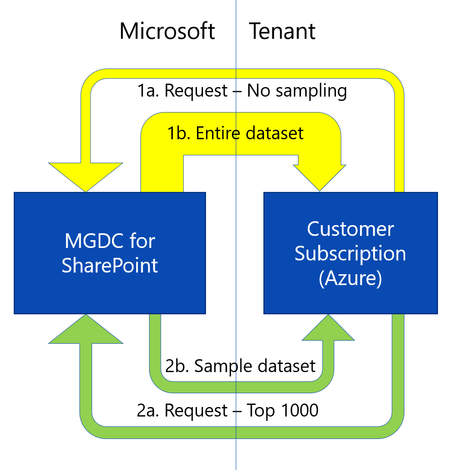
In this post, we’ll discuss the different types of datasets on Microsoft Graph Data Connect (MGDC) for SharePoint and which specific features apply to each one, including deltas, sampling and filtering. If you’re new to MGDC, get an overview at https://aka.ms/SharePointData.
Planner "Hub" - No Filter to jump to Plans(Web Version)?
Not sure why the Web Version of Planner does not have a "filter/search" in the "Hub" of Planner? Is there something I'm missing? The IOS App has this feature though the IOS App appears to currently also having significant error/issues on my devices.Solved1KViews0likes3Comments
Filtering on Calculated Columns not working in SharePoint List
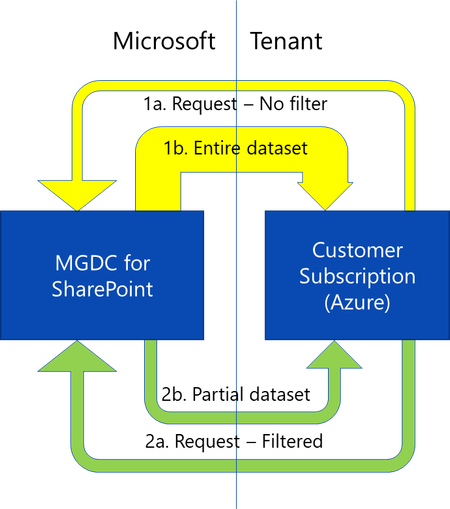
I have a table where i created a calculated column for the Fiscal Year/Quarter = Example: FY2023/Q3. I used to be able to filter on this field but now when i filter on it, it provides 0 (ZERO) results. Any suggestions as to make this work again? Thank you. If i have to, i can create a flow to pull the calculated column into a text column...if I have to...but id rather not.8.8KViews0likes9Comments
Search and Filter adaptive cards in bot
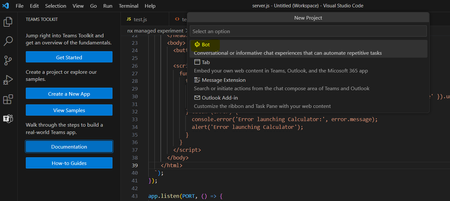
Hello Team, Our requirement is as follows: Requirement : We have created a bot using teams toolkit. We further want to add a search bar within the bot which will search adaptive cards and filter them. As in show only searched cards and hide rest. Is it possible to add search bar in bot? One option we could think of is creating tab using fluent so that we can search the adaptive cards. Is their any way to directly implement it in a bot? Thanks!1.5KViews0likes5Comments
Filterable Gallery showing collection data
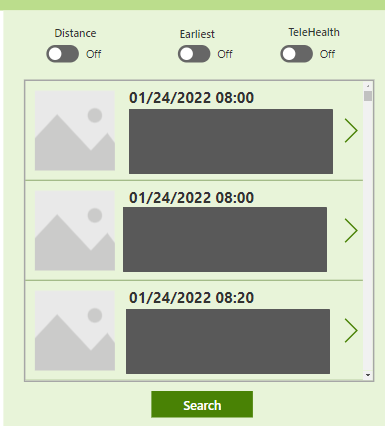
I would love some help on how to create a filterable gallery on our powerapp. Our idea was to have 3 toggles on top of our gallery that you can toggle on/off to filter by each, Multiple, or none.. We are open to other ways of doing this. Gallery data comes from a collection. We have tried a few ideas we found in forums, I can make it filterable if I put the code in the Items property of the Gallery but I cannot get the toggle to be what determines the filter be on/off.History wishes:➀Site-Partitioning➁Filtering➂FolderPath View➃exportable
When above yet available, softcopy of Windows 10 Edge is what I need to: select certain sites such as http://xyz.global.abc.com/Shared) extract folder path when History View shows only url; I am extracting it from address bar filter out items incurred by multi-tasking to open un-related Webpages (Viewer not yet capable of filtering) keep record longer than 90 days (current max capacity of Edge) accidental clearing of history Reason for above is to print, then assemble huge process tree of Sharepoint documents (Flowcharts) with external links. I need to trace where I clicked on for each webpage. Otherwise, for each webpage, other than tagging, I have to copy link from address bar extract folder path from link append into a Log file every day.801Views0likes0Comments