explorer
11 Topics
Windows 10 ISO mounting bugs
Short description: current windows 10 ltsc freezes when trying to mount an iso file, especially a windows installation image. Setup: Windows 10 IoT Enterprise LTSC 2021 x64 en-US. Clean installed from ' en-us_windows_10_iot_enterprise_ltsc_2021_x64_dvd_257ad90f.iso'. All updates have been fully done, including latest cumulative updates(KB5126657), servicing stack updates, .NET framework updates(4.8.1), and any other hardware-dependent driver updates. When I try to open and mount a windows installation image (iso), the explorer freezes, and is unresponsive. ISO files that are not Windows installation images open fine, and even when explorer is frozen, other parts of Windows work totally fine(like browsers). This behavior hasn't been seen before the 2026-10 cumulative updates. Maybe the KB5126657 has something to do with it? PC hardware: i9-10900KF, DDR4 32GB RAM, 1TB NVMe SSD, Z490 MB. I've been using this PC with the exact same OS for years, and this is the first time experiencing such issue. Tried troubleshooting with claude code and codex, but failed (mainly due to session halting by cybersecurity flags)35Views0likes1Comment
Thumbnails in Explorer.exe Using Up Significant Memory
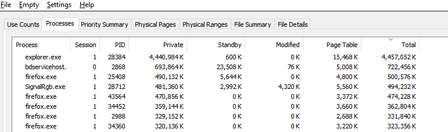
It seems that there is an issue with explorer with storing thumbnail cache for folders containing 6k to 8k resolution videos. For context, I keep virtual reality videos in one folder and every single time I open this folder and browse through all other files and sub folders, the memory usage for explorer spikes up. I need help on how to fix this issue. Any workarounds such as storing thumbnail cache on the drive instead of the RAM would help. I'm using Windows 10 22H273Views0likes1Comment[BUG]Desktop Icon Order and File Explorer Window Size Not Saved
After updating to Build 26200.5661, I found two major issues: 1. The desktop icon order is not retained after reboot or shutdown. Every time the system restarts, icons are randomly rearranged. 2. The File Explorer window size is not remembered. It always resets to the default size after closing and reopening. These issues did not occur in the previous build. Expected behavior: - Desktop icons should retain their order and position. - Explorer windows should remember their last size and position454Views1like2Comments
Remove 'desktop' links permanently
Hi All I already tried searching Google for it, but I can't find info on how to remove obsolete OneDrive icons from the desktop (Bureaublad). In this 'explorer' view I have in the tree the 3 working OneDrive folder links. However on the 'desktop' (Bureaublad) view I see old obsolete icons eg. 'CEAN B.V. (32 bits)'. When I right-click I get the option to delete (verwijderen) and it will be removed. It will however re-appear after refreshing the view. So how do I remove it permanently? Is it something in the Registry? If yes, where to look for it. I cannot find any settings in OneDrive itself. Thanks for any suggestion. With kind regards LudoSolved610Views0likes1CommentExplorer Can't Find Existing .mdb File That Datamgr.exe (VB) Can Find
I've created .mdb files by executing Visual Basic programs. I can use the Datamgr program that comes with VB 3.0 to open these databases to view and update the records. Explorer does not show these files, nor does Dir command in CMD prompt. I have Show Hidden Files earmarked in Explorer. I have cleaned the iconcache by running Disk Cleanup. Several other things have been tried based on web research. Nothing seems to work. Clues anyone? I'd upload a copy of an .mdb, but lol, I can't do this because it can't be found!Solved647Views0likes1CommentNew-SMBMapping not showing in Explorer until Explorer process is closed/restarted
I'm writing a script to remap drives to new paths (file server migration), and I had everything working. I'm using Remove-SMBMapping and New-SMBMapping. While it was working there was a strange bug where it would only work if I pasted the code directly into powershell. But if I called the .ps1 script file, the drive mappings would change (as verified by NET USE from the command line), Explorer continued to show and use the old drive mappings. If I end process for Explorer.exe and re-run it, then it would show and use the new mappings. I just ignored this at the time. Well now I'm doing some more testing, now no matter what I do, when using New-SMBMapping in any way, Explorer refuses to see the drive (even new mappings) while the system does see the correct drives via cmdline. I'm at a complete loss as to why this is an issue. It occurs in both Powershell 7 as well as Windows Powershell 5.1. Does anyone have a clue as to what is happening here? FWIW I know that drives mapped in the standard UAC user context are not visible to admin contexts and vice versa. That is not the issue here. This is all under the same user context. No elevated admin sessions are at play. In fact, if it were this, restarting Explorer would have no affect. Also this is an issue whether -persistent $true is used or not. Finally, if I just simply use native Windows cmd prompt command "Net Use" to map the drive, even within the Powershell console, everything works as expected. This is only an issue using the powershell specific cmdlet to map the drive.23KViews1like17Comments
Windows 11 - Explorer forever loading folder or crashing when navigating
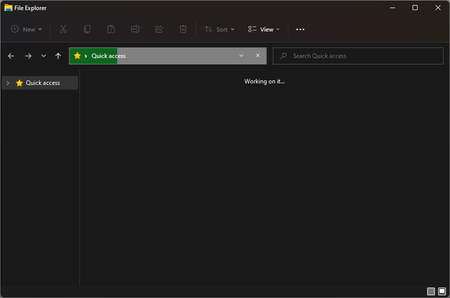
Using Evaluation copy. Build 22478.rs__prerelease.211008-1414. When I open explorer, it will show the green progress bar in the address bar/directory bar, it'll keep loading forever without ever showing any files. This happens if I open explorer from my task bar: Alternatively I managed to make a folder on my desktop, I can open this folder, but if I then open a folder which is nested inside this one, explorer crashes / stop responding: This has been present since installing this update, sometimes everything functions perfectly, but it seems to be more of an issue as time goes on. Something else I have noticed, my desktop icons will sometimes fail to load, not sure if this is related to issues with explorer, as this happens in explorer (aswell as thumbnails). Maybe something to do with indexing broken? I don't know, but you'll also notice none of the other 'quick access' / 'this computer' / 'network' are showing in the first screenshot either.6.2KViews0likes5CommentsFile Explorer should be able to open multiple files of the same type at once
This is a feature that I wish I had almost every day, and the main reason why I end up using my MacBook Pro. I often need to open 30+ PDF files at once, multiple Photoshop, Illustrator, InDesign files, even word documents or images at once. As soon as you have more than one file selected in File Explorer, all the 'Open' or 'Open With' options disappear. If this isn't the right forum to make this suggestion, where can I post it? It seems like a fairly obvious feature for a file explorer to have.1.9KViews1like1Comment