exchange server
2640 TopicsBIMI Logos – Another Way to Stop Email Spoofing
Brand Indicators for Message Identification (BIMI) is a new industry effort to help identify email from reputable companies by displaying their logo alongside email (and potentially other items) in applications. https://office365itpros.com/2018/12/06/bimi-office365/71KViews8likes25Comments
How to clear the Discovery Holds folder
To find whether this discovery holds folder is completely full, use the below-mentioned command. Step 1: Connect-ExchangeOnline and then, Step 2: Get-MailboxFolderStatistics -Identity user | select name,foldersize Note: This DiscoveryHolds folder is having a limit of 100 GB. If it is full, we will get issues like "Unable to clear deleted items folder", "deleted items are getting auto-restored" etc., One of the reasons for this folder is full: If Organization Hold is turned on(All Exchange mailboxes are selected in Compliance Retention Policy) or the Individual ID is selected on Compliance Retention Policy. Solution: Please try the below-mentioned steps to overcome this issue. Step 1: Exclude the DiscoveryHolds full ID in the Compliance Retention policy or run the below-mentioned commands in PowerShell. Connect-IPPSSession and then, Set-RetentionCompliancePolicy -Identity "Compliance Retention Policy Name" -AddExchangeLocationException user for multiple users, Set-RetentionCompliancePolicy -Identity "Compliance Retention Policy Name" -AddExchangeLocationException user1, user2, user3 Now on PowerShell, Connect-ExchangeOnline and then, Set-Mailbox -Identity user -RetainDeletedItemsFor 0 and then run the below-mentioned command two times. Start-Managedfolderassistant -Identity user Start-Managedfolderassistant -Identity user After 2-3 minutes, run the below-mentioned commands. Get-Mailbox "user" | FL DelayHoldApplied,DelayReleaseHoldApplied If the output is received as true for any above-mentioned holds, then run the below-mentioned commands. Set-Mailbox user -RemoveDelayHoldApplied Set-Mailbox user -RemoveDelayReleaseHoldApplied and then run the below-mentioned command two times. Start-Managedfolderassistant -Identity user Start-Managedfolderassistant -Identity user After 2-3 minutes, this DiscoveryHolds folder will become zero as per the below-mentioned screenshot. This process helped me a lot. If you have any doubts/concerns/suggestions about this post, please comment below. Best Regards, Venkat Kiran Kona.Solved52KViews7likes11CommentsReport message add-in and Shared Mailboxes
Microsoft has well explained the report message add-in in the link below but, the supportability for shared mailboxes is a missing piece. Has anyone managed to see this add-in on shared mailboxes ? I came across multiple tenancies with this feature gone missing on shared mailboxes. https://docs.microsoft.com/en-us/microsoft-365/security/office-365-security/enable-the-report-message-add-in?view=o365-worldwide#get-the-report-message-add-in-for-yourselSolved69KViews6likes30CommentsExchange Professsional Career Profile: Adnan Rafique
I had the pleasure of interviewing Adnan Rafique, one of our newest Office Servers and Services MVPs specializing in Exchange and Windows Server. Adnan is a self-made IT Pro who has invested in his own career and won many accolades for his community work. To read more about his journey, take a look at the interview here: https://techcommunity.microsoft.com/t5/IT-Resources-Training/Cloud-Careers-Friday-Feature-Adnan-Rafique/m-p/58659#M133795Views5likes0Comments
Legacy/Modern Distribution Lists Enhancement
This question is mainly to Microsoft. I was wondering if MS could introduce a feature where in Distribution List/Security Groups or any other modern groups would have option to renew yearly. DL's some time grow rapidly that become very cumbersome job to cleanup. As soon as DL nears expiry an automated mail should be sent to Owner asking if DL needs to be renewed? if not then DL will be expired. Just my 2 cents.1.4KViews5likes2CommentsMicrosoft Hybrid Agent for Exchange Server is now available for preview!
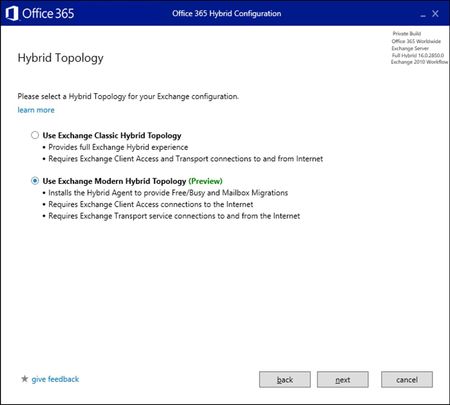
The much-anticipated Microsoft Hybrid Agent for Exchange Server is now available for preview! We spoke about the Hybrid Agent back at Microsoft Ignite 2018, so feel free to catch up on what was discussed in Orlando here. The Hybrid Agent was designed to remove some of the existing challenges customers face today when establishing a Hybrid Exchange environment. This includes, adding external DNS entries, updating certificates, and allowing inbound network connections through the firewall, and much, much more. See the announcement on the Exchange blog for more information.1.5KViews5likes1CommentDemystifying Certificate Based Authentication with ActiveSync in Exchange 2013 and 2016 (On-Premises
Some of the more complicated support calls we see are related to Certificate Based Authentication (CBA) with ActiveSync. This post is intended to provide some clarifications of this topic and give you troubleshooting tips. What is Certificate Based Authentication (CBA)? Instead of using Basic or WIA (Windows Integrated Authentication), the device will have a client (user) certificate installed, which will be used for authentication. The user will no longer have to save a password to authenticate with Exchange. This is not related to using SSL to connect to the server as we assume that you already have SSL setup. Also, just to be clear (as some people have those things confused) CBA is not two-factor authentication (2FA). How does the client certificate get installed on the device? There’s several MDM (Mobile Device Management) solutions to install the client certificate on the device. The most important part of working with CBA is to know where the client certificate will be accepted (or ‘terminated’). How you implement CBA will depend on the response to following questions: Will Exchange server be accepting the client certificate? Will an MDM or other device using Kerberos Constrained Delegation (KCD) be accepting the client certificate? Learn more on the Exchange blog.2.9KViews4likes0CommentsMigrate traditional Distribution Groups to Office 365 Groups
Over the past few months, customers are increasing both the number of Office 365 Groups created and average monthly usage. It’s great to see customers getting value out of the service. If you are using Office 365 and haven’t yet moved traditional Distribution Groups (also known as Distribution Lists or DLs) over to Office 365 Groups, here are a few of the advantages of making the move. Read more on the Exchange TechNet Blog.747Views4likes0CommentsUser Profile Analysis for Exchange Servers (Who needs the Exchange Profile Analyzer?)
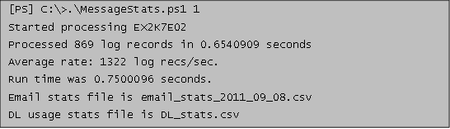
Hey All, some years ago Neil Johnson had written an article about Exchange Sizing without the usage of the Exchange Profile Analyzer. Within the article was a script that is used to collect the data needed for a proper sizing: - messages sent per mailbox per day - messages received per mailbox per day - average message size Note: This information is vital for performing good quality Exchange Server scaling. After Neil has changed the position in MS I will try to maintain the script and the article for the future. And now to the technical stuff: One of the nice things since Exchange 2007 is that we can interrogate the message tracking logs via PowerShell. This provides us with a nice way to query what the Exchange Server is doing. Usefully the message tracking logs include sufficient information for us to approximate our user profile data. The author of this script is Rob Campbell, more about the scripts development can be found here… Hey scripting - use powershell to track email messages in Exchange Server The script is maintained now at https://github.com/msftmroth/MessageStats The script basically works by parsing the messaging tracking logs of your Exchange Servers and then tabulates the information into a CSV file for analysis in Excel. To provide some data to parse I configured a loadgen test against 10 mailboxes with a heavy profile, this should approximate to around 80 messages received and 20 sent per user. The MessageStats script has a single command line parameter which controls how many days back it will look in the tracking logs. The script only parses a single days worth of data, the value you provide define in the script which day to process, so 1 will process yesterdays logs. Now we have our CSV file that we can open in Microsoft Excel, however the data required some work before we can get our EPA values. The following screenshot shows the raw data open in Excel. 1. Highlight cell A1 2. Press CTRL+SHIFT+END 3. Click on the INSERT Menu 4. Click on the TABLE button 5. Click on OK 6. Open the DESIGN Menu 7. Check the "Total Row" checkbox 8. Hide columns C,D,E,H,I,J,K,L,M,N,O,R,S,T,U You should now have a table with the following columns… - Date - User - Received Total - Received MB Total - Sent Unique Total - Sent Unique MB Total Note: Due to my test lab being very small I have added a filter to remove any non-loadgen accounts from the data analysis. In the Total row at the bottom of your table add "AVERAGE" subtotals for "Received Total" and "Sent Unique Total". In the "Received MB Total" column total cell, add in an "AVERAGE" subtotal, then edit the formula in the cell and divide that value by the Total Row average for "Received Total", then multiply the result by 1024 – this will report the average message size in KB. In the "Sent Unique MB Total" column total cell, add in an "AVERAGE" subtotal, then edit the formula in the cell and divide that value by the Total Row average for "Sent Unique Total", then multiply the result by 1024 – this will report the average message size in KB. We now have all of the information that we require… - Messages Received per Mailbox Per Day = Received Total = 68 - Messages Sent per Mailbox Per Day = Sent Unique Total = 17 - Average Message Size = Average of Received MB Total & Sent Unique MB Total (27.37+28.5)/2 = 27.94KB So, using this technique we have managed to approximate our user profile to a fair degree of accuracy without needing to logon to any mailboxes! I suspect that this method is accurate to around +/- 10% which is totally acceptable in this context. Obviously there is a caveat here that I have only performed some rudimentary testing in a fairly small lab environment, so if you do run this in production and find that it generates weird results, or that it validates your already proven EPA data, then feel free to drop me a note to let me know. Thanks to FrankPlawetzki for checking Shortcut for this post: http://aka.ms/NoEPA5KViews4likes0CommentsExchange Server SE Licensing and Product Keys
It seems that there’s a lot of confusion about licensing and product keys for Exchange Server SE; not just here on the Tech Community, but also on LinkedIn, on Reddit, and in the general Exchange community. So, I thought I would write an article to try to clear up that confusion. Licensing Let’s talk about licensing first. Undoubtedly, changing the name of the product to Exchange Server Subscription Edition caused some of the confusion. Some mistakenly believed it meant that cloud connectivity would now be required for the first time in Exchange Server history. Others thought this meant that Microsoft would start updating on-premises Exchange servers the same way they update Exchange Online. Neither of these things are true—as with all previous versions of Exchange Server, cloud (or Internet) connectivity is not required for Exchange Server SE (although there are some features that do require cloud connectivity to be used, such as the Exchange Emergency Mitigation service and Feature Flighting). Despite the name change, though, the reality is that the licensing requirements (and distributions channels) for Exchange Server SE are exactly the same as Exchange Server 2019: there are three licensing options: Server licenses and client access licenses (CALs) that have active Software Assurance (SA); Exchange Online licenses; or CAL equivalency licenses. Purchasing server licenses and CALs with SA is the traditional approach and something that can be done with Exchange Server SE; however, some customers have chosen to purchase cloud licenses or equivalency licenses to modernize their license acquisition and to better manage their licenses. Qualifying cloud licenses that satisfy the Exchange Server SE CAL requirement include Exchange Online Plan 1, which provides a license equivalent to an Exchange Server Standard CAL, and Exchange Online Plan 2, which provides a license equivalent to an Exchange Server Enterprise CAL, which gives you the right to use advanced features, such as In-Place Archive, In-Place Holds, Information Protection and Compliance, Custom Retention Policies, Per User/DL Journaling, Site Mailboxes – Compliance, Data Loss Prevention, Exchange Online Protection, and Cloud Voicemail. At the higher end of cloud licenses are Microsoft 365 E3 (ME3) and Microsoft 365 E5 (ME5), both of which include extended use rights for on-premises Office servers, namely Exchange Server, SharePoint Server, and Skype for Business Server, depending on the type of agreement you have with Microsoft. For example, customers with an Enterprise Agreement and ME3 or ME5 licenses can “install any number of copies of” Office server software. In this scenario, though, all users and devices accessing the on-premises Office servers must have an ME3 or ME5 license. Note though that you don’t directly assign the license in this case; you simply need to purchase it. In addition, there are similar extended use rights available with Microsoft 365 A3 and A5 under the Microsoft Customer Agreement (MCA) program. As I mentioned earlier, these are the same requirements as Exchange Server 2019. So, if you are running Exchange Server 2019 and you have active SA, then you likely already satisfy the license requirements for Exchange Server SE, and you can deploy it in your environment without any additional licensing costs. If you are running an earlier version of Exchange Server and you have active SA or qualifying cloud licenses, then you also likely satisfy the license requirements for Exchange Server SE. But if you don’t have SA or cloud licenses (or a Volume License Agreement), then you will need to purchase qualifying licenses and sign the right agreement to be entitled to Exchange Server SE and updates. However, there is one key difference. Downgrade (aka previous version) rights are no longer available. This is simply because there are no other supported versions, so there’s nothing to downgrade to. So, if you don’t maintain a subscription, you lose the right to install updates and run the product. Product Keys Now let’s talk about product keys. As with previous versions of Exchange Server, there is no product key or license activation. You simply purchase the required licenses (or maintain your existing subscription) to get the rights to use the software and install updates. A product key validates that you have purchased a Standard or Enterprise Edition server license for Exchange Server SE. Without a product key, a server is considered a Trial Edition. The Trial edition operates identically to a Standard Edition server and can be used to evaluate Exchange in a non-production setting for up to 180 days. To continue using the server beyond this period, you must enter a product key; otherwise, the Exchange admin center (EAC) will begin displaying reminders to enter a product key on the server, which you can do using the EAC or the Exchange Management Shell. Although the EAC will display a warning when the trial period expires, there’s no loss of functionality, and the software will continue to operate as if it were licensed (except for the warning messages). If you are doing an in-place upgrade of a running Exchange Server 2019 that has an existing valid product key, the RTM version of Exchange Server SE will continue to use that key. This was done on purpose to support a smooth in-place upgrade. If you are doing a fresh install of Exchange Server SE RTM (which includes legacy upgrades from Exchange Server 2016), you can also enter a product key Exchange Server 2019, which you can get from the Volume License page in the Microsoft 365 admin center (after you’ve signed your agreement with Microsoft). Exchange Server SE is available in four Editions: Enterprise, which supports a maximum of 100 mounted databases per server. Standard, which supports a maximum of 5 mounted databases per server. StandardEvaluation, which is a 180-day time-limited Standard Trial Edition. Coexistence (aka Hybrid Deployment), which maintains the hybrid relationship with Exchange Online. As an aside, a mounted database is a database that's in use (an active mailbox database that's mounted for use by clients or a passive mailbox database that's mounted for log replication and replay). While you can create more databases than the described limits, you can only mount the maximum number of databases that are allowed by the Edition of Exchange, as determined by the product key. Note that recovery databases don’t count towards these limits. When you enter a valid product key, the supported edition for the server is established. You can use a valid product key to move from the Trial Edition to either Standard Edition or Enterprise Edition. Again, no loss of functionality occurs after the Trial Edition expires, so you can maintain lab, demo, training, and other non-production environments beyond 180 days without having to reinstall the Trial Edition of Exchange or enter a product key. You can use a valid product key to move from Standard Edition to Enterprise Edition, but you can't use a valid product key to downgrade from Enterprise Edition to Standard Edition or revert to a Trial Edition. You can only do these types of downgrades by uninstalling Exchange, reinstalling Exchange, and entering the correct product key. Product keys also apply to Edge Transport servers. When you create an Edge Subscription, the Edition of Edge Transport server is captured (as determined by the presence or absence of a product key). Edge Transport servers support two Editions: Trial or Standard. Enterprise doesn’t apply because there are no Enterprise features or mailbox databases on Edge Transport servers. Hybrid doesn’t apply because you can’t use an Edge Transport server as a hybrid server. If you create an Edge Subscription for an Edge Transport server that is a Trial Edition, it will appear as unlicensed to the internal organization. If you then enter a product key on a subscribed Edge Transport server, the server will reflect the change to Standard immediately, but the internal organization will not. To update the internal organization information, you must remove and recreate the Edge Subscription. If you don’t, the internal organization will continue to see the Edge Transport server as unlicensed, which is only cosmetic in nature (e.g., no changes in functionality). However, for compliance, auditing, etc., it is considered a best practice to recreate the Edge Subscription. As in previous versions, the Hybrid Configuration Wizard (HCW) provides the license for Hybrid servers, so it is expected that you have not entered a product key on the server. To obtain the Hybrid server license, click license this server now in the HCW and authenticate to your tenant. The HCW will update the product key on the server and refresh the page, and depending on replication latency, it might not update the Version from StandardEvaluation Edition to Coexistence Edition (Hybrid Deployment). However, you can verify the license using Get-ExchangeServer or simply toggle between the two on-premises server options in the HCW, which triggers detection and should choose the same server with updated properties. Final Note Although the Exchange Server 2019 product keys work with Exchange Server SE RTM, it is expected that new product keys specific to Exchange Server SE will be made available with Exchange Server SE CU1, which is expected in H1 of 2026. When the new keys are issues, they will be available from the Volume License area of the Microsoft 365 admin center, along with the CU1 download. I hope this clears up any confusion regarding licensing and product keys for Exchange Server SE.5.8KViews4likes0Comments