dynamics 365 crm
10 TopicsWhy Connected Healthcare Systems Matter More Than Ever
Hello everyone, Across many healthcare organisations, digital transformation is well underway. New applications are being introduced, cloud adoption is increasing, and AI is becoming part of everyday conversations. However, one challenge continues to appear across many projects: disconnected operational workflows. It's common to find patient communication, scheduling, referrals, reporting and operational processes spread across multiple systems. While each application may perform its role effectively, the lack of integration often results in duplicated information, limited visibility and increased administrative effort. From the projects we've been involved in, we've found that successful digital transformation isn't only about implementing new technology. It's about creating connected systems that allow information to move securely and efficiently between teams. I'd be interested in hearing how others are approaching this challenge. Some discussion points: - What are the biggest barriers to connected healthcare systems today? - How are you improving interoperability across existing platforms? - Has Microsoft Cloud for Healthcare or Dynamics 365 helped simplify operational workflows? - Which integrations have delivered the greatest value in your organisation? We've also shared our perspective on https://www.ultralinkit.co.uk/dynamics-365-healthcare/ here: Looking forward to hearing different experiences and perspectives from the community.218Views0likes0Comments
How to Fix Azure Event Grid Entra Authentication issue for ACS and Dynamics 365 integrated Webhooks
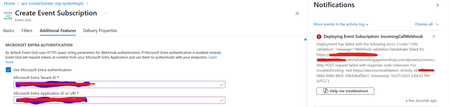
Introduction: Azure Event Grid is a powerful event routing service that enables event-driven architectures in Azure. When delivering events to webhook endpoints, security becomes paramount. Microsoft provides a secure webhook delivery mechanism using Microsoft Entra ID (formerly Azure Active Directory) authentication through the AzureEventGridSecureWebhookSubscriber role. Problem Statement: When integrating Azure Communication Services with Dynamics 365 Contact Center using Microsoft Entra ID-authenticated Event Grid webhooks, the Event Grid subscription deployment fails with an error: "HTTP POST request failed with unknown error code" with empty HTTP status and code. For example: Important Note: Before moving forward, please verify that you have the Owner role assigned on app to create event subscription. Refer to the Microsoft guidelines below to validate the required prerequisites before proceeding: Set up incoming calls, call recording, and SMS services | Microsoft Learn Why This Happens: This happens because AzureEventGridSecureWebhookSubscriber role is NOT properly configured on Microsoft EventGrid SP (Service Principal) and event subscription entra ID or application who is trying to create event grid subscription. What is AzureEventGridSecureWebhookSubscriber Role: The AzureEventGridSecureWebhookSubscriber is an Azure Entra application role that: Enables your application to verify the identity of event senders Allows specific users/applications to create event subscriptions Authorizes Event Grid to deliver events to your webhook How It Works: Role Creation: You create this app role in your destination webhook application's Azure Entra registration Role Assignment: You assign this role to: Microsoft Event Grid service principal (so it can deliver events) Either Entra ID / Entra User or Event subscription creator applications (so they can create event grid subscriptions) Token Validation: When Event Grid delivers events, it includes an Azure Entra token with this role claim Authorization Check: Your webhook validates the token and checks for the role Key Participants: Webhook Application (Your App) Purpose: Receives and processes events App Registration: Created in Azure Entra Contains: The AzureEventGridSecureWebhookSubscriber app role Validates: Incoming tokens from Event Grid Microsoft Event Grid Service Principal Purpose: Delivers events to webhooks App ID: Different per Azure cloud (Public, Government, etc.) Public Azure: 4962773b-9cdb-44cf-a8bf-237846a00ab7 Needs: AzureEventGridSecureWebhookSubscriber role assigned Event Subscription Creator Entra or Application Purpose: Creates event subscriptions Could be: You, Your deployment pipeline, admin tool, or another application Needs: AzureEventGridSecureWebhookSubscriber role assigned Although the full PowerShell script is documented in the below Event Grid documentation, it may be complex to interpret and troubleshoot. Azure PowerShell - Secure WebHook delivery with Microsoft Entra Application in Azure Event Grid - Azure Event Grid | Microsoft Learn To improve accessibility, the following section provides a simplified step-by-step tested solution along with verification steps suitable for all users including non-technical: Steps: STEP 1: Verify/Create Microsoft.EventGrid Service Principal Azure Portal → Microsoft Entra ID → Enterprise applications Change filter to Application type: Microsoft Applications Search for: Microsoft.EventGrid Ideally, your Azure subscription should include this application ID, which is common across all Azure subscriptions: 4962773b-9cdb-44cf-a8bf-237846a00ab7. If this application ID is not present, please contact your Azure Cloud Administrator. STEP 2: Create the App Role "AzureEventGridSecureWebhookSubscriber" Using Azure Portal: Navigate to your Webhook App Registration: Azure Portal → Microsoft Entra ID → App registrations Click All applications Find your app by searching OR use the Object ID you have Click on your app Create the App Role: Display name: AzureEventGridSecureWebhookSubscriber Allowed member types: Both (Users/Groups + Applications) Value: AzureEventGridSecureWebhookSubscriber Description: Azure Event Grid Role Do you want to enable this app role?: Yes In left menu, click App roles Click + Create app role Fill in the form: Click Apply STEP 3: Assign YOUR USER to the Role Using Azure Portal: Switch to Enterprise Application view: Azure Portal → Microsoft Entra ID → Enterprise applications Search for your webhook app (by name) Click on it Assign yourself: In left menu, click Users and groups Click + Add user/group Under Users, click None Selected Search for your user account (use your email) Select yourself Click Select Under Select a role, click None Selected Select AzureEventGridSecureWebhookSubscriber Click Select Click Assign STEP 4: Assign Microsoft.EventGrid Service Principal to the Role This step MUST be done via PowerShell or Azure CLI (Portal doesn't support this directly as we have seen) so PowerShell is recommended You will need to execute this step with the help of your Entra admin. # Connect to Microsoft Graph Connect-MgGraph -Scopes "AppRoleAssignment.ReadWrite.All" # Replace this with your webhook app's Application (client) ID $webhookAppId = "YOUR-WEBHOOK-APP-ID-HERE" #starting with c5 # Get your webhook app's service principal $webhookSP = Get-MgServicePrincipal -Filter "appId eq '$webhookAppId'" Write-Host " Found webhook app: $($webhookSP.DisplayName)" # Get Event Grid service principal $eventGridSP = Get-MgServicePrincipal -Filter "appId eq '4962773b-9cdb-44cf-a8bf-237846a00ab7'" Write-Host " Found Event Grid service principal" # Get the app role $appRole = $webhookSP.AppRoles | Where-Object {$_.Value -eq "AzureEventGridSecureWebhookSubscriber"} Write-Host " Found app role: $($appRole.DisplayName)" # Create the assignment New-MgServicePrincipalAppRoleAssignment ` -ServicePrincipalId $eventGridSP.Id ` -PrincipalId $eventGridSP.Id ` -ResourceId $webhookSP.Id ` -AppRoleId $appRole.Id Write-Host "Successfully assigned Event Grid to your webhook app!" Verification Steps: Verify the App Role was created: Your App Registration → App roles You should see: AzureEventGridSecureWebhookSubscriber Verify your user assignment: Enterprise application (your webhook app) → Users and groups You should see your user with role AzureEventGridSecureWebhookSubscriber Verify Event Grid assignment: Same location → Users and groups You should see Microsoft.EventGrid with role AzureEventGridSecureWebhookSubscriber Sample Flow: Analogy For Simplification: Lets think it similar to the construction site bulding where you are the owner of the building. Building = Azure Entra app (webhook app) Building (Azure Entra App Registration for Webhook) ├─ Building Name: "MyWebhook-App" ├─ Building Address: Application ID ├─ Building Owner: You ├─ Security System: App Roles (the security badges you create) └─ Security Team: Azure Entra and your actual webhook auth code (which validates tokens) like doorman Step 1: Creat the badge (App role) You (the building owner) create a special badge: - Badge name: "AzureEventGridSecureWebhookSubscriber" - Badge color: Let's say it's GOLD - Who can have it: Companies (Applications) and People (Users) This badge is stored in your building's system (Webhook App Registration) Step 2: Give badge to the Event Grid Service: Event Grid: "Hey, I need to deliver messages to your building" You: "Okay, here's a GOLD badge for your SP" Event Grid: *wears the badge* Now Event Grid can: - Show the badge to Azure Entra - Get tokens that say "I have the GOLD badge" - Deliver messages to your webhook Step 3: Give badge to yourself (or your deployment tool) You also need a GOLD badge because: - You want to create event grid event subscriptions - Entra checks: "Does this person have a GOLD badge?" - If yes: You can create subscriptions - If no: "Access denied" Your deployment pipeline also gets a GOLD badge: - So it can automatically set up event subscriptions during CI/CD deployments Disclaimer: The sample scripts provided in this article are provided AS IS without warranty of any kind. The author is not responsible for any issues, damages, or problems that may arise from using these scripts. Users should thoroughly test any implementation in their environment before deploying to production. Azure services and APIs may change over time, which could affect the functionality of the provided scripts. Always refer to the latest Azure documentation for the most up-to-date information. Thanks for reading this blog! I hope you found it helpful and informative for this specific integration use case 😀941Views4likes1CommentIs Power Automate Becoming the New Technical Debt in Dynamics 365 Projects?
Power Automate has transformed how organisations build automation within Dynamics 365 and the Power Platform. Teams can automate processes quickly, reduce manual effort, and deliver business value without extensive custom development. At the same time, I have noticed an interesting challenge in some organizations as Power Platform adoption matures. Over time, hundreds of flows can be created by different teams, often with varying levels of governance, documentation, and ownership. Business logic may become distributed across multiple automations, making troubleshooting, maintenance, and long-term support more complex. On the other hand, many organisations have successfully scaled Power Automate by implementing strong governance practices and automation standards. I'm interested in hearing different perspectives from the community. Have you seen Power Automate become difficult to manage at scale, or has it reduced technical debt in your organization? What governance, architecture, or operational practices have worked best for balancing innovation with maintainability?169Views1like0CommentsMicrosoft Dynamics 365 Marketing CRM
Greetings to our great non-profit organizations. In this article, we will guide you through Dynamics 365 Marketing. Microsoft Dynamics 365 Marketing became Dynamics 365 Customer Insights – Journeys which is a comprehensive marketing solution which enables you to build customer journeys, improve communication and helps automate business processes with some of the key features such as Customer Journeys, Leads, Accounts, Campaign Automations, Email, Form, Survey, Landing Page Creator, SMS, Social Media Integration, Custom Workflows, Automations and more. Dynamics 365 Marketing became Dynamics 365 Customer Insights – Journeys. You can find the official information here: Transition to real-time marketing and transform your Customer Experience - Microsoft Dynamics 365 Blog Microsoft Dynamics 365 Marketing consists of two primary modules. Therefore, both modules have the ability to create graphical emails and design interactive customer journeys to support marketing initiatives. 1-Real-time marketing: Enables you to initiate customer journeys in real-time based on signals and profile data you collect from your clients. So, the Real-time allows you to trigger customer journeys in real time based on the signals and customer profile. Some of the key features of real-time marketing are: Real Time Customer Journeys, Mobile Messaging, Real time analytics, Personalization across content and journeys and more. 2-Outbound marketing: Provides a set of output tools to help seamlessly connect marketing and sales processes. It also has a great capability for managing and organizing in-person events and webinars that seamlessly integrated with Microsoft Teams. Therefore, outbound marketing provides email and social channel capabilities, but you can also build your own custom channels. Outbound marketing is a great solution to seamlessly connect your marketing and sales processes. Some of the key features of Outbound marketing are: Social media posting: Leverage the social media and Post messages to Facebook, Instagram, and Twitter. Event management: Manage and organize all your event needs in one place. Lead management: A potential lead is identified and qualified. Lead scoring and grading: manage and organize the leads through a business process with automated lead scoring. Subscription management: Subscription lists are managed at the contact. A subscription is a marketing page that contact can use to manage their communication with your organization. Forums and landing page: forms provide the user interface that people use to interact with the data they need to do their work.19KViews0likes7Comments- 4.2KViews2likes0Comments

Teams Integration with Dynamics 365 for an Entity showing not connected.
I need to be able to programmatically add a tab to teams that uses the Dynamics 365 teams app for an entity and I need it to show as connected to dynamics. Here is the requests I have built for both the Graph SDK and the CRM SDK side of things as well as some black magic I caught from fiddler that makes me sad. First lets start with some things that are used anytime anyone wants to make a dynamics tab. You need the teams app id for the Dynamics 365 Teams Integration App which happens to be the same on all tenants (yay) which is cd2d8695-bdc9-4d8e-9620-cc963ed81f41 next you are going to need all kinds of Organization/Environment specific info OrganizationUrl = https://orgXXXXXXXX.crm.dynamics.com OrganizationId (Guid) from Power Platform Admin Center is easiest Dynamics App Id (Guid) for the app your entity is from ie Sales Hub for an Opportunity Entity The Entity Id (Guid) for the entity you wish to connect to The Entity Type Code (int) from the Entity Metadata for ex Opportunity is 3 and Contact is 2 The above are all things you use the CRM API to go and get. You also need the following from Graph SDK. Team.Id (Guid) for the team you are adding a tab too Team.InternalId (string looks like 19:32characters@thread.tacv2) "19:00000000111122223333444444444444@thread.tacv2" also for the team you are adding the tab too Channel.Id (string looks like 19:32characters@thread.tacv2) for the channel you want to add the tab too A Display Name for the tab of your choice. A Fully Qualified Entity Name, not sure what the Dynamics devs call it but that is what it looks like, its format looks like this OrganizationId.ToString() + "|" + DynamicsAppId.ToString() + "|" + EntityId.ToString() + "|" + EntityObjectTypeCode.ToString() + "|" + EntityDisplayName Lastly you need a formatted content url to the dynamics entity you want to connect too I did it with this string.Format("{0}main.aspx?appid={1}&pageType=entityrecord&etn=opportunity&id={2}", OrganizationUrl, DynamicsAppId.ToString(), EntityId.ToString()) Because this is a fair amount of data to manage I made a little class to hold it all public class TeamTabInfo { public string DisplayName { get; set; } public Guid EntityId { get; set; } public string OrganizationUrl { get; set; } public Guid OrganizationId { get; set; } public Guid DynamicsAppId { get; set; } public int EntityObjectTypeCode { get; set; } public string EntityWebsiteUrl { get; set; } public string FormattedEntityWebsiteUrl { get { return string.Format(EntityWebsiteUrl, OrganizationUrl, DynamicsAppId.ToString(), EntityId.ToString(), EntityObjectTypeCode.ToString()); } } public string FormattedFQEN { get { return OrganizationId.ToString() + "|" + DynamicsAppId.ToString() + "|" + EntityId.ToString() + "|" + EntityObjectTypeCode.ToString() + "|" + DisplayName; } } } Now that I have something to hold the info that makes up a tab I needed a function that would actually make the objects for Graph to use. public static TeamsTab CreateTabRequest(TeamTabInfo tabInfo) { TeamsTabConfiguration ttc = new TeamsTabConfiguration(); TeamsTab tt = new TeamsTab(); ttc.EntityId = tabInfo.FormattedFQEN; ttc.WebsiteUrl = tabInfo.FormattedEntityWebsiteUrl; ttc.ContentUrl = $"https://msteamstabintegration.crm.dynamics.com/Home/Bootstrapper#pageType=dynamics-host&dynamicsUrl={ WebUtility.UrlEncode(tabInfo.FormattedEntityWebsiteUrl + "&navbar=off&flags=FCB.AllowLegacyDialogsInUci=false") }"; ttc.RemoveUrl = "https://msteamstabintegration.crm.dynamics.com/Home/Bootstrapper#pageType=tab-remove"; tt.Configuration = ttc; tt.DisplayName = tabInfo.DisplayName; tt.ODataBind = "https://graph.microsoft.com/v1.0/appCatalogs/teamsApps/cd2d8695-bdc9-4d8e-9620-cc963ed81f41"; return tt; } TeamsTabConfiguration and TeamsTab come from the GraphSDK. Now you see those magic links in there? They apparently hide the secret to success here but we will come back to that. Here is the code I use to get the info from CRM and GraphSDK I need to be able to create the Tab objects. GraphServiceClient gsc = await gf.GetClient(tenantUser, tenantPass); var myTeamsResult = await gsc.Me.JoinedTeams.Request().GetAsync(); string contosoCoffeeTeamsId = myTeamsResult.Where(t => string.Compare(t.DisplayName, "My Team", true) == 0).FirstOrDefault()?.Id; var contosoCoffeeTeamResult = await gsc.Teams[contosoCoffeeTeamsId].Request().GetAsync(); var channelsResult = await gsc.Teams[contosoCoffeeTeamsId].Channels.Request().GetAsync(); string espressoId = channelsResult.Where(c => string.Compare(c.DisplayName, "Group 1", true) == 0).FirstOrDefault()?.Id; var installedAppsResult = await gsc.Teams[contosoCoffeeTeamsId].InstalledApps.Request().Expand("teamsAppDefinition").GetAsync(); bool dynamicsAppInstalled = installedAppsResult.Where(i => i.TeamsAppDefinition.TeamsAppId == "cd2d8695-bdc9-4d8e-9620-cc963ed81f41").Any(); if(!dynamicsAppInstalled) { var teamsAppInstallation = new TeamsAppInstallation { AdditionalData = new Dictionary<string, object>() { //well known dynamics teams app id = cd2d8695-bdc9-4d8e-9620-cc963ed81f41 {"teamsApp@odata.bind", "https://graph.microsoft.com/v1.0/appCatalogs/teamsApps/cd2d8695-bdc9-4d8e-9620-cc963ed81f41"} } }; await gsc.Teams[contosoCoffeeTeamsId].InstalledApps .Request() .AddAsync(teamsAppInstallation); } string orgUrl = await gf.GetOrganizationUrl(tenantName, tenantPass); CrmServiceClient csc = gf.ConnectCRMAdminLogin(tenantName, tenantPass, orgUrl); EntityMetadata opportunityEm = csc.GetEntityMetadata("opportunity", EntityFilters.Entity); QueryExpression queryPages = new QueryExpression("appmodule"); queryPages.ColumnSet = new ColumnSet(new String[] { "appmoduleid", "name", "url", "description" }); queryPages.Criteria.AddCondition("name", ConditionOperator.In, new string[] { "Sales Hub" }); TeamTabInfo cafeAutoTab = new TeamTabInfo(); cafeAutoTab.DisplayName = "Opportunity 1"; cafeAutoTab.EntityWebsiteUrl = "{0}main.aspx?appid={1}&pageType=entityrecord&etn=opportunity&id={2}"; cafeAutoTab.OrganizationId = csc.ConnectedOrgId; cafeAutoTab.OrganizationUrl = orgUrl; cafeAutoTab.EntityObjectTypeCode = opportunityEm.ObjectTypeCode.Value; cafeAutoTab.DynamicsAppId = queryResult.Entities.Where(w => w.Attributes.Values.Contains("Sales Hub")).FirstOrDefault().Id; queryPages = new QueryExpression("opportunity"); queryPages.ColumnSet = new ColumnSet(new String[] { "opportunityid", "name", "description" }); queryPages.Criteria.AddCondition("name", ConditionOperator.Equal, "Opportunity 1"); queryResult = csc.RetrieveMultiple(queryPages); cafeAutoTab.EntityId = queryResult.Entities.FirstOrDefault().Id; var tabResult = await gsc.Teams[contosoCoffeeTeamsId].Channels[espressoId].Tabs.Request().AddAsync(GraphFunctions.CreateTabRequest(cafeAutoTab)); Assume GraphServiceClient gsc and CrmServiceClient csc are functional as I have other huge functions that do all the auth stuff and give me back a functional client. The above code adds a tab to teams but apparently it is only half added, just the teams half. There is a CRM half I learned and this involves an insertion into the logical dataverse entity table "msdyn_teamscollaboration" and that ends up looking a bit like the following Microsoft.Xrm.Sdk.Entity teamsCollabToAdd = new Microsoft.Xrm.Sdk.Entity(); teamsCollabToAdd.LogicalName = "msdyn_teamscollaboration"; teamsCollabToAdd.Attributes.Add("msdyn_teamid", contosoCoffeeTeamResult.InternalId); teamsCollabToAdd.Attributes.Add("regardingobjecttypename", "opportunity"); teamsCollabToAdd.Attributes.Add("msdyn_groupid", new Guid(contosoCoffeeTeamsId)); teamsCollabToAdd.Attributes.Add("msdyn_tenantid", csc.TenantId); teamsCollabToAdd.Attributes.Add("msdyn_channelid", espressoId); teamsCollabToAdd.Attributes.Add("regardingobjectid", cafeAutoTab.EntityId); teamsCollabToAdd.Attributes.Add("statecode", "Active"); teamsCollabToAdd.Attributes.Add("msdyn_channelfolderrelativeurl", "/sites/My Team/Shared Documents/Group 1"); teamsCollabToAdd.Attributes.Add("msdyn_teamsiteurl", string.Format("https://{0}.sharepoint.com/sites/My%20Team", tenantName.ToLower())); teamsCollabToAdd.Attributes.Add("msdyn_channelname", "Group 1"); teamsCollabToAdd.Attributes.Add("msdyn_channeltype", "regular"); teamsCollabToAdd.Attributes.Add("msdyn_teamname", "My Team"); teamsCollabToAdd.Attributes.Add("regardingobjecttypecode", cafeAutoTab.EntityObjectTypeCode); teamsCollabToAdd.Attributes.Add("msdyn_appid", "cd2d8695-bdc9-4d8e-9620-cc963ed81f41"); teamsCollabToAdd.Attributes.Add("msdyn_pipedentityid", cafeAutoTab.FormattedFQEN); teamsCollabToAdd.Attributes.Add("msdyn_weburl", cafeAutoTab.FormattedEntityWebsiteUrl); teamsCollabToAdd.Attributes.Add("msdyn_contenturl", $"https://msteamstabintegration.crm.dynamics.com/Home/Bootstrapper#pageType=dynamics-host&dynamicsUrl={WebUtility.UrlEncode(cafeAutoTab.FormattedEntityWebsiteUrl)}"); CreateRequest cdsRequest = new CreateRequest(); cdsRequest.Target = teamsCollabToAdd; CreateResponse cdsResponse = (CreateResponse)csc.Execute(cdsRequest); Now this also successfully runs and I get a record added to the Dataverse. Not only do I get a record, but if I remove this created tab and use the UI I get the exact same record added to the Dataverse if everyway except a new primary key. Everything looks in place and it should be solid, but all is not well in the land of no documentation. Remember that magic link I mentioned before? Well it turns out that if you use my code you get a tab added that has an angry bit. This record is not connected to Dynamics 365. Repin the tab and try again. And that learn more points to https://msteamstabintegration.crm.dynamics.com/Home/undefined which goes nowhere and looks suspiciously familiar to a magic link. If you use the UI you get This record is successfully connected to Dynamics 365. and that Learn More points to https://go.microsoft.com/fwlink/?linkid=2019594 which is at least a functional. So I did what anyone else would do when you have functional UI and non functional API calls after making sure the backend data I had access too was identical. I hit it with Fiddler. A behold a call is made to the following API endpoint. https://msteamstabintegration.crm.dynamics.com/api/TeamsTabService/PostPinTasks This is a secure endpoint we don't have access too. This appears the difference between using the UI and the 2 API calls to add the tab and the record to msdyn_teamscollaboration is the call to the above endpoint. So after all the preparation and all the hunting this is the question for the MS group that owns https://msteamstabintegration.crm.dynamics.com/api/TeamsTabService/PostPinTasks WHAT DOES THAT ENDPOINT DO? What are these "Post Pin Tasks"? BTW pinning a view (savedquery entity) doesn't have this issue since it isn't kept in sync the same way, it is specific to Direct Entity Connections. ************************************************************* UPDATE 05/24/2022 ************************************************************* I have an update and there is now an api endpoint that can be used to attach an entity record and get the connection symbol to show up correctly. First you must follow the directions at https://docs.microsoft.com/en-us/dynamics365/sales/teams-integration/enable-record-linking and consent to the permissions that are asked when the options are turned on. Once that is setup you can then make a call that matches the following criteria. Syntax: The programmatic support for the Collaborate functionality is implemented as a custom API in Dynamics. POST <org-url>/api/data/v9.0/msdyn_associateRecordToChannel Request Body In the request body, supply a JSON representation of the following properties. Property Type Description msdyn_recordId string Unique identifier of the entity record or view msdyn_entityLogicalName string Entity Logical Name of the record or view to be pinned msdyn_teamId string Unique Identifier of the Team to which the channel belongs msdyn_teamInternalId string Team Internal Id of the Team to which the channel belongs msdyn_teamDisplayName string Display Name of the team to which the channel belongs msdyn_channelId string Unique Identifier of the channel where record is to be pinned msdyn_channelDisplayName string Display Name of the channel msdyn_channelType string Type of the channel (standard or private) msdyn_appModuleId string App Id of the Model-Driven App in Dynamics msdyn_orgUrl string Dynamics Environment URL msdyn_pageType string Specifies whether the record is a entity record or a view(entityrecord or entitylist) 1. Pin an entity record in a channel in Teams Request POST https://nam11.safelinks.protection.outlook.com/?url=https%3A%2F%2Fgraph.microsoft.com%2Fv1.0%2Fteams%2F57fb72d0-d811-46f4-8947-305e6072eaa5%2Fchannels&data=05%7C01%7Cmallen%40valorem.com%7Cb6a5f7702c4649285bdd08da324afed4%7C5c8085d91e884bb6b5bde6e6d5b5babd%7C0%7C0%7C637877594957680620%7CUnknown%7CTWFpbGZsb3d8eyJWIjoiMC4wLjAwMDAiLCJQIjoiV2luMzIiLCJBTiI6Ik1haWwiLCJXVCI6Mn0%3D%7C3000%7C%7C%7C&sdata=sI3RHKFr4f%2FA6u9XFZTqCR95HltTdX3uuragCzqN9vY%3D&reserved=0 Content-type: application/json { "msdyn_recordId": "f3372c45-1a83-ec11-8d20-00224805bb02", "msdyn_entityLogicalName": "account", "msdyn_teamId": "511298c7-f02d-43a7-94ec-cc8d3822fab6", "msdyn_teamInternalId": "19:54d5461eadef4e1bbf1581a08bb31d1b@thread.skype", "msdyn_teamDisplayName": "New Teamz456", "msdyn_channelId": "19:54d5461eadef4e1bbf1581a08bb31d1b@thread.skype", "msdyn_channelDisplayName":"General", "msdyn_channelType": "standard", "msdyn_appModuleId": "440eaf39-997e-ec11-8d20-000d3a3b2a9b", "msdyn_orgUrl": https://nam11.safelinks.protection.outlook.com/?url=https%3A%2F%2Ftp2sg851meenaltestorg.crm10.dynamics.com%2F&data=05%7C01%7Cmallen%40valorem.com%7Cb6a5f7702c4649285bdd08da324afed4%7C5c8085d91e884bb6b5bde6e6d5b5babd%7C0%7C0%7C637877594957680620%7CUnknown%7CTWFpbGZsb3d8eyJWIjoiMC4wLjAwMDAiLCJQIjoiV2luMzIiLCJBTiI6Ik1haWwiLCJXVCI6Mn0%3D%7C3000%7C%7C%7C&sdata=3SKi1%2FXFv8%2B42RHyvBim8n%2BxjDrKbg%2Bdc7AR5OmMzf4%3D&reserved=0, "msdyn_pageType":"entityrecord" } Programmatic issues that are still present in the views of automation. 1. I don't know how to set the settings and consent to the permissions programmatically, I can set the settings in the Organization table in the dataverse but that does NOT consent to the permissions and so the api call does not work. 2. When using the UI there is an option to "Post" to the channel as an announcement. This post has a special embedded link that links to the newly created tab. The formatting appears to go through the Skype api even though it is in teams and I have not figured out how to replicate this announcement functionality at this time.4.8KViews1like8Comments
Calendar Icon Not Displaying Properly in MS Dynamics 365 CRM App
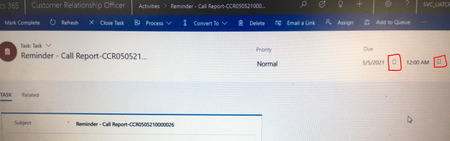
Hi All, In Model driven app Calendar icon is not displaying properly in task and case etc.. and other entities where date time field on form. Please check below screenshot. Please help to resolve this issue ASAP. Thanks3.3KViews1like2CommentsTracked to Dynamics 365 label in Outlook is not seen if I'm part of the distribution list
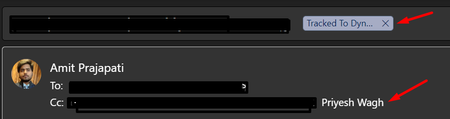
Hi, Within our organization, I'm able to see the emails which I'm CC'd on and which are tracked to other records in Dynamics 365 by other team members. However, if our Team Members are within a Distribution List, the sender/recipient can see the Tracked to Dynamics 365 label in Outlook but others can't as they were seeing when only being CC'd on. Tracked in CRM where I'm CC'd - Tracked Email not shown as label even when the Email is tracked in CRM but I'm part of the Distribution list Are there any limitations to the labels getting displayed? The Emails are comfortably tracked though. Also, we have created a Contact in Dynamics 365 having the Distribution List set as the Email record. Kindly advise. Thanks!!1.2KViews0likes0CommentsThe attempted operation is prohibited because it exceeds the list view threshold
Hi, We are fetching documents from a specific folder using the below code. Microsoft.SharePoint.Client.List spList = clientContext.Web.Lists.GetByTitle("Testable"); clientContext.Load(spList); clientContext.ExecuteQuery(); CamlQuery camlQuery = new CamlQuery(); camlQuery.ViewXml = @"<View Scope='RecursiveAll'> <Query> <Where> <IsNotNull> <FieldRef Name='Title'></FieldRef> </IsNotNull> </Where> <OrderBy> <FieldRef Name='Created' Ascending='true' /> </OrderBy> </Query> </View>"; Folder folder = clientContext.Web.GetFolderByServerRelativeUrl(relativeURL); clientContext.Load(folder); clientContext.ExecuteQuery(); camlQuery.FolderServerRelativeUrl = folder.ServerRelativeUrl; ListItemCollection listItems = spList.GetItems(camlQuery); clientContext.Load(listItems, items => items.Include( item => item, item => item["Title"])); clientContext.ExecuteQuery(); The folder has 10-12 documents only but still, it is throwing the error "The attempted operation is prohibited because it exceeds the list view threshold" when executing the last line.887Views0likes0Comments