displays
5 TopicsAccess begins rollout of Big Forms for Modern Monitors feature
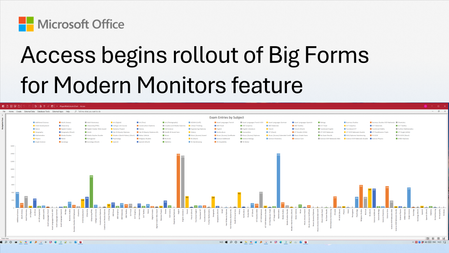
We're excited to announce that support for large-sized forms is now available in Beta for Microsoft Access. This long-requested feature removes the longstanding 22-inch form size limitation and lays the foundation for a more modern, scalable, and accessible form experience. It's one of the most highly requested enhancements from the Access community and a top-voted request on the Access feedback forum. This feature is in Beta now and expected to be in the Current Channel preview by July 21st, 2026. Why we're making this change When Access was originally designed, form dimensions were constrained by underlying technology that effectively limited forms to approximately 22 inches in width or height. As monitor resolutions increased and ultrawide displays became common, that limitation became increasingly restrictive. Developers were forced to design for the lowest common denominator screen size, even when their users had significantly more screen real estate available. The result? Complex business applications often required excessive scrolling, crowded interfaces, or compromises in design. With this Beta release, Access developers can now create forms that take full advantage of today's larger monitors and higher resolutions. What's changing The 22-inch limit is gone. The primary enhancement is simple but powerful: Forms can now exceed the previous 22-inch size limitation. Controls can be placed beyond the historical boundary. Form sections can be designed at much larger dimensions. Developers can create richer and more detailed business applications. For customers building dashboards, operational workspaces, inventory systems, CRM solutions, or other complex applications, this means more content can be displayed simultaneously without forcing users to navigate between multiple forms. Designed for modern workspaces Large monitors have transformed the way people work. Many customers now use: Dual-monitor setups Ultrawide displays High-resolution 4K monitors Vertical monitors for specialized workflows This feature allows Access applications to better leverage those environments. Developers are no longer forced to design around constraints that originated more than 20 years ago. As a result, users can: View more information at once Reduce unnecessary scrolling Create more sophisticated layouts Improve efficiency during data entry and review tasks Accessibility benefits Although the primary audience for this feature is Access developers and users working with larger displays, removing the size limitation also delivers important accessibility benefits. Larger form designs allow more flexibility in presenting information, increasing spacing between controls, displaying larger text, and reducing visual clutter. These improvements can make applications easier to use for customers with low vision and others who benefit from magnified content. We hope you enjoy this improvement and as always, look forward to your comments. (Thank you to MVP Colin Riddington for the thumbnail image.)1.3KViews6likes2Comments
Surface Dock 2 stopped recognizing external displays
Hey everyone, I've had a Surface Pro 9 with a Surface Dock 2 for a couple of months now with 2 Dell U2723QE monitors connected via USB C. This setup was working great up until this morning where the 2 displays suddenly stopped working. After some messing around, I was able to narrow it down to an issue with the dock because if I connect the monitors to the surface directly they work fine again. I went through the suggestions on this https://support.microsoft.com/en-us/surface/troubleshoot-connecting-surface-to-an-external-display-bc8f5121-a4cb-cf0b-5770-2df7a66a3b28#articleFooterSupportBridge=contactUsBridge tried updating drivers on the graphics card and dock, doing all Windows updates and clearing the display cache, but haven't had any luck yet. It could just be a bad dock I suppose and I need to get a warranty claim setup, but it just seems strange that it happened so suddenly. If anyone has any ideas or suggestions, they'd be super appreciated. Thanks!862Views1like3Comments
Surface laptop 7th & Thunderbolt 3 external display issue
Hello, I have a surface laptop 7th under Windows 7 with the snapdragon processor offering 2 USB 4 ports. I don't manage to get my external display working through thunderbolt 3 connection. When I go to the device controller panel, I see the serial bus constantly refreshing. Otherwise, Windows 11 and the graphic card drivers are up to date. Would really appreciate if someone can help me. Thanks192Views1like0Comments
Surface Hub 3
Good afternoon I ran into an issue with the surface hub; so I'm attempting to cast the screen from my surface hub to multiple monitors (TV/Displays) and I'm not finding an option to. Where can I find the options menu to cast to an external display? I've found that there's an accessory that does it (I think a wireless adapter?) is there a way to connect without the need to cord connections? Thank you!362Views0likes1CommentMicrosoft Teams display for Surface Pro or iPad (Meeting information outside the meeting room)
Dear community, is there anything similar to meetio (https://www.meetio.com/) in the Microsoft Teams ecosystem? What I am trying to achieve is to put a display outside our meeting rooms (e.g. next to the door), and display an overview of upcoming appointments. It would also be great if one could book the corresponding room from this display. I think it would suffice if I could make Microsoft Teams display (https://techcommunity.microsoft.com/t5/microsoft-teams-blog/introducing-microsoft-teams-displays/ba-p/1505437) on a table and mount it outside the meeting room. Basically, meetio works with Exchange, but that's another service and more money.11KViews0likes5Comments