device management
1466 TopicsMicrosoft Technical Takeoff 2026: Windows + Intune
Mondays in March. Deep dives. AMAs. Windows, Intune, Windows 365, and Azure Virtual Desktop. Join us for Microsoft Technical Takeoff 2026 for Windows + Intune! This virtual technical skilling event takes you deep inside the latest features, capabilities, and scenarios for commercial organizations and the IT professionals that support them. Skill up and get answers to your questions from the engineering and product teams behind the features. How do I participate? Create your own agenda. Select “Add to Calendar” on a session page to save the date, then click the “Attend” button to save your spot, receive event reminders, and participate in the Q&A. If you can’t make the live session, don’t worry. You can post your questions in advance and catch up on the answers and insights later in the week. All sessions for Tech Takeoff will be recorded and available on demand immediately after airing. Don't see the "Attend" button or the ability to post Comments? Make sure to first sign in on the Tech Community! MONDAY MARCH 2 MONDAY MARCH 9 MONDAY MARCH 16 MONDAY MARCH 23 7:00 AM Let's talk Windows and Intune: 2026 edition 7:00 AM The latest in security for Windows 365 and Azure Virtual Desktop 7:00 AM Why smarter Windows management starts with Intune 7:00 AM AMA: The latest in Windows hardware security 7:30 AM The latest in Windows 11 security 7:30 AM Secure Boot certificate updates explained 7:30 AM Reporting at scale with Windows Autopatch update readiness 7:30 AM Zero Trust DNS: Securing Windows one connection at a time 8:00 AM Uplevel business continuity with Windows 365 Reserve 8:00 AM Feedback wanted: App management in the enterprise 8:00 AM User experience updates: Windows 365 Boot and more 8:00 AM AMA: Secure and manage AI and agentic capabilities in Windows 8:30 AM Hotpatch updates demystified: answers to real-world questions 8:30 AM Ready day one: how to get Windows users up and running fast 8:30 AM AI roundup: Intune agents for outcome-oriented innovation 8:30 AM Deploy and manage Windows 365 with Microsoft Intune 9:00 AM Zero Trust in action: securing endpoints with Intune 9:00 AM Making the most of your Intune data 9:00 AM AMA: Getting the most from Security Copilot in Intune 9:00 AM Unpacking Endpoint Management: Live from Tech Takeoff 2026 9:30 AM AMA: Windows Autopilot 9:30 AM Windows 365 reporting and monitoring updates 9:30 AM Manage Apple devices at scale: Intune security best practices 9:30 AM Azure Virtual Desktop for hybrid environments 10:00 AM The AI‑powered admin: emerging trends in endpoint management 10:00 AM Least privilege on Windows with Endpoint Privilege Management 10:00 AM Click less, manage more: simplify app deployment with Intune 10:00 AM Protect users, stop attacks: Passkeys on Windows 10:30 AM Eliminating NTLM in Windows 10:30 AM Windows 365 Frontline expands with Cloud Apps and more 10:30 AM App Control for Business: same roots, new playbook 10:30 AM AMA: AI and agentic features for Windows 365 11:00 AM One platform, many industries: smart Android management with Intune 11:00 AM From panic to productive: point-in-time restore in Windows 11:00 AM Intune timing demystified: what really happens behind the scenes 11:00 AM Transitioning to post-quantum cryptography 11:30 AM Resiliency with Windows 365 and Azure Virtual Desktop 11:30 AM The Intune playbook for iOS management at scale 11:30 AM Migrating from VDI to Windows 365 11:30 AM Resilience for the modern era: Windows quick machine recovery This event will feature AI-generated captions during the live broadcast. Human-generated captions will be available by the end of the week.33KViews10likes20Comments
Mouse issues
Hi all. I have a problem where intermittently, and randomly, my mouse pointer 'grabs' items on screen. I am onto my third wireless mouse, I have also tried a wired mouse, and different mouse pads, and still the same. I have checked some mouse settings as advised on other information I have found on the web. Still the same. I don't have my finger anywhere near the buttons when it happens, so am at a loss. Any suggestions?44Views0likes2Comments
Workaround: Apple Airpods Pro 3 suddenly not working with Win 11 25H2
Been using APP3 since September 2025 with no issues. About 3-4 weeks ago there were new Intel BT audio drivers released. This has created a nightmare with the APP3. I have scoured the web and have tried everything. This included removing the APP3 BT device and cleaning the registry of any of it's presence. No joy. The purpose of this post is that I've found a workaround that, at the least, allows me to use APP3 for output. The workaround still does not resolve the microphone issue, but I can get over that for now and just use the built-in mic array in my HP Elitebook. The workaround: Find your APP3 in Device Manager under Sound, video, and game controllers. Right-click it and select Uninstall device. Click Uninstall to confirm. Reboot. I perform these steps each morning before beginning work and Win 11 successfully directs sound output to the APP3. Again, still not a fix for the mic issue. I welcome any advice about that. And, yes, I've ensured that APP3 is allowed and enabled for input/recording. If there's a setting to check/change/try, then I've done it.73Views0likes1Comment
Destructured Seven Libraries
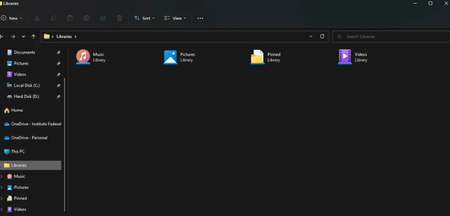
I take care of my mother's computer which is running Windows 11. Following formatting, I did something wrong and all the libraries were found in the Videos folder: E:\Doc, E:\Music, E\:my images E:\My documents and E:\My downloads which end up in duplicate with C: \Users \Download And videos can be found at DOC:\E (the score with all personal documents). There is also the BRIGITTE-PC icon which suggests "Do you want to restore files from this backup?" I don't know what it is so I haven't touched it. I tried the default library restore feature, but it didn't work. I also tried creating a new user account, but once I arrived at this new session, the problem is exactly the same. Do you think I can find the normal library tree?13Views0likes0Comments
Unknown memory leak on Win 11 pro
Hello, For the past couple months I have been experiencing a weird issue on my windows machine. Usually around 8 or so hours after a clean reboot, task manager will start reporting 170+GB of 190GB of RAM is in use. However, when I tally the entire list of processes I can only account for 4GB in use. When I use RAMMap its the same story, I can account for 4GB and it appears windows has simply misplaced a 150GB of memory. The only other symptom I notice is when I shutdown, the shutdown process will take 40+ minutes sometimes as if some microslop process is refusing to die. This does not occur when I shutdown while memory usage appears normal. So far I have tried: Using different web browsers and uninstalling the one I had been using. Removing pretty much every piece of software I have been using while the issue occurred. Ensured windows, firmware and drivers were properly updated.79Views0likes3Comments
Windows 11 24H2/25H2 System Freeze After January 2026 Updates – Lenovo ThinkPad G2
Dear Microsoft Support Team, We would like to raise a high-priority technical support case regarding a stability issue observed after installing the January 2026 cumulative updates on our Windows 11 devices. Environment Details: Device Model: Lenovo ThinkPad G2 (multiple units) OS Versions: Windows 11 24H2 and 25H2 Update Installed: January 2026 Patch Tuesday cumulative update (KB number can be provided) Deployment Method: WSUS / Intune / Windows Update (specify accordingly) BIOS Version: (Installed Latest available from Lenovo) Issue Description: After installing the January 2026 cumulative updates, devices intermittently experience a complete system freeze. The system becomes fully unresponsive: Mouse and keyboard input stop responding No BSOD is displayed Task Manager cannot be opened System recovery is only possible via hard reboot (power button) Frequency: The issue occurs randomly, both during active use and idle state. Multiple users across our environment are impacted. Troubleshooting Performed: Reinstalled OEM-certified Lenovo display drivers Disabled Fast Startup Ran SFC and DISM health checks (no integrity violations) Updated BIOS to latest version Setting power idle mode, then work normally Request: - Please confirm whether this is a known global issue under investigation. - Advise if any hotfix, Known Issue Rollback (KIR), or registry-based mitigation is available. - Provide guidance on additional diagnostic logging required at kernel or driver level. - Confirm whether crash dump analysis is recommended for this scenario. We are prepared to provide additional diagnostic logs, memory dumps, or reproduction steps upon request. Kindly treat this as a priority case due to multi-user impact in a production environment. Thank you for your support. #Windows11, #Windows 11 24H2, Windows Update, Cumulative Update, System Freeze, Lenovo ThinkPad, Display Driver, Enterprise2.4KViews11likes23CommentsBluetooth driver disappears after every restart/sleep on Windows 11
Dear Support Team, I am writing this complaint out of sheer frustration after enduring a critical Bluetooth driver issue on my Windows 11 laptop for an unreasonably long time. Every single time I restart my system or wake it up from sleep, the Bluetooth driver completely disappears from the system. It is not just disabled — it is gone. Bluetooth vanishes from Device Manager, settings, and system controls as if the hardware itself never existed. The only way to restore Bluetooth functionality is to reinstall the driver manually every time. This issue occurs: After every restart After waking the system from sleep Randomly during normal usage The frequency is so high that I have been forced to keep a Bluetooth driver installer shortcut permanently on my desktop — something that feels absolutely absurd for a modern operating system in 2025. Let me be very clear: This is not a user error This is not a one-off bug This is not acceptable behaviour for a premium Windows device I have tried: Reinstalling drivers multiple times Using official OEM drivers Updating Windows fully Disabling power management options Troubleshooting through Device Manager Running system diagnostics None of these provides a permanent fix. The core issue is painfully obvious: Windows 11 (or its driver/power management stack) is failing to reliably retain or initialise the Bluetooth driver across restarts and sleep cycles. This is a basic OS-level responsibility. As a long-time Windows user, I find it shocking that in a system where I spent a considerable amount, I am dealing with an issue that feels more appropriate for an unstable experimental build, not a consumer-ready operating system. To be completely honest, this experience has pushed me to the point where I am seriously considering abandoning Windows altogether and switching to macOS, despite having used Windows on my personal machines for years. The idea of paying that amount again just to escape such basic reliability problems is becoming more appealing than continuing to fight my own laptop daily. This is not just a “bug report” — this is a usability failure that affects: Work productivity Meetings Audio devices Input devices Everyday usability I expect: A clear acknowledgement of the issue A concrete explanation of why this happens A permanent fix, not temporary workarounds Or an official statement admitting the limitation I am documenting this issue publicly and will be sharing it across relevant forums and feedback channels unless a meaningful resolution is provided. Windows users should not have to reinstall core drivers every day to use basic hardware features. I look forward to a serious response. Sincerely, A very frustrated but still hopeful Windows user267Views0likes5Comments
Internal RDP vs Self-Hosted RustDesk
Hi everyone, I am looking for some guidance and real-world experiences around choosing the best approach for remote access in a Windows environment. Right now, we are considering two main options: - Continue using Microsoft Remote Desktop Protocol (RDP), but strictly for internal use only (no direct exposure to the public internet). - Deploy a self-hosted instance of RustDesk as an alternative or complement to RDP for remote access and remote support. Our main concern is security. RDP has historically been a common attack vector, especially when exposed externally or misconfigured, and we want to avoid introducing unnecessary risk to our endpoints. Even if we restrict RDP to internal networks or VPN-only access, we are still cautious about potential vulnerabilities, credential theft, lateral movement, and abuse of remote access. What we are trying to understand better is: 1. In environments where RDP is used only inside the LAN or over VPN (no open RDP from the internet), what are the recommended hardening practices and controls you would consider mandatory today? Examples might include: Network Level Authentication (NLA), strong account policies, just-in-time access, firewall restrictions, RDP Gateway, MFA, monitoring/logging, etc. 2. From a security and operational perspective, is it generally considered acceptable to keep RDP enabled only for internal administrative tasks, while avoiding using RDP for end-user remote support scenarios? 3. For those who have deployed self-hosted RustDesk (or similar remote support tools) in a Windows/Active Directory environment, how has it compared to RDP in terms of: - Security model (encryption, authentication, access control, exposure to the internet) - Ease of deployment and maintenance - User experience and performance - Logging, auditing, and integration with existing security monitoring 4. Are there any best practices or architectural patterns you would recommend when combining these approaches? For example: - Keeping RDP only on jump servers / bastion hosts inside the network - Using RustDesk (self-hosted) for remote support and helpdesk use cases - Enforcing least privilege, MFA, and strong authentication for all remote access paths - Segmentation and limiting which machines are even allowed to receive RDP connections 5. Have you encountered any specific security pitfalls, misconfigurations, or "gotchas" when relying on RDP internally or when rolling out RustDesk self-hosted that we should be aware of before committing to a design? Our goal is to design a remote access strategy that: - Minimizes attack surface and reduces the likelihood of compromise via remote access. - Separates administrative access from end-user remote support where it makes sense. - Remains manageable for a small IT/security team in terms of configuration, patching, and monitoring. If you have any references to Microsoft documentation, hardening guides, or community best practices for RDP (especially internal-only scenarios), as well as any detailed write-ups or lessons learned from using RustDesk self-hosted in production, those would be extremely helpful. Thank you in advance for any guidance, recommendations, or examples you can share. Best regards, Juan166Views0likes4Comments