copilot
10 TopicsTeams Meetings Get AI Memories for Copilot
If your tenant has Microsoft 365 Copilot licenses, you’ll soon see meeting archive files generated by AI for Teams meetings. The files are stored in a SharePoint Embedded container, but they’re not intended for user consumption. Instead, AI tools like Copilot and the Facilitator agent will use meeting archive files to generate better responses to questions from meeting participants about what happened during meetings. It’s yet another file type to figure out how to govern. https://office365itpros.com/2026/10/21/ai-meeting-archive-files/17Views0likes0CommentsTeams Premium + Bookings : Automatic recording and transcription for Bookings meetings ?
Hello, I have a Teams Premium license, recording and transcription policies are enabled on the admin side, and Video Recap works correctly when both are active simultaneously in the same meeting. My use case : my clients book time slots via Microsoft Bookings. Teams meetings are therefore created automatically by Bookings and I have no control over their scheduling. According to Microsoft Learn documentation (Manage the Virtual appointment meeting template and Microsoft Bookings), there is no documented mechanism to automatically apply a Teams meeting template, and therefore automatic recording and transcription, to meetings generated by Bookings. My question: has anyone found a workaround for this limitation (Power Automate, Graph API, or anything else)? And does Microsoft have a documented roadmap on this topic? This gap directly prevents Teams Premium users from accessing Video Recap on their client meetings, which is one of the core use cases Teams Premium is designed for. Thank you for your help341Views2likes2Comments
Copilot meeting recap/summary not working with channel meeting
The meeting recap function from copilot seems not to work with channel meetings. We arrange meetings through teams channels, but meetings from channels to not have the meeting recap function as in regular meetings. After the meeting is over, we are not able to use the copilot for these transkripts and meetings. How can we solve this issue? Is this on purpose from MS?1.9KViews2likes2Comments
## Advanced Copilot Prompt for High‑Fidelity Teams Meeting Analysis (v1.5)
## Advanced Copilot Prompt for High‑Fidelity Teams Meeting Analysis (v1.5) I’ve been working on a structured Copilot prompt designed to dramatically improve the quality of meeting analysis inside **Microsoft Teams**, especially when the default Intelligent Recap doesn’t capture enough nuance, decisions, or actionable follow‑ups. This prompt produces a detailed, repeatable output that includes: - TL;DR executive summary - Meeting quality assessment - Prioritized action items table - Confirmed vs. tentative decisions - Open questions & risks - Mind‑map style outline - Timeline of key moments - Confidence & source citations - Tech jargon glossary - Planner‑ready task export It’s now at **version 1.5**, and I’m sharing it publicly for anyone who wants deeper meeting insights or more reliable task handoff into Planner. --- ### Why I Built This In many engineering, security, and cross‑functional meetings, clarity is everything. The default recap is helpful, but sometimes too generic. I wanted something that: - Reduces ambiguity - Surfaces decisions clearly - Highlights risks and open questions - Produces actionable, Planner‑ready tasks - Works consistently across different meeting types - Enforces strict inference rules to avoid hallucinations If your team relies heavily on Teams + Copilot, this can significantly improve meeting outcomes. --- ### What’s Included The full prompt includes: - Strict ordering rules - Anti‑hallucination constraints - Fallback rules for missing data - TL;DR section - Speaker‑labeling rules - Timestamp restrictions - Bullet‑length limits - Planner task title constraints - Deduplication rules - Tone consistency - Signal‑to‑noise filtering I’ve included the complete prompt below for anyone who wants to use or adapt it. --- ### How to Use It 1. Open the **Recap** tab of any Teams meeting with transcription enabled. 2. Click **Open Copilot**. 3. Paste the entire prompt into the Copilot compose box. 4. Wait for the structured output (usually 30–120 seconds). 5. Copy the Planner tasks section directly into Planner or Copilot for Planner. --- ### Looking for Feedback If you try this prompt, I’d love to hear: - What worked well - What didn’t - What you’d like added in v1.6 - Any edge cases or meeting types where it struggled I’m planning to maintain this as a community resource, so suggestions are welcome. Thanks to everyone experimenting with Copilot in Teams — the creativity in this community is incredible. --- ### Full Prompt (v1.5) ````markdown ```markdown # ============================================================ # PROMPT NAME: Advanced Teams Meeting Analyst (Copilot Enhancement) # ============================================================ # Version: 1.5 # Author: Scott M # Last Updated: 2026-01-14 # # Goal: # Use Microsoft Copilot in Teams (Recap tab or live meeting) to generate a highly structured, # high-signal meeting analysis that goes far beyond the default Intelligent Recap output. # Produce executive summary with TL;DR, prioritized action items table, confirmed/tentative decisions, # risks/open questions, mind-map outline, timeline, quality assessment, confidence/sources, # tech jargon glossary, and Planner-ready task export—all derived strictly from the transcript, # shared screens, chat, and attachments. # # Why This Is Superior to Default Teams/Copilot Processing: # - Default Recap: Basic chapters, highlights, simple tasks, attendance—often generic and misses nuance. # - This custom prompt: Forces strict inference rules (no hallucinations), adds confidence labeling, # decision status, risks section, mind-map structure, quality flags, source citations, # jargon glossary, and direct Planner integration for seamless task handoff. # Delivers scannable, professional-grade notes + actionable tasks for tech/engineering teams. # # Audience: # Microsoft 365 Copilot users in Teams-heavy environments who want deeper analysis # and direct bridge to Planner for follow-up execution. # # Non-Goals: # - This is NOT a replacement for legal/compliance-grade minutes. # - This is NOT verbatim transcription (use the native transcript for that). # - Relies on Teams transcription quality (enable Intelligent Speakers if available). # # Usage Instructions: # 1. Prerequisites: # - Ensure the meeting had transcription enabled (Meeting options → Record & transcribe → Allow transcription). # - For best speaker attribution: Enable Intelligent Speakers (if your org supports it) or have participants use their names clearly. # - Copilot license required (M365 Copilot or Teams Premium for full Recap features). # # 2. Post-Meeting (Recommended – Recap Tab): # - Go to the Teams meeting chat → Click the Recap tab (appears after meeting ends and processing finishes). # - Click Open Copilot (or the Copilot icon in the top-right of Recap). # - In the Copilot pane compose box, paste this ENTIRE prompt and press Enter/Send. # - Wait 30–120 seconds (longer for 60+ min meetings) for the full structured output. # # 3. During Live Meeting (Quick Catch-Up): # - While the meeting is active → Click the Copilot icon in the meeting controls. # - Paste the prompt (or a shortened version if time-sensitive) and ask for real-time summary/actions so far. # # 4. After Output Appears: # - Review the markdown sections—copy any part (e.g., Action Items table, Planner tasks) directly. # - For Planner handoff: # - Copy the entire "10. Planner Integration" section. # - Open Planner (in Teams app or planner.microsoft.com). # - Option A: Manually create tasks by pasting titles/descriptions. # - Option B: In Planner's Copilot pane (if available): Paste the tasks list and say "Create these tasks in my [plan name] plan". # - Save/export: Copy full output to OneNote, Word, or email for sharing. # # 5. Refinement & Follow-Ups (Highly Recommended): # - In the same Copilot pane, type targeted follow-ups like: # - "Expand the Risks section with mitigation ideas" # - "Draft a professional follow-up email to attendees including the summary and action table" # - "Create these tasks in Planner plan 'Engineering Syncs'" # - "Explain [specific jargon term] in more detail" # - "Prioritize the action items by impact" # - Iterate until satisfied—Copilot remembers context in the session. # # 6. Tips & Troubleshooting: # - If output is incomplete: Re-paste the prompt or say "Regenerate full analysis". # - Short meetings (<15 min): Output may be concise—ask for more detail if needed. # - No Recap tab? Ensure recording/transcription was on; wait 5–10 min post-meeting. # - Sensitive meetings: Redaction is automatic per rules, but double-check output. # # Changelog: # v1.0 - Initial release # v1.1 - Added confidence/sources + follow-up suggestions # v1.2 - Added Tech Jargon Glossary # v1.3 - Added Planner Integration section # v1.4 - Expanded Usage Instructions into detailed, step-by-step guide with prerequisites, live/post options, refinement examples, and troubleshooting # v1.5 - Added strict ordering rules, anti-hallucination constraints, fallback rules for missing data, TL;DR section, speaker-labeling rules, timestamp restrictions, bullet-length limits, Planner title constraints, deduplication rules, tone consistency, and signal-to-noise filtering # # ============================================================ # CRITICAL INSTRUCTIONS (STRICT) # ============================================================ - Do NOT summarize, restate, or comment on this prompt. Produce only the meeting analysis. - Follow the numbered sections in the exact order shown. Do not omit, reorder, merge, or rename sections. - If any section lacks sufficient evidence, include the header and write: **“No reliable data found.”** - Derive ALL content ONLY from the Teams transcript, shared content, chat, and attachments. - NEVER invent details. If unclear, mark as “Unclear” or “TBD.” - Use neutral labels (Speaker A, Speaker B, etc.) if speaker names are not confidently identified. - Assign deterministic speaker labels based on first appearance. - Redact sensitive info as [REDACTED] and flag in Risks. - Include inline citations [Transcript HH:MM, Slide X] where possible. - Keep bullet points ≤ 20 words unless quoting transcript evidence. - Exclude small talk, greetings, jokes, or irrelevant chatter unless they directly impact decisions or tasks. - Only include timestamps if explicitly present in the transcript. Never estimate or invent them. - Deduplicate action items, decisions, and risks before final output. - Maintain a professional, concise, cross-functional technical PM tone. - Planner task titles must be ≤ 10 words and start with a verb. # ============================================================ # OUTPUT FORMAT (USE EXACTLY) # ============================================================ **TL;DR (1–2 sentences)** A concise, high-level summary of why the team met and what was resolved. --- 1. **Meeting Quality Assessment** - Clarity: [Good | Fair | Poor — brief explanation] - Speaker overlap / noise: [Low | Medium | High] - Estimated accuracy: [High | Medium | Low — justification] 2. **Executive Summary** Start with 1–2 sentence overview. Then provide 5–8 bullets covering: - Purpose - Attendees (names or count if unclear) - Key topics - Outcomes - Next steps 3. **Action Items** | Priority | Owner | Task Description | Due Date | Timestamp | Dependencies | Status | Notes | |----------|-------|------------------|----------|-----------|--------------|--------|-------| **Rules:** - Sort by Priority (High → Medium → Low), then Due Date. - Infer owners/dates ONLY if explicitly stated or clearly volunteered. - Default Priority: Medium; Status: Open. - Titles ≤ 10 words, start with a verb. - Deduplicate similar tasks. 4. **Key Decisions** - **DECISION:** [What was decided] - Status: [Confirmed | Tentative | Disputed] - Confidence: [High/Medium/Low — reason] - Rationale: [Why] - Impacted: [Who] - Evidence: [Transcript HH:MM or Slide reference] 5. **Open Questions & Risks** **Open Questions** - [Unresolved or unclear items] **Risks** - [Ambiguity, missing owners, conflicting views, scope creep, technical risks, etc.] 6. **Mind Map Outline (Hierarchical Outline)** - Main Topic 1 - Subtopic A - Action / Decision / Fact - Subtopic B **Rules:** - Max 5 main topics - Max 3 levels deep - ≤ 8 words per node - Prune low-signal branches 7. **Timeline of Key Moments** - HH:MM – [Brief one-line description] - HH:MM – [etc.] *Only include if timestamps exist; otherwise write “No reliable data found.”* 8. **Confidence & Sources Summary** - Overall confidence: XX/100 - Key sources: [Transcript HH:MM, Slide X, Chat message, etc.] 9. **Tech Jargon Glossary** - TERM: Definition (1–2 sentences) *Include only if relevant terms appear.* 10. **Planner Integration: Ready-to-Create Tasks** Numbered list, each formatted as: 1. **Task Title:** [≤10 words, verb-led] - Assigned to: [Owner or TBD] - Due: [Date or TBD] - Priority: [High/Medium/Low] - Description: [Brief details + dependencies/notes] - Labels/Buckets: [Suggested grouping] **Rules:** - Only include items with clear action/owner potential. - Group related tasks under consistent buckets. - Deduplicate tasks. --- **Follow-Up Prompts (suggest 3–5)** - “Create these tasks in Planner plan ‘X’.” - “Expand the Risks section with mitigation strategies.” - “Draft a follow-up email summarizing this meeting.” - “Prioritize action items by impact and urgency.” - “Clarify ambiguous decisions and propose next steps.”3.9KViews1like2CommentsCopilot Transcription Behavior Changing for Teams Meetings
Microsoft plans to deploy an update to change how transcription behaves for Teams meetings where Copilot is enabled. New meetings will not generate a transcript unless the meeting organizer explicitly enables transcription or the Microsoft 365 tenant deploys custom meeting policies that enable transcription with Copilot. The AI features work even without a transcript. But no transcript means no searchable artifact, and that’s what some want. https://office365itpros.com/2025/09/15/transcription-teams-meetings/204Views0likes0Comments
Copilot for Teams features for Channel Meetings as opposed to Regular Meetings
For several years, I've scheduled our small departmental meetings as channel meetings rather than one-to-many meetings. I think there is a benefit to doing this. We are now using our M365 Copilot trial licenses (1 Week) and I'm starting to activate Copilot during meetings. This starts the transcription service and allows you to request a recap. Because I also have a Teams Premium license - the meeting has a recap section - but that only works if you use the Teams Premium feature of recording the meeting - which starts transcription and offers a recap. With Copilot - it seems you have to formally request a recap of the meeting. If you leave the meeting first - you can go back into the chat section of the meeting and request a meeting recap after the fact. But with a channel meeting, there is no separate chat section of that specific meeting. The chat is in the channel and that's by design. If you start copilot during a channel meeting - it appears that you MUST request the recap of the meeting while you are still in the meeting - because after you leave the meeting you lose the copilot session for that meeting and you can no longer ask for a recap - because the meeting is over. You can, however, download the transcript after the fact. However, you are then stuck with a transcript but no summary. The best I could do was to re-download the transcription as a docx file and then open it in word and then ask Copilot in Word to "summarize this file." Very awkward. Bottom line - it's very unlikely that one can remember to ask for a recap of the meeting while you are still in the meeting. And since you can go back and get a recap in normal meetings after you leave - one would expect you can do so in a Channel Meeting - but so far you can't. All-in-all, while this shows potential - it is kludgy and painful at the moment. I hope this is improved.3.3KViews3likes4Comments
Teams Meeting Intelligent Recap/AI Notes feature license requirement
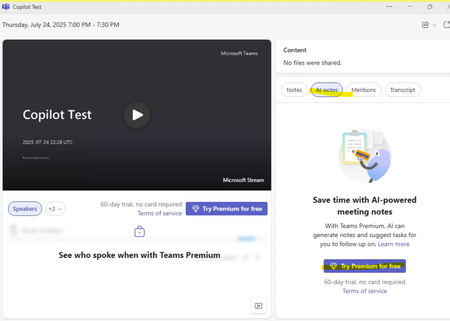
Hello Experts, We've read that from this article: https://learn.microsoft.com/en-us/microsoftteams/intelligent-recap-calls-meetings The intelligent recap/AI notes for meetings license requirement is Teams Premium "or" M365 Copilot license. However, when we test this for a couple of test users that only has Copilot license(paid) but without Teams Premium. The AI Notes in Teams Meetings Recap is locked. See sample screenshot. We confirmed that the AI Notes is unlocked once you have Teams Premium license but this seems like a bug or maybe an error from the official article. Can someone from the engineering team confirm this? Your help is highly appreciated.235Views0likes0CommentsGenerate AI Notes and Mentions using Copilot
I recently subscribed to Copilot and confirmed that it is in all appropriate applications. I setup a Teams meeting and ensured that the meeting option is set to enable Copilot without transcription. Even still, I turned on transcription, so I have a Transcript of the meeting in the Recap tab. However, there is nothing in the AI Notes or the Mentions on the Recap tab after the meeting ended. It says "Turn on recording and transcription, and AI can generate notes and suggest tasks to follow up on." I was able to access Copilot during the meeting, so I know that it is working. I would have expected that the AI Notes and Mentions tabs would be filled in, since I had the meeting option set to Copilot without Transcription AND I had a transcript. Am I doing something wrong? Does recording have to be turned on in addition to transcription? Does the option to enable Copilot without transcription not work if transcription is turned on? Does Copilot with transcription have to be enabled in order for AI notes to populate? Does it take time for the AI notes to populate (It's now been several hours, and still nothing)?27KViews1like10CommentsIntelligent recap for recurring meeting
I'm trying to view the Recap for earlier dates of my meeting, but it only shows me the current meeting. How can I get to earlier dates? Note that under Recordings & Transcripts, I have a drop-down for all of the dates, but AI doesn't work on this tab. What I'd like to be able to do is summarize and ask questions about all six meetings.940Views0likes1Comment