copilot in excel
191 Topics
Looking for advice on leveraging AI for Excel in a price-sensitive, third-world country
I work for a training company in a price-sensitive, third-world country and have been conducting training in MS Excel for close to 2 decades. My company has asked me to design Excel training that teaches how to use AI to improve productivity. Ethical considerations aside, it’s something I have been thinking about for a while. The main roadblock I see is the average purchasing power of participants in our market. Right now the cheapest Copilot plan is USD 99.99/yr for MS 365 Personal. The cheapest plan for Business or Enterprise is USD 18/user/month for MS 365 Copilot business (billed at USD 216/user/year). I’ve been casually speaking with the participants in training sessions and most are happy with the free chatbot versions of Copilot/ChatGPT/Gemini that almost no one would upgrade to a paid subscription to integrate AI with Excel - they describe their problem to the AI, send screenshots or upload files and then try and implement the solution that’s returned. It’s similar in the business/enterprise context. Larger organisations may have paid for AI subscriptions for their employees but those are few in number. Most businesses in this market are classified as Small-Medium-Enterprises (SMEs) and feedback from participants is that their management would not likely approve of the cost. It’s worth mentioning that my training company does not provide computers instead requiring participants to bring their own laptops with valid Excel licences though we standardize things as much as possible e.g. Windows only, no tablets etc… This means if we design a training that requires a paid Copilot subscription, then it is up to the participants to buy it for themselves which I don’t think many of them will. After speaking with management, they are open to designing a training that uses the free AI chatbots. I’m fine with that but don’t know how much value that would add to what people are already doing. I’m quite sure this strategy is management trying to revive Excel training which used to be top-sellers (demand fell off ever since COVID) and they see other Excel training incorporating AI so want to follow suit. So right now the most viable option is to create training that teaching using free AI chatbots. But I’d like to hear the opinions of others - what other options do you see for a price-sensitive, third-world market? And yes, I did ask AI how Excel users can leverage AI without paying for expensive subscriptions and it basically said “use the free chatbots”.30Views0likes0Comments
Fix all annoying Copilot bugs
I’m experiencing an issue with Microsoft Edge on Android. Starting today (September 22, 2026), whenever I try to visit copilot.microsoft.com, Edge automatically redirects me to the Google Play Store to install the Copilot app. I prefer using Copilot in the browser and do not want to install the app. And even when i try to install the copilot app it does not let me do anything and thinks I need a license or subscription to access it like copilot is litterly supposed to be free and also even when i try to get rid of the app redirection it for some dumb reason it redirects me to from copilot.microsoft.com to copilot.com and they put in restrictions like after a lot of chats you must wait for a specific time period and a couple months ago you guys removed the ability to use copilot without registration like come on that is so dumb I want Microsoft Copilot to be fixed revert how copilot was before how is this consumer friendly239Views1like2CommentsPlease Remove Daily Cap Usage for Free Copilot Text Chat
Dear Microsoft Copilot Team, I am writing to express my disappointment with the new daily usage caps on Microsoft Copilot, particularly for ordinary text-based conversations. In the past, I could use Copilot freely for everyday questions, learning, research, brainstorming, and general conversations without constantly worrying about reaching a daily limit. The newer restrictions have made the experience significantly more frustrating and less useful. I understand that running AI services requires computing resources and that Microsoft must manage operating costs. However, I believe ordinary text chat should remain uncapped, especially when it was previously possible to use Copilot much more freely. Text conversations are a fundamental part of the service, and users should not have to stop in the middle of a useful discussion because they have exhausted a daily allowance. The move toward a unified Copilot experience should make the product simpler, more consistent, and more useful—not make existing users feel that they have lost access to a service they have come to rely on. I am therefore asking Microsoft to: Remove daily usage caps entirely for ordinary text-based Copilot conversations, including for free users. Keep basic text chat freely accessible without arbitrary daily cutoffs or lengthy waiting periods. If stricter limits are necessary for resource-intensive features such as image generation or advanced research, apply those limits separately rather than restricting ordinary text conversations. Clearly communicate any usage policies and reconsider changes that negatively affect the experience of long-time users. Unlimited text chat would help preserve user trust, encourage continued engagement, and distinguish Copilot as an accessible AI assistant for everyone. Restricting basic conversations risks pushing loyal users toward competing services that offer a more suitable experience. I hope Microsoft will take this feedback seriously and reconsider the current daily cap policy. Please restore uncapped text chat so users can rely on Copilot whenever they need assistance, without worrying about running out of messages. People on Reddit and online have been criticizing these changes ever since Copilot was unified under one product between enterprise and personal, If you guys dont do anything now it might reduce user trust and might be bad business decisions so please fix Copilot Thank you for your time and consideration. I look forward to seeing Microsoft make Copilot more accessible and user-friendly again.114Views3likes0CommentsHow to Create Your Own Copilot Skills in Excel and Work Smarter
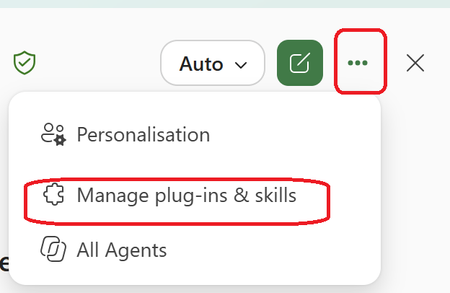
Many Excel users know how to work with formulas, pivot tables, and dashboards, but far fewer know that they can create Copilot Skills that help automate repetitive tasks and standardize business processes. Benefits of Copilot Skills in Excel ✅Save time on repetitive analysis ✅Standardize calculations and reporting ✅Reduce manual errors ✅Make advanced Excel capabilities accessible to everyone ✅Improve productivity across teams 💡 Best Use Cases ✅Sales performance analysis ✅Financial reporting ✅Data cleansing and transformation ✅Forecasting and trend analysis ✅Creating recurring management reports The real power comes from turning your organization's knowledge and best practices into reusable skills that anyone can use directly from Excel. 🎥 I recently created a video showing how to create and use Copilot Skills in Excel, with practical examples and step-by-step guidance. 👉 Watch the video and let me know what Excel task you would automate first! https://www.youtube.com/watch?v=uPfMQjlNhXY How do we create the skill? Within the Copilot Chat in Excel Go choose the 3 Dots Then Choose Manage Plugins & and Skills Choose the Custom Skills Here you will see the location that you can upload your skill that are stored in your OneDrive (Click on the Hyperlink "Skill OneDrive Folder") In my case this is the location in My OneDrive Now you need to Create a Folder with the name of the Skill and the Skill.MD file that includes the Name and description and instruction It will look like this A good approach is to use Copilot Chat to generate the entire skill package, including the required folder name and structure. Once Uploaded to OneDrive , Refresh the Custom skill Screen and you will see it and use it #Microsoft365 #Copilot #Excel #MicrosoftCopilot #Productivity #DataAnalysis #AI #ExcelTips #M365175Views0likes0Comments
Copilot in Excel
a { text-decoration: none; color: #464feb; } tr th, tr td { border: 1px solid #e6e6e6; } tr th { background-color: #f5f5f5; } Hi everyone, I’m starting to explore Copilot in Excel. I’m an Excel enthusiast, so I’m already quite comfortable with the application. I was wondering which Copilot features you find really useful, particularly those that save time or help solve problems. Do you also think Copilot can help beginners use Excel more easily and effectively? Thank you for sharing your thoughts and experience!203Views1like2Comments
What's the simplest way to make a genuinely random name selection system using Microsoft tools?
For example, suppose I have a list of participants in Excel and want to randomly select one winner without manually choosing from the list. Would you use RAND/RANDBETWEEN in Excel, Power Automate, or another Microsoft 365 approach? I'm also interested in preventing the same person from being selected twice when several winners are needed. I'd appreciate an approach that's easy for someone without much Excel or Power Automate experience to understand.333Views0likes5Comments