bluetooth
26 Topics
Bluetooth and Wireless display not working on Windows Server 2022
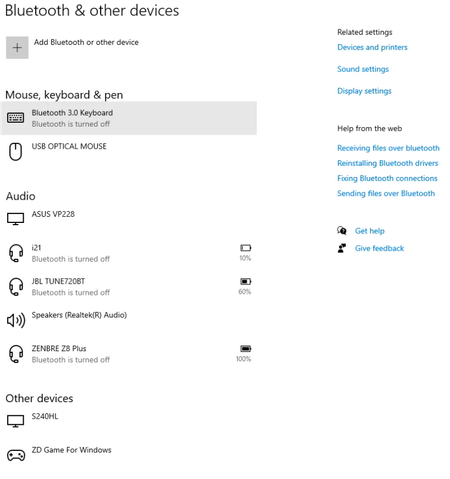
Dear All, While this may not be the required case in production. However, on my standalone laptop, I have installed Windows Server 2022 Datacenter Edition(GUI). Wireless Network is working which helps me to connect to WiFi network for internet. BUT, Bluetooth devices are NOT connected. They are detected and showed as 'paired' but never connects. ALSO, it fails to detect the Microsoft Wireless Display Adapter. This is useful when I want to present my laptop screen with all Hyper-V machines on a projector with which Microsoft Wireless Display Adapter is connected. Let me know if anyone has experienced this similar behavior and if there are any suggestions around. regards KayyumSolved123KViews2likes239CommentsShare the Moment: Listen Together with Shared Audio
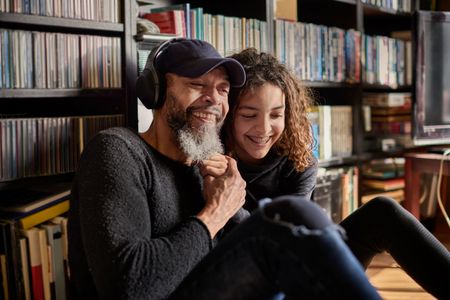
I was traveling with a friend on a long flight when I asked them if they wanted to watch a movie with me on my laptop. We both pulled out our earbuds and learned that only one set of earbuds can be used at a time. We then awkwardly shared one earbud each until we both couldn’t get over the surrounding noise, so they handed me back my earbud and I finished the movie by myself Bluetooth Classic Audio was built to replace the wire of your audio accessory, with a design that enables one audio stream to go to only one accessory. You used to be out of luck if you wanted to use a second set of headphones or speakers at the same time. Since then, the way we use PCs has changed. We watch movies with our family, study with classmates, and share Windows together. In this time, Bluetooth audio standards have also evolved with the introduction of LE Audio, allowing Windows to evolve with it. Shared audio is rolling out for Windows 11, version 25H2 and 26H1 Two people on one PC, listening together wirelessly Shared audio can be used during the times you’re with someone in an environment where you’d prefer to listen to videos, music, or calls together through your own Bluetooth headphones. For those friends on a flight above, who wanted to watch a movie together, shared audio now lets them do that. Or, siblings in the back seat during a road trip can watch their shows together while their parents focus on the road. Both listeners can hear the movie or show through their own favorite headphones - without disturbing others. Shared audio can also help friends studying in the library late at night. Both students can connect their earbuds or headphones to the same laptop and listen to a recorded lecture together before finals, pausing to discuss as they go. When they need a break, they can switch to a shared playlist and jump between songs. Shared audio fits naturally into how people already spend time together and works across a variety of Bluetooth LE Audio accessories - headphones, earbuds, speakers and assistive devices like hearing aids and cochlear implants. Whether it's entertainment, productivity, or accessibility, shared audio makes it easier to listen without compromise. How to use It To use shared audio, pair and connect two compatible LE Audio accessories with your Windows 11 PC. Then open Quick Settings by clicking the speaker icon in your taskbar. Find and click the “Shared audio” button, which you may have to scroll down the list of buttons to find. Select the two accessories you’d like to share audio between. You’ll only see Bluetooth LE Audio accessories here that are compatible with shared audio. Select “Share” to start. When sharing, existing volume controls in Windows continue to work for when the dialogue during a movie is too quiet or an action scene is too loud. You can also fine tune the volume of individual accessories via the sliders in the "Shared audio" menu or from accessories directly to ensure a comfortable experience for both listeners. While sharing, an icon will be added to the taskbar. This acts as a reminder that audio is being shared, and when clicked, is a quick way back to the “Shared audio” menu to manage the sharing session. How it works Shared audio works by transmitting audio using standardized Bluetooth LE Audio broadcast streams. This stream is then received by the two paired, connected, and capable accessories selected by the user. For these accessories, Windows also acts as a broadcast assistant and tunes the connected headphones directly into the broadcast stream. Windows stays connected to the accessory during the sharing session for media control, volume control, and other experiences like battery levels to prevent an unfortunate surprise of a dead battery halfway through a movie. When sharing, shared audio becomes the default audio output, and all other Bluetooth audio output and input endpoints are not available. For voice capture and calls, use a microphone that is integrated or plugged into your PC. Once sharing stops, Windows reverts to normal operation, and all other Bluetooth audio experiences continue as expected. What you need to get started To use shared audio, you'll need: Two compatible connected LE Audio accessories Check your LE Audio headphones, earbuds, or assistive hearing devices for broadcast support. A Windows 11 PC with LE Audio broadcast support, enabled by the hardware and driver Many new PCs will support broadcast, but you will need to check with your PC manufacturer. A supported version of Windows 11: Version 24H2, build 26100.8522 or newer. Version 25H2, build 26200.8522 or newer. Version 26H1, build 28000.2179 or newer. Resources for developers If you're building Windows applications that output audio, or developing Bluetooth LE Audio hardware, Shared Audio works as another audio endpoint and no application changes are needed. PC makers can find LE Audio driver requirements and WHCP certification guidance for broadcast with the Device.BusController.Bluetooth.LEAudioBroadcast requirement. The Bluetooth® word mark and logos are registered trademarks owned by Bluetooth SIG, Inc. and any use of such marks by Microsoft is under license. Other trademarks and trade names are those of their respective owners.46KViews5likes3Comments
Windows 11 b.132 random bluetooth audio quality drop
It happens randomly and sporadically whenever you start listening to a new audio (video) after period of silence: for a few seconds sound quality drops as if headset is in communication mode (which greatly reduces quality), then everything goes back to normal. Sure enough, when I go to sound settings after that happens headset is marked as communication device (which I keep changing to another device every time, but it somehow switches back again). I don't use my headset for communication at all, only listen in 'music mode', its mic is completely disabled in settings (as I use external microphone), so I can't imagine why would it fallback to communication profile. Build .132, this problem had NEVER occurred in Windows 10, been using my headphones for more than six months, so I'm pretty confident this is W11 bluetooth audio related bug.12KViews3likes12CommentsPhone link says I already have the phone set-up with another app
The Phone Link on the computer is where the issues are and under Calls I have lost the ability to use the phone feature. I've followed calls troubleshooting. I removed all Bluetooth apps including unpairs. This didn't fix the issue. I've terminated, repaired, and reset then I cleared these again and uninstalled. Redownloaded it from the Microsoft store and still cannot connect. Microsoft store and Windows Updates are up to date. On the Samsung S20fe phone I've cleared Link to Windows/Link to Windows Service. The phone is all up to date Update: The issue is happening as soon as I confirm the pin with the computer and phone to connect to calls. It will then say that I have another device linked using Bluetooth. Phone info: Galaxy S20 FE 5G Model: SM-G781U One UI Version: 5.0 Android Version: 13 Computer info: HP Envy TE 01-1177c Device name DESKTOP-xxxxx Processor Intel(R) Core(TM) i7-10700F CPU @ 2.90GHz 2.90 GHz Installed RAM 32.0 GB (31.9 GB usable) System type 64-bit operating system, x64-based processor Pen and touch No pen or touch input is available for this display Edition Windows 11 Home Version 22H2 Installed on 10/2/2022 OS build 22623.1325 Experience Windows Feature Experience Pack 1000.22639.1000.0 Additional message: Please note: Microsoft Support on Twitter referred me to leave the message in the forum about the issue. Quick update: Feedback hub removes just as fast as when it is posted.Solved17KViews3likes36Comments
Blocking Bluetooth file transfer
We have created a policy to block Bluetooth file transfer. The policy was created through Attack surface reduction -> Device Control. 1-This seems to "Dim" the option to add a Bluetooth device in windows. Which is not what is needed. Only file transfer is to be blocked. How can this be achieved? 2-In allow Bluetooth, You get the following description: Allows the user to enable Bluetooth or restrict access. Note This value is not supported in Windows Phone 8. 1 MDM and EAS, Windows 10 for desktop, or Windows 10 Mobile. If this is not set or it is deleted, the default value of 2 (Allow) is used. Most restricted value is 0. There is another option "Reserved" There is no documentation for this option, Any Idea?1.2KViews0likes1Comment
Bluetooth audio out stops when using Teams
Hi everyone. I have a pair of Taotronics Soundliberty 79 earbuds. They've pair fine with my laptop running Win 10 and work for listening to music. I've also tested joining a Google Meets meeting and audio works fine in both directions. However, when I join a MS Teams meeting after a minute or two I can no longer hear audio through my earbuds, but the microphone continues to work and others can hear me. I need to go to device settings in Teams and switch to PC speaker/mic then back to the earbuds to restore audio which only lasts a couple of minutes before dropping out again. Does anyone have suggestions on how to resolve this?Solved170KViews10likes68Comments
Bluetooth headset microphone bad quality
I try use my bluetooth headset (Sony WH-XB900N) in MS Teams. Sound ist good but other members in the video conference can't hear me very good. My voice is very quiet. The same in the test call option. The microphone level in Win 10 is on 100%. I tried the headphone in Skype and the quality is good there. Hardware is ok then. I have the same issue on two different devices (Laptops).Solved109KViews3likes26Comments- 1.4KViews0likes8Comments