best practices
21 Topics
Use Data Wrangler to Streamline Your Microsoft Sentinel data lake Notebook Development
One of the many exciting features of the Microsoft Sentinel data lake is a built-in advanced analytics engine, powered by Apache Spark. This Spark cluster has access to data that is within Sentinel data lake, and can work with this data through Jupyter notebooks in Visual Studio Code. As with any coding effort, creating the right data set can be an iterative process, and sometimes making those changes purely through code can be a little tricky. Wouldn't it be great if you could visualize the distribution of your data, apply some actions to shape and refine it, and then translate those actions to code? Well, you can do that with the Data Wrangler extension in VSCode in conjunction with the Sentinel data lake's MicrosoftSentinelProvider class. This blog will walk you through how to enable Data Wrangler in VSCode, how to use some of its functionality, and incorporating refinement actions back into your data lake notebook. Scenario The dataframe that is being built will be sourced from SignInLogs but will be used in a later algorithm. I need to clean up some of the columns by replacing missing values with default values, removing rows meeting certain criteria, and creating some categorical columns for later machine learning tasks. Initial DataFrame An essential data structure that you use in Jupyter notebooks is a DataFrame. A DataFrame is an in-memory representation of your data, like a database table that has columns and rows. Let's start with a basic DataFrame that contains some sign-in events from the SigninLogs table from the data lake. The returned data is useful, but for our later investigations we will need to "clean" the data by removing some missing values, renaming columns, creating true/false columns for analysis, and some other operations. In our notebook cell, we'll perform the following actions. Initial Includes Before you can use the Sentinel data lake in your notebook, you need to include the proper class from the sentinel_lake.providers module. This module contains a class named MicrosoftSentinelProvider that provides functions that let you read from and write to the data lake. We also will be using a few other Python libraries in our example, and this would look like the following: from sentinel_lake.providers import MicrosoftSentinelProvider from pyspark.sql.functions import col, from_json from pyspark.sql.types import StructType, StructField, StringType, IntegerType import pandas as pd from datetime import datetime, timedelta Variable Definitions Our sample will pull the last 30 days of SigninLogs from the data lake in order to assist with the investigation. This will be a variable that is defined once in the notebook and can be used elsewhere if needed. The same will be done for the name of the workspace in the data lake that will be queried, since the read_table and save_as_table functions can take the workspace name as a parameter and I only want to define the name once and avoid typos with multiple calls. In addition is a very important step where we instantiate our connection to the Sentinel data lake. The "spark" variable we pass to the MicrosoftSentinelProvider class is a global variable representing your Spark session. The variable sentinel_provider exposes the read_table and save_as_table functions that enable reading from and writing to the data lake. one_month_ago = datetime.now() - timedelta(days=30) workspaceName = "YOUR_WORKSPACE_NAME" sentinel_provider = MicrosoftSentinelProvider(spark) Replace "YOUR_WORKSPACE_NAME" with the name of the Sentinel workspace that you will be working with in the data lake. Complex Type Definitions Part of our query of SigninLogs will return complex types that contain name/value pairs. The LocationDetails and Status columns have nested values like city and state for LocationDetails and errorCode and failureReason for Status. To be able to easily access those nested values, the use of a StructType allows us to define that structure and we'll use this when retrieving the DataFrame. location_schema = StructType( [ StructField("city", StringType(), True), StructField("state", StringType(), True), StructField("countryOrRegion", StringType(), True), ] ) status_schema = StructType( [ StructField("errorCode", IntegerType(), True), StructField("failureReason", StringType(), True), StructField("additionalDetails", StringType(), True), ] ) Dataframe Definition We now have the parts needed to make a call to create a DataFrame for the last 30 days of data from the SigninLogs table in the lake. Our code to define the DataFrame uses our time definition as a filter for TimeGenerated, defines a handful of columns that we want returned, breaking down our complex types using the StructTypes defined earlier, and retrieves those nested column names as individual DataFrame columns. signin_events_df = ( sentinel_provider.read_table("SigninLogs", workspaceName) .filter(col("TimeGenerated") >= one_month_ago) .filter(col("UserPrincipalName") != "") .select( col("TimeGenerated"), col("AppDisplayName"), col("IPAddress"), col("IsRisky"), col("RiskState"), col("RiskLevelAggregated"), col("RiskLevelDuringSignIn"), col("ConditionalAccessStatus"), col("ClientAppUsed"), col("IsInteractive"), col("UserType"), col("MfaDetail"), col("LocationDetails"), col("Status"), ) .withColumn("loc", from_json(col("LocationDetails"), location_schema)) .withColumn("status", from_json(col("Status"), status_schema)) .select( "*", col("loc.city").alias("City"), col("loc.state").alias("State"), col("loc.countryOrRegion").alias("Country"), col("status.errorCode").alias("ErrorCode"), col("status.failureReason").alias("FailureReason"), col("status.additionalDetails").alias("AdditionalDetails"), ) .drop("loc", "status") ) Final Code (for now) Putting all of these steps together results in the following code for our cell that retrieves the last 30 days of SigninLogs into a DataFrame. Running that cell and then calling show() on the resulting DataFrame produces the following output: It's great data, but not the most visually appealing. It would be nice to have a cleaner looking table. That's where Data Wrangler can help right away. Install Data Wrangler Data Wrangler is a VSCode extension that's published by Microsoft. You can find it from the VSCode Marketplace by searching for "Data Wrangler". Installing the extension is quick and only requires Python 3.8 or higher to be installed on your machine. Data Wrangler View of a DataFrame Data Wrangler, by default, works natively with Pandas DataFrames. Pandas is an open-source Python library that is very popular with data scientists for data analysis and manipulation. When working with the MicrosoftSentinelProvider class, the DataFrame returned is a PySpark DataFrame. We can easily convert our PySpark DataFrames to Pandas DataFrames by calling `.toPandas()` on that DataFrame. That's a much cleaner looking table. Clicking the ellipsis in the bottom right of the table and selecting "Show column insights" changes the view to provide a quick glance of the distribution of the data: Now, just by glancing at the column headers, you can quickly assess the distribution of data in the DataFrame. You can see that 7% of conditional access attempts failed, that a number of sign-in events were for Security Copilot, and 30% of the sign-in events came from just three IP addresses. Wrangling Your Data A cleaner table view with data distribution statistics is nice, but the real power of Data Wrangler allows you to shape and refine your data for use elsewhere in your notebook. In the simple DataFrame we have created, let's perform some data cleansing steps so that you can more easily filter and join this DataFrame with other DataFrames later in my analysis. Upon first glance at the DataFrame there are a few data cleansing tasks to perform, namely: Remove rows that have non-usable UserType values of -1 Create a true/false column for whether the user is a Member or Guest, and drop the original UserType column Fill in column values that have missing data with a default value Filter out sign ins to the My Profile page Let's get started by opening Data Wrangler by clicking the Data Wrangler icon in the lower left corner of the DataFrame. Data Wrangler will open in a new tab in VS Code. There's a lot going on in this tab, with the left-hand pane having sections for an operations toolbox, a data summary panel that lists some stats about your DataFrame, and cleaning steps that keeps track of the changes you have made to your DataFrame. The rest of the page is split in two, with the DataFrame view taking up the majority of real estate and the operation preview pane at the bottom. We'll spend most of our time in the operations pane, but we'll also use the operation preview pane to do some additional tasks. Let's dive in. Task 1: Remove Rows Looking at the DataFrame grid, I can see the UserType column has some rows with a value of "-1". I don't want those in my DataFrame, so we can remove them using a filter. Selecting Filter in the Operations panel allows me to enter my criteria. I want to exclude rows that have a "-1" for UserType. I'll enter that and if I wait a few seconds, my DataFrame will update allowing me to preview the change. I unchecked the "Keep matching rows" checkbox, so my filter is excluding rows that match my criteria of UserType "Equal to" the value "-1". In the DataFrame, UserType is highlighted and I see that -1 is now not part of the DataFrame. Below the DataFrame, in the operation preview, I can see the Python code that makes this change. And in the Cleaning Steps pane, I see my Filter step is present. I can accept this change by clicking the Apply button in the Operations pane. Once I do that, my DataFrame is updated with my Filter operation. Everything being done by Data Wrangler is done in a sandbox, so these steps do not affect my original DataFrame...at least not yet. (We'll get to that.) Let's make a few more changes. Task 2: One-Hot Encoded Columns I want to be able to filter on UserType later on in my notebook, but I don't want to do string comparisons. I'd rather filter on a simple binary column. That's where One-Hot columns are useful. I'd like to have a column for IsMember and one for IsGuest. Each column will be a 0 or a 1 (false or true) and allows me to quickly filter instead of doing string comparisons. Let's create those columns. In the Operations pane, expand Formulas and select One-hot encode. The panel will switch so you can enter the column you're targeting. Select UserType, and in a few seconds, you'll see your DataFrame update with a preview of the new columns. Notice the new columns created (UserType_Guest and UserType_Member) are in green. The UserType column is in red and will be dropped. Clicking Apply accepts these changes, and you'll see the updated DataFrame. You can rename the new columns by selecting the Rename column operation under Schema. In this case, we'll rename the new columns to be IsMember and IsGuest, and accept the changes. Your Data Wrangler tab should look similar to the below image. Task 3: Provide Default Values for Missing Data Scanning through the DataFrame, we can see that the FailureReason and AdditionalDetails columns have a number of missing values. We would prefer to have a value in a cell rather than missing values. Filling in default values for missing values is another operation. Under Find and Replace in the Operations pane, select Fill missing values. You can set a default value for multiple columns in one swoop with this operation. I'm setting the same default value ("N/A") for both columns in one operation. The columns in red are the old values; the columns in green are the new values. Again, if this looks good, hit the Apply button and the DataFrame is updated. Task 4: Use Copilot to Create Operations One last update that we wanted to make was to filter out rows where the target application was "My Profile". We've already created a filter operation earlier, but this time, we'll use Copilot to generate the operation. In the Operation Preview pane, below your DataFrame, there's a text box where you can type a prompt. Enter something like "For the column AppDisplayName, filter out the rows where the value is equal to My Profile". Hit Enter, and Copilot thinks for a few seconds and will display the code in the preview pane along with a modal dialog stating that the preview is paused. Since this change was generated by Copilot, you need to review the code before accepting the change. If the code looks good, click the Run code link in the modal and your DataFrame will go back to preview mode. You'll see the filtered out rows highlighted, and if this all looks good, click Apply to accept the operation. Using Copilot to help create operations can be very helpful if you know what you want to do, but aren't sure what the operation is called, such as a One-Hot Encoding. But you should always examine the code generated before accepting it. Applying the Changes to Our Notebook We've created a number of operations and our DataFrame looks great, but how can we translate these operations back to our original notebook? Data Wrangler makes that easy by allowing you to export your operations back into the source notebook. Once you're satisfied with your changes, click the Export to notebook button above your DataFrame. This action will take all of the operations you created and create a new cell in your Jupyter notebook, right below the one where you kicked off the Data Wrangler tab, Your operations will be contained within a local function and a copy of your DataFrame will be sent to the function. The result of the function will be a new DataFrame that you can then work with throughout the rest of your notebook. Since this is all code, you can change variable names or even the structure of the generated code. Personally, I like to change the DataFrame names from the generic "df" and "df_clean" to something more meaningful, and even the local function can be renamed to a more meaningful function name. This way, if others are working on the same notebook, they have a better understanding of what is happening in the code. It may look like this: def clean_signin_info(df): # Filter rows based on column: 'UserType' df = df[~(df["UserType"] == "-1")] # One-hot encode column: 'UserType' insert_loc = df.columns.get_loc("UserType") df = pd.concat( [ df.iloc[:, :insert_loc], pd.get_dummies(df.loc[:, ["UserType"]]), df.iloc[:, insert_loc + 1 :], ], axis=1, ) # Rename column 'UserType_Guest' to 'IsGuest' df = df.rename(columns={"UserType_Guest": "IsGuest"}) # Rename column 'UserType_Member' to 'IsMember' df = df.rename(columns={"UserType_Member": "IsMember"}) # Replace missing values with "N/A" in columns: 'FailureReason', 'AdditionalDetails' df = df.fillna({"FailureReason": "N/A", "AdditionalDetails": "N/A"}) return df signin_events_pandas_df = signin_events_df.toPandas() cleaned_signin_events_df = clean_signin_info(signin_events_pandas_df) cleaned_signin_events_df.head() And my resulting DataFrame will have all of my cleaning steps applied. Start Using Data Wrangler Today You can get started using Data Wrangler with your Sentinel data lake notebooks today and explore all of the data wrangling tasks you can do with it. The Data Wrangler extension is available in the VS Code Marketplace and is free to download and use. It works well with the Microsoft Sentinel extension that you use with your Sentinel data lake notebook tasks, so install it today and start wrangling the data lake. Happy wrangling! Resources Running notebooks on the Microsoft Sentinel data lake - Microsoft Security | Microsoft Learn Microsoft Sentinel data lake Microsoft Sentinel Provider class reference | Microsoft Learn Getting Started with Data Wrangler in VS Code Beyond KQL: Unlocking SOC Insights With Sentinel data lake Jupyter Notebooks | Microsoft Virtual Ninja Training491Views0likes0Comments
Estimate Microsoft Sentinel Costs with Confidence Using the New Sentinel Cost Estimator
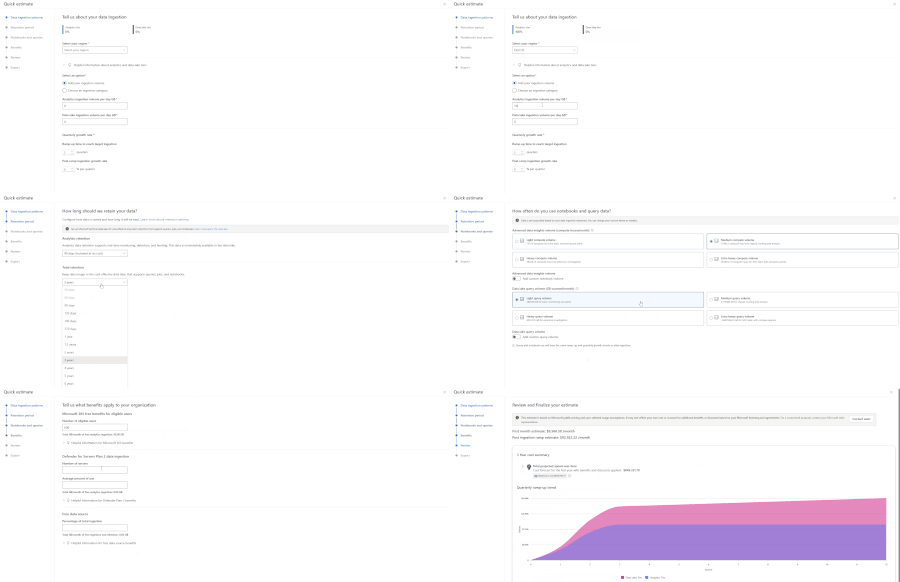
One of the first questions teams ask when evaluating Microsoft Sentinel is simple: what will this actually cost? Today, many customers and partners estimate Sentinel costs using the Azure Pricing Calculator, but it doesn’t provide the Sentinel-specific usage guidance needed to understand how each Sentinel meter contributes to overall spend. As a result, it can be hard to produce accurate, trustworthy estimates, especially early on, when you may not know every input upfront. To make these conversations easier and budgets more predictable, Microsoft is introducing the new Sentinel Cost Estimator (public preview) for Microsoft customers and partners. The Sentinel Cost Estimator gives organizations better visibility into spend and more confidence in budgeting as they operate at scale. You can access the Microsoft Sentinel Cost Estimator here: https://microsoft.com/en-us/security/pricing/microsoft-sentinel/cost-estimator What the Sentinel Cost Estimator does The new Sentinel Cost Estimator makes pricing transparent and predictable for Microsoft customers and partners. The Sentinel Cost Estimator helps you understand what drives costs at a meter level and ensures your estimates are accurate with step-by-step guidance. You can model multi-year estimates with built-in projections for up to three years, making it easy to anticipate data growth, plan for future spend, and avoid budget surprises as your security operations mature. Estimates can be easily shared with finance and security teams to support better budgeting and planning. When to Use the Sentinel Cost Estimator Use the Sentinel Cost Estimator to: Model ingestion growth over time as new data sources are onboarded Explore tradeoffs between Analytics and Data Lake storage tiers Understand the impact of retention requirements on total spend Estimate compute usage for notebooks and advanced queries Project costs across a multi‑year deployment timeline For broader Azure infrastructure cost planning, the Azure Pricing Calculator can still be used alongside the Sentinel Cost Estimator. Cost Estimator Example Let’s walk through a practical example using the Cost Estimator. A medium-sized company that is new to Microsoft Sentinel wants a high-level estimate of expected costs. In their previous SIEM, they performed proactive threat hunting across identity, endpoint, and network logs; ran detections on high-security-value data sources from multiple vendors; built a small set of dashboards; and required three years of retention for compliance and audit purposes. Based on their prior SIEM, they estimate they currently ingest about 2 TB per day. In the Cost Estimator, they select their region and enter their daily ingestion volume. As they are not currently using Sentinel data lake, they can explore different ways of splitting ingestion between tiers to understand the potential cost benefit of using the data lake. Their retention requirement is three years. If they choose to use Sentinel data lake, they can plan to retain 90 days in the Analytics tier (included with Microsoft Sentinel) and keep the remaining data in Sentinel data lake for the full three years. As notebooks are new to them, they plan to evaluate notebooks for SOC workflows and graph building. They expect to start in the light usage tier and may move to medium as they mature. Since they occasionally query data older than 90 days to build trends—and anticipate using the Sentinel MCP server for SOC workflows on Sentinel lake data—they expect to start in the medium query volume tier. Note: These tiers are for estimation purposes only; they do not lock in pricing when using the Microsoft Sentinel platform. Because this customer is upgrading from Microsoft 365 E3 to E5, they may be eligible for free ingestion based on their user count. Combined with their eligible server data from Defender for Servers, this can reduce their billable ingestion. In the review step, the Cost Estimator projects costs across a three-year window and breaks down drivers such as data tiers, commitment tiers, and comparisons with alternative storage options. From there, the customer can go back to earlier steps to adjust inputs and explore different scenarios. Once done, the estimate report can be exported for reference with Microsoft representatives and internal leadership when discussing the deployment of Microsoft Sentinel and Sentinel Platform. Finalize Your Estimate with Microsoft The Microsoft Sentinel Cost Estimator is designed to provide directional guidance and help organizations understand how architectural decisions may influence cost. Final pricing may vary based on factors such as deployment architecture, commitment tiers, and applicable discounts. We recommend working with your Microsoft account team or a Security sales specialist to develop a formal proposal tailored to your organization’s requirements. Try the Microsoft Sentinel Cost Estimator Start building your Microsoft Sentinel cost estimate today: https://microsoft.com/en-us/security/pricing/microsoft-sentinel/cost-estimator.3.2KViews0likes1Comment
How to Ingest Microsoft Intune Logs into Microsoft Sentinel
For many organizations using Microsoft Intune to manage devices, integrating Intune logs into Microsoft Sentinel is an essential for security operations (Incorporate the device into the SEIM). By routing Intune’s device management and compliance data into your central SIEM, you gain a unified view of endpoint events and can set up alerts on critical Intune activities e.g. devices falling out of compliance or policy changes. This unified monitoring helps security and IT teams detect issues faster, correlate Intune events with other security logs for threat hunting and improve compliance reporting. We’re publishing these best practices to help unblock common customer challenges in configuring Intune log ingestion. In this step-by-step guide, you’ll learn how to successfully send Intune logs to Microsoft Sentinel, so you can fully leverage Intune data for enhanced security and compliance visibility. Prerequisites and Overview Before configuring log ingestion, ensure the following prerequisites are in place: Microsoft Sentinel Enabled Workspace: A Log Analytics Workspace with Microsoft Sentinel enabled; For information regarding setting up a workspace and onboarding Microsoft Sentinel, see: Onboard Microsoft Sentinel - Log Analytics workspace overview. Microsoft Sentinel is now available in the Defender Portal, connect your Microsoft Sentinel Workspace to the Defender Portal: Connect Microsoft Sentinel to the Microsoft Defender portal - Unified security operations. Intune Administrator permissions: You need appropriate rights to configure Intune Diagnostic Settings. For information, see: Microsoft Entra built-in roles - Intune Administrator. Log Analytics Contributor role: The account configuring diagnostics should have permission to write to the Log Analytics workspace. For more information on the different roles, and what they can do, go to Manage access to log data and workspaces in Azure Monitor. Intune diagnostic logging enabled: Ensure that Intune diagnostic settings are configured to send logs to Azure Monitor / Log Analytics, and that devices and users are enrolled in Intune so that relevant management and compliance events are generated. For more information, see: Send Intune log data to Azure Storage, Event Hubs, or Log Analytics. Configure Intune to Send Logs to Microsoft Sentinel Sign in to the Microsoft Intune admin center. Select Reports > Diagnostics settings. If it’s the first time here, you may be prompted to “Turn on” diagnostic settings for Intune; enable it if so. Then click “+ Add diagnostic setting” to create a new setting: Select Intune Log Categories. In the “Diagnostic setting” configuration page, give the setting a name (e.g. “Microsoft Sentinel Intune Logs Demo”). Under Logs to send, you’ll see checkboxes for each Intune log category. Select the categories you want to forward. For comprehensive monitoring, check AuditLogs, OperationalLogs, DeviceComplianceOrg, and Devices. The selected log categories will be sent to a table in the Microsoft Sentinel Workspace. Configure Destination Details – Microsoft Sentinel Workspace. Under Destination details on the same page, select your Azure Subscription then select the Microsoft Sentinel workspace. Save the Diagnostic Setting. After you click save, the Microsoft Intune Logs will will be streamed to 4 tables which are in the Analytics Tier. For pricing on the analytic tier check here: Plan costs and understand pricing and billing. Verify Data in Microsoft Sentinel. After configuring Intune to send diagnostic data to a Microsoft Sentinel Workspace, it’s crucial to verify that the Intune logs are successfully flowing into Microsoft Sentinel. You can do this by checking specific Intune log tables both in the Microsoft 365 Defender portal and in the Azure Portal. The key tables to verify are: IntuneAuditLogs IntuneOperationalLogs IntuneDeviceComplianceOrg IntuneDevices Microsoft 365 Defender Portal (Unified) Azure Portal (Microsoft Sentinel) 1. Open Advanced Hunting: Sign in to the https://security.microsoft.com (the unified portal). Navigate to Advanced Hunting. – This opens the unified query editor where you can search across Microsoft Defender data and any connected Sentinel data. 2. Find Intune Tables: In the Advanced hunting Schema pane (on the left side of the query editor), scroll down past the Microsoft Sentinel Tables. Under the LogManagement Section Look for IntuneAuditLogs, IntuneOperationalLogs, IntuneDeviceComplianceOrg, and IntuneDevices in the list. Microsoft Sentinel in Defender Portal – Tables 1. Navigate to Logs: Sign in to the https://portal.azure.com and open Microsoft Sentinel. Select your Sentinel workspace, then click Logs (under General). 2. Find Intune Tables: In the Logs query editor that opens, you’ll see a Schema or tables list on the left. If it’s collapsed, click >> to expand it. Scroll down to find LogManagement and expand it; look for these Intune-related tables: IntuneAuditLogs, IntuneOperationalLogs, IntuneDeviceComplianceOrg, and IntuneDevices Microsoft Sentinel in Azure Portal – Tables Querying Intune Log Tables in Sentinel – Once the tables are present, use Kusto Query Language (KQL) in either portal to view and analyze Intune data: Microsoft 365 Defender Portal (Unified) Azure Portal (Microsoft Sentinel) In the Advanced Hunting page, ensure the query editor is visible (select New query if needed). Run a simple KQL query such as: IntuneDevice | take 5 Click Run query to display sample Intune device records. If results are returned, it confirms that Intune data is being ingested successfully. Note that querying across Microsoft Sentinel data in the unified Advanced Hunting view requires at least the Microsoft Sentinel Reader role. In the Azure Logs blade, use the query editor to run a simple KQL query such as: IntuneDevice | take 5 Select Run to view the results in a table showing sample Intune device data. If results appear, it confirms that your Intune logs are being collected successfully. You can select any record to view full event details and use KQL to further explore or filter the data - for example, by querying IntuneDeviceComplianceOrg to identify devices that are not compliant and adjust the query as needed. Once Microsoft Intune logs are flowing into Microsoft Sentinel, the real value comes from transforming that raw device and audit data into actionable security signals. To achieve this, you should set up detection rules that continuously analyze the Intune logs and automatically flag any risky or suspicious behavior. In practice, this means creating custom detection rules in the Microsoft Defender portal (part of the unified XDR experience) see [https://learn.microsoft.com/en-us/defender-xdr/custom-detection-rules] and scheduled analytics rules in Microsoft Sentinel (in either the Azure Portal or the unified Defender portal interface) see:[Create scheduled analytics rules in Microsoft Sentinel | Microsoft Learn]. These detection rules will continuously monitor your Intune telemetry – tracking device compliance status, enrollment activity, and administrative actions – and will raise alerts whenever they detect suspicious or out-of-policy events. For example, you can be alerted if a large number of devices fall out of compliance, if an unusual spike in enrollment failures occurs, or if an Intune policy is modified by an unexpected account. Each alert generated by these rules becomes an incident in Microsoft Sentinel (and in the XDR Defender portal’s unified incident queue), enabling your security team to investigate and respond through the standard SOC workflow. In turn, this converts raw Intune log data into high-value security insights: you’ll achieve proactive detection of potential issues, faster investigation by pivoting on the enriched Intune data in each incident, and even automated response across your endpoints (for instance, by triggering playbooks or other automated remediation actions when an alert fires). Use this Detection Logic to Create a detection Rule IntuneDeviceComplianceOrg | where TimeGenerated > ago(24h) | where ComplianceState != "Compliant" | summarize NonCompliantCount = count() by DeviceName, TimeGenerated | where NonCompliantCount > 3 Additional Tips: After confirming data ingestion and setting up alerts, you can leverage other Microsoft Sentinel features to get more value from your Intune logs. For example: Workbooks for Visualization: Create custom workbooks to build dashboards for Intune data (or check if community-contributed Intune workbooks are available). This can help you monitor device compliance trends and Intune activities visually. Hunting and Queries: Use advanced hunting (KQL queries) to proactively search through Intune logs for suspicious activities or trends. The unified Defender portal’s Advanced Hunting page can query both Sentinel (Intune logs) and Defender data together, enabling correlation across Intune and other security data. For instance, you might join IntuneDevices data with Azure AD sign-in logs to investigate a device associated with risky sign-ins. Incident Management: Leverage Sentinel’s Incidents view (in Azure portal) or the unified Incidents queue in Defender to investigate alerts triggered by your new rules. Incidents in Sentinel (whether created in Azure or Defender portal) will appear in the connected portal, allowing your security operations team to manage Intune-related alerts just like any other security incident. Built-in Rules & Content: Remember that Microsoft Sentinel provides many built-in Analytics Rule templates and Content Hub solutions. While there isn’t a native pre-built Intune content pack as of now, you can use general Sentinel features to monitor Intune data. Frequently Asked Questions If you’ve set everything up but don’t see logs in Sentinel, run through these checks: Check Diagnostic Settings Go to the Microsoft Intune admin center → Reports → Diagnostic settings. Make sure the setting is turned ON and sending the right log categories to the correct Microsoft Sentinel workspace. Confirm the Right Workspace Double-check that the Azure subscription and Microsoft Sentinel workspace are selected. If you have multiple tenants/directories, make sure you’re in the right one. Verify Permissions Make Sure Logs Are Being Generated If no devices are enrolled or no actions have been taken, there may be nothing to log yet. Try enrolling a device or changing a policy to trigger logs. Check Your Queries Make sure you’re querying the correct workspace and time range in Microsoft Sentinel. Try a direct query like: IntuneAuditLogs | take 5 Still Nothing? Try deleting and re-adding the diagnostic setting. Most issues come down to permissions or selecting the wrong workspace. How long are Intune logs retained, and how can I keep them longer? The analytics tier keeps data in the interactive retention state for 90 days by default, extensible for up to two years. This interactive state, while expensive, allows you to query your data in unlimited fashion, with high performance, at no charge per query: Log retention tiers in Microsoft Sentinel. We hope this helps you to successfully connect your resources and end-to-end ingest Intune logs into Microsoft Sentinel. If you have any questions, leave a comment below or reach out to us on X @MSFTSecSuppTeam!3.4KViews3likes0CommentsAccelerate Agent Development: Hacks for Building with Microsoft Sentinel data lake
As a Senior Product Manager | Developer Architect on the App Assure team working to bring Microsoft Sentinel and Security Copilot solutions to market, I interact with many ISVs building agents on Microsoft Sentinel data lake for the first time. I’ve written this article to walk you through one possible approach for agent development – the process I use when building sample agents internally at Microsoft. If you have questions about this, or other methods for building your agent, App Assure offers guidance through our Sentinel Advisory Service. Throughout this post, I include screenshots and examples from Gigamon’s Security Posture Insight Agent. This article assumes you have: An existing SaaS or security product with accessible telemetry. A small ISV team (2–3 engineers + 1 PM). Focus on a single high value scenario for the first agent. The Composite Application Model (What You Are Building) When I begin designing an agent, I think end-to-end, from data ingestion requirements through agentic logic, following the Composite application model. The Composite Application Model consists of five layers: Data Sources – Your product’s raw security, audit, or operational data. Ingestion – Getting that data into Microsoft Sentinel. Sentinel data lake & Microsoft Graph – Normalization, storage, and correlation. Agent – Reasoning logic that queries data and produces outcomes. End User – Security Copilot or SaaS experiences that invoke the agent. This separation allows for evolving data ingestion and agent logic simultaneously. It also helps avoid downstream surprises that require going back and rearchitecting the entire solution. Optional Prerequisite You are enrolled in the ISV Success Program, so you can earn Azure Credits to provision Security Compute Units (SCUs) for Security Copilot Agents. Phase 1: Data Ingestion Design & Implementation Choose Your Ingestion Strategy The first choice I face when designing an agent is how the data is going to flow into my Sentinel workspace. Below I document two primary methods for ingestion. Option A: Codeless Connector Framework (CCF) This is the best option for ISVs with REST APIs. To build a CCF solution, reference our documentation for getting started. Option B: CCF Push (Public Preview) In this instance, an ISV pushes events directly to Sentinel via a CCF Push connector. Our MS Learn documentation is a great place to get started using this method. Additional Note: In the event you find that CCF does not support your needs, reach out to App Assure so we can capture your requirements for future consideration. Azure Functions remains an option if you’ve documented your CCF feature needs. Phase 2: Onboard to Microsoft Sentinel data lake Once my data is flowing into Sentinel, I onboard a single Sentinel workspace to data lake. This is a one-time action and cannot be repeated for additional workspaces. Onboarding Steps Go to the Defender portal. Follow the Sentinel Data lake onboarding instructions. Validate that tables are visible in the lake. See Running KQL Queries in data lake for additional information. Phase 3: Build and Test the Agent in Microsoft Foundry Once my data is successfully ingested into data lake, I begin the agent development process. There are multiple ways to build agents depending on your needs and tooling preferences. For this example, I chose Microsoft Foundry because it fit my needs for real-time logging, cost efficiency, and greater control. 1. Create a Microsoft Foundry Instance Foundry is used as a tool for your development environment. Reference our QuickStart guide for setting up your Foundry instance. Required Permissions: Security Reader (Entra or Subscription) Azure AI Developer at the resource group After setup, click Create Agent. 2. Design the Agent A strong first agent: Solves one narrow security problem. Has deterministic outputs. Uses explicit instructions, not vague prompts. Example agent responsibilities: To query Sentinel data lake (Sentinel data exploration tool). To summarize recent incidents. To correlate ISVs specific signals with Sentinel alerts and other ISV tables (Sentinel data exploration tool). 3. Implement Agent Instructions Well-designed agent instructions should include: Role definition ("You are a security investigation agent…"). Data sources it can access. Step by step reasoning rules. Output format expectations. Sample Instructions can be found here: Agent Instructions 4. Configure the Microsoft Model Context Protocol (MCP) tooling for your agent For your agent to query, summarize and correlate all the data your connector has sent to data lake, take the following steps: Select Tools, and under Catalog, type Sentinel, and then select Microsoft Sentinel Data Exploration. For more information about the data exploration tool collection in MCP server, see our documentation. I always test repeatedly with real data until outputs are consistent. For more information on testing and validating the agent, please reference our documentation. Phase 4: Migrate the Agent to Security Copilot Once the agent works in Foundry, I migrate it to Security Copilot. To do this: Copy the full instruction set from Foundry Provision a SCU for your Security Copilot workspace. For instructions, please reference this documentation. Make note of this process as you will be charged per hour per SCU Once you are done testing you will need to deprovision the capacity to prevent additional charges Open Security Copilot and use Create From Scratch Agent Builder as outlined here. Add Sentinel data exploration MCP tools (these are the same instructions from the Foundry agent in the previous step). For more information on linking the Sentinel MCP tools, please refer to this article. Paste and adapt instructions. At this stage, I always validate the following: Agent Permissions – I have confirmed the agent has the necessary permissions to interact with the MCP tool and read data from your data lake instance. Agent Performance – I have confirmed a successful interaction with measured latency and benchmark results. This step intentionally avoids reimplementation. I am reusing proven logic. Phase 5: Execute, Validate, and Publish After setting up my agent, I navigate to the Agents tab to manually trigger the agent. For more information on testing an agent you can refer to this article. Now that the agent has been executed successfully, I download the agent Manifest file from the environment so that it can be packaged. Click View code on the Agent under the Build tab as outlined in this documentation. Publishing to the Microsoft Security Store If I were publishing my agent to the Microsoft Security Store, these are the steps I would follow: Finalize ingestion reliability. Document required permissions. Define supported scenarios clearly. Package agent instructions and guidance (by following these instructions). Summary Based on my experience developing Security Copilot agents on Microsoft Sentinel data lake, this playbook provides a practical, repeatable framework for ISVs to accelerate their agent development and delivery while maintaining high standards of quality. This foundation enables rapid iteration—future agents can often be built in days, not weeks, by reusing the same ingestion and data lake setup. When starting on your own agent development journey, keep the following in mind: To limit initial scope. To reuse Microsoft managed infrastructure. To separate ingestion from intelligence. What Success Looks Like At the end of this development process, you will have the following: A Microsoft Sentinel data connector live in Content Hub (or in process) that provides a data ingestion path. Data visible in data lake. A tested agent running in Security Copilot. Clear documentation for customers. A key success factor I look for is clarity over completeness. A focused agent is far more likely to be adopted. Need help? If you have any issues as you work to develop your agent, please reach out to the App Assure team for support via our Sentinel Advisory Service . Or if you have any other tips, please comment below, I’d love to hear your feedback.832Views2likes0CommentsData lake tier Ingestion for Microsoft Defender Advanced Hunting Tables is Now Generally Available
Today, we’re excited to announce the general availability (GA) of data lake tier ingestion for Microsoft XDR Advanced Hunting tables into Microsoft Sentinel data lake. Security teams continue to generate unprecedented volumes of high‑fidelity telemetry across endpoints, identities, cloud apps, and email. While this data is essential for detection, investigation, and threat hunting, it also creates new challenges around scale, cost, and long‑term retention. With this release, users can now ingest Advanced Hunting data from: Microsoft Defender for Endpoint (MDE) Microsoft Defender for Office 365 (MDO) Microsoft Defender for Cloud Apps (MDA) directly into Sentinel data lake, without requiring ingestion into the Microsoft Sentinel Analytics tier. Support for Microsoft Defender for Identity (MDI) Advanced Hunting tables will follow in the near future. Supported Tables This release enables data lake tier ingestion for Advanced Hunting data from: Defender for Endpoint (MDE) – DeviceInfo, DeviceNetworkInfo, DeviceProcessEvents, DeviceNetworkEvents, DeviceFileEvents, DeviceRegistryEvents, DeviceLogonEvents, DeviceImageLoadEvents, DeviceEvents, DeviceFileCertificateInfo Defender for Office 365 (MDO) – EmailAttachmentInfo, EmailEvents, EmailPostDeliveryEvents, EmailUrlInfo, UrlClickEvents Defender for Cloud Apps (MDA) – CloudAppEvents Each source is ingested natively into Sentinel data lake, aligning with Microsoft’s broader lake‑centric security data strategy. As mentioned above, Microsoft Defender for Identity will be available in the near future. What’s New with data lake Tier Ingestion Until now, Advanced Hunting data was primarily optimized for near‑real‑time security operations and analytics. As users extend their detection strategies to include longer retention, retrospective analysis, AI‑driven investigations, and cross‑domain correlation, the need for a lake‑first architecture becomes critical. With data lake tier ingestion, Sentinel data lake becomes a must-have destination for XDR insights, enabling users to: Store high‑volume Defender Advanced Hunting data efficiently at scale while reducing operation overhead Extend security analytics and data beyond traditional analytics lifespans for investigation, compliance, and threat research with up to 12 years of retention Query data using KQL‑based experiences across unified datasets with the KQL explorer, KQL Jobs, and Notebook Jobs Integrate data with AI-driven tooling via MCP Server for quick and interactive insights into the environment Visualize threat landscapes and relational mappings while threat hunting with custom Sentinel graphs Decouple storage and retention decisions from real‑time SIEM operations while building a more flexible and futureproof Sentinel architecture Enabling Sentinel data lake Tier Ingestion for Advanced Hunting Tables The ingestion pipeline for sending Defender Advanced Hunting data to Sentinel data lake leverages existing infrastructure and UI experiences. To enable Advanced Hunting tables for Sentinel data lake ingestion: Within the Defender Portal, expand the Microsoft Sentinel section in the left navigation. Go to Configuration > Tables. Find any of the listed tables from above and select one. Within the side menu that opens, select Data Retention Settings. Once the options open, select the button next to ‘Data lake tier’ to set the table to ingest directly into Sentinel data lake. Set the desired total retention for the data. Click save. This configuration will allow Defender data to reside within each Advanced Hunting table for 30 days while remaining accessible via custom detections and queries, while a copy of the logs is sent to Sentinel data lake for usage with custom graphs, MCP server, and benefit from the option of retention up to 12 years. Why data lake Tier Ingestion Matters Built for Scale and Cost Efficiency Advanced Hunting data is rich—and voluminous. Sentinel data lake enables users to store this data using a lake‑optimized model, designed for high‑volume ingestion and long‑term analytical workloads while making it easy to manage table tiers and usage. A Foundation for Advanced Analytics With Defender data co‑located alongside other security and cloud signals, users can unlock: Cross‑domain investigations across endpoint, identity, cloud, and email Retrospective hunting without re‑ingestion AI‑assisted analytics and large‑scale pattern detection Flexible Architecture for Modern Security Teams Data lake tier ingestion supports a layered security architecture, where: Workspaces remain optimized for real‑time detection and SOC workflows The data lake serves as the cost-effective and durable system for security telemetry Users can choose the right level of ingestion depending on operational needs, without duplicating data paths or cost. Designed to Work with Existing Sentinel and XDR Experiences This GA release builds on Microsoft Sentinel’s ongoing investment in unified data configuration and management: Native integration with Microsoft Defender XDR Advanced Hunting schemas Alignment with existing Sentinel data lake query and exploration experiences Consistent management alongside other first‑party and third‑party data sources Consistent experiences within the Defender Portal No changes are required to existing Defender deployments to begin using data lake tier ingestion. Get started To learn more about Microsoft Sentinel Data Lake and managing Defender XDR data within Sentinel, visit the Microsoft Sentinel documentation and explore how lake‑based analytics can complement your existing security operations. We look forward to seeing how users use this capability to explore new detection strategies, perform deeper investigations, and build long‑term security habits.5.4KViews3likes0CommentsCase Management: Incidents, Cases, and When to Use Them
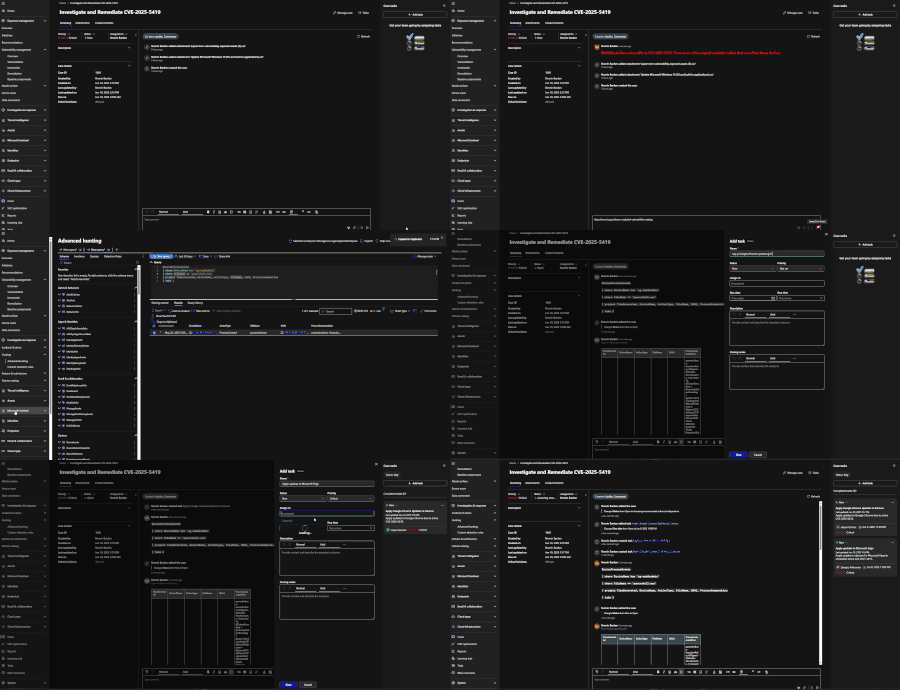
In March, Case Management went to GA status within the unified portal for customers. This introduced new functionality and experiences such as: A new case queue Custom statuses New Case task experience Linking incidents to cases This can be a little confusing for existing users who are familiar with incidents and the incident experience for either Microsoft Defender or Sentinel. Let’s break this down into more detail. What are Incidents? Incidents are artifacts that act as containers for alerts to signal that a noteworthy event took place that involves one or more malicious activities. These serve to be a single landing page for alerts, activities, entities, and more. When to use Incidents? Incidents are the default experience for analysts as they perform incident investigations and response. Incidents are where they will find any and all details available for alerts and entities while performing the basic tasks of a SOC analyst. Incidents should be used when investigating and responding to malicious activity within the environment. The current incident experience provides features such as: Alert timeline Entity mapping and tracking Entity investigation graph Copilot for Security Pre-performed investigations and responses What are Cases? Cases are artifacts that represent an actionable or trackable item, such as incident investigation, validating a threat hunting hypothesis, reviewing threat intelligence review, managing endpoint vulnerabilities, and more. They can exist without alerts or incidents. When to use Cases vs. Incidents? This section is not meant to put one over the other, but is meant to clear up some confusion. Cases serve as items that can be created to track important activities within the SOC, they don’t have to just be for incident response. A case can be created for any notable activity that the SOC performs, as mentioned above. Cases can be used as a collaboration tool within your SOC team. While cases may seem redundant to incident, that is not true one bit. Here are a few distinguishing points: As incidents are a container for alerts, cases can be a container for incidents, allowing multiple incidents to be worked on at once if they are related by threat actor, impacted entities, and more. Cases offer a native task experience, similar to the experience within Microsoft Sentinel in Azure. Cases offer attachment support, allowing analysts a more traditional case management experience that incidents do not have. Cases allow for more customization, such as custom statuses. Incidents do not offer custom statuses. Let’s look at two example scenarios: Cases with Incidents I am a SOC Analyst that is reviewing the incident queue. I find an incident that involves multiple threat types and scripts. I would like to work on this incident with my colleagues while tracking notable artifacts that we find in our investigation. For example: I visit the unified incident queue and see that I have a multi-stage incident, involving multiple alerts for multiple assets. I perform my initial triage and confirm that this is a true positive that should be addressed. I will then cut a case and attach this incident to it for collaboration. Within the case, I can add a code block to list any query that I have performed within Advanced Hunting, as well as paste results from my queries directly in the case for tracking. If using Copilot for Security, I can copy and paste the Copilot incident summary in the case so that my colleagues can get an incident summary without having to leave the case. Cases without Incidents I am a SOC Analyst that is responsible for remediating device vulnerabilities. I check our current CVE’s within Exposure Management and see that I have several devices that are currently vulnerable to CVE-2025-5419, a Microsoft Edge Chromium vulnerability. I save my list of devices to a CSV file so that I can attach it to my case. I also copy the description of the CVE to add the case notes to make it more convenient for my colleagues to join the case and not need to leave it. I then pivot to Advanced Hunting to review activities by any of these vulnerable devices. I have a match and would like to connect that result to my case, so I use Export > Copy to Clipboard so that I can paste it in the case. Back within the case, I begin uploading the CSV of exposed devices as evidence, I leave a message that is formatted to draw attention to the findings, and I paste my findings based on my query. Based on my findings, I begin generating new tasks for each device owner and pasting the instructions for remediation of the CVE. These are just some examples of the many uses for cases within the Defender Portal. Hopefully this highlights the versatility of case management today and how it can operate both with and without an incident involved. Keep an eye out for more improvements as Case Management matures. If looking to learn about case management, please check out the below resources: Public documentation: Manage security operations cases natively in the Microsoft Defender portal - Unified security operations | Microsoft Learn Video based learning: https://www.youtube.com/watch?v=G-vfMJSL11g Demo: Case Management in Microsoft Defender2KViews0likes1CommentTable Talk: Sentinel’s New ThreatIntel Tables Explained
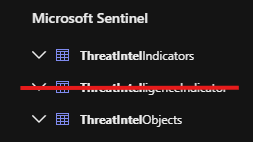
Key updates On April 3, 2025, we publicly previewed two new tables to support STIX (Structured Threat Information eXpression) indicator and object schemas: ThreatIntelIndicators and ThreatIntelObjects. To summarize the important dates: 31 August 2025: We previously announced that data ingestion into the legacy ThreatIntelligenceIndicator table would cease on the 31 July 2025. This timeline has now been extended and the transition to the new ThreatIntelIndicators and ThreatIntelObjects tables will proceed gradually until the 31 st of August 2025. The legacy ThreatIntelligenceIndicator table (and its data) will remain accessible, but no new data will be ingested there. Therefore, any custom content, such as workbooks, queries, or analytic rules, must be updated to reference the new tables to remain effective. If you require additional time to complete the transition, you may opt into dual ingestion, available until the official retirement on the 21 st of May 2026, by submitting a service request. Update: The opt in to dual ingestion ended on the 31 st of August and is no longer available. 31 May 2026: ThreatIntelligenceIndicator table support will officially retire, along with ingestion for those who opt-in to dual ingestion beyond 31 st of August 2025. What’s changing: ThreatIntelligenceIndicator VS ThreatIntelIndicators and ThreatIntelObjects Let’s summarise some of the differences. ThreatIntelligenceIndicator ThreatIntelIndicators ThreatIntelObjects Status Extended data ingestion until the 31st of August 2025, opt-in for additional transition time available. Deprecating on the 31st of May 2026 — no new data will be ingested after this date. Active and recommended for use. Active and complementary to ThreatIntelIndicators. Purpose Originally used to store threat indicators like IPs, domains, file hashes, etc. Stores individual threat indicators (e.g. IPs, URLs, file hashes). Stores STIX objects that provide contextual information about indicators. Examples: threat actors, malware families, campaigns, attack patterns. Characteristics Limitations: o Less flexible schema. o Limited support for STIX (Structured Threat Information eXpression) objects. o Fewer contextual fields for advanced threat hunting. Enhancements: o Supports STIX indicator schema. o Includes a Data column with full STIX object data for advanced hunting. o More metadata fields (e.g. LastUpdateMethod, IsDeleted, ExpirationDateTime). o Optimized ingestion: excludes empty key-value pairs and truncates long fields over 1,000 characters. Enhancements: o Enables richer threat modelling and correlation. o Includes fields like StixType, Data.name, and Data.id. Use cases Legacy structure for storing threat indicators. Migration Note: All custom queries, workbooks, and analytics rules referencing this table must be updated to use the new tables . Ideal for identifying and correlating specific threat indicators. Threat Hunting: Enables hunting for specific Indicators of Compromise (IOCs) such as IP addresses, domains, URLs, and file hashes. Alerting and detection rules: Can be used in KQL queries to match against telemetry from other tables (e.g. Heartbeat, SecurityEvent, Syslog). Example query correlating threat indictors with threat actors: Identify threat actors associated with specific threat indicators Useful for understanding relationships between indicators and broader threat entities (e.g. linking an IP to a known threat actor). Threat Hunting: Adds context by linking indicators to threat actors, malware families, campaigns, and attack patterns. Alerting and Detection rules: Enrich alerts with context like threat actor names or malware types. Example query listing TI objects related to a threat actor, “Sangria Tempest.” : List threat intelligence data related to a specific threat actor Benefits of the new ThreatIntelIndicators and ThreatIntelObjects tables In addition to what’s mentioned in the table above. The main benefits of the new table include: Enhanced Threat Visibility More granular and complete representation of threat intelligence. Support for advanced hunting scenarios and complex queries. Enables attribution to threat actors and relationships. Improved Hunting Capabilities Generic parsing of STIX patterns. Support for all valid STIX IoCs, Threat Actors, Identity, and Relationships. Important considerations with the new TI tables Higher volume of data being ingested: o In the legacy ThreatIntelligenceIndicator table, only the IoCs with Domain, File, URL, Email, Network sources were ingested. o The new tables support a richer schema and more detailed data, which naturally increases ingestion volume. The Data column in both tables stores full STIX objects, which are often large and complex. o Additional metadata fields (e.g. LastUpdateMethod, StixType, ObservableKey, etc.) increase the size of each record. o Some fields like description and pattern are truncated if they exceed 1,000 characters, indicating the potential for large payloads. More Frequent Republishing: o Previously, threat intelligence data was republished over a 12-day cycle. Now, all data is republished every 7-10 days (depending on the volume), increasing the ingestion frequency and volume. o This change ensures fresher data but also leads to more frequent ingestion events. o Republishing is identifiable by LastUpdateMethod = "LogARepublisher" in the tables. Optimising data ingestion There are two mechanisms to optimise threat intelligence data ingestion and control costs. Ingestion Rules See ingestion rules in action: Introducing Threat Intelligence Ingestion Rules | Microsoft Community Hub Sentinel supports Ingestion Rules that allow organizations to curate data before it enters the system. In addition, it enables: Bulk tagging, expiration extensions, and confidence-based filtering, which may increase ingestion if more indicators are retained or extended. Custom workflows that may result in additional ingestion events (e.g. tagging or relationship creation). Reduce noise by filtering out irrelevant TI Objects such as low confidence indicators (e.g. drop IoCs with a confidence score of 0), suppressing known false positives from specific feeds. These rules act on TI objects before they are ingested into Sentinel, giving you control over what gets stored and analysed. Data Collection Rules/ Data transformation As mentioned above, the ThreatIntelIndicator and ThreatIntelObjects tables include a “Data” column which contains the full original STIX object and may or may not be relevant for your use cases. In this case, you can use a workspace transformation DCR to filter it out using a KQL query. An example of this KQL query is shown below, for more examples about using workspace transformations and data collection rules: Data collection rules in Azure Monitor - Azure Monitor | Microsoft Learn source | project-away Data A few things to note: o Your threat intelligence feeds will be sending the additional STIX objects data and IoCs, if you prefer not to receive these additional TI data, you can modify the filter out data according to your use cases as mentioned above. More examples are mentioned here: Work with STIX objects and indicators to enhance threat intelligence and threat hunting in Microsoft Sentinel (Preview) - Microsoft Sentinel | Microsoft Learn o If you are using a data collection rule to make schema changes such as dropping the fields, please make sure to modify the relevant Sentinel content (e.g. detection rules, Workbooks, hunting queries, etc.) that are using the tables. o There can be additional cost when using Azure Monitor data transformations (such as when adding extra columns or adding enrichments to incoming data), however, if Sentinel is enabled on the Log Analytics workspace, there is no filtering ingestion charge regardless of how much data the transformation filters. New Threat Intelligence solution pack available A new Threat Intelligence solution is now available in the Content Hub, providing out of the box content referencing the new TI tables, including 51 detection rules, 5 hunting queries, 1 Workbook, 5 data connectors and also includes 1 parser for the ThreatIntelIndicators. Please note, the previous Threat Intelligence solution pack will be deprecated and removed after the transition phase. We recommend downloading the new solution from the Content Hub as shown below: Conclusion The transition to the new ThreatIntelIndicators and ThreatIntelObjects tables provide enhanced support for STIX schemas, improved hunting and alerting features, and greater control over data ingestion allowing organizations to get deeper visibility and more effective threat detection. To ensure continuity and maximize value, it's essential to update existing content and adopt the new Threat Intelligence solution pack available in the Content Hub. Related content and references: Work with STIX objects and indicators to enhance threat intelligence and threat hunting in Microsoft Sentinel Curate Threat Intelligence using Ingestion Rules Announcing Public Preview: New STIX Objects in Microsoft Sentinel5.9KViews1like2Comments