best practices
75 Topics
MS 365 Family Subscription Issues
Using MS 365 Family is very frustrating and a pain. Below is my conversation with Co-pilot. I had to use co-pilot because reaching a real person at Microsoft has not been possible. MS 365 Business version I have works nicely on for years was great. The personal Family version is to scattered, unorganized and seems very disconnected. From the response I got from Co-pilot, it is stated "many" feel the same You said: If "Microsoft has several portals, and many people expect one central dashboard but end up in account or subscription pages instead". Why does Microsoft not simply develop a centralized dashboard to meet customer expectations? Copilot said: That's a fair question, and frankly, many Microsoft 365 Family users share your frustration. My opinion is that Microsoft's challenge is partly historical. What people think of as "Microsoft 365" is actually a collection of services that evolved separately: Microsoft Account (identity, billing, subscriptions) Outlook (email and calendar) OneDrive (storage) Teams (communication) Word, Excel, and PowerPoint (productivity apps) Family Safety (family management) Over many years, these products were developed by different teams and originally had different websites and user experiences. Microsoft has tried to bring them together under "Microsoft 365," but some of the older boundaries remain. From a customer perspective, the expectation is usually much simpler: "I pay for Microsoft 365 Family. Show me one page with all my apps, subscription details, storage, family members, and settings." That expectation is reasonable. Microsoft has moved somewhat in that direction with Microsoft 365 Home, but the experience is not always as unified as consumers expect. Depending on the account type, browser, region, and whether you're using consumer or business services, you can encounter multiple portals that feel disconnected. For many home users, the ideal dashboard would have: All installed applications Recent documents OneDrive storage status Family members Subscription status Teams and Outlook shortcuts Device management ...all on one screen. Ironically, if you're using a Mac, you may find that the most practical "dashboard" is not on the web at all. It is often: Open Word. Verify your Microsoft account. Use the Microsoft app launcher within the Office apps or your Mac's Applications folder. Based on your comments, it sounds like you're looking for the sort of centralized home screen that Apple provides with an Apple ID account and that Microsoft has not yet fully achieved for Microsoft 365 Family customers.68Views0likes0Comments
Passkey best practices for Windows 365 users on unmanaged devices (BYOD)?
I have global contractors who work from home so spinning up Windows 365 Enterprise Cloud PCs are ideal. The contractors work from from either their personal Mac or personal Windows PC using the Microsoft Windows app so each user can access their dedicated Windows 365 Cloud PC and everything has been working well so far using standard MFA. We are looking to move everyone to passkeys but there is no intuitive documentation on how end users are expected to adopt it so they can use passkeys to 1) access the virtual PC and then use passkeys while in the virtual PC itself. Seems Microsoft explains everything under the hood except how to practically roll it out to reliably replace standard MFA. What is the recommended path forward to migrate my BYOD virtual PC users to passkeys? Thanks, Charlie353Views0likes1Comment
Windows 365 and developer environments: how do you balance security and productivity?
Hi everyone, I’d like to raise a topic that we are currently struggling with, and I suspect many other organizations are facing the same challenge. We are in the process of establishing a Windows 365–based development environment, where developers work in Cloud PCs. This is largely driven by: a BYOD strategy security requirements (no sensitive code on unmanaged devices) the need for standardization However, this quickly becomes complex in practice. The core challenge We are trying to balance three competing priorities: 1. Security requirements No sensitive code on local devices Minimal attack surface Zero Trust principles and Conditional Access Full traceability of identity and actions 2. Developer needs Local admin rights to be able to do their work Freedom to install tools, SDKs, and runtimes Flexibility without constant blocking Fast iteration cycles The reality is that if it takes too long to get access or permissions, it breaks the developer workflow. 3. IT and governance Standardization of environments Manageability and patching License and cost control Compliance and auditability The practical dilemma Developers want to be local admins on their machines Security teams prefer: Just-In-Time access (PIM), or No admin privileges at all In practice: PIM tends not to work well for developers It introduces too much friction It disrupts flow and often leads to workarounds What we are currently exploring We are testing a model where: Developers work in Windows 365 Cloud PCs They use their regular corporate identity (Entra ID) Isolation is achieved through the environment, not separate accounts Developers have local admin rights within the Cloud PC However, this raises a new question: How do we secure an environment where the user is an admin? Questions to the community I would really appreciate insights from others who have been through similar scenarios: 1. Identity vs privilege Do you use the same identity for everything, or separate user/admin accounts? How far do you take identity separation? 2. Local admin rights Do you allow developers to have local admin rights? Is it permanent or Just-In-Time? If JIT, how do you make it work without impacting productivity? 3. Cloud-based development environments If you are using Windows 365, Dev Box, or AVD: Has this made it easier to relax restrictions? Or are you facing the same challenges, just in the cloud? 4. Guardrails instead of restrictions Instead of trying to prevent everything: EDR / endpoint protection Conditional Access Network isolation Monitoring and detection Has anyone successfully shifted from strict control to strong guardrails and detection? Current reflection I am starting to think that: Focusing on secure, isolated environments for development may be more effective than trying to tightly control every individual action. In other words: secure the platform not every single user behavior But this is far from straightforward. Purpose of this discussion The goal is to find a realistic blueprint that: maintains high developer productivity meets security requirements minimizes friction in day-to-day work Not something theoretically perfect, but something that actually works. If you have experience in this area, I would really value your input: what has worked well what has not worked key design decisions you would recommend Thanks in advance.289Views0likes1CommentExpanding the Reach of AI-enabled Cloud PCs for Frontier Firms
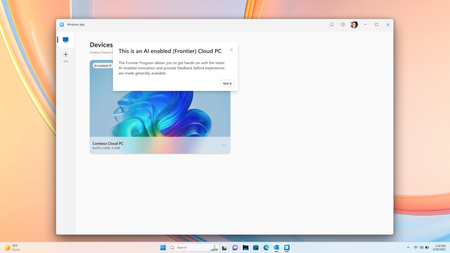
Co-Authored by Lakshmi Rayasam Over the past several months, we’ve been focused on a clear goal: making AI-enabled Cloud PCs easier to adopt, easier to deploy, and available to more customers—wherever they are. Following the momentum from Ignite, releasing Improved Search & Click to Do, we’ve continued to evolve the AI-enabled Cloud PC experience in Frontier Preview, prioritizing scale, accessibility, and product market fit. The latest set of enhancements removes deployment blockers and expands where—and how—customers can get started. We’ve also added a new refreshing AI-enabled end-user experience explaining the value of Frontier while users hover over the AI-enabled (Frontier) tag. Note: Future availability of these features is dependent on the results of this Frontier Preview and is subject to change Removing the need for Windows Insiders AI‑enabled Cloud PCs now work with standard Windows 11 retail builds, eliminating the need for Windows Insider participation. This change alone unlocks broader enterprise deployment scenarios and removes a major barrier for production use. AI-enabled Cloud PCs are just one toggle away as IT admins can join our Frontier Program and enable AI-enabled Cloud PCs via a newly introduced policy setting within the Devices – Onboarding: Windows 365 > User Settings blade, and further filter access based on Microsoft Entra ID group access. Note: After enrolling the latest Windows 11 25H2 (OS Build 26200.7840 or higher) you must reboot your Cloud PC. Expanded regional availability To meet customers where they operate, we’ve expanded AI‑enabled Cloud PCs to additional Azure regions:‑ Japan East Germany West Central South Central US Canada Central This expansion improves latency, supports data residency needs, and enables more global customers to participate in the Frontier Preview. 128GB disk support for Windows 365 Enterprise We’ve added support for 128GB disk size Windows 365 Enterprise licenses, offering greater flexibility for customers who don’t require larger footprints while still enabling AI‑driven workflows. These right‑sized deployments and makes it easier to scale across broader user populations. Together, these updates directly address the most common Ignite feedback and are expected to unlock large‑scale deployments, including enterprise pilots transitioning into sustained usage. What Comes Next Following the March rollout, our CY26 focus shifts to closing parity gaps using cloud‑based models, in close partnership with Windows platform teams. Initial work centers on enabling Text Actions for Click‑to‑Do via a cloud models within Frontier Preview—one of the most requested capabilities from customers.‑‑‑ In parallel, we’ll continue investing in foundational improvements that increase perceived feature depth and usage signals, including cost optimization, reliability enhancements, and productivity scenarios that compound value across the Cloud PC experience.662Views1like2Comments
Is it possible to migrate Windows 365 between two Entra ID/MS365 tenants?
Hello, we're merging two companies, and as part of this merger, we want to migrate one Entra/MS365 tenant to another. Migrating mailboxes, OneDrive, SPO sites, and other 365 services is no problem for us, but we'd also like to migrate ~40 Windows 365 instances (Entra-Joined, hot Hybrid). Is this possible? Regular workstations can be migrated without a wipe using third-party services (like PowerSyncPro and similar), but in this case, these are VMs managed by Windows 365 service.Solved339Views1like1Comment
MS designer is NOT WORKING!
It only makes 1 image not 4, it takes way too long time,. and it doesnt follow prompting,. and it makes imegs in 3:2 not 16:9... thsi has been goign on for over 2 weeks,... alsmot 3.. i have been in contact with support many times woith zero help.. HOW can you have a product in your office bunlde ant it not workign an zero supprot on it? I need teh application to make my videos,. im just abptu to cancel all subscritopons to micrposft an switch to apple..274Views0likes0CommentsAzure Default Outbound Access Changes: Guidance for Windows 365 ANC Customers
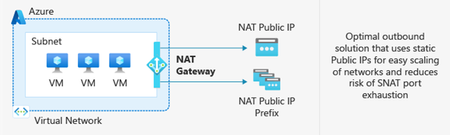
Editor’s note, March 27, 2026: An earlier version of this post listed Azure Load Balancer (SLB) as a supported outbound access method option for Windows 365 ANC. This has been updated. SLB is not a supported outbound access method for ANC. After March 31, 2026, newly created Azure Virtual Networks (VNets) will no longer have default outbound internet access enabled by default. Windows 365 customers choosing Azure Network Connection as a deployment option must configure outbound connectivity explicitly when setting up new VNets. This post explains what’s changing, who’s impacted, and the recommended actions, including Azure Private Subnets and Microsoft Hosted Network. What is Default Outbound Access (DOA)? Default Outbound Access is Azure’s legacy behavior that allowed all resources in a virtual network to reach the public internet without configuring a specific internet egress path. This allowed telemetry, Windows activation, and other service dependencies to reach external endpoints even when no explicit outbound connectivity method was configured. What’s changing? After March 31, 2026, as detailed in Azure’s communications, Azure will no longer enable DOA by default for new virtual networks, instead the VNet will be configured for Private Subnet option, allowing you to designate subnets without internet access for improved isolation and compliance. These changes encourage more intentional, secure network configurations while offering flexibility for different workload needs. Disabling Private Subnet option will allow administrators to restore DOA capabilities to the VNet, although Microsoft strongly recommends using Azure NAT Gateway. Impact on Windows 365 Azure Network Connection Customers For Windows 365 Azure Network Connection (ANC) deployments using virtual networks created after March 31, 2026, new VNets will default to private subnets. Outbound internet access must be explicitly configured for the VNet; otherwise, Cloud PC provisioning will fail. Existing virtual networks are not affected and will continue using their current internet access configuration. Note on Microsoft-hosted network: For Microsoft-hosted network deployments, which is the Microsoft recommended deployment model for Windows 365, Microsoft fully provides and manages the underlying connectivity in Azure on your behalf. There is no impact or change needed for those deployments. What You Should Do To prepare for Azure’s Default Outbound Access changes and ensure your Windows 365 ANC deployments remain secure and functional: Recommendations Transition to Microsoft-hosted network (MHN) if possible. MHN provides secure, cost-effective connectivity with outbound internet access by default, reducing operational overhead and ensuring compliance with Azure’s updated standards. Update deployment plans to ensure either an explicit NAT, such as a NAT Gateway or Default Outbound access (not recommended) is enabled by disabling the Private Subnet option. Test connectivity to ensure all services dependent on outbound access continue to function as expected, and that the ANC does not enter a failed state. Supported Outbound Access Methods To maintain connectivity, choose one of these supported methods: NAT Gateway (recommended) Note: Direct RDP Shortpath (UDP over STUN) cannot be established through a NAT Gateway because its symmetric NAT policy prevents direct UDP connectivity over public networks. Azure Firewall or third-party Network Virtual Appliance (NVA). Note, it is not recommended to route RDP or other long-lived connections through Azure Firewall or any other network virtual appliance which allows for automatic scale-in. A direct method such as NAT Gateway should be used. Unsupported Outbound Access Methods Azure Standard Load Balancer Azure’s Standard Load Balancer is not supported as an outbound access method for ANC. Instead, using NAT Gateway is recommended. More information about the pros and cons for each method can be found at Default Outbound Access. Resources: Azure updates | Microsoft Azure Default Outbound Access in Azure Transition to an explicit method of public connectivity | Microsoft Learn Deploy Microsoft Hosted Network (MHN) QuickStart: Create a NAT Gateway Optimizing RDP Connectivity for Windows 365 | Microsoft Community Hub Quick FAQ Does this affect existing VNets? No. Only new VNets created after March 31, 2026, are affected. Existing VNets will continue to operate as normal. Do Microsoft Hosted Network deployments require changes? No. MHN already includes managed egress. What if I do nothing on a new VNet? ANC checks will fail because the VNet does not have internet access. Configure NAT Gateway or another supported method. What are the required endpoints? Please see here for a list of the endpoints required. Why might peer-to-peer connectivity using STUN-based UDP hole punching not work when using NAT Gateway? NAT Gateway uses a type of network address translation that does not support STUN (Simple Traversal Underneath NAT) based connections. This will prevent STUN-based UDP hole punching, commonly used for establishing peer-to-peer connections, from working as expected. If your application relies on reliable UDP connectivity between peers, STUN may revert to TURN (Traversal Using Relays around NAT) in some instances. TURN relays traffic between endpoints, ensuring consistent connectivity even when direct peer-to-peer paths are blocked. This helps maintain smooth real-time experiences for your users. How do I configure Azure Firewall? For additional security you can configure Azure Firewall using these instructions https://learn.microsoft.com/en-us/azure/firewall/protect-azure-virtual-desktop?context=/azure/virtual-desktop/context/context. It is strongly recommended that a direct method of access is used for RDP and other long-lived connections such as VPN or Secure Web Gateway tunnels. This is due to devices such as Azure firewall scaling in when load is low which can disrupt connectivity. Wrap-up Azure’s change reinforces intentional networking for better security. By planning explicit egress (or choosing MHN), Windows 365 ANC customers can stay compliant and keep Cloud PCs reliably connected.3.5KViews0likes1CommentSave the date: Windows 365 AMA - What’s new from Microsoft Ignite
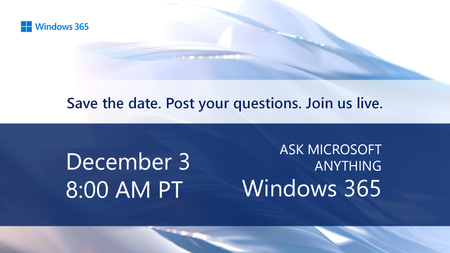
Tune in on December 3 for a special Windows 365 AMA. Catch up on the latest capabilities for Windows 365 announced at Microsoft Ignite! Host Christian Montoya and members of the product team will answer your questions live and offer insights to help you configure, deploy, and manage Windows in the cloud with ease. Save the date and post your questions early at aka.ms/Windows365AMA!315Views0likes1CommentMultimedia Redirection and WebRTC Redirector plug-in updates for Windows 365 & Azure Virtual Desktop
Automating plug-in maintenance with GitHub Scripts Keeping your Windows 365 and Azure Virtual Desktop environment up to date is crucial for optimal performance and security. Two essential plug-ins, Multimedia Redirection service and WebRTC (Web Real-Time Communication) redirector service, require periodic updates. However, these plug-ins do not update automatically, which can lead to compatibility or performance issues if left unattended. Understanding the Challenge Unlike most of the components of Windows 365 and Azure Virtual Desktop, both the Multimedia Redirection and WebRTC plug-ins must be updated manually. This manual process can be time-consuming for IT administrators and disruptive if not managed properly, especially in enterprise environments where user experience and uptime are top priorities. Cloud PCs that are provisioned or reprovisioned with Gallery images do have the latest plug-ins installed and Azure Virtual Desktop session hosts deployed with Azure Marketplace images have the latest WebRTC plug-in installed. But as these Cloud PCs and Session Hosts age, these plug-ins will become outdated over time. Note: Windows 365 Gallery images that include the latest Multimedia Redirection and WebRTC plug-ins are only the Windows Enterprise + Microsoft 365 Apps images. For Azure Marketplace images, only the Windows multi-session + Microsoft 365 Apps images include the latest WebRTC plug-in. Features dependent on WebRTC and Multimedia Redirection WebRTC: Microsoft Teams media optimizations Users connect from non-Windows physical endpoints Users connect from Windows endpoints and SlimCore fails Multimedia Redirection: Video playback and call redirection on Edge or Chrome browsers Users who visit websites with embedded videos Users who use Contact Center as a Service (CCaaS) solutions Manually Updating Administrators can update these binaries by deploying their respective MSI installers to users’ Cloud PCs and personal Session Hosts either through Intune or their management engine of choice. This may be the simplest way of upgrading endpoints, but there is a chance that end users would be disrupted during their work because WebRTC installer will forcefully stop Teams processes while installing, and Multimedia Redirection could break video streams or calls while the binaries are upgraded. If choosing this method, administrators should leverage maintenance windows to minimize disruptions. The MSI installers can be manually downloaded from the links below: WebRTC redirector installer MSI Multimedia redirector installer MSI Automating Updates with GitHub Scripts To address this challenge, our team has developed a series of PowerShell scripts available in our GitHub repository. These scripts automate the update process for both Multimedia Redirection and WebRTC plug-ins, ensuring that the latest versions are installed without the need for direct user intervention. The benefits of these scripts are: No End User Impact: The scripts are designed to run silently in the background, so end users experience no downtime or interruptions. Consistent Plugin Versions: Automated updates help maintain consistency across all Windows 365 instances, reducing troubleshooting time and compatibility issues. Easy Integration: The scripts can be deployed with Intune via Remediations, or as a standalone script. Remediations provides the best admin experience as it will report back on compliance and any errors encountered during deployment. Getting Started To begin using the automated update scripts: Visit our GitHub repository and download the latest versions of the update scripts. WebRTC Updater Multimedia Redirector Updater Review the step-by-step setup and configuration instructions. Deploy the scripts to your Windows 365 or Azure Virtual Desktop environment, either in standalone mode or with Remediations. IMPORTANT: The scripts currently do not support Windows Multi-Session hosts. Updating Azure Virtual Desktop Multi-Session Hosts Updating these plugins should be done during the build process of the golden image or the Session Hosts. This can be achieved by using an automated building solution, like Azure Image Builder, to install the latest versions. The URLs for these plugins are static, meaning that administrators can use the same URL without having to be concerned about the version that is being downloaded. For reference, the URLs are below: WebRTC - https://aka.ms/msrdcwebrtcsvc/msi Multimedia Redirection - https://aka.ms/avdmmr/msi More information on WebRTC and Multimedia Redirection plug-ins Microsoft updates these binaries periodically for functional and security enhancements. To stay current on the latest releases and what they contain, please visit the following links: What’s new for WebRTC Redirector Service What’s new for Multimedia redirection service Conclusion Regularly updating the Multimedia Redirection and WebRTC plugins is essential for a secure and efficient Windows 365 environment. By leveraging the automation scripts from our GitHub repository, IT administrators can ensure plugins remain current, all while eliminating manual effort and minimizing any impact on end users. For more details and to access the scripts, check out our GitHub page.1.7KViews3likes1Comment