azure
10 TopicsAuthenticating AWS Workloads to Azure Functions using Workload Identity Federation
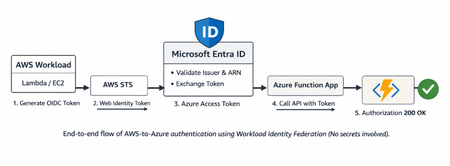
Step-by-step guide to configuring Workload Identity Federation between AWS and Azure, enabling service-to-service authentication where AWS workloads can securely call Azure Functions using token-based access instead of stored credentials.Running Text to Image and Text to Video with ComfyUI and Nvidia H100 GPU
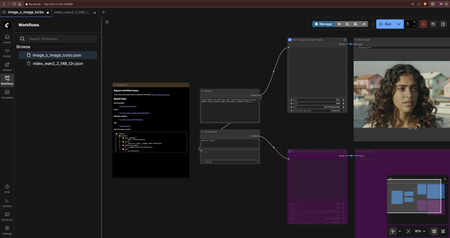
This guide provides instructions on how to set up and run Text to Image and Text to Video generation using ComfyUI with an Nvidia H100 GPU on Azure VMs. ComfyUI is a node-based user interface for Stable Diffusion and other AI models. It allows users to create complex workflows for image and video generation using a visual interface. With the power of GPUs, you can significantly speed up the generation process for high-quality images and videos. A video format is available for watching. Steps to create the infrastructure Option 1. Using Terraform (Recommended) In this guide, the provided Terraform template available here: ai-course/550_comfyui_on_vm at main · HoussemDellai/ai-course will create the following: Create the infrastructure for Ubuntu VM with Nvidia H100 GPU Install CUDA drivers on the VM Install ComfyUI on the VM Download the models for Text to Image (Z-Image-Turbo) and Text to Video generation (Wan 2.2 and LTX-2) Deploy the Terraform template using the following commands: # Initialize Terraform terraform init # Review the Terraform plan terraform plan tfplan # Apply the Terraform configuration to create resources terraform apply tfplan This should take about 15 minutes to create all the resources with the configuration defined in the Terraform files. The following resources will be created: If you choose to use Terraform, after the deployment is complete, you can access the ComfyUI portal using the output link shown in the Terraform output. It should look like this http://<VM_IP_ADDRESS>:8188. And that should be the end of the setup. You can then proceed to use ComfyUI for Text to Image and Text to Video generation as described in the later sections. Option 2. Manual Setup 0. Create a Virtual Machine with Nvidia H100 GPU Create an Azure virtual machine with Nvidia H100 GPUs like sku: Standard NC40ads H100 v5. Choose a Linux distribution of your choice like Ubuntu Pro 24.04 LTS. 1. Install Nvidia GPU and CUDA Drivers SSH into the Ubuntu VM and install the CUDA drivers by following the official Microsoft documentation: Install CUDA drivers on N-series VMs. # 1. Install ubuntu-drivers utility: sudo apt-get update sudo apt-get install ubuntu-drivers-common -y # 2. Install the latest NVIDIA drivers: sudo ubuntu-drivers install # 3. Download and install the CUDA toolkit from NVIDIA: wget https://developer.download.nvidia.com/compute/cuda/repos/ubuntu2404/x86_64/cuda-keyring_1.1-1_all.deb sudo dpkg -i cuda-keyring_1.1-1_all.deb sudo apt-get update sudo apt-get -y install cuda-toolkit-13-1 # 4. Reboot the system to apply changes sudo reboot The machine will now reboot. After rebooting, you can verify the installation of the NVIDIA drivers and CUDA toolkit. # 5. Verify that the GPU is correctly recognized (after reboot): nvidia-smi # 6. We recommend that you periodically update NVIDIA drivers after deployment. sudo apt-get update sudo apt-get full-upgrade -y 2. Install ComfyUI on Ubuntu Follow the instructions from the ComfyUI Wiki to install ComfyUI on your Ubuntu VM using Comfy CLI: Install ComfyUI using Comfy CLI. # Step 1: System Environment Preparation # ComfyUI requires Python 3.12 or higher (Python 3.13 is recommended). Check your Python version: python3 --version # If Python is not installed or the version is too low, install it following these steps: sudo apt-get update sudo apt-get install python3 python3-pip python3-venv -y # Create Virtual Environment # Using a virtual environment can avoid package conflict issues python3 -m venv comfy-env # Activate the virtual environment source comfy-env/bin/activate # Note: You need to activate the virtual environment each time before using ComfyUI. To exit the virtual environment, use the deactivate command. # Step 2: Install Comfy CLI # Install comfy-cli in the activated virtual environment: pip install comfy-cli # Step 3: Install ComfyUI using Comfy CLI with NVIDIA GPU Support # use 'yes' to accept all prompts yes | comfy install --nvidia # Step 4: Install GPU Support for PyTorch pip install torch torchvision torchaudio --extra-index-url https://download.pytorch.org/whl/cu130 # Note: Please choose the corresponding PyTorch version based on your CUDA version. Visit the PyTorch website for the latest installation commands. # Step 5. Launch ComfyUI # By default, ComfyUI will run on http://localhost:8188. # and don't forget the double -- comfy launch --background -- --listen 0.0.0.0 --port 8188 Note that you can run ComfyUI with different modes based on your hardware capabilities: --cpu: Use CPU mode, if you don't have a compatible GPU --lowvram: Low VRAM mode --novram: Ultra-low VRAM mode 3. Using ComfyUI for Text to Image Once ComfyUI is running, you can access the web interface via your browser at http://<VM_IP_ADDRESS>:8188 (replace <VM_IP_ADDRESS> with the actual IP address of your VM). Note that you should ensure that the VM's network security group (NSG) allows inbound traffic on port 8188. You can create Text to Image generation workflows using the templates available in ComfyUI. Go to Workflows and select a Text to Image template to get started. Choose Z-Image-Turbo Text to Image as an example. After that, ComfyUI will detect that there are some missing models to download. You will need to download each model into its corresponding folder. For example, the Stable Diffusion model should be placed in the models/Stable-diffusion folder. The models download links and their corresponding folders are shown in the ComfyUI interface. Let's download the required models for Z-Image-Turbo. cd comfy/ComfyUI/ wget -P models/text_encoders/ https://huggingface.co/Comfy-Org/z_image_turbo/resolve/main/split_files/text_encoders/qwen_3_4b.safetensors wget -P models/vae/ https://huggingface.co/Comfy-Org/z_image_turbo/resolve/main/split_files/vae/ae.safetensors wget -P models/diffusion_models/ https://huggingface.co/Comfy-Org/z_image_turbo/resolve/main/split_files/diffusion_models/z_image_turbo_bf16.safetensors wget -P models/loras/ https://huggingface.co/tarn59/pixel_art_style_lora_z_image_turbo/resolve/main/pixel_art_style_z_image_turbo.safetensors Note that here you can either use comfy model download command or wget to download the models into their corresponding folders. Once the models are downloaded, you can run the Text to Image workflow in ComfyUI. You can also change the parameters as needed like the prompt. When ready, click the Run blue button at the top right to start generating the image. It will take some time depending on the size of the image and the complexity of the prompt. Then you should see the generated image in the output node. 5. Using ComfyUI for Text to Video To use ComfyUI for Text to Video generation, you can select a Text to Video template from the Workflows section. Choose Wan 2.2 Text to Video as an example. Then you will need to install the required models. wget -P models/text_encoders/ https://huggingface.co/Comfy-Org/Wan_2.1_ComfyUI_repackaged/resolve/main/split_files/text_encoders/umt5_xxl_fp8_e4m3fn_scaled.safetensors wget -P models/vae/ https://huggingface.co/Comfy-Org/Wan_2.2_ComfyUI_Repackaged/resolve/main/split_files/vae/wan_2.1_vae.safetensors wget -P models/diffusion_models/ https://huggingface.co/Comfy-Org/Wan_2.2_ComfyUI_Repackaged/resolve/main/split_files/diffusion_models/wan2.2_t2v_low_noise_14B_fp8_scaled.safetensors wget -P models/diffusion_models/ https://huggingface.co/Comfy-Org/Wan_2.2_ComfyUI_Repackaged/resolve/main/split_files/diffusion_models/wan2.2_t2v_high_noise_14B_fp8_scaled.safetensors wget -P models/loras/ https://huggingface.co/Comfy-Org/Wan_2.2_ComfyUI_Repackaged/resolve/main/split_files/loras/wan2.2_t2v_lightx2v_4steps_lora_v1.1_high_noise.safetensors wget -P models/loras/ https://huggingface.co/Comfy-Org/Wan_2.2_ComfyUI_Repackaged/resolve/main/split_files/loras/wan2.2_t2v_lightx2v_4steps_lora_v1.1_low_noise.safetensors Models for LTX-2 Text to Video can be downloaded similarly. wget -P models/checkpoints/ https://huggingface.co/Lightricks/LTX-2/resolve/main/ltx-2-19b-dev-fp8.safetensors wget -P models/text_encoders/ https://huggingface.co/Comfy-Org/ltx-2/resolve/main/split_files/text_encoders/gemma_3_12B_it_fp4_mixed.safetensors wget -P models/latent_upscale_models/ https://huggingface.co/Lightricks/LTX-2/resolve/main/ltx-2-spatial-upscaler-x2-1.0.safetensors wget -P models/loras/ https://huggingface.co/Lightricks/LTX-2/resolve/main/ltx-2-19b-distilled-lora-384.safetensors wget -P models/loras/ https://huggingface.co/Lightricks/LTX-2-19b-LoRA-Camera-Control-Dolly-Left/resolve/main/ltx-2-19b-lora-camera-control-dolly-left.safetensors Models for Qwen Image 2512 Text to Image can be downloaded similarly. wget -P models/text_encoders/ https://huggingface.co/Comfy-Org/Qwen-Image_ComfyUI/resolve/main/split_files/text_encoders/qwen_2.5_vl_7b_fp8_scaled.safetensors wget -P models/vae/ https://huggingface.co/Comfy-Org/Qwen-Image_ComfyUI/resolve/main/split_files/vae/qwen_image_vae.safetensors wget -P models/diffusion_models/ https://huggingface.co/Comfy-Org/Qwen-Image_ComfyUI/resolve/main/split_files/diffusion_models/qwen_image_2512_fp8_e4m3fn.safetensors wget -P models/loras/ https://huggingface.co/lightx2v/Qwen-Image-Lightning/resolve/main/Qwen-Image-Lightning-4steps-V1.0.safetensors Models for Flux2 Klein Text to Image 9B can be downloaded similarly. wget -P models/text_encoders/ https://huggingface.co/Comfy-Org/flux2-klein-9B/resolve/main/split_files/text_encoders/qwen_3_8b_fp8mixed.safetensors wget -P models/vae/ https://huggingface.co/Comfy-Org/flux2-dev/resolve/main/split_files/vae/flux2-vae.safetensors wget -P models/diffusion_models/ https://huggingface.co/black-forest-labs/FLUX.2-klein-base-9b-fp8/resolve/main/flux-2-klein-base-9b-fp8.safetensors wget -P models/diffusion_models/ https://huggingface.co/black-forest-labs/FLUX.2-klein-9b-fp8/resolve/main/flux-2-klein-9b-fp8.safetensors Important notes Secure Boot is not supported using Windows or Linux extensions. For more information on manually installing GPU drivers with Secure Boot enabled, see Azure N-series GPU driver setup for Linux. Src: https://learn.microsoft.com/en-us/azure/virtual-machines/extensions/hpccompute-gpu-linux Sources - Install CUDA drivers on N-series VMs: https://learn.microsoft.com/en-us/azure/virtual-machines/linux/n-series-driver-setup#install-cuda-drivers-on-n-series-vms - Install ComfyUI using Comfy CLI: https://comfyui-wiki.com/en/install/install-comfyui/install-comfyui-on-linux Disclaimer The sample scripts are not supported under any Microsoft standard support program or service. The sample scripts are provided AS IS without warranty of any kind. Microsoft further disclaims all implied warranties including, without limitation, any implied warranties of merchantability or of fitness for a particular purpose. The entire risk arising out of the use or performance of the sample scripts and documentation remains with you. In no event shall Microsoft, its authors, or anyone else involved in the creation, production, or delivery of the scripts be liable for any damages whatsoever (including, without limitation, damages for loss of business profits, business interruption, loss of business information, or other pecuniary loss) arising out of the use of or inability to use the sample scripts or documentation, even if Microsoft has been advised of the possibility of such damages.Running multimedia AI models on Container Apps with Serverless GPU (A100 & T4)
A video format is available for watching. Prerequisites - An Azure account with sufficient permissions to create resources. - Terraform installed on your local machine. Infrastructure Provisioning Clone the Github repository and navigate to the project directory. Initialize Terraform and apply the configuration to provision the necessary Azure resources, including a resource group, virtual network, log analytics workspace, container app environment, storage account, and container app for downloading models. terraform init terraform apply --auto-approve The following resources will be created: ComfyUI Deployment The ComfyUI application is deployed as a containerized workload on Azure Container Apps. The deployment includes a job that downloads the necessary models for ComfyUI to function properly. The aca_job_download_models.tf file defines a job that runs a container with the necessary commands to download the models for ComfyUI. The job is configured to run on Consumption worksload profile and has a timeout of 1200 seconds. The download-models-comfyui.sh script contains the commands to download the models from Hugging Face and save them to the appropriate directory in the ComfyUI application. Monitoring and Analytics The Azure Log Analytics workspace is set up to collect logs and metrics from the container app environment. You can use Azure Monitor to view and analyze the logs and metrics for your ComfyUI deployment. To view the properties and the usage of the GPU behind Container Apps, the command nvidia-smi is helpful. Start using ComfyUI Now that ComfyUI is provisioned, accessible on the FQDN exposed by Container Apps and the models are downloaded, you can run the Text to Image workflow in ComfyUI. You can also change the parameters as needed like the prompt. When ready, click the Run blue button at the top right to start generating the image. It will take some time depending on the size of the image and the complexity of the prompt. Then you should see the generated image in the output node. Using ComfyUI for Text to Video To use ComfyUI for Text to Video generation, you can select a Text to Video template from the Workflows section. Choose Wan 2.2 Text to Video as an example. This will open the workflow to generate a video based on a text input. Important Notes The storage account key is required to create the storage link in your Container Apps environment. Container Apps does not support identity-based access to Azure file shares. For that it is mandatory to disable Secure Transfer at the Storage Account (more details). Because of an issue with the Terraform provider, it won't create the Serverless GPU (A100 & T4) workload profiles. You will need to create them manually in the Azure Portal after running terraform apply. Azure File Shares supports both SMB and NFS. Container Apps also supports both. To mount NFS Azure Files, you must use a Container Apps environment with a custom VNet. The Storage account must be configured to allow access from the VNet either using Service Endpoint or Private Endpoint (more details) The NFS protocol can only be used from a machine inside of a virtual network, that is why we use a Private Endpoint. 🔍 SMB vs NFS — What’s the Difference? SMB (Server Message Block) and NFS (Network File System) are two protocols used to provide shared file storage over a network. They serve similar purposes but have different strengths, performance characteristics, and typical use cases. NFS is native for Linux. Consumption profile details Profile names vCPU range Memory range GPU type Regions Consumption 0.25 - 4 0.5 - 8 GB N.A All supported regions Consumption-GPU-NC8as-T4 0.25 - 8 0.5 - 56 GB NVIDIA T4 To see a full list of available regions, see serverless GPU supported regions Consumption-GPU-NC24-A100 0.25 - 24 0.5 – 220 GiB NVIDIA A100 In Serverless GPU profiles, the GPU cost is in addition to the active usage vCPU and RAM prices for your Container App. You pay for the entire GPU cost, even if your Container App only uses a fraction of the GPU's resources. But, for CPU and Memory, you only pay for the resources your Container App actually reserves. To reduce cost, it is very important to right-size the vCPU and Memory for your Container App when using Serverless GPU profiles. You can use Azure Monitor to track the actual resource usage of your Container App and adjust the vCPU and Memory accordingly. To get the supported profiles for a specific region, you can use the Azure CLI command: az containerapp env workload-profile list-supported --location swedencentral -o table # Location Name # ------------- ------------------------- # swedencentral D4 # swedencentral D8 # swedencentral D16 # swedencentral D32 # swedencentral E4 # swedencentral E8 # swedencentral E16 # swedencentral E32 # swedencentral Consumption # swedencentral Flex # swedencentral Consumption-GPU-NC24-A100 # swedencentral Consumption-GPU-NC8as-T4 Here is the vCPU, Memory and GPU consumption for the NC A100 v4 and NC T4 v3 Serverless GPU profiles with ComfyUI when running typical workloads. You can notice that ComfyUI doesn't consume the entire compute power in terms of vCPU and Memory. That is why in Terraform, it is specified that the resource request is less than what the VM offers. That allows to reduce the cost. Disclaimer The sample scripts are not supported under any Microsoft standard support program or service. The sample scripts are provided AS IS without warranty of any kind. Microsoft further disclaims all implied warranties including, without limitation, any implied warranties of merchantability or of fitness for a particular purpose. The entire risk arising out of the use or performance of the sample scripts and documentation remains with you. In no event shall Microsoft, its authors, or anyone else involved in the creation, production, or delivery of the scripts be liable for any damages whatsoever (including, without limitation, damages for loss of business profits, business interruption, loss of business information, or other pecuniary loss) arising out of the use of or inability to use the sample scripts or documentation, even if Microsoft has been advised of the possibility of such damages.
Customer Offerings: Azure Local - Implementation, Migration, and Management
Hi everyone! Brandon here, back once again to talk to you about a couple of new offerings that have just been released to assist our Unified customers with their on-premises virtualization needs! I continue to have the privilege of leading a great program and team helping customers to migrate from VMware to more cost-effective and/or modern solutions. These new offerings are <drum roll>: Hyper-V - Implementation, Migration, and Management Azure Local - Implementation, Migration, and Management NOTE: These offerings do not provide hands on keyboard support, do not create custom documentation for customers, and cannot provide direct support for any 3 rd party products that may be used in the process of migrations. Many customers are reassessing their virtualization strategies and are actively exploring alternatives to VMware that align with long‑term hybrid cloud goals. Azure Local offers a purpose‑built platform that combines proven Windows Server–based virtualization with Azure services and management tooling, enabling customers to modernize on‑premises infrastructure while maintaining tight integration with Azure management, security, and governance capabilities. Whether driven by changing licensing models, cost optimization, or the need for deeper hybrid cloud integration, a successful transition requires more than a technology shift—it requires a structured, outcome‑focused approach. While we are providing these new offerings to customers, you do also have the option of more extended engagements as well that are broader in scope and more tailored to the end goals while we work side by side with you. If you are a Unified customer and looking to move off of VMware to Azure Local, or you just need help with your on-premises Microsoft virtualization technologies in general, have your account manager (CSAM) reach out to me! Planning to go at it alone?? Virtually (no pun intended) every environment reviewed by my team (and that is a LOT) that was set up prior to our review will have configuration issues, at times warranting extensive efforts to correct. Problem 1: There are some potentially significant differences between the way VMware and Azure Local are architected from the start, especially in areas of networking and storage, where mimicking methods used in the VMware world can actually lead to performance degradation in your target Azure Local environment. Problem 2: Your management method must also change. Additionally, if you are converting/migrating to Azure Local, the available methods need to be determined, the terminology and functional differences identified and learned…there can be a lot to unpack in this area. Problem 3: Perhaps the most obvious is that this may be a new platform for your team, and its important for them to gain experience through guided actions and knowledge transfer on the fly for those questions they really have, which is exactly what we aim to provide in guiding implementations and migrations! A Structured Engagement Model Successful Azure Local implementations are built around a guided engagement model rather than a one‑size‑fits‑all checklist. Each engagement is tailored to the customer environment, acknowledging that differences in scale, workloads, hardware, and operational maturity directly influence the migration approach. The framework emphasizes collaboration, clarity of expectations, and incremental progress instead of disruptive “lift‑and‑shift” execution. Whether we are talking about migration from another virtualization platform, or simply trying to reduce costs by implementing a new virtualization infrastructure, we’re here to help! Key Phases of an Azure Local Implementation and/or Migration Most Azure Local implementation and migration engagements progress through a common set of phases: Engagement scoping and technical discovery to understand goals and current state (this is the conversation I, or one of the TZ Leads in the VMware Migration Program have with customers) Planning and design aligned to business and operational outcomes, with a limited scope Deployment and configuration validation to ensure platform readiness Security and migration testing to reduce risk and confirm workload compatibility Feature enablement, including Azure Arc, to extend governance and management While these phases provide structure, the sequence and depth of each stage are adapted based on the customer environment and objectives. Key Outcomes for Customers Organizations that engage in Azure Local implementation or migration efforts commonly achieve: Deeper familiarity with Microsoft virtualization technologies Successful deployment of PoC, pilot, or production environments Validated test migrations of virtual machines Identification and resolution of technical blockers Increased confidence in operational readiness These engagements are advisory and collaborative in nature, prioritizing customer enablement and success. Knowledge Transfer and Operational Readiness A central focus of the Azure Local engagements is ensuring that IT teams are prepared to operate the platform long after deployment completes. Knowledge transfer is embedded throughout the engagement through working sessions and direct participation in implementation activities. This approach helps organizations move confidently into steady‑state operations without relying on long‑term external support. As I mentioned above, if you do feel you will need longer term support, we have your back on that front as well. Looking Beyond Migration An Azure Local migration is often the first step in a broader transformation journey. Many organizations use this transition to enable hybrid management, strengthen security posture, and prepare for future application or cloud modernization initiatives. When approached strategically, Azure Local becomes a platform for long‑term innovation and a step to modernizing your infrastructure, not just a replacement hypervisor. Conclusion Moving from VMware to Azure Local is not simply a technical migration—it is an opportunity to modernize how infrastructure is managed and governed. With structured planning, guided execution, and a focus on operational readiness, organizations can transition with confidence to a virtualization platform built for today’s hybrid cloud realities and tomorrow’s growth. Thanks for reading, and maybe we’ll talk soon!
Managed Identity on SQL Server On-Prem: The End of Stored Secrets
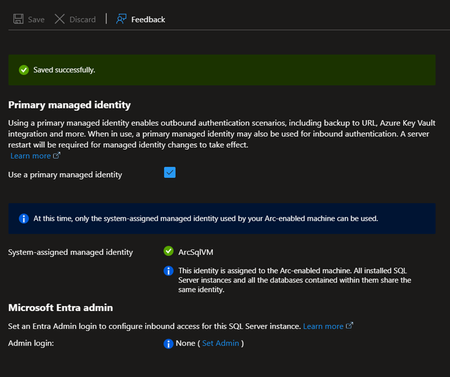
The Problem with Credentials in SQL Server For an On-Premises SQL Server to access Azure services, you traditionally need to store secrets: Common Scenarios Requiring Credentials Scenario Required Credential Backup to URL (Azure Blob) Storage account key or SAS token Extensible Key Management (Azure Key Vault) Service principal + secret Calling Azure OpenAI from T-SQL API key PolyBase to Azure Data Lake Service principal or key Associated Risks Manual Rotation Secrets expire. You need to plan and execute rotation and not forget to update all references. Secure Storage Where to store these secrets? In SQL Server via CREATE CREDENTIAL? In a config file? Each option has its risks. Attack Surface A compromised secret gives access to associated Azure resources. The more secrets you have, the larger the attack surface. Complex Auditing Who has access to these secrets? When were they used? Tracking is difficult. The Solution: Azure Arc + Managed Identity SQL Server 2025 connected to Azure Arc can geta Managed Identity : This identity: Is managed by Microsoft Entra ID Has no secret to store or rotate Can receive RBAC permissions on Azure resources Is centrally audited in Entra ID How It Works SQL Server 2025 On-Prem Azure Arc Agent installed on the server Managed Identity (automatically created in Entra ID) RBAC assignment on Azure resources -free access to Blob Storage, Key Vault, etc Step-by-Step Configuration Step 1: Enable Azure Arc on the Server and/or Register SQL Server in Azure Arc Follow the procedure describes in this article to onboard your server in Azure Arc. Connect Your SQL Server to Azure Arc Remember that you can also evaluate Azure Arc on a Azure VM (test use only) How to evaluate Azure Arc-enabled servers with an Azure virtual machine Step 2: Retrieve the Managed Identity The Managed Identity can be enabled and retrieved from Azure Arc | SQL Servers > “SQL Server instance” > Settings > Microsoft Entra ID Note: The Managed Identity is server-wide (not at the instance level) Step 3: Assign RBAC Roles Granting access to a Storage Account for backups $sqlServerId = (az resource show --resource-group "MyRG" --name "ServerName" --resource-type "Microsoft.HybridCompute/machines" --query identity.principalId -o tsv) az role assignment create --role "Storage Blob Data Contributor" ` --assignee-object-id $sqlServerId ` --scope "/subscriptions/xxx/resourceGroups/MyRG/providers/Microsoft.Storage/storageAccounts/mybackupaccount" Ex: Backup to URL Without Credential Before (with SAS token) -- Create a credential with a SAS token (expires, must be rotated) CREATE CREDENTIAL [https://mybackup.blob.core.windows.net/backups] WITH IDENTITY = 'SHARED ACCESS SIGNATURE', SECRET = 'sv=2022-11-02&ss=b&srt=sco&sp=rwdlacup...' BACKUP DATABASE [MyDB] TO URL = 'https://mybackup.blob.core.windows.net/backups/MyDB.bak' WITH COMPRESSION After (with Managed Identity --No secret anymore CREATE CREDENTIAL [https://mybackup.blob.core.windows.net/backups] WITH IDENTITY = 'Managed Identity' BACKUP DATABASE [MyDB] TO URL = 'https://mybackup.blob.core.windows.net/backups/MyDB.bak' WITH COMPRESSION Extensible Key Management with Key Vault EKM Configuration with Managed Identity CREATE CREDENTIAL [MyAKV.vault.azure.net] WITH IDENTITY = 'Managed Identity' FOR CRYPTOGRAPHIC PROVIDER AzureKeyVault_EKM_Prov; How Copilot Can Help Infrastructure Configuration Walk me through setting up Azure Arc for SQL Server 2025 to use Managed Identity for backups to Azure Blob Storage @mssql Generate the PowerShell commands to register my SQL Server with Azure Arc and configure RBAC for Key Vault access Identify Existing Credentials to Migrate List all credentials in my SQL Server that use SHARED ACCESS SIGNATURE or contain secrets, so I can plan migration to Managed Identity Migration Scripts I have backup jobs using SAS token credentials. Generate a migration script to convert them to use Managed Identity Troubleshooting My backup WITH MANAGED_IDENTITY fails with "Authorization failed". What are the steps to diagnose RBAC permission issues? @mssql The Azure Arc agent shows "Disconnected" status. How do I troubleshoot connectivity and re-register the server? Audit and Compliance Generate a report showing all Azure resources my SQL Server's Managed Identity has access to, with their RBAC role assignments Prerequisites and Limitations Prerequisites Azure Arc agent installed and connected SQL Server 2025, running on Windows Azure Extension for SQL Server. Current Limitations Failover cluster instances isn't supported. Disabling not recommended Only system-assigned managed identities are supported FIDO2 method not currently supported Azure public cloud access required Documentation Overview Managed identity overview Set Up Managed Identity and Microsoft Entra Authentication for SQL Server Enabled by Azure Arc Set up Transparent Data Encryption (TDE) Extensible Key Management with Azure Key Vault
Run a SQL Query with Azure Arc
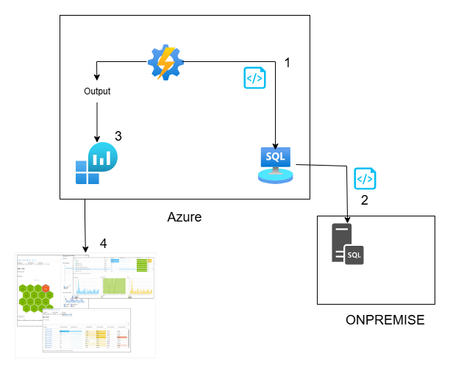
Hi All, In this article, you can find a way to retrieve database permission from all your onboarded databases through Azure Arc. This idea is born from a customer request around maintaining a standard permission set, in a very wide environment (about 1000 SQL Server). This solution is based on Azure Arc, so first you need to onboard your SQL Server to Azure Arc and enable the SQL Server extension. If you want to test Azure Arc in a test environment, you can use the Azure Jumpstart, in this repo you will find ready-to-deploy arm templates the deploy demos environments. The other solution components are an automation account, log analytics and a Data collection rule \ endpoint. Here you can find a little recap of the purpose of each component: Automation account: with this resource you can run and schedule a PowerShell script, and you can also store the credentials securely Log Analytics workspace: here you will create a custom table and store all the data that comes from the script Data collection Endpoint / Data Collection Rule: enable you to open a public endpoint to allow you to ingest collected data on Log analytics workspace In this section you will discover how I composed the six phases of the script: Obtain the bearer token and authenticate on the portal: First of all you need to authenticate on the azure portal to get all the SQL instance and to have to token to send your assessment data to log analytics $tenantId = "XXXXXXXXXXXXXXXXXXXXXXXXXXX" $cred = Get-AutomationPSCredential -Name 'appreg' Connect-AzAccount -ServicePrincipal -Tenant $tenantId -Credential $cred $appId = $cred.UserName $appSecret = $cred.GetNetworkCredential().Password $endpoint_uri = "https://sampleazuremonitorworkspace-weu-a5x6.westeurope-1.ingest.monitor.azure.com" #Logs ingestion URI for the DCR $dcrImmutableId = "dcr-sample2b9f0b27caf54b73bdbd8fa15908238799" #the immutableId property of the DCR object $streamName = "Custom-MyTable" $scope= [System.Web.HttpUtility]::UrlEncode("https://monitor.azure.com//.default") $body = "client_id=$appId&scope=$scope&client_secret=$appSecret&grant_type=client_credentials"; $headers = @{"Content-Type"="application/x-www-form-urlencoded"}; $uri = "https://login.microsoftonline.com/$tenantId/oauth2/v2.0/token" $bearerToken = (Invoke-RestMethod -Uri $uri -Method "Post" -Body $body -Headers $headers).access_token Get all the SQL instances: in my example I took all the instances, you can also use a tag to filter some resources, for example if a want to assess only the production environment you can use the tag as a filter $servers = Get-AzResource -ResourceType "Microsoft.AzureArcData/SQLServerInstances" When you have all the SQL instance you can run your t-query to obtain all the permission , remember now we are looking for the permission, but you can use for any query you want or in other situation where you need to run a command on a generic server $SQLCmd = @' Invoke-SQLcmd -ServerInstance . -Query "USE master; BEGIN IF LEFT(CAST(Serverproperty('ProductVersion') AS VARCHAR(1)),1) = '8' begin IF EXISTS (SELECT TOP 1 * FROM tempdb.dbo.sysobjects (nolock) WHERE name LIKE '#TUser%') begin DROP TABLE #TUser end end ELSE begin IF EXISTS (SELECT TOP 1 * FROM tempdb.sys.objects (nolock) WHERE name LIKE '#TUser%') begin DROP TABLE #TUser end end CREATE TABLE #TUser (DBName SYSNAME,[Name] SYSNAME,GroupName SYSNAME NULL,LoginName SYSNAME NULL,default_database_name SYSNAME NULL,default_schema_name VARCHAR(256) NULL,Principal_id INT); IF LEFT(CAST(Serverproperty('ProductVersion') AS VARCHAR(1)),1) = '8' INSERT INTO #TUser EXEC sp_MSForEachdb ' SELECT ''?'' as DBName, u.name As UserName, CASE WHEN (r.uid IS NULL) THEN ''public'' ELSE r.name END AS GroupName, l.name AS LoginName, NULL AS Default_db_Name, NULL as default_Schema_name, u.uid FROM [?].dbo.sysUsers u LEFT JOIN ([?].dbo.sysMembers m JOIN [?].dbo.sysUsers r ON m.groupuid = r.uid) ON m.memberuid = u.uid LEFT JOIN dbo.sysLogins l ON u.sid = l.sid WHERE (u.islogin = 1 OR u.isntname = 1 OR u.isntgroup = 1) and u.name not in (''public'',''dbo'',''guest'') ORDER BY u.name ' ELSE INSERT INTO #TUser EXEC sp_MSforeachdb ' SELECT ''?'', u.name, CASE WHEN (r.principal_id IS NULL) THEN ''public'' ELSE r.name END GroupName, l.name LoginName, l.default_database_name, u.default_schema_name, u.principal_id FROM [?].sys.database_principals u LEFT JOIN ([?].sys.database_role_members m JOIN [?].sys.database_principals r ON m.role_principal_id = r.principal_id) ON m.member_principal_id = u.principal_id LEFT JOIN [?].sys.server_principals l ON u.sid = l.sid WHERE u.TYPE <> ''R'' and u.TYPE <> ''S'' and u.name not in (''public'',''dbo'',''guest'') order by u.name '; SELECT DBName, Name, GroupName,LoginName FROM #TUser where Name not in ('information_schema') and GroupName not in ('public') ORDER BY DBName,[Name],GroupName; DROP TABLE #TUser; END" '@ $command = New-AzConnectedMachineRunCommand -ResourceGroupName "test_query" -MachineName $server1 -Location "westeurope" -RunCommandName "RunCommandName" -SourceScript $SQLCmd In a second, you will receive the output of the command, and you must send it to the log analytics workspace (aka LAW). In this phase, you can also review the output before sending it to LAW, for example, removing some text or filtering some results. In my case, I’m adding the information about the server where the script runs to each record. $array = ($command.InstanceViewOutput -split "r?n" | Where-Object { $.Trim() }) | ForEach-Object { $line = $ -replace '\', '\\' ù$array = $array | Where-Object { $_ -notmatch "DBName,Name,GroupName,LoginName" } | Where-Object {$_ -notmatch "------"} The last phase is designed to send the output to the log analytics workspace using the dce \ dcr. $staticData = @" [{ "TimeGenerated": "$currentTime", "RawData": "$raw", }]"@; $body = $staticData; $headers = @{"Authorization"="Bearer $bearerToken";"Content-Type"="application/json"}; $uri = "$endpoint_uri/dataCollectionRules/$dcrImmutableId/streams/$($streamName)?api-version=2023-01-01" $rest = Invoke-RestMethod -Uri $uri -Method "Post" -Body $body -Headers $headers When the data arrives in log analytics workspace, you can query this data, and you can create a dashboard or why not an alert. Now you will see how you can implement this solution. For the log analytics, dce and dcr, you can follow the official docs: Tutorial: Send data to Azure Monitor Logs with Logs ingestion API (Resource Manager templates) - Azure Monitor | Microsoft Learn After you create the dcr and the log analytics workspace with its custom table. You can proceed with the Automation account. Create an automation account using the creating wizard You can proceed with the default parameter. When the Automation Account creation is completed, you can create a credential in the Automation Account. This allows you to avoid the exposition of the credential used to connect to Azure You can insert here the enterprise application and the key. Now you are ready to create the runbook (basically the script that we will schedule) You can give the name you want and click create. Now go in the automation account than Runbooks and Edit in Portal, you can copy your script or the script in this link. Remember to replace your tenant ID, you will find in Entra ID section and the Enterprise application You can test it using the Test Pane function and when you are ready you can Publish and link a schedule, for example daily at 5am. Remember, today we talked about database permissions, but the scenarios are endless: checking a requirement, deploying a small fix, or removing/adding a configuration — at scale. At the end, as you see, Azure Arc is not only another agent, is a chance to empower every environment (and every other cloud provider 😉) with Azure technology. See you in the next techie adventure. **Disclaimer** The sample scripts are not supported under any Microsoft standard support program or service. The sample scripts are provided AS IS without warranty of any kind. Microsoft further disclaims all implied warranties including, without limitation, any implied warranties of merchantability or of fitness for a particular purpose. The entire risk arising out of the use or performance of the sample scripts and documentation remains with you. In no event shall Microsoft, its authors, or anyone else involved in the creation, production, or delivery of the scripts be liable for any damages whatsoever (including, without limitation, damages for loss of business profits, business interruption, loss of business information, or other pecuniary loss) arising out of the use of or inability to use the sample scripts or documentation, even if Microsoft has been advised of the possibility of such damages.OPNsense Firewall as Network Virtual Appliance (NVA) in Azure
This blog is available as a video on YouTube: youtube.com/watch?v=JtnIFiB7jkE Introduction to OPNsense In today’s cloud-driven world, securing your infrastructure is more critical than ever. One powerful solution is OPNsense. OPNsense is a powerful open-source firewall that can be used to secure your virtual networks. Originally forked from pfSense, which itself evolved from m0n0wall. OPNsense could run on Windows, MacOS, Linux including OpenBSD and FreeBSD. It provides a user-friendly web interface for configuration and management. What makes OPNsense Firewall stand out is its rich feature set: VPN Support for point-to-site and site-to-site connections using technologies like WireGuard and OpenVPN. DNS Management with options such as OpenDNS and Unbound DNS. Multi-network handling enabling you to manage different LANs seamlessly. Advanced security features including intrusion detection and forward proxy integration. Plugin ecosystem supporting official and community extensions for third-party integrations. In this guide, you’ll learn how to install and configure OPNsense Firewall on an Azure Virtual Machine, leveraging its capabilities to secure your cloud resources effectively. We'll have three demonstrations: Installing OPNsense on an Azure virtual machine Setting up point-to-site VPN using WireGuard Here is the architecture we want to achieve in this blog, except the Hb and Spoke configuration which is planned for the second part coming soon. 1. Installing OPNsense on an Azure Virtual Machine There are three ways to have OPNsense in a virtual machine. Create a VM from scratch and install OPNsense. Install using the pre-packaged ISO image created by Deciso the company that maintains OPNsense. Use a pre-built VM image from the Azure Marketplace. In this demo, we will use the first approach to have more control over the installation and configuration. We will create an Azure VM with FreeBSD OS and then install OPNsense using a shell script through the Custom Script Extension. All the required files are in this repository: github.com/HoussemDellai/azure-network-course/205_nva_opnsense. The shell script configureopnsense.sh will install OPNsense and apply a predefined configuration file config.xml to set up the firewall rules, VPN, and DNS settings. It will take 4 parameters: GitHub path where the script and config file are hosted, in our case it is /scripts/. OPNsense version to install, currently set to 25.7. Gateway IP address for the trusted subnet. Public IP address of the untrusted subnet. This shell script is executed after the VM creation using the Custom Script Extension in Terraform represented in the file vm_extension_install_opnsense.tf. OPNsense is intended to be used an NVA so it would be good to apply some of the good practices. One of these practices is to have two network interfaces: Trusted Interface: Connected to the internal network (spokes). Untrusted Interface: Connected to the internet (WAN). This setup allows OPNsense to effectively manage and secure traffic between the internal network and the internet. Second good practice is to start with a predefined configuration file config.xml that includes the basic settings for the firewall, VPN, and DNS. This approach saves time and ensures consistency across deployments. It is recommended to start with closed firewall rules and then open them as needed based on your security requirements. But for demo purposes, we will allow all traffic. Third good practice is to use multiple instances of OPNsense in a high-availability setup to ensure redundancy and failover capabilities. However, for simplicity, we will use a single instance in this demo. Let's take a look at the resources that will be created by Terraform using the AzureRM provider: Resource Group Virtual Network (VNET) named vnet-hub with two subnets: Trusted Subnet: Internal traffic between spokes. Untrusted Subnet: Exposes the firewall to the internet. Network Security Group (NSG): attached to the untrusted subnet, with rules allowing traffic to the VPN, OPNsense website and to the internet. Virtual Machine: with the following configuration: FreeBSD OS image using version 14.1. VM size: Standard_D4ads_v6 with NVMe disk for better performance. Admin credentials: feel free to change the username and password with more security. Two NICs (trusted and untrusted) with IP forwarding enabled to allow traffic to pass through the firewall. NAT Gateway: attached to the untrusted subnet for outbound internet connectivity. Apply Terraform configuration To deploy the resources, run the following commands in your terminal from within the 205_nva_opnsense directory: terraform init terraform apply -auto-approve Terraform provisions the infrastructure and outputs resource details. In the Azure portal you should see the newly created resources. Accessing the OPNsense dashboard To access the OPNsense dashboard: Get the VM’s public IP from the Azure portal or from Terraform output. Paste it into your browser. Accept the TLS warning (TLS is not configured yet). Log in with Username: root and Password: opnsense you can change it later in the dashboard. You now have access to the OPNsense dashboard where you can: Monitor traffic and reports. Configure firewall rules for LAN, WAN, and VPN. Set up VPNs (WireGuard, OpenVPN, IPsec). Configure DNS services (OpenDNS, UnboundDNS). Now that the OPNsense firewall is up and running, let's move to the next steps to explore some of its features like VPN. 2. Setting up Point-to-Site VPN using WireGuard We’ll demonstrate how to establish a WireGuard VPN connection to OPNsense firewall. The configuration file config.xml used during installation already includes the necessary settings for WireGuard VPN. For more details on how to set up WireGuard on OPNsense, refer to the official documentation. We will generate a Wireguard peer configuration using the OPNsense dashboard. Navigate to VPN > WireGuard > Peer generator then add a name for the peer, fill in the IP address for the OPNsense which is the public IP of the VM in Azure, use the same IP if you want to use the pre-configured UnboundDNS. Then copy the generated configuration and click on Store and generate next and Apply. Next we'll use that configuration to set up WireGuard on a Windows client. Here you can either use your current machine as a client or create a new Windows VM in Azure. We'll go with this second option for better isolation. We'll deploy the client VM using Terraform file vpn_client_vm_win11.tf. Make sur it is deployed using command terraform apply -auto-approve. Once the VM is ready, connect to it using RDP, download and install WireGuard. Alternatively, you can install WireGuard using the following Winget command: winget install -e --id WireGuard.WireGuard --accept-package-agreements --accept-source-agreements Launch WireGuard application, click on Add Tunnel > Add empty tunnel..., then paste the peer configuration generated from OPNsense and save it. Then click on Activate to start the VPN connection. We should see the data transfer starting. We'll verify the VPN connection by pinging the VM, checking the outbound traffic passes through the Nat Gateway's IPs and also checking the DNS resolution using UnboundDNS configured in OPNsense. ping 10.0.1.4 # this is the trusted IP of OPNsense in Azure # Pinging 10.0.1.4 with 32 bytes of data: # Reply from 10.0.1.4: bytes=32 time=48ms TTL=64 # ... curl ifconfig.me/ip # should display the public IP of the Nat Gateway in Azure # 74.241.132.239 nslookup microsoft.com # should resolve using UnboundDNS configured in OPNsense # Server: UnKnown # Address: 135.225.126.162 # Non-authoritative answer: # Name: microsoft.com # Addresses: 2603:1030:b:3::152 # 13.107.246.53 # 13.107.213.53 # ... The service endpoint ifconfig.me is used to get the public IP address of the client. You can use any other similar service. What's next ? Now that you have OPNsense firewall set up as an NVA in Azure and have successfully established a WireGuard VPN connection, we can explore additional features and configurations such as integrating OPNsense into a Hub and Spoke network topology. That will be covered in the next part of this blog. Special thanks to 'behind the scene' contributors I would like to thank my colleagues Stephan Dechoux thanks to whom I discovered OPNsense and Daniel Mauser who provided a good lab for setting up OPNsense in Azure available here https://github.com/dmauser/opnazure. Disclaimer The sample scripts are not supported under any Microsoft standard support program or service. The sample scripts are provided AS IS without warranty of any kind. Microsoft further disclaims all implied warranties including, without limitation, any implied warranties of merchantability or of fitness for a particular purpose. The entire risk arising out of the use or performance of the sample scripts and documentation remains with you. In no event shall Microsoft, its authors, or anyone else involved in the creation, production, or delivery of the scripts be liable for any damages whatsoever (including, without limitation, damages for loss of business profits, business interruption, loss of business information, or other pecuniary loss) arising out of the use of or inability to use the sample scripts or documentation, even if Microsoft has been advised of the possibility of such damages.