azure active directory
612 Topics
Powershell Entra and General Forum Layout Questions
Hello, I am returning to PowerShell, and it seems a lot has changed. I need to create some Security Groups in MS Entra and would like to know the best way to do so. I have a .csv file for the groups. Also, what is the best way to display the topic titles as a list in this forum? At this moment, I have to go scroll through pages of posts, and it's not easy. I used to like the old formats that let you see all the thread titles. Thanks116Views0likes2CommentsManaging Multi‑Tenant Azure Resource with SRE Agent and Lighthouse
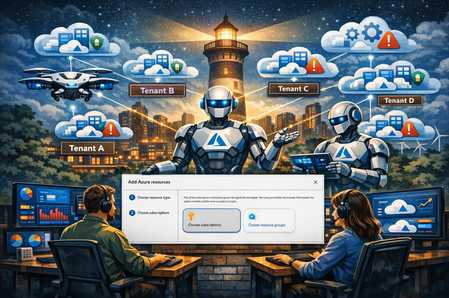
Azure SRE Agent is an AI‑powered reliability assistant that helps teams diagnose and resolve production issues faster while reducing operational toil. It analyzes logs, metrics, alerts, and deployment data to perform root cause analysis and recommend or execute mitigations with human approval. It’s capable of integrating with azure services across subscriptions and resource groups that you need to monitor and manage. Today’s enterprise customers live in a multi-tenant world, and there are multiple reasons to that due to acquisitions, complex corporate structures, managed service providers, or IT partners. Azure Lighthouse enables enterprise IT teams and managed service providers to manage resources across multiple azure tenants from a single control plane. In this demo I will walk you through how to set up Azure SRE agent to manage and monitor multi-tenant resources delegated through Azure Lighthouse. Navigate to the Azure SRE agent and select Create agent. Fill in the required details along with the deployment region and deploy the SRE agent. Once the deployment is complete, hit Set up your agent. Select the Azure resources you would like your agent to analyze like resource groups or subscriptions. This will land you to the popup window that allows you to select the subscriptions and resource groups that you would like SRE agent to monitor and manage. You can then select the subscriptions and resource groups under the same tenant that you want SRE agent to manage; Great, So far so good 👍 As a Managed Service Provider (MSP) you have multiple tenants that you are managing via Azure Lighthouse, and you need to have SRE agent access to those. So, to demo this will need to set up Azure Lighthouse with correct set of roles and configuration to delegate access to management subscription where the Centralized SRE agent is running. From Azure portal search Lighthouse. Navigate to the Lighthouse home page and select Manage your customers. On My customers Overview select Create ARM Template Provide a Name and Description. Select subscriptions on a Delegated scope. Select + Add authorization which will take you to Add authorization window. Select Principal type, I am selecting User for demo purposes. The pop-up window will allow Select users from the list. Select the checkbox next to the desired user who you want to delegate the subscription and hit Select Then select the Role that you would like to assign the user from the managing tenant to the delegated tenant and select add. You can add multiple roles by adding additional authorization to the selected user. This step is important to make sure the delegated tenant is assigned with the right role in order for SRE Agents to add it as Azure source. Azure SRE agent requires an Owner or User Administrator RBAC role to assign the subscription to the list of managed resources. If an appropriate role is not assigned, you will see an error when selecting the delegated subscriptions in SRE agent Managed resources. As per Lighthouse role support Owner role isn’t supported and User access Administrator role is supported, but only for limited purpose. Refer Azure Lighthouse documentation for additional information. If role is not defined correctly, you might see an error stating: 🛑Failed to add Role assignment “The 'delegatedRoleDefinitionIds' property is required when using certain roleDefinitionIds for authorization. To allow a principalId to assign roles to a managed identity in the customer tenant, set its roleDefinitionId to User Access Administrator. Download the ARM template and add specific Azure built-in roles that you want to grant in the delegatedRoleDefinitionIds property. You can include any supported Azure built-in role except for User Access Administrator or Owner. This example shows a principalId with User Access Administrator role that can assign two built in roles to managed identities in the customer tenant: Contributor and Log Analytics Contributor. { "principalId": "00000000-0000-0000-0000-000000000000", "principalIdDisplayName": "Policy Automation Account", "roleDefinitionId": "18d7d88d-d35e-4fb5-a5c3-7773c20a72d9", "delegatedRoleDefinitionIds": [ "b24988ac-6180-42a0-ab88-20f7382dd24c", "92aaf0da-9dab-42b6-94a3-d43ce8d16293" ] } In addition SRE agent would require certain roles at the managed identity level in order to access and operate on those services. Locate SRE agent User assigned managed identity and add roles to the service principal. For the demo purpose I am assigning Reader, Monitoring Reader, and Log Analytics Reader role. Here is the sample ARM template used for this demo. { "$schema": "https://schema.management.azure.com/schemas/2019-08-01/subscriptionDeploymentTemplate.json#", "contentVersion": "1.0.0.0", "parameters": { "mspOfferName": { "type": "string", "metadata": { "description": "Specify a unique name for your offer" }, "defaultValue": "lighthouse-sre-demo" }, "mspOfferDescription": { "type": "string", "metadata": { "description": "Name of the Managed Service Provider offering" }, "defaultValue": "lighthouse-sre-demo" } }, "variables": { "mspRegistrationName": "[guid(parameters('mspOfferName'))]", "mspAssignmentName": "[guid(parameters('mspOfferName'))]", "managedByTenantId": "6e03bca1-4300-400d-9e80-000000000000", "authorizations": [ { "principalId": "504adfc5-da83-47d4-8709-000000000000", "roleDefinitionId": "e40ec5ca-96e0-45a2-b4ff-59039f2c2b59", "principalIdDisplayName": "Pranab Mandal" }, { "principalId": "504adfc5-da83-47d4-8709-000000000000", "roleDefinitionId": "18d7d88d-d35e-4fb5-a5c3-7773c20a72d9", "delegatedRoleDefinitionIds": [ "b24988ac-6180-42a0-ab88-20f7382dd24c", "92aaf0da-9dab-42b6-94a3-d43ce8d16293" ], "principalIdDisplayName": "Pranab Mandal" }, { "principalId": "504adfc5-da83-47d4-8709-000000000000", "roleDefinitionId": "b24988ac-6180-42a0-ab88-20f7382dd24c", "principalIdDisplayName": "Pranab Mandal" }, { "principalId": "0374ff5c-5272-49fa-878a-000000000000", "roleDefinitionId": "acdd72a7-3385-48ef-bd42-f606fba81ae7", "principalIdDisplayName": "sre-agent-ext-sub1-4n4y4v5jjdtuu" }, { "principalId": "0374ff5c-5272-49fa-878a-000000000000", "roleDefinitionId": "43d0d8ad-25c7-4714-9337-8ba259a9fe05", "principalIdDisplayName": "sre-agent-ext-sub1-4n4y4v5jjdtuu" }, { "principalId": "0374ff5c-5272-49fa-878a-000000000000", "roleDefinitionId": "73c42c96-874c-492b-b04d-ab87d138a893", "principalIdDisplayName": "sre-agent-ext-sub1-4n4y4v5jjdtuu" } ] }, "resources": [ { "type": "Microsoft.ManagedServices/registrationDefinitions", "apiVersion": "2022-10-01", "name": "[variables('mspRegistrationName')]", "properties": { "registrationDefinitionName": "[parameters('mspOfferName')]", "description": "[parameters('mspOfferDescription')]", "managedByTenantId": "[variables('managedByTenantId')]", "authorizations": "[variables('authorizations')]" } }, { "type": "Microsoft.ManagedServices/registrationAssignments", "apiVersion": "2022-10-01", "name": "[variables('mspAssignmentName')]", "dependsOn": [ "[resourceId('Microsoft.ManagedServices/registrationDefinitions/', variables('mspRegistrationName'))]" ], "properties": { "registrationDefinitionId": "[resourceId('Microsoft.ManagedServices/registrationDefinitions/', variables('mspRegistrationName'))]" } } ], "outputs": { "mspOfferName": { "type": "string", "value": "[concat('Managed by', ' ', parameters('mspOfferName'))]" }, "authorizations": { "type": "array", "value": "[variables('authorizations')]" } } } Login to the customers tenant and navigate to the service provides from the Azure Portal. From the Service Providers overview screen, select Service provider offers from the left navigation pane. From the top menu, select the Add offer drop down and select Add via template. In the Upload Offer Template window drag and drop or upload the template file that was created in the earlier step and hit Upload. Once the file is uploaded, select Review + Create. This will take a few minutes to deploy the template, and a successful deployment page should be displayed. Navigate to Delegations from Lighthouse overview and validate if you see the delegated subscription and the assigned role. Once the Lighthouse delegation is set up sign in to the managing tenant and navigate to the deployed SRE agent. Navigate to Azure resources from top menu or via Settings > Managed resources. Navigate to Add subscriptions to select customers subscriptions that you need SRE agent to manage. Adding subscription will automatically add required permission for the agent. Once the appropriate roles are added, the subscriptions are ready for the agent to manage and monitor resources within them. Summary - Benefits This blog post demonstrates how Azure SRE Agent can be used to centrally monitor and manage Azure resources across multiple tenants by integrating it with Azure Lighthouse, a common requirement for enterprises and managed service providers operating in complex, multi-tenant environments. It walks through: Centralized SRE operations across multiple Azure tenants Secure, role-based access using delegated resource management Reduced operational overhead for MSPs and enterprise IT teams Unified visibility into resource health and reliability across customer environments798Views2likes1CommentMicrosoft Azure Education Problem
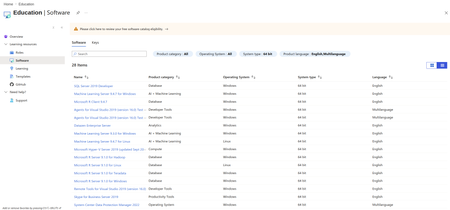
I've search online that my University is Eligible to have ADT4T access, but as you can see I only have 28 items available. I've contacted the admin on my University and with no solution at all, I've also been connected to my university active directory, but still no solution to this problem. Also as you can see in the screenshot there's an orange warning on top. Can anyone help me please?69Views1like0CommentsDeploying to Azure Web App from Azure DevOps Using UAMI
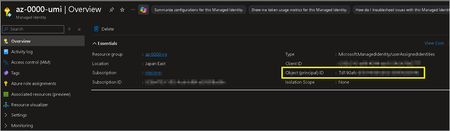
TOC UAMI Configuration App Configuration Azure DevOps Configuration Logs UAMI Configuration Create a User Assigned Managed Identity with no additional configuration. This identity will be mentioned in later steps, especially at Object ID. App Configuration On an existing Azure Web App, enable Diagnostic Settings and configure it to retain certain types of logs, such as Access Audit Logs. These logs will be discussed in the final section of this article. Next, navigate to Access Control (IAM) and assign the previously created User Assigned Managed Identity the Website Contributor role. Azure DevOps Configuration Go to Azure DevOps → Project Settings → Service Connections, and create a new ARM (Azure Resource Manager) connection. While creating the connection: Select the corresponding User Assigned Managed Identity Grant it appropriate permissions at the Resource Group level During this process, you will be prompted to sign in again using your own account. This authentication will later be reflected in the deployment logs discussed below. Assuming the following deployment template is used in the pipeline, you will notice that additional steps appear in the deployment process compared to traditional service principal–based authentication. Logs A few minutes after deployment, related log records will appear. In the AppServiceAuditLogs table, you can observe that the deployment initiator is shown as the Object ID from UAMI, and the Source is listed as Azure (DevOps). This indicates that the User Assigned Managed Identity is authorized under my user context, while the deployment action itself is initiated by Azure DevOps.496Views0likes0Comments
Not able to logon office 365 account or change it
If I want to logon to my Office 365 account I have to enter my emailaddress. Its is an @.onmicrosoft.com account. Entering password is ok, but then I am have to verify my phone number. The last two digits are shown, but clicking on this phone number I am getting an error like: 399287. There is no way of resetting this. I already contacted helpdesk but they cannot solve this problem. I have a bussniess account and I need some help about this. Every time I want to reset or want to make a change the account I am stuck in this error screen (endless loop). Please help me.723Views0likes5Comments
Moving Microsoft 365 authentication to Entra ID Cloud Auth from On-Prem ADFS
Hi Identity Brain Trust, Assuming this would be the right place for my question as I couldn't find any other hub more relevant for this one. We have several applications configured to be authenticated via ADFS. We are looking to move these gradually to Entra ID Cloud auth and decommission ADFS, eventually. I would like to test out how Microsoft 365 can be moved to Cloud Auth from ADFS for a certain group of people. I have tried to use ADFS migration wizard in Entra but 365 app is not showing in the ADFS Application Migration section of Entra ID. I've read this official guide but still couldn't find how this can be manually done when App Migration section won't have the app appearing there. - https://learn.microsoft.com/en-us/entra/identity/enterprise-apps/migrate-ad-fs-application-overview Appreciate any of your inputs on this one! KevIdentity Bindings: A Cleaner Model for Multi‑Cluster Identity in AKS
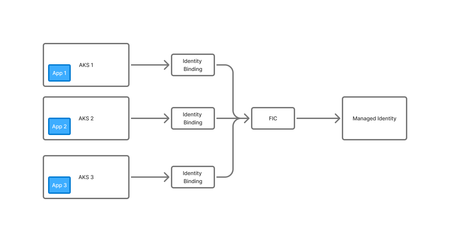
AKS has supported assigning Azure Managed Identities to pods for some time, first through Pod Identity and then later through Workload Identity. Using these tools it is possible to give a pod an Azure Identity that it can use to interact with other Azure services - pull secrets from Key Vault, read a file from Blob Storage or write to a database. Workload Identity is the latest incarnation of this feature and significantly simplified this feature, removing the need to run additional management pods in the cluster and to have the identity injected in every node however it does have some issues of it's own. These issues are particularly evident when operating at scale and wanting to share the same Managed Identity across multiple workloads in the same cluster, or across multiple clusters. Workload Identity relies on creating a Federated Identity Credential (FIC) in Azure that defines the trust relationship between the AKS OIDC issuer and Entra ID. Each combination of Service Account and Namespace that uses the same Managed Identity requires a separate FIC, as do services running in different clusters. As your scale grows, this can start to become a problem. Each managed identity can only support up to 20 FICs. Once you hit that limit, your only option is to create another Managed Identity. This leads to the proliferation of Managed Identities that have the same permissions and do the same job, but only exist to work around this problem. In addition to the 20 FIC limit, there are some other issues with Workload Identity: Creation of the FIC is an Azure Resource creation that often needs to occur alongside Kubernetes resource creation and makes automation of app deployment harder There can be a cyclic dependency issue where the service account in Kubernetes needs to know the Identity details before the pod is created, but the FIC needs the service account and namespace details to create the OIDC binding Additional outbound rules are required to allow the AKS cluster to access the Entra ID (login.microsoftonline.com) endpoints Introducing Identity Bindings Identity Bindings are currently in preview. Previews are provided "as is" and "as available," and they're excluded from the service-level agreements and limited warranty. AKS previews are partially covered by customer support on a best-effort basis. As such, these features aren't meant for production use. Identity Bindings introduce a cleaner, RBAC-driven approach to identity management in AKS. Instead of juggling multiple federated credentials and namespace scoping, you define bindings that link Kubernetes RBAC roles to Azure identities. Pods then request tokens via an AKS-hosted proxy, no external egress required. Key benefits: Centralised Access Control: Authorisation flows through Kubernetes RBAC. Cross-Cluster Identity Reuse: Federated credentials can be shared across namespaces and clusters. Reduced Networking Requirements: No outbound calls for token acquisition; everything stays within the cluster. Simplified IaC: Eliminates the “chicken-and-egg” problem when deploying identities alongside workloads. Identity Bindings act as the link between applications running in AKS and the Azure managed identities they need to use. Instead of every cluster or namespace requiring its own federated identity configuration, each application is authorised through an Identity Binding defined inside the cluster. The binding expresses which workloads (via service accounts and RBAC) are allowed to request tokens for a given identity. When a pod needs a token, AKS validates the request against the binding, and if it matches, the request is routed through the cluster’s identity proxy to the single Federated Identity Credential (FIC) associated with the managed identity. The FIC then exchanges the pod’s OIDC token for an Azure access token. This pattern allows multiple clusters or namespaces to share one managed identity cleanly, while keeping all workload‑level authorisation decisions inside Kubernetes. With Workload Identity, every workload using a managed identity required its own Federated Identity Credential (FIC) tied to a specific namespace and service account, and you had to repeat that for every cluster. Hitting the 20‑FIC limit often forced teams to create duplicate managed identities, and deployments had to be carefully ordered to avoid cyclic dependencies. You also needed outbound access to Entra ID for token requests. Identity Bindings significantly simplifies this. You create a single binding per cluster–identity pair, authorise workloads through RBAC, and let AKS handle token exchange internally with no external egress. There is no FIC sprawl, no need for identity duplication and less complexity in your automation. Using Identity Bindings To get started with using Identity Bindings, you need an AKS cluster and a Managed Identity created. Your Managed Identity should be granted permissions to access the Azure resources you require. The first thing you need to do is ensure the feature is registered. az feature register --namespace Microsoft.ContainerService --name IdentityBindingPreview Next, we need to do is create the identity binding. This is a one-to-one mapping between AKS cluster and Managed Identity, so only needs to be created once for each clusters/identity mapping. You provide the name of the cluster you want the binding mapped to, the full resource ID of the Managed Identity resources, and the name you want to give this binding, and this maps the two resources together. This only needs to be created once per cluster and all further administration is done via Kubernetes. az aks identity-binding create -g "<resource group name>" --cluster-name "<cluster name>" -n "<binding name>" --managed-identity-resource-id "<managed identity Azure Resource ID>" Once this has been created, we need to configure access to it inside Kubernetes. To do this we create a ClusterRole which references the Managed Identity ID. Note that this must be a ClusterRole, it cannot just be a Role. apiVersion: rbac.authorization.k8s.io/v1 kind: ClusterRole metadata: name: identity-binding-user rules: - verbs: ["use-managed-identity"] apiGroups: ["cid.wi.aks.azure.com"] resources: ["<MI_CLIENT_ID>"] Once this ClusterRole is created, we can assign it to any Namespace and Service Account combination we require, using a ClusterRoleBinding. Indentity Bindings are accessible to all Pods that use that Service Account, in that Namespace. apiVersion: rbac.authorization.k8s.io/v1 kind: ClusterRoleBinding metadata: name: <clusterrole name> roleRef: apiGroup: rbac.authorization.k8s.io kind: ClusterRole name: identity-binding-user subjects: - kind: ServiceAccount name: <service account name> namespace: <namespace of service account> Now all that is left to do is configure the Pod to use the Identity Binding, there are a two steps to this. First we need to apply the required labels and annotations to the pod to enable Identity Binding support: metadata: labels: azure.workload.identity/use: "true" annotations: azure.workload.identity/use-identity-binding: "true" Then, we need to ensure that the Pod is running using the Service Account we granted permission to use the Identity Binding. spec: serviceAccountName: <service account name> Below is an example deployment that uses Identity Bindings. apiVersion: apps/v1 kind: Deployment metadata: name: keyvault-demo namespace: identity-binding-demo spec: replicas: 1 selector: matchLabels: app: keyvault-demo template: metadata: labels: app: keyvault-demo azure.workload.identity/use: "true" annotations: azure.workload.identity/use-identity-binding: "true" spec: serviceAccountName: keyvault-demo-sa containers: - name: keyvault-demo ... Once this Pod has been created, the Identity Binding should be attached and you should then be able to use it within your application using your SDK and language of choice. You can see an example of consuming an Identity Binding in GO here . Demo App If you want to deploy a demo workload to test out your bindings, you can use the Pod definition below. This requires you to deploy a Key Vault, and grant your managed identity the "Key Vault Secret User" role on that Key Vault. You will also need to update the service principle and namespace to match your environment. apiVersion: v1 kind: Pod metadata: name: demo namespace: demo labels: azure.workload.identity/use: "true" annotations: azure.workload.identity/use-identity-binding: "true" spec: serviceAccount: demo containers: - name: azure-sdk # source code: https://github.com/Azure/azure-workload-identity/blob/feature/custom-token-endpoint/examples/identitybinding-msal-go/main.go image: ghcr.io/bahe-msft/azure-workload-identity/identitybinding-msal-go:latest-linux-amd64 env: - name: KEYVAULT_URL value: ${KEYVAULT_URL} - name: SECRET_NAME value: ${KEYVAULT_SECRET_NAME} restartPolicy: Never Once deployed, if you look at the logs, you should see that it is able to read the secret from Key Vault. kubectl logs demo -n demo I1107 20:03:42.865180 1 main.go:77] "successfully got secret" secret="Hello!" Conclusion Identity Bindings offer a much cleaner model for managing workload identities in AKS, especially once you start operating at scale. By moving authorisation decisions into Kubernetes and relying on a single Federated Identity Credential per managed identity, they avoid the FIC sprawl, cyclic dependencies, and networking requirements that made Workload Identity harder to operate in larger environments. The end result is a simpler, more predictable way to let pods acquire Azure tokens. If you’re already using Workload Identity today, Identity Bindings are a natural evolution that reduces operational friction while keeping the security properties you expect. Further Reading Identity Bindings Overview Setup Identity Bindings830Views0likes0Comments