auditing
80 TopicsMicrosoft to Retire the Search-UnifiedAuditLog Cmdlet in 2027
MC1505599 covers two big announcements. First, the AuditLogQuery Graph API is GA. Second, Microsoft will retire the heavily used Search-UnifiedAuditLog cmdlet in October 2027. Microsoft hasn’t said why they want to retire Search-UnifiedAuditLog and have tenants convert their PowerShell scripts to use the AuditLogQuery API but reducing engineering cost and complexity are probably at the heart of the matter. In any case, the conversion will cost Microsoft 365 development effort and money between now and October 2027, and that’s a bad thing. https://office365itpros.com/2026/10/19/search-unifiedauditlog-retirement/89Views0likes0CommentsI built a free, open-source M365 security assessment tool - looking for feedback
I work as an IT consultant, and a good chunk of my time is spent assessing Microsoft 365 environments for small and mid-sized businesses. Every engagement started the same way: connect to five different PowerShell modules, run dozens of commands across Entra ID, Exchange Online, Defender, SharePoint, and Teams, manually compare each setting against CIS benchmarks, then spend hours assembling everything into a report the client could actually read. The tools that automate this either cost thousands per year, require standing up Azure infrastructure just to run, or only cover one service area. I wanted something simpler: one command that connects, assesses, and produces a client-ready deliverable. So I built it. What M365 Assess does https://github.com/Daren9m/M365-Assess is a PowerShell-based security assessment tool that runs against a Microsoft 365 tenant and produces a comprehensive set of reports. Here is what you get from a single run: 57 automated security checks aligned to the CIS Microsoft 365 Foundations Benchmark v6.0.1, covering Entra ID, Exchange Online, Defender for Office 365, SharePoint Online, and Teams 12 compliance frameworks mapped simultaneously -- every finding is cross-referenced against NIST 800-53, NIST CSF 2.0, ISO 27001:2022, SOC 2, HIPAA, PCI DSS v4.0.1, CMMC 2.0, CISA SCuBA, and DISA STIG (plus CIS profiles for E3 L1/L2 and E5 L1/L2) 20+ CSV exports covering users, mailboxes, MFA status, admin roles, conditional access policies, mail flow rules, device compliance, and more A self-contained HTML report with an executive summary, severity badges, sortable tables, and a compliance overview dashboard -- no external dependencies, fully base64-encoded, just open it in any browser or email it directly The entire assessment is read-only. It never modifies tenant settings. Only Get-* cmdlets are used. A few things I'm proud of Real-time progress in the console. As the assessment runs, you see each check complete with live status indicators and timing. No staring at a blank terminal wondering if it hung. The HTML report is a single file. Logos, backgrounds, fonts -- everything is embedded. You can email the report as an attachment and it renders perfectly. It supports dark mode (auto-detects system preference), and all tables are sortable by clicking column headers. Compliance framework mapping. This was the feature that took the most work. The compliance overview shows coverage percentages across all 12 frameworks, with drill-down to individual controls. Each finding links back to its CIS control ID and maps to every applicable framework control. Pass/Fail detail tables. Each security check shows the CIS control reference, what was checked, what the expected value is, what the actual value is, and a clear Pass/Fail/Warning status. Findings include remediation descriptions to help prioritize fixes. Quick start If you want to try it out, it takes about 5 minutes to get running: # Install prerequisites (if you don't have them already) Install-Module Microsoft.Graph, ExchangeOnlineManagement -Scope CurrentUser Clone and run git clone https://github.com/Daren9m/M365-Assess.git cd M365-Assess .\Invoke-M365Assessment.ps1 The interactive wizard walks you through selecting assessment sections, entering your tenant ID, and choosing an authentication method (interactive browser login, certificate-based, or pre-existing connections). Results land in a timestamped folder with all CSVs and the HTML report. Requires PowerShell 7.x and runs on Windows (macOS and Linux are experimental -- I would love help testing those platforms). Cloud support M365 Assess works with: Commercial (global) tenants GCC, GCC High, and DoD environments If you work in government cloud, the tool handles the different endpoint URIs automatically. What is next This is actively maintained and I have a roadmap of improvements: More automated checks -- 140 CIS v6.0.1 controls are tracked in the registry, with 57 automated today. Expanding coverage is the top priority. Remediation commands -- PowerShell snippets and portal steps for each finding, so you can fix issues directly from the report. XLSX compliance matrix -- A spreadsheet export for audit teams who need to work in Excel. Standalone report regeneration -- Re-run the report from existing CSV data without re-assessing the tenant. I would love your feedback I have been building this for my own consulting work, but I think it could be useful to the broader community. If you try it, I would genuinely appreciate hearing: What checks should I prioritize next? Which security controls matter most in your environment? What compliance frameworks are most requested by your clients or auditors? How does the report land with non-technical stakeholders? Is the executive summary useful, or does it need work? macOS/Linux users -- does it run? What breaks? I have tested it on macOS, but not extensively. Bug reports, feature requests, and contributions are all welcome on GitHub. Repository: https://github.com/Daren9m/M365-Assess License: MIT (free for commercial and personal use) Runtime: PowerShell 7.x Thanks for reading. Happy to answer any questions in the comments.5.7KViews2likes4Comments
Functor Model Transparency and Auditability
https://github.com/AutonomicAI/functor-resnet/tree/main/slm_template shows a refactoring of the model into separate files. For example, a file f.py is used for the model function, delta.py for model changes that are applied and w.py for the weights function. Every changed to the model is logged to an enterprise streaming event log and versions in a source code repository for these files can be referenced. The model.py code now references these other files as well as containing model functionality. It resembles an orchestrator or a controller in a sense. model.py => { load current functions, route inference, invoke components, invoke state/context representation functions, apply governed updates, emit provenance } With a specialized VCS tied into normal engineering workflow, a model change can become an ordinary governed change record. Then an auditor can traverse the chain in either direction answering: who changed it? what changed? why it changed? which requirement authorized it? what evidence supported it? which tests passed? which model version resulted? That is much richer than conventional model observability. So, there are really two layers: prediction audit - explain why a certain output prediction was given evolution audit - explain the current manifestation of the model Simple integration of the event log with the version control system and the project management tooling such as Microsoft Planner Functor Models may be unusually strong on the second because the change itself is a first-class artifact. The Microsoft Planner/Jira/PR integration matters because we are not asking enterprises to invent a new governance process. We are mapping model evolution into processes they already use for software change control. The specialized version control is a separate topic in as sense as we could see some significant energy savings via reuse in learning/training computation. A VCS with sophisticated semantic searching, fragmentation matching (we computed learning with a expression containing reusable piece for example) could save computation. This is preliminary research and requires further investigation of course. "Treat a learned model change with the same rigor as a production code change". For regulated environments, that is a very compelling proposition.
How much of your Microsoft 365 environment can you actually see at once?
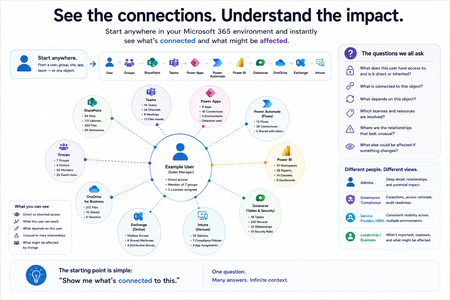
Not how many users you have. Not how many sites, teams, apps or flows you have. How much of it can you actually see connected together? I've been working across Microsoft 365 environments for a while, and I kept running into the same thing. There is no shortage of information. If anything, there is probably too much of it. Users, groups, permissions, SharePoint, Teams, Power Apps, Power Automate, Power BI, Dataverse, OneDrive, Exchange, Intune, licensing, configuration... It's all there. But when you're actually trying to understand how everything fits together, it can be a different story. You open one blade. Find something. Open another. Cross-check it. Go back. Open something else. Before long, you're jumping between different parts of the tenant trying to build the bigger picture in your head. And if you're working with larger environments, that gets difficult pretty quickly. The information isn't necessarily missing. The relationships between the information are what can be difficult to see. That got me thinking about a slightly different question: Instead of "where do I find this information?" "Show me what's connected to this." That's where VisibleState started. Start anywhere. Follow the connections. Imagine starting with a single user. Instead of seeing that user simply as a record with a list of properties, imagine being able to explore the relationships around them: User → Groups → SharePoint → Teams → Power Apps → Power Automate → Power BI → Dataverse → OneDrive → Exchange → Intune Then the questions become different: What does this user have access to? Is that access direct or coming through a group? What resources are connected to them? What depends on something they're associated with? Which licenses are involved? Are there relationships that look unusual? If something changes, what else might be affected? Those questions aren't necessarily about finding another piece of information. They're about putting information that already exists into context. A report can tell you that something exists. A connected view helps you understand what it is connected to. Illustrative example below — not a real customer environment. I'm not suggesting Microsoft 365 doesn't already give us this information Quite the opposite. Microsoft 365 already gives administrators an incredible amount of information and tooling. The thing I've been thinking about is what happens when you want to look across those boundaries. Sometimes I don't want another export. I don't want another list. I don't necessarily want another dashboard. I want to start with something I'm looking at and ask: "What's connected to this?" And then keep following the trail. That's the idea I'm exploring with VisibleState. The interesting part is what happens when you change the viewpoint The same relationships can be useful for completely different reasons. For example: Administrators may want to understand access, permissions and dependencies. Security and governance teams may want to find unusual relationships or exceptions. Compliance teams may need to understand who can access something and why. People managing multiple environments may want a consistent way to understand what's there without rebuilding the picture manually every time. Leadership may not need to see the graph at all. They may simply want to know what's important, what's exposed and what could be affected. It's still the same underlying environment. You're just looking at it from a different angle. And that's where I think things get interesting. Where I'm at with it VisibleState started as something I was building to make my own work easier. I was spending a lot of time investigating environments, tracing access and putting information together for reports. The individual tasks weren't necessarily difficult. It was the jumping between different places and reconstructing the bigger picture that took the time. So I started building something that would let me approach the environment through the relationships instead. It's grown quite a bit from where it started, and I'm continuing to build it. I'm not posting this as a product launch, and I'm not looking for people to sign up. I'm genuinely interested in whether the problem I'm seeing is familiar to other people working with Microsoft 365. So I'm curious... If you could start with any object in your Microsoft 365 environment and immediately see what it's connected to, where would you start? Would it be: Users and access Groups and permissions SharePoint and Teams Power Apps, Power Automate, Power BI and Dataverse Licensing and resources Governance and unusual relationships Something completely different Maybe you've already got a good way of doing this. Maybe you still find yourself jumping between different services and piecing things together manually. Or maybe I'm looking at the problem from the wrong direction. What's the one relationship in your Microsoft 365 environment that you wish you could see instantly?227Views0likes0Comments
FraudThrottle Block SP/OD - 2+ Months Unresolved - Cases #2604230040009484, #2605260040000004
Summary: My organization's SharePoint and OneDrive access has been completely blocked for over 2 months due to a FraudThrottle flag. This is a production-blocking issue that standard SMB support has been unable to resolve despite two open support cases. Details: - SharePoint Online and OneDrive for Business are entirely inaccessible across the tenant - No downloads, uploads, or sync operations work - The block is caused by a FraudThrottle security flag triggered on our M365 E5 Developer trial subscription (purchased directly from Microsoft, not via CSP) - Support has confirmed the FraudThrottle block but has been unable to escalate or resolve it - The subscription status shows Active, but the FraudThrottle flag overrides access Cases: - Case #2604230040009484 (original) - Case #2605260040000004 (follow-up) What I Need: Escalation to the FraudThrottle/Identity protection engineering team to review and clear the false-positive block on our tenant. Standard support tiers have exhausted their ability to resolve this. Has anyone else experienced a similar FraudThrottle block on a dev/trial subscription? Any suggestions on how to expedite escalation to engineering? Thank you.Solved281Views0likes1CommentSearch-UnifiedAuditLog Updated to Make Large Searches Easier to Manage
The advent of the MoreRecordsAvailable property gives the Search-UnifiedAuditLog cmdlet more precise control over fetching large numbers of audit records (up to 50,000 records). It’s a welcome change to report something positive about the Microsoft Purview Audit solution because most of the time we complain about its stability, slowness, and bugs. Things are looking up. https://office365itpros.com/2026/05/18/morerecordsavailable-property114Views0likes0CommentsAn Explosion of Audit Events for Legacy SharePoint Online Authentication
Microsoft phased out the legacy IDCRL authentication mechanism from SharePoint Online on May 1, 2026. Sounds good, until you notice the explosion of IDCRLBlockedDueToSoftEnforcement events created by SharePoint Online in the unified audit log. The events are associated with Microsoft Office apps like Word, which SharePoint appears to think are still using IDCRL. For whatever reason, the audit log is now cluttered with unwanted events generated by the interaction between SharePoint and Office. https://office365itpros.com/2026/05/07/idcrl-audit-events/255Views1like0CommentsExtracting and Auditing Azure DevOps Permissions at Scale with PowerShell
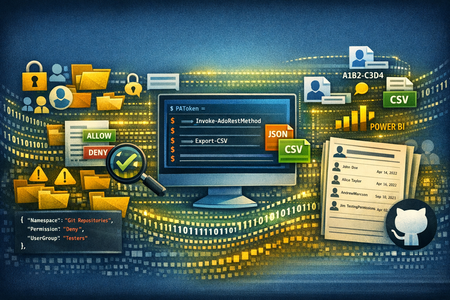
Managing access in Azure DevOps is easy at small scale — and increasingly opaque as organizations grow. This post introduces ADO Permissions Output, an open-source PowerShell toolset that queries Azure DevOps REST APIs across 30+ security namespaces, decodes bitmask permissions, resolves cryptic GUIDs and tokens into readable names, and produces structured JSON/CSV output ready for Power BI. It also surfaces "ghost" members — users who appear in ADO through nested Entra groups but hold no active entitlement — which the standard Graph API alone cannot detect. Whether you're preparing for a compliance review or just want to know who actually has access to what, this tool closes the gap between the ADO portal and a complete audit picture.Primer: How to Use RBAC for Applications to Control App Use of the Mail.Send Permission
The temptation to use the Mail.Send application permission in scripts can lead PowerShell developers into trouble because the permission allows access to all mailboxes, including sensitive executive and financial mailboxes. Fortunately, RBAC for Applications allows tenants to control the access that apps have to mailboxes and other Exchange content. All explained here with an example script to test RBAC of Applications. https://office365itpros.com/2026/02/17/mail-send-rbac-for-applications/984Views3likes4CommentsEnable auditing to identify Change Tracking history table drops using Extended Events (Azure SQL Db)
When Change Tracking is enabled, the system-maintained history table dbo.MSChange_tracking_history is a key place to look for cleanup progress and errors. For example, Microsoft’s troubleshooting guidance for Change Tracking auto-cleanup explicitly references querying the history table to validate whether cleanup is running and whether there are cleanup errors. In real-world environments, teams sometimes observe that dbo.MSChange_tracking_history “disappears” unexpectedly (for example, during cleanup troubleshooting), which then blocks visibility into cleanup progress and error history. When that happens, the most practical way to answer “who/what dropped the history table?” is to audit the DDL using Extended Events (XEvents)—a lightweight monitoring capability designed for troubleshooting. This post shows how to create a database-scoped XEvent session in Azure SQL Database that captures Change Tracking history table drops and related events, using the script you provided. Why Extended Events for this scenario? Extended Events are built to capture internal engine activities with relatively low overhead, and are supported across SQL Server and Azure SQL. In Azure SQL Database, XEvents are commonly used for investigation and troubleshooting when you need evidence of what happened and who initiated it. In this specific case, we want to capture: A history table drop event (Change Tracking-specific) A syscommittab truncate event (Change Tracking-specific) A generic object deletion event filtered to the history table name And we want to enrich each event with context (app, host, user, SQL text, stack, timestamps, etc.). The Extended Events session (copy/paste) Below is your script to create a database-scoped session named CTXEvent that audits the Change Tracking history table drop and related events: CREATE EVENT SESSION [CTXEvent] ON DATABASE ADD EVENT sqlserver.change_tracking_historytable_drop( ACTION(mdmtargetpkg.mdmget_TimeStampUTC,sqlserver.client_app_name,sqlserver.client_hostname,sqlserver.context_info,sqlserver.database_name,sqlserver.external_script_request_id,sqlserver.session_id,sqlserver.sql_text,sqlserver.transaction_id,sqlserver.tsql_stack,sqlserver.username)), ADD EVENT sqlserver.change_tracking_syscommittab_truncate( ACTION(mdmtargetpkg.mdmget_TimeStampUTC,sqlserver.client_app_name,sqlserver.client_hostname,sqlserver.context_info,sqlserver.database_name,sqlserver.external_script_request_id,sqlserver.session_id,sqlserver.sql_text,sqlserver.transaction_id,sqlserver.tsql_stack,sqlserver.username)), ADD EVENT sqlserver.object_deleted( ACTION(mdmtargetpkg.mdmget_TimeStampUTC,sqlserver.client_app_name,sqlserver.client_hostname,sqlserver.context_info,sqlserver.database_name,sqlserver.external_script_request_id,sqlserver.session_id,sqlserver.sql_text,sqlserver.transaction_id,sqlserver.tsql_stack,sqlserver.username) WHERE ([object_name]=N'MSchange_tracking_history')) WITH (MAX_MEMORY=16384 KB,EVENT_RETENTION_MODE=NO_EVENT_LOSS,MAX_DISPATCH_LATENCY=10 SECONDS,MAX_EVENT_SIZE=0 KB,MEMORY_PARTITION_MODE=NONE,TRACK_CAUSALITY=ON,STARTUP_STATE=OFF) GO Why these three events? sqlserver.change_tracking_historytable_drop: directly captures the Change Tracking “history table dropped” operation (purpose-built for this investigation). sqlserver.change_tracking_syscommittab_truncate: captures maintenance actions on syscommittab, which is central to Change Tracking’s internal state. sqlserver.object_deleted with a predicate on MSchange_tracking_history: provides a generic “safety net” if the drop manifests via generic DDL deletion paths. Why these actions? The actions you selected are the practical “who/what/where” context you usually need to attribute the operation: sqlserver.client_app_name / sqlserver.client_hostname: which app + which machine initiated the DDL sqlserver.username: identity executing the statement sqlserver.sql_text + sqlserver.tsql_stack: the statement and call stack (helpful if the drop occurs via a job, framework, or tooling) sqlserver.session_id / sqlserver.transaction_id: correlate activity across events TRACK_CAUSALITY=ON: enables correlation across related events within the session context. Starting and stopping the session Your session is created with STARTUP_STATE=OFF, meaning it does not start automatically. That’s typically a good practice for targeted investigations: enable it only during the window where you expect the issue. For Azure SQL Database, you can manage the session using SSMS or equivalent T-SQL workflows. Microsoft’s Extended Events QuickStart walks through creating sessions and working with session data, including the general workflow concepts. Tip (practical): Turn it on shortly before your expected “drop window,” reproduce/observe, then turn it off after you capture the event to minimize overhead. Where does the data go? Your script defines the events + actions + session options, but it does not define a target (for example, event_file). That’s OK for short, in-the-moment investigations, but for durable evidence and easy sharing, many teams prefer writing to an event file target. Option: Persist captured events to Azure Storage (recommended for multi-hour investigations) Microsoft provides a dedicated walkthrough for Azure SQL Database to create an event session with an event_file target stored in Azure Storage, including: creating a storage account + container granting access (RBAC or SAS) creating a database credential creating/starting the session viewing the event data If you choose this route, you can then read event files using sys.fn_xe_file_target_read_file (supported in Azure SQL Database, commonly used to consume XEL files from blob storage). How to interpret the results (what to look for) When the table drop happens, the captured event payload should allow you to confidently answer: Who initiated the operation? Look at sqlserver.username plus client_app_name and client_hostname. What executed the drop? Look at sql_text and tsql_stack. Was this tied to cleanup activity or another workflow? If you see change_tracking_syscommittab_truncate around the same time (and correlated via session/transaction/casuality identifiers), that can indicate the drop happened in proximity to Change Tracking maintenance behavior. Was the drop recurring or one-off? If you capture repeated events at a steady cadence, it points to an automated process (job, deployment pipeline, scheduled task, framework) rather than an ad-hoc human action. Why this matters: the history table is part of Change Tracking troubleshooting Microsoft’s Change Tracking cleanup troubleshooting guidance explicitly uses dbo.MSChange_tracking_history as the place to validate whether cleanup is running and whether errors are being logged. So if the history table is being dropped, you effectively lose an important “black box recorder” that you rely on to understand cleanup behavior—exactly why auditing the drop is so valuable. Operational tips (minimize noise, maximize signal) These are practical recommendations commonly used in incident investigations (treat them as operational guidance you can adapt to your environment): Run the session for a limited time window (enough to catch the drop). Keep actions focused (your list is already purpose-built for attribution). Prefer file target if you need durable evidence (especially when coordinating across teams). Document what “good” looks like before you enable the session (e.g., confirm whether the history table exists and whether it’s being written to), using the troubleshooting query from Microsoft docs. Common troubleshooting steps (when the audit session “doesn’t capture anything”) When you set up a targeted Extended Events session like CTXEvent, there are usually three places where things can go wrong: (1) Change Tracking state, (2) XEvent session scope/permissions, or (3) the target (storage/credential). The checklist below is written to help you isolate which layer is failing—quickly, and with minimal guesswork. 1) First, validate the Change Tracking baseline (so you’re not “tracing a ghost”) Does the history table exist—and is it expected to exist? Microsoft’s Change Tracking guidance uses dbo.MSChange_tracking_history as the first place to look for cleanup status and errors. If the table doesn’t exist, that can be a signal that auto-cleanup has never run (or hasn’t run since CT was re-enabled). Check whether auto-cleanup is enabled and whether it’s been running recently. The Change Tracking troubleshooting doc recommends checking sys.change_tracking_databases (to validate auto-cleanup is enabled) and querying the history table for recent entries (to validate cleanup is actually running). If dbo.MSChange_tracking_history is missing, confirm whether that’s due to CT lifecycle. A common “gotcha” is assuming the history table is created the moment CT is enabled. In practice, the table can be missing if CT was disabled and then re-enabled, or if only manual cleanup was used—because the history table is tied to auto-cleanup behavior. Why this matters: If the history table never existed (or is missing for expected reasons), your “history table drop” symptom might actually be a different behavior than a true DDL DROP—and you’ll want to confirm the CT lifecycle first before you rely on drop-auditing as the primary signal. 2) Confirm the Extended Events session is created in the right place (Azure SQL DB specifics) Make sure the session is database-scoped (Azure SQL Database requirement). In Azure SQL Database, Extended Events sessions are always database-scoped, and the event_file target writes to Azure Storage blobs (not local disk). If you accidentally create or manage the session as if it were server-scoped, you’ll hit confusing errors or see “no data.” Confirm you created the session in a user database (not master). Azure SQL Database doesn’t support creating database-scoped sessions from master. If you try, you can run into failures that look like target/session problems but are actually scope issues. Verify permissions: least privilege that still works. If the session creation/alter/start fails silently (or you can’t start it), confirm the principal has the right database permission. A practical minimum that works for managing DB-scoped sessions is ALTER ANY DATABASE EVENT SESSION (instead of granting broad CONTROL/db_owner). 3) If you’re using event_file: storage + credential is the most common failure point If the session starts but no .xel ever shows up, focus here first—because event_file in Azure SQL DB depends on a correct Storage setup. Validate the “happy path” prerequisites (in order): Storage account exists and a container exists. The Database Engine has access to that container either via RBAC (managed identity) or via a SAS token. A credential is created in the same database where the session is created. Microsoft’s event_file walkthrough is explicit about these steps, and missing any one of them can cause “target initialization” or “no output” symptoms. Quick diagnostic: temporarily switch to an in-memory target to prove events are firing. The Azure SQL Extended Events guidance notes you can use a ring_buffer target as a quick way to validate that the session is collecting events (without involving storage). If ring_buffer shows events but event_file does not, the issue is almost certainly storage/credential access. Common “it looks correct but still fails” causes (practical): You created the credential in the wrong database (or the session is in a different DB than the credential). The container permissions don’t actually include write access for the engine identity/token. The session was created correctly but never started (especially if STARTUP_STATE = OFF). 4) If you do capture events, but can’t attribute “who did it” Once the session is logging events, attribution usually comes down to having the right actions attached. The docs emphasize that Extended Events are designed to collect “as much or as little as necessary,” and in investigations you typically want the “who/what/where” context: app name, hostname, username, session_id, sql_text, etc. Practical tip: Start with your curated set of actions (like client_app_name, client_hostname, username, session_id, and sql_text), and only add more fields if you still can’t triangulate the origin. This keeps overhead and noise down while staying evidence driven. 5) If the table drop is periodic (hourly / scheduled), treat it like an automation clue In real customer scenarios, the symptom can be “history table disappears repeatedly,” which makes it especially important to correlate drops with client_app_name / hostname / username (and optionally transaction/session details) to determine whether this is a scheduled job, maintenance task, or application behavior. This is exactly the type of “pattern identification” where XEvents tends to outperform ad-hoc guessing. Quick “decision tree” summary History table missing? Start with CT lifecycle + auto-cleanup checks. Session exists but captures nothing? Confirm DB scope + permissions. Captures to ring_buffer but not to event_file? Storage/credential access problem. Captures events but no “who”? Add/verify the right actions (client_app_name/hostname/username/sql_text). References Extended Events QuickStart and overview (applies to Azure SQL Database). Change Tracking cleanup troubleshooting and history table usage (dbo.MSChange_tracking_history). Event File target for Azure SQL Database stored in Azure Storage + steps (RBAC/SAS + credential). Reading XEL output from blob using sys.fn_xe_file_target_read_file.349Views0likes0Comments